Delete Programs Running in Background the Right Way
Deleting programs running in background is one of the fastest ways to speed up your computer and reclaim lost performance. Many apps keep running even after you close them, eating up your system resources and slowing everything down. This guide walks you through the right way to find, stop, and remove these hidden programs on both Windows and Mac. You will learn simple steps, expert tips, and common mistakes to avoid so your PC stays fast and clean.
Your computer is slow. The fan keeps running. The battery dies too fast. You might not realize it, but programs running in background are likely the cause. These hidden apps eat up your system resources every single day, even when you are not using them.
Many people do not know how to stop this. They think closing a window means the app is gone. But that is not true. Apps keep running in the background, using your CPU, eating your RAM, and draining your battery. The good news? You can fix this. This guide shows you exactly how to delete programs running in background the right way. No tech skills needed. Just clear, simple steps that work.
We will cover everything. You will learn how to find hidden apps, stop them safely, and remove them for good. We also share tips for both Windows and Mac users. By the end, your computer will feel faster and cleaner than it has in months.
Key Takeaways
- Background programs drain speed: They consume RAM, CPU, and battery without you knowing.
- Task Manager and Activity Monitor help: These built-in tools make it easy to spot resource-heavy apps.
- Disabling startup apps stops them early: Prevent programs from launching when you turn on your PC.
- Uninstalling is different from closing: Proper removal ensures programs do not come back.
- Both Windows and Mac need attention: Each OS has its own tools and methods for managing background apps.
- Regular cleanup keeps your PC fast: Making this a habit prevents long-term slowdowns.
📑 Table of Contents
- What Are Background Programs and Why Do They Matter?
- How to Find Programs Running in Background on Windows
- How to Find Programs Running in Background on Mac
- The Right Way to Delete Programs Running in Background
- Quick Tips to Stop Background Programs Fast
- Common Mistakes People Make When Deleting Background Programs
- Comparison: Windows vs Mac for Managing Background Programs
- Why Regular Cleanup Matters for Long-Term Performance
- Conclusion
What Are Background Programs and Why Do They Matter?
Background programs are apps that keep running even when you are not actively using them. They hide in the system tray or the taskbar. Some show up as tiny icons near the clock. Others run completely hidden.
These apps do useful things sometimes. They check for updates. They sync files to the cloud. They send you notifications. But many of them do not need to run all the time. And every one of them uses a piece of your computer’s power.
How Background Programs Slow Down Your PC
Every program running in background takes something from your computer. Here is what it uses:
- RAM (Memory): Each app needs memory to stay open. Too many apps mean less memory for the things you actually care about.
- CPU Power: Background apps use your processor. This makes everything else slower.
- Battery Life: On laptops, background apps drain the battery fast. You might notice your charge drops even when you are not working.
- Disk Space: Some apps create temporary files while running. Over time, this adds up.
- Internet Bandwidth: Apps like cloud sync tools use your internet in the background.
When too many apps run at once, your computer struggles. It gets hot. It fans spin loudly. It takes forever to open new windows. This is called a system slowdown, and it happens more often than you think.
Common Types of Background Programs
Not all background apps are the same. Here are the most common types you will find:
- Startup Apps: These launch when you turn on your PC. They run all day long.
- System Tray Apps: These sit near the clock and stay active.
- Background Services: These run deep in the system and are not always visible.
- Cloud Sync Apps: Apps like OneDrive or Dropbox keep running to sync your files.
- Updater Apps: These check for updates for other software.
- Antivirus Tools: Some run constant scans in the background.
Knowing what type of app you are dealing with helps you decide how to handle it. Some apps are useful and should stay. Others are just resource hogs that waste your computer’s power.
How to Find Programs Running in Background on Windows
Windows makes it pretty easy to see what is running behind the scenes. You just need to know where to look. Let us walk through it step by step.
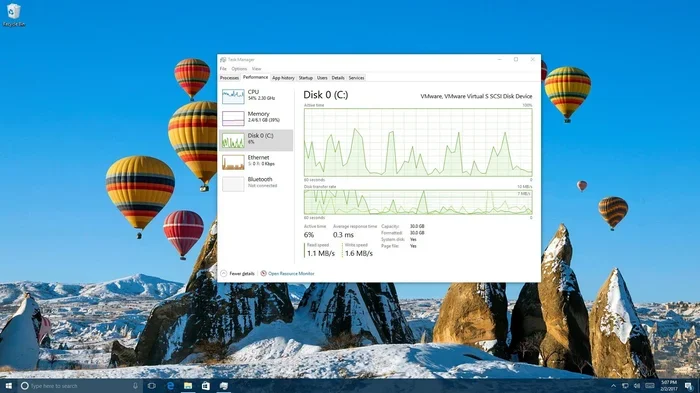
Using Task Manager to Spot Background Apps
The Task Manager is your best friend here. It shows you every app and process running on your PC. Follow these steps:
- Press Ctrl + Shift + Esc on your keyboard.
- The Task Manager window opens. Click on the Processes tab.
- You will see a list of all running apps and background processes.
- Click the “CPU” column to sort by usage. The highest numbers mean the biggest resource hogs.
- Look for apps you do not recognize or do not need running.
Task Manager gives you a lot of useful info. You can see how much memory each app uses. You can check its disk usage. You can even see how much network data it is using. This helps you decide which apps to stop or delete.
Checking Startup Programs in Task Manager
Some apps start automatically when you boot your PC. To find and manage them:
- Open Task Manager.
- Click on the Startup tab.
- You will see a list of all apps that launch at startup.
- Right-click any app you do not need and select “Disable.”
Disabling startup apps is one of the best ways to speed up boot time. Your PC will start faster, and fewer apps will run in the background from the moment you turn it on.
Using Settings to Manage Background Apps
Windows 10 and 11 also let you control background apps through Settings:
- Go to Settings > Privacy > Background apps (Windows 10).
- In Windows 11, go to Settings > Apps > Installed apps and click on an app to see its advanced options.
- Turn off background permissions for apps you do not need running all the time.
This is a simple but powerful way to stop background apps from using your resources. You can keep the apps installed but stop them from running in the background.
How to Find Programs Running in Background on Mac
Mac users have their own set of tools. Apple makes it easy to see what is running and take control.
Using Activity Monitor to Find Resource Hogs
Activity Monitor is the Mac version of Task Manager. Here is how to use it:
- Open Finder and go to Applications > Utilities.
- Double-click on Activity Monitor.
- Click the “CPU” tab to see which apps use the most processing power.
- Click the “Memory” tab to find apps using the most RAM.
- Select any app and click the “X” button in the top toolbar to quit it.
Activity Monitor shows you real-time data. You can watch how your CPU usage changes as you work. You can spot memory-heavy apps that slow everything down. It is a great tool for keeping your Mac running smoothly.
Managing Login Items on Mac
Login items are the Mac version of startup programs. To manage them:
- Go to System Settings > General > Login Items (macOS Ventura or later).
- You will see a list of apps that launch when you start your Mac.
- Toggle off any apps you do not need at startup.
Removing login items is one of the easiest ways to make your Mac faster. Fewer apps at startup means more speed and longer battery life.
Checking System Tray Apps on Mac
Mac apps that run in the background often show up in the menu bar at the top of the screen. You can manage these through:
- Go to System Settings > Desktop & Dock.
- Scroll down to find “Menu Bar” settings.
- Toggle off apps you do not want showing in the menu bar.
This keeps your menu bar clean and stops unnecessary apps from using your resources.
The Right Way to Delete Programs Running in Background
Stopping an app is different from deleting it. Stopping just pauses it. Deleting removes it completely. Let us look at the right way to do both.
Step 1: Close the Program Properly
Before you delete anything, make sure the app is fully closed. Do not just click the X on the window. Many apps keep running in the background even after you close their window.
Here is how to fully close apps:
- On Windows: Right-click the app in the system tray and select “Exit” or “Quit.” Then open Task Manager, find the app, right-click it, and choose “End Task.”
- On Mac: Click the app in the menu bar and look for “Quit.” Then open Activity Monitor, find the app, select it, and click the “X” button to force quit.
Taking these extra steps ensures the app is really gone before you delete it. This prevents errors and keeps your system clean.
Step 2: Uninstall the Program Completely
Now it is time to remove the program for good. Here is how:
On Windows:
- Go to Settings > Apps > Installed apps.
- Find the app you want to remove.
- Click the three dots next to it and select “Uninstall.”
- Follow the prompts to complete the removal.
On Mac:
- Open Finder and go to the Applications folder.
- Find the app you want to delete.
- Drag it to the Trash, or right-click and select “Move to Trash.”
- Empty the Trash to complete the deletion.
For stubborn apps that do not uninstall cleanly, you can use a trusted uninstaller tool. These tools remove leftover files and registry entries that regular uninstallation misses.
Step 3: Remove Leftover Files
Many programs leave behind files even after you uninstall them. These leftovers take up space and can cause issues. Here is how to clean them up:
- On Windows: Check C:\Program Files and C:\Users\YourName\AppData for leftover folders.
- On Mac: Check ~/Library/Application Support and ~/Library/Preferences for leftover files.
Be careful here. Only delete files you are sure belong to the program you removed. Deleting the wrong files can cause problems with other apps.
Step 4: Use a Cleanup Tool (Optional but Helpful)
If you want a simpler way to remove everything, consider using a cleanup tool. These tools scan your system for leftover files and remove them automatically. Some popular options include:
- Revo Uninstaller (Windows)
- AppCleaner (Mac)
- Geek Uninstaller (Windows)
These tools are free and very effective. They save you time and make sure nothing is left behind. Using one is a great way to delete programs running in background completely and safely.
Quick Tips to Stop Background Programs Fast
Sometimes you need quick fixes. Here are some fast tips that work right away:
- Tip 1: Restart your computer regularly. This clears out most background processes automatically.
- Tip 2: Use the system tray to quickly close apps. Right-click and look for “Exit” or “Quit.”
- Tip 3: Turn off notifications for apps you do not need. This stops them from waking up in the background.
- Tip 4: Check your taskbar for hidden apps. Some apps minimize to the tray instead of closing.
- Tip 5: Use built-in tools like Windows Task Manager or Mac Activity Monitor weekly to review what is running.
- Tip 6: Uninstall apps you have not used in over a month. They are just taking up space and resources.
Expert Insight
Tech experts recommend reviewing your background apps once a month. This keeps your system running at its best. Small habits like this add up to big performance gains over time.
Common Mistakes People Make When Deleting Background Programs
Even with good intentions, people make mistakes when trying to clean up their PC. Here are the most common ones:
Mistake 1: Force Quitting Everything
Not all background apps are bad. Some are essential for your system to work properly. For example, your antivirus or audio driver might run in the background for a reason. Force quitting these can cause problems. Always check what an app does before you stop it.
Mistake 2: Skipping the Uninstall Step
Stopping an app is not the same as deleting it. If you only close the app, it may start running again after a reboot. Always uninstall the program to remove it completely.
Mistake 3: Ignoring Startup Apps
Many people delete apps but forget to disable them from starting up. If you do not remove them from the startup list, they may still try to launch. Always check the startup settings after uninstalling.
Mistake 4: Using Unreliable Cleanup Tools
Not all cleanup tools are safe. Some free tools come bundled with adware or malware. Stick to well-known tools from trusted developers. Read reviews before installing anything new.
Mistake 5: Not Restarting After Cleanup
After you delete background programs, restart your computer. This ensures all changes take effect. It also clears any leftover processes from memory.
Comparison: Windows vs Mac for Managing Background Programs
Both Windows and Mac offer tools to manage background apps. Here is a quick comparison:
| Feature | Windows | Mac |
|---|---|---|
| Task/Process Manager | Task Manager | Activity Monitor |
| Startup Management | Task Manager Startup Tab | System Settings Login Items |
| Background App Control | Settings Privacy Background Apps | Menu Bar Settings |
| Uninstall Method | Settings Apps Installed Apps | Drag to Trash |
| Cleanup Tools | Revo Uninstaller, Geek Uninstaller | AppCleaner |
| Ease of Use | Moderate | Easy |
| Built-in Protection | Good | Very Good |
Both systems give you the tools you need. Mac makes it a bit easier for beginners. Windows offers more detailed control for advanced users. Either way, you can delete programs running in background effectively on both platforms.
Why Regular Cleanup Matters for Long-Term Performance
Deleting background programs is not a one-time fix. It is a habit. The more regularly you clean up your system, the better it performs over time.
Think of it like cleaning your room. If you tidy up every week, it stays neat. If you wait months, it becomes a huge mess. Your computer works the same way.
Regular cleanup offers many benefits:
- Faster boot times: Your PC starts up quickly.
- Better battery life: Your laptop lasts longer on a single charge.
- More free memory: Apps run smoother and faster.
- Less overheating: Fewer background processes mean less strain on your hardware.
- More disk space: Removing unused apps frees up valuable storage.
Set a reminder to review your background apps once a month. It takes just a few minutes. The payoff is huge.
Key Takeaways
- Background programs eat your resources: They use RAM, CPU, and battery without your knowledge.
- Task Manager and Activity Monitor are essential: Use them to find what is running.
- Disable startup apps to prevent them from launching: This is one of the most effective steps.
- Uninstall completely, not just close: Proper removal stops programs from coming back.
- Clean up leftover files after uninstalling: This frees disk space and prevents conflicts.
- Make cleanup a monthly habit: Regular maintenance keeps your PC fast and healthy.
Conclusion
Deleting programs running in background is one of the simplest and most effective ways to improve your computer’s performance. You do not need to be a tech expert. You just need the right tools and a little bit of knowledge.
We covered how to find hidden background apps on both Windows and Mac. We walked through the steps to stop and delete them properly. We shared quick tips, common mistakes, and expert insights. Now you have everything you need to take control of your system.
Start today. Open your Task Manager or Activity Monitor. Look at what is running. Find the apps you do not need. Delete them the right way. You will notice the difference immediately. Your computer will be faster, cooler, and quieter. And your battery will last longer.
Do not let background programs slow you down any longer. Take action now and give your computer the fresh start it deserves. Your future self will thank you every time you turn on your PC.
Frequently Asked Questions
What happens if I delete a program that is running in the background?
If the program is not essential to your system, deleting it will free up resources and improve performance. However, make sure you uninstall it properly first. Simply deleting files can leave behind registry entries that cause errors. Always use the proper uninstall method.
How do I know which background programs are safe to delete?
Use Task Manager on Windows or Activity Monitor on Mac to check what is running. Research any programs you do not recognize. Apps from well-known companies are usually safe to remove. Be cautious with system-level processes and drivers.
Can deleting background programs improve my laptop battery life?
Yes, absolutely. Background programs use CPU power and drain your battery. Removing unnecessary apps reduces the load on your processor. This means your laptop can run longer on a single charge, especially during everyday tasks.
Is it safe to use third-party tools to delete background programs?
It can be safe if you choose trusted tools. Stick to well-known uninstallers like Revo Uninstaller or AppCleaner. Avoid tools from unknown sources, as they may contain malware. Always read reviews and download from the official website.
How often should I clean up background programs?
Once a month is a good routine. This keeps your system running smoothly without much effort. If you notice your PC slowing down, check your background apps right away. Early action prevents bigger performance problems later.
What is the difference between stopping and deleting a background program?
Stopping a program temporarily pauses it. It will likely run again after a reboot. Deleting a program removes it from your computer entirely. For a complete cleanup, you should both stop and delete the program using the proper uninstall process.