Can Arduino Connect To Phone With These Simple Tips
Yes, Arduino can connect to phone in multiple ways, including Bluetooth, USB, and WiFi. This guide covers every method you need to know, from basic setups to advanced Arduino phone projects. Whether you are a beginner or a hobbyist, these simple tips will help you establish a reliable Arduino phone connection quickly and easily.
Have you ever wondered if your Arduino board can talk to your phone? The answer is a resounding yes. Can Arduino connect to phone is one of the most searched questions in the maker community right now. And the good news is that it is simpler than you think.
Connecting Arduino to your phone opens up a world of possibilities. You can control LEDs, read sensor data, build home automation systems, and even create your own mobile-controlled robots. The Arduino phone connection can happen through Bluetooth, USB cables, or WiFi modules. Each method has its own strengths and use cases.
In this article, we will walk you through every way Arduino can connect to phone devices. We will cover step-by-step setups, common mistakes to avoid, and practical project ideas you can try today. Whether you use an Android phone or an iPhone, there is a method that will work for you. Let us dive in.
Key Takeaways
- Bluetooth is the most popular method for connecting Arduino to a phone wirelessly using modules like HC-05 and HC-06.
- USB OTG cables offer a direct and stable connection between Arduino and Android phones for data transfer and power.
- WiFi modules like ESP8266 and ESP32 let Arduino connect to phones over the internet for remote control and monitoring.
- Arduino IDE and serial communication play a key role in setting up and debugging phone connections.
- Third-party mobile apps like ArduinoDroid and Bluetooth Terminal make it easy to send and receive data from your phone.
- Common mistakes include wrong baud rates, incompatible wiring, and missing drivers, all of which are easy to fix.
- Project ideas range from simple LED control to advanced home automation systems using your phone as a remote.
📑 Table of Contents
- How Can Arduino Connect To Phone Devices
- Methods To Connect Arduino To Your Phone
- Bluetooth Connection Guide For Arduino Phone Projects
- USB Connection Options For Arduino And Phone
- WiFi Connection Methods For Remote Arduino Phone Control
- Building Your First Arduino Phone Connection Project
- Common Problems And How To Fix Them
- Expert Insights For Better Arduino Phone Projects
- Key Takeaways
- Frequently Asked Questions
- Conclusion
How Can Arduino Connect To Phone Devices
Understanding how Arduino connects to phone devices starts with knowing the basics. Arduino boards communicate using serial protocols like UART, SPI, and I2C. Your phone, on the other hand, uses Bluetooth, USB, or WiFi to exchange data. The bridge between these two worlds is what makes the magic happen.
The most common way to connect Arduino to phone is through a Bluetooth module. Modules like HC-05 and HC-06 act as wireless translators. They take serial data from the Arduino and send it to your phone over a Bluetooth signal. This method is cheap, easy to set up, and works great for short-range projects.
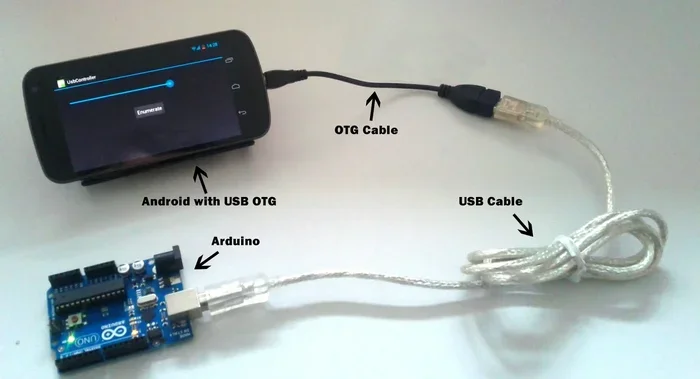
Another popular approach is using a USB On-The-Go (OTG) cable. This lets you plug your Arduino directly into an Android phone. The phone recognizes the Arduino as a serial device, and you can send and receive data instantly. This method is very stable and does not need any extra modules.
For projects that need longer range, WiFi modules are the best choice. Boards like the ESP8266 and ESP32 have built-in WiFi capabilities. They can connect to your home network and communicate with your phone through a web server or a mobile app. This is perfect for remote Arduino phone projects where you want to control things from anywhere.
Why Connecting Arduino to Phone Matters
Connecting your Arduino to a phone gives you a portable control center. You do not need a laptop or computer nearby. Your phone becomes the dashboard for all your projects. You can monitor sensor readings, control motors, and trigger actions with just a tap on your screen.
This capability is especially useful for Arduino IoT projects. Internet of Things means connecting everyday devices to the internet. With Arduino and your phone, you can build smart home systems, weather stations, and security cameras. The phone acts as both the controller and the display.
Many beginners start with simple LED control projects. From there, they move on to reading temperature sensors, controlling servos, and building complete automation systems. The Arduino phone connection is the foundation of all these exciting projects.
Methods To Connect Arduino To Your Phone
There are three main methods to establish an Arduino phone connection. Each one has its own advantages depending on what you want to achieve. Let us look at them in detail.
Method 1: Bluetooth Connection
Bluetooth is the go-to method for most Arduino phone projects. It is wireless, affordable, and easy to implement. The HC-05 and HC-06 Bluetooth modules are the most popular choices. They cost less than five dollars and work reliably with Arduino boards like the Nano and Mega.
To set up a Bluetooth connection, you pair the module with your phone first. Then you use a serial communication protocol to exchange data. The Arduino sends data through its TX pin to the Bluetooth module, which then transmits it wirelessly to your phone.
You will need a terminal app on your phone to read the data. Apps like Bluetooth Terminal and Serial Bluetooth Terminal work perfectly for this. They display incoming serial data in real time and let you send commands back to the Arduino.
Method 2: USB OTG Connection
USB OTG stands for On-The-Go. It allows devices like phones to act as a host for other USB devices. With a simple OTG adapter cable, you can plug your Arduino directly into an Android phone.
This method is very stable because it uses a physical cable connection. There is no wireless interference, and the data transfer rate is fast. You can power the Arduino from the phone or use an external power source. The USB serial connection lets your phone communicate with the Arduino board directly.
One thing to keep in mind is that iPhone users have limited options with USB OTG. Apple restricts USB accessory connections more tightly than Android. For iPhone users, Bluetooth or WiFi methods work better for Arduino phone connection projects.
Method 3: WiFi Connection
WiFi offers the longest range among all three methods. With a WiFi module like the ESP8266 or ESP32, your Arduino can connect to your home router. From there, it can communicate with your phone over the internet or your local network.
The ESP32 is a powerful choice because it has both WiFi and Bluetooth built in. You can switch between the two depending on your project needs. The ESP8266 is more affordable but only supports WiFi. Both boards can be programmed using the Arduino IDE.
For WiFi projects, you typically set up a web server on the Arduino. Your phone then opens a browser and visits the Arduino IP address. This lets you send commands and receive data through a simple web page. It is a clean and effective way to build remote Arduino phone projects.
Bluetooth Connection Guide For Arduino Phone Projects
Bluetooth is the most beginner-friendly way to connect Arduino to phone. Let us walk through the setup process step by step.
What You Will Need
- An Arduino board (Nano or Uno works great)
- HC-05 or HC-06 Bluetooth module
- Jumper wires
- A breadboard
- An Android or iOS phone with Bluetooth enabled
- A Bluetooth terminal app installed on your phone
Wiring The Bluetooth Module
Start by connecting the Bluetooth module to your Arduino. The wiring is straightforward and takes only a few minutes.
- Connect the VCC pin of the Bluetooth module to the 5V pin on the Arduino.
- Connect the GND pin of the module to the GND pin on the Arduino.
- Connect the TXD pin of the module to the RX pin (pin 0) on the Arduino.
- Connect the RXD pin of the module to the TX pin (pin 1) on the Arduino.
Important tip: Do not connect the Bluetooth module while uploading code to the Arduino. The TX and RX pins are used for programming, and the Bluetooth module will interfere. Disconnect it before uploading, then reconnect it afterward.
Pairing With Your Phone
Power up your Arduino and turn on Bluetooth on your phone. Search for available devices. You should see the HC-05 or HC-06 module appear in the list. The default password is usually 1234 or 0000. Pair the device, and you are ready to go.
Open your Bluetooth terminal app on the phone. Connect to the paired device. You should now be able to send commands from your phone to the Arduino and receive data back. This is the foundation of many Arduino phone connection projects.
Quick Tips For Bluetooth Projects
- Always check the baud rate. The default for HC-05 and HC-06 is usually 9600.
- Keep the Bluetooth module close to your phone for a strong signal.
- Use the Arduino Serial Monitor to test the connection before using a phone app.
- Label your wires clearly to avoid confusion during setup.
- Use a voltage divider on the RX pin if your Arduino runs at 5V and the Bluetooth module is 3.3V.
USB Connection Options For Arduino And Phone
USB connections offer a direct and reliable way to link Arduino with your phone. This method is especially popular for Android users because Android supports USB host mode natively.
What Is USB OTG
USB OTG (On-The-Go) is a standard that allows USB devices to act as either a host or a peripheral. In simple terms, it lets your phone read USB devices like flash drives and Arduino boards. You need a micro USB or USB-C OTG adapter, depending on your phone model.
Connect one end of the OTG adapter to your phone and the other end to the Arduino USB cable. Plug the Arduino into the adapter. Your phone should recognize the device and install the necessary drivers automatically.
Using Apps For USB Serial Communication
To communicate with Arduino through USB, you need a serial terminal app. The ArduinoDroid app is a popular choice for Android users. It supports USB serial communication and lets you read data from and send data to the Arduino board.
Another great app is USB Serial Monitor. It provides a clean interface for viewing serial data. You can adjust the baud rate, send text commands, and monitor incoming data in real time. These apps make it very easy to set up Arduino phone connection through USB.
Advantages And Limitations Of USB Connection
The USB OTG method has several advantages. It provides a stable connection with no wireless interference. It can power the Arduino directly from the phone in some cases. And the data transfer speed is faster than Bluetooth.
However, there are limitations too. You need a physical cable, which limits your range. Not all phones support USB OTG, so check your phone specifications first. iPhone users will find USB serial communication very limited due to Apple restrictions.
Also, some Arduino boards draw more power than a phone USB port can supply. If your project uses motors or multiple sensors, use an external power supply instead of relying on the phone for power.
WiFi Connection Methods For Remote Arduino Phone Control
WiFi opens up exciting possibilities for remote Arduino phone projects. With WiFi, you are not limited by Bluetooth range. You can control your Arduino from anywhere within your network or even over the internet.
Using ESP8266 And ESP32 Modules
The ESP8266 and ESP32 are WiFi-enabled microcontrollers that work with the Arduino IDE. They are perfect for projects where you want to connect Arduino to phone over WiFi. The ESP32 is more powerful and includes both WiFi and Bluetooth, making it a versatile choice.
To set up a WiFi connection, you first connect the ESP module to your router. Then you create a simple web server on the module. Your phone can access this server through a web browser and send commands to control GPIO pins, read sensor data, and more.
Setting Up A Simple Web Server
Here is a quick overview of how to set up a web server on your ESP module:
- Connect the ESP module to your Arduino or use it standalone.
- Write a simple sketch that connects to your WiFi network.
- Set up a web server that listens for incoming HTTP requests.
- Create HTML buttons in your sketch that control Arduino pins.
- Open the server IP address in your phone browser to control the Arduino.
This approach is very flexible. You can build web dashboards, control relays, read temperature sensors, and create custom interfaces. The Arduino phone connection through WiFi feels seamless and professional.
Using Blynk Or MIT App Inventor For Mobile Apps
If you want a dedicated mobile app for your project, platforms like Blynk and MIT App Inventor are excellent choices. Blynk provides a drag-and-drop app builder that works with Arduino WiFi modules. You can create custom interfaces with buttons, sliders, gauges, and charts.
MIT App Inventor lets you build your own Android app from scratch. It uses a visual block-based programming interface. You can design an app that communicates with your Arduino over WiFi or Bluetooth. This is a great way to learn mobile development while building Arduino phone projects.
Both platforms are free to use and have large communities. You will find plenty of tutorials and example projects online. They make the process of connecting Arduino to phone much more accessible for beginners.
Building Your First Arduino Phone Connection Project
Now that you know the methods, let us build a simple project. This will give you hands-on experience with Arduino phone connection and boost your confidence for bigger projects.
Project: Phone-Controlled LED Using Bluetooth
This is the classic beginner project. You will use a Bluetooth module to control an LED from your phone. Here is what you need:
- Arduino Uno or Nano
- HC-05 Bluetooth module
- 1 LED
- 1 resistor (220 ohm)
- Breadboard and jumper wires
Wire the LED to digital pin 13 on the Arduino through the resistor. Connect the Bluetooth module as described earlier. Upload a simple sketch that reads serial data and turns the LED on or off based on the incoming command.
On your phone, open the Bluetooth terminal app. Connect to the HC-05 module. Type the letter “1” and send it. The LED should turn on. Type “0” and send it. The LED should turn off. Congratulations, you have just built your first Arduino phone connection project.
Project: Phone-Controlled Relay For Home Automation
Once you master the LED project, you can move on to controlling relays. A relay lets you switch high-power devices like lights and fans using your phone. This is the foundation of Arduino home automation projects.
Replace the LED with a relay module connected to a digital pin. Upload a sketch that activates the relay when you send a command from your phone. Now you can turn your desk lamp or fan on and off from your phone. It is a small project, but it demonstrates the real power of Arduino phone connection.
Project: Phone-Controlled Robot
For a more advanced project, try building a phone-controlled robot. Use Bluetooth or WiFi to send movement commands from your phone to the Arduino. The Arduino then controls two DC motors to move the robot forward, backward, left, or right.
This project combines several skills: motor control, serial communication, and mobile app integration. It is a fantastic way to explore what Arduino can connect to phone for in a fun and practical way.
Common Problems And How To Fix Them
Even with simple setups, you might run into issues when connecting Arduino to phone. Here are the most common problems and their solutions.
Bluetooth Not Pairing
If your phone cannot find the Bluetooth module, check a few things first. Make sure the module is powered correctly. Verify that the VCC and GND connections are secure. Try resetting the Arduino and putting the Bluetooth module in pairing mode. Most HC-05 modules have a key or EN pin that you need to pull high to enter pairing mode.
Garbled or No Data Received
Garbled data usually means a baud rate mismatch. Check that the baud rate in your Arduino sketch matches the baud rate in your phone app. The default for most Bluetooth modules is 9600 baud. Also, make sure the TX and RX connections between the module and Arduino are crossed correctly.
Phone Not Recognizing Arduino Via USB
If your phone does not recognize the Arduino through USB OTG, try a different cable or adapter. Some cables are charge-only and do not support data transfer. Also, check that USB debugging is enabled in your phone developer settings. Restarting both the phone and the Arduino can sometimes resolve the issue.
WiFi Module Not Connecting
For WiFi projects, double-check your SSID and password in the code. Make sure your phone and the Arduino module are on the same network. If you are trying to connect over the internet, you may need to set up port forwarding on your router or use a service like Blynk Cloud.
Power Issues
If your Arduino resets or behaves erratically when connected to your phone, the phone USB port may not be supplying enough power. Use an external power supply for your Arduino, especially if you are driving motors or multiple sensors. A stable power source is essential for reliable Arduino phone connection projects.
Expert Insights For Better Arduino Phone Projects
Experienced makers share a few tips that can save you hours of frustration. First, always test your serial communication using the Arduino Serial Monitor before switching to a phone app. This helps you isolate whether the issue is with the hardware or the phone app.
Second, keep your code modular. Write separate functions for Bluetooth communication, USB communication, and WiFi communication. This makes your code reusable and easier to debug. When you switch between connection methods, you only need to change one part of your sketch.
Third, invest in a good quality Bluetooth module. Cheap modules can be unreliable and may have range issues. The HC-05 and HC-06 from reputable brands work consistently and last longer. For WiFi projects, the ESP32 offers excellent performance at a low price.
Fourth, document your wiring and code. When you come back to a project after a few weeks, you will thank yourself for taking clear photos and notes. This is especially helpful when you are building complex Arduino phone connection setups with multiple modules.
Finally, join online communities. Forums like Arduino Forum, Reddit, and various maker groups on Facebook are great resources. You can ask questions, share your projects, and learn from others. The maker community is incredibly supportive and welcoming to beginners.
Key Takeaways
- Bluetooth is the most popular method for connecting Arduino to a phone wirelessly using modules like HC-05 and HC-06.
- USB OTG cables offer a direct and stable connection between Arduino and Android phones for data transfer and power.
- WiFi modules like ESP8266 and ESP32 let Arduino connect to phones over the internet for remote control and monitoring.
- Arduino IDE and serial communication play a key role in setting up and debugging phone connections.
- Third-party mobile apps like ArduinoDroid and Bluetooth Terminal make it easy to send and receive data from your phone.
- Common mistakes include wrong baud rates, incompatible wiring, and missing drivers, all of which are easy to fix.
- Project ideas range from simple LED control to advanced home automation systems using your phone as a remote.
Frequently Asked Questions
Can Arduino connect to iPhone?
Yes, Arduino can connect to iPhone, but the options are more limited than Android. Bluetooth is the most reliable method for iPhone users. You can use a Bluetooth module like HC-05 or HC-06 and a compatible terminal app on your iPhone. USB OTG does not work well with iPhones due to Apple restrictions.
Which Bluetooth module is best for Arduino phone connection?
The HC-05 and HC-06 are the most popular and affordable Bluetooth modules for Arduino. The HC-05 supports master-slave mode, which gives you more flexibility. The HC-06 is simpler and works great for most basic projects. Both modules cost less than five dollars and are widely available.
Do I need an app to connect Arduino to my phone?
Yes, you need a mobile app to communicate with Arduino from your phone. For Bluetooth connections, apps like Bluetooth Terminal and Serial Bluetooth Terminal work well. For USB connections, the ArduinoDroid app is a great choice. For WiFi projects, you can use a web browser or apps like Blynk.
Can I use Arduino with phone without any extra modules?
You can connect Arduino to phone using a USB OTG cable without any extra modules, but only for Android phones. The phone will recognize the Arduino as a serial device. For wireless connections, you will need a Bluetooth or WiFi module. These modules are inexpensive and easy to add to any Arduino project.
Is Arduino phone connection safe for my phone?
Yes, connecting Arduino to your phone is completely safe. The communication voltage levels are low and pose no risk to your phone. Just make sure you do not supply more than 5 volts to the Arduino pins that connect to your phone. Follow standard wiring practices and you will have a safe and reliable connection.
What is the best Arduino board for phone connection projects?
The Arduino Uno and Arduino Nano are the best choices for beginners. They are well-documented, affordable, and have plenty of GPIO pins. For advanced WiFi projects, the ESP32 is the best option because it has built-in WiFi and Bluetooth. It also works with the Arduino IDE, making it easy to program.
Conclusion
The answer to can Arduino connect to phone is a clear and definitive yes. You have multiple methods at your disposal, each suited for different types of projects. Bluetooth offers wireless convenience for short-range projects. USB OTG provides a stable and fast wired connection for Android users. WiFi opens up remote control possibilities that let you manage your Arduino from anywhere in the world.
With the tips and guides in this article, you are well-equipped to start building your own Arduino phone connection projects. Start simple with an LED controlled from your phone, then gradually move on to more complex projects like home automation, sensor monitoring, and robotics. The learning journey is exciting and rewarding.
Remember to follow the wiring diagrams carefully, double-check your baud rates, and use the right apps for your setup. Avoid the common mistakes we covered, and you will save yourself a lot of frustration. The maker community is always there to help when you get stuck.
Arduino phone connection is not just a technical skill. It is a gateway to creativity and innovation. You can build tools, gadgets, and systems that make your life easier and more fun. So grab your Arduino, pick a method, and start experimenting today. The possibilities are truly endless.