Can You Connect Your Phone To A Mini Projector Wirelessly
Yes, you can connect your phone to a mini projector wirelessly using Bluetooth, Wi-Fi, or screen mirroring tools. This guide covers every method so you can stream content from your phone to a portable projector in minutes. You will learn about Android and iPhone compatibility, the best wireless projector options, and simple fixes for common connection problems.
Have you ever wanted to share a movie or presentation on a big screen straight from your phone? The good news is that connecting your phone to a mini projector wirelessly is simpler than most people think. Whether you are at home, in a classroom, or on a camping trip, a portable projector can turn any wall into a cinematic experience.
In this guide, we will walk you through every way to connect phone to mini projector without cables. You will discover how Bluetooth and Wi-Fi work for wireless projection, which apps make screen mirroring easy, and what to do when things do not go as planned. By the end, you will feel confident setting up your own wireless display in minutes.
Mini projectors have come a long way in recent years. Many new models include built-in Wi-Fi and Bluetooth, which means you do not need extra gadgets to get started. Smartphone projection has never been more accessible, and this guide will show you exactly how it works. Let us dive in and explore every option for wireless streaming from your phone to a projector.
Key Takeaways
- Wireless Connection Is Easy: You can connect phone to mini projector using Bluetooth, Wi-Fi, or built-in screen mirroring features.
- Multiple Methods Work: AirPlay, Miracast, Chromecast, and dedicated projector apps all let you cast your phone screen.
- Wired Options Still Matter: An HDMI adapter gives you a reliable backup when wireless connections fail.
- Compatibility Varies: Not every mini projector works with every phone, so check specs before buying.
- Setup Takes Minutes: Most wireless connections can be established in under five minutes with the right steps.
- Troubleshooting Helps: Simple fixes like restarting devices or updating apps solve most connection issues.
📑 Table of Contents
- How Wireless Projection Works
- Ways to Connect Your Phone to a Mini Projector
- Step-by-Step: Connecting via Bluetooth
- Step-by-Step: Connecting via Wi-Fi and Screen Mirroring
- Wired Options: When Wireless Is Not Enough
- Best Mini Projectors for Wireless Phone Connection
- Tips for a Better Wireless Projection Experience
- Common Mistakes to Avoid
- Troubleshooting Common Connection Issues
- Frequently Asked Questions
- Final Thoughts
How Wireless Projection Works
Before you start connecting devices, it helps to understand the basics of wireless projection. When you cast your phone screen to a projector, you are sending video and audio signals through the air instead of a cable. This technology has been around for a while, and it keeps getting better every year.
There are three main ways your phone talks to a mini projector without wires:
- Bluetooth: This sends audio and sometimes video over short distances. It works well for music and simple presentations.
- Wi-Fi Direct: This creates a direct connection between your phone and the projector. No router is needed, and the quality is usually better.
- Screen Mirroring Protocols: Technologies like AirPlay, Miracast, and Chromecast let you mirror your entire phone screen in real time.
Each method has its strengths. Bluetooth projector setups are great for audio-focused use. Wi-Fi-based wireless streaming gives you smoother video. And screen mirroring protocols offer the most flexibility because they show everything on your phone, from apps to games.
Understanding Projector Compatibility
Not every mini projector supports every wireless method. Before you buy or try to connect, check what your projector can do. Look for labels like “Bluetooth compatible,” “Wi-Fi enabled,” or “supports screen mirroring.”
Most modern portable projectors list their connectivity options on the box or in the manual. If you are shopping online, check the product description carefully. Projector compatibility with phones varies widely, so this step saves a lot of frustration later.
Ways to Connect Your Phone to a Mini Projector
Now let us look at the actual methods you can use to connect phone to mini projector wirelessly. Each approach works differently, and some suit certain situations better than others.
Method 1: Bluetooth Connection
Bluetooth is one of the simplest ways to go wireless. Many mini projectors come with built-in Bluetooth support. This method works best when you mainly want to play audio or show simple slides.
Here is how to set up a Bluetooth projector connection:
- Turn on Bluetooth on your phone. You can find this in your quick settings or under Settings > Connections.
- Power on your mini projector and put it in pairing mode. Usually, you hold down a Bluetooth button on the projector or its remote.
- On your phone, look for the projector name in the list of available devices.
- Tap the projector name to pair. You may need to enter a PIN shown on the projector screen.
- Once paired, your phone will automatically connect when Bluetooth is on and the projector is nearby.
Quick Tip: Bluetooth range is typically around 30 feet. Stay within that distance for a stable connection. Walls and furniture can weaken the signal, so keep your phone and projector in the same room.
Method 2: Wi-Fi and Screen Mirroring
Wi-Fi-based screen mirroring gives you the best experience for video and apps. Many mini projectors now support Miracast (for Android) and AirPlay (for iPhone). Some also work with Chromecast built-in.
Here is how screen mirroring works:
- Both your phone and the projector need to be on the same Wi-Fi network, or the projector creates its own hotspot.
- On your phone, open the screen mirroring or cast feature. On Android, this is usually under Settings > Cast or by swiping down and tapping “Smart View” or “Screen Mirroring.”
- On iPhone, open Control Center and tap the Screen Mirroring icon. Select your projector from the list.
- Your phone screen will now appear on the projector in real time.
This method is perfect for wireless streaming of movies, YouTube videos, and even games. The quality depends on your Wi-Fi signal strength, so a strong connection makes a big difference.
Method 3: Using Projector Apps
Many projector brands offer their own apps. These apps make phone casting even easier because they are designed specifically for that projector model. Brands like Wimius, XGIMI, and Anker often have free apps you can download from the App Store or Google Play.
These apps usually offer extra features like:
- Keystone correction controls right from your phone
- Volume adjustment without a remote
- File browsing and direct media streaming
- Firmware updates for better performance
Installing a projector app is a smart move if you plan to use your mini projector regularly. It adds convenience and often improves the wireless display quality.
Method 4: Using a Wireless Streaming Device
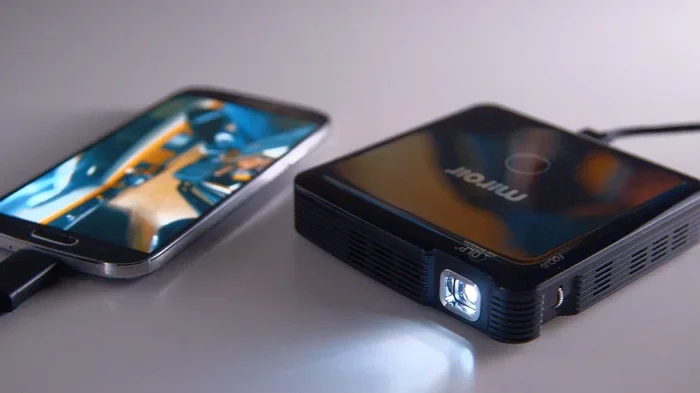
What if your projector does not have built-in Wi-Fi or Bluetooth? You can still go wireless by using a small streaming stick. Devices like Chromecast, Amazon Fire TV Stick, or Roku Streaming Stick plug into the projector’s HDMI port and give it smart features.
Here is how this works:
- Plug the streaming device into the projector’s HDMI port.
- Connect the streaming device to your Wi-Fi network.
- Use your phone to cast content to the streaming device using its built-in cast feature.
- The projector displays whatever you cast from your phone.
This is a great workaround for older projectors that lack wireless connectivity. It also gives you access to streaming apps like Netflix and Hulu directly on the big screen.
Step-by-Step: Connecting via Bluetooth
Let us walk through a detailed Bluetooth projector setup so you can see exactly what to do. This example works for most Android and iPhone models.
For Android Users
Android phones make Bluetooth pairing very straightforward:
- Open your phone’s Settings app.
- Tap on “Connected Devices” or “Bluetooth,” depending on your Android version.
- Toggle Bluetooth on if it is off.
- Tap “Pair New Device” and wait for the list to populate.
- Find your projector in the list and tap it.
- Wait for the confirmation message that says the devices are paired.
Once paired, your Android phone can stream audio to the projector. For full screen mirroring over Bluetooth, you may need a third-party app since Android does not natively support video over Bluetooth in most cases.
For iPhone Users
iPhone users have a slightly different process:
- Open Settings and tap “Bluetooth.”
- Make sure Bluetooth is turned on.
- Your iPhone will automatically search for nearby devices.
- Find your projector and tap it to pair.
- You may need to enter a pairing code shown on the projector.
For iPhone projection with video, AirPlay is usually the better option. AirPlay sends higher-quality video than Bluetooth and works seamlessly with Apple devices.
Step-by-Step: Connecting via Wi-Fi and Screen Mirroring
Wi-Fi-based screen mirroring gives you the smoothest experience for video content. Here is how to do it step by step.
Setting Up Wi-Fi Screen Mirroring
- Make sure your mini projector is powered on and connected to Wi-Fi. Some projectors create their own Wi-Fi hotspot for this purpose.
- On your phone, connect to the same Wi-Fi network as the projector.
- On Android: Swipe down from the top of your screen to open Quick Settings. Tap “Smart View,” “Screen Mirroring,” or “Cast.”
- On iPhone: Swipe down from the top-right corner to open Control Center. Tap the “Screen Mirroring” icon (two overlapping rectangles).
- Select your projector from the list of available devices.
- Wait a few seconds for your phone screen to appear on the projector.
Quick Tip: If your phone does not find the projector, make sure both devices are on the same network. Restarting both devices also helps when wireless display connections fail to appear.
Using Miracast for Android
Miracast is a wireless standard built into most Android phones. It lets you mirror your screen to any compatible projector without needing an app. Look for “Wireless Display” or “Cast Screen” in your Android settings. If your projector supports Miracast, it will show up as a casting target.
Using AirPlay for iPhone
AirPlay is Apple’s built-in wireless streaming technology. It works with any projector that supports AirPlay or has an Apple TV connected. AirPlay gives you excellent video quality and low latency, making it ideal for watching movies or giving presentations.
Wired Options: When Wireless Is Not Enough
Sometimes wireless connections just do not work the way you want. Maybe your projector is too old, or the Wi-Fi signal is weak in your room. In these cases, a wired connection is your best backup plan.
Using an HDMI Adapter
An HDMI adapter is the most reliable way to connect your phone to a projector. Here are the most common options:
- Lightning to HDMI Adapter: For iPhones and iPads. Plug one end into your phone and the other into the projector’s HDMI port.
- USB-C to HDMI Cable: For newer Android phones and Samsung devices. This cable connects directly from your phone to the projector.
- Micro HDMI Cable: Some older Android phones have a Micro HDMI port. A simple cable does the job.
Wired connections give you zero lag and the best possible video quality. If you are giving an important presentation or watching a movie you do not want to interrupt, an HDMI adapter is the way to go.
When to Choose Wired Over Wireless
Here are some situations where a wired connection makes more sense:
- You are presenting in a large room with weak Wi-Fi.
- You need zero latency for gaming or live demos.
- Your projector does not support wireless features.
- You want the most reliable connection possible.
Best Mini Projectors for Wireless Phone Connection
Not all mini projectors are created equal when it comes to wireless connectivity. Some models make phone casting effortless, while others require extra adapters or apps. Here are some things to look for when choosing a projector.
What to Look For
- Built-in Wi-Fi: This lets you connect without any extra hardware. Look for projectors with dual-band Wi-Fi for the best performance.
- Bluetooth 5.0 or higher: Newer Bluetooth versions offer better range and audio quality.
- Built-in screen mirroring support: Projectors that support Miracast, AirPlay, or Chromecast out of the box save you from buying extra devices.
- HDMI port: Even if you plan to go wireless, having an HDMI port gives you flexibility.
- Battery life: A battery-powered projector lets you set up anywhere without finding a power outlet.
Popular Models to Consider
Some well-known brands that make portable projectors with great phone connectivity include Anker (Nebula series), XGIMI, Wimius, and ViewSonic M2. These models typically support multiple wireless connection methods and have good build quality.
When shopping, read reviews that specifically mention phone connectivity. Some projectors look great on paper but have laggy or unreliable wireless connections in real-world use.
Tips for a Better Wireless Projection Experience
Getting your phone connected to a mini projector is only half the battle. Making the experience smooth and enjoyable takes a little extra effort. Here are some practical tips that make a real difference.
Optimize Your Wi-Fi Network
If you are using Wi-Fi for screen mirroring, your network quality matters a lot. Try to use a 5 GHz Wi-Fi band instead of 2.4 GHz. The 5 GHz band is faster and less congested, which means smoother video playback.
Keep your router close to the projector if possible. If your router is far away, consider using a Wi-Fi extender to boost the signal in the room where you set up your portable projector.
Close Unnecessary Apps
When you are casting your phone screen, your phone is working hard. Close apps you are not using. This frees up memory and processing power, which leads to smoother wireless streaming and fewer lags.
Adjust Projector Settings
Most mini projectors let you tweak settings that affect wireless display quality. Lowering the resolution slightly can reduce lag. Adjusting the brightness to match your room also helps you see the picture more clearly.
Keep Your Devices Updated
Software updates often fix connectivity issues and improve compatibility. Make sure your phone’s operating system and your projector’s firmware are up to date. This simple step prevents many common problems.
Use a Stable Surface and Dark Room
Place your projector on a flat, stable surface to avoid shaky images. A darker room also makes the projected image look much better, even on budget projectors. These small setup details make a big difference in your viewing experience.
Common Mistakes to Avoid
Even with the best instructions, people make mistakes that cause frustration. Here are the most common ones and how to avoid them.
Ignoring Compatibility Before Buying
One of the biggest mistakes is buying a projector without checking if it works with your phone. Always verify that the projector supports your phone’s operating system and wireless standards before you spend money.
Skipping the Pairing Process
Some people try to cast without properly pairing their devices first. Always put both your phone and projector in discovery mode before attempting to connect. Skipping this step leads to failed connections and wasted time.
Using Outdated Apps
If your projector relies on a specific app for wireless streaming, make sure the app is updated. Old app versions often have bugs that cause disconnections or poor video quality.
Overcrowding the Wi-Fi Network
If too many devices are on the same Wi-Fi network, your screen mirroring quality drops. Disconnect devices you are not using, or switch to a dedicated Wi-Fi network for your projector and phone.
Placing the Projector Too Far Away
Bluetooth projector signals weaken with distance. Keep your phone within 10 to 15 feet of the projector for the best results. Wi-Fi-based connections can handle more distance, but walls and obstacles still reduce quality.
Troubleshooting Common Connection Issues
Even when you follow all the steps, things sometimes go wrong. Here are quick fixes for the most common problems.
Phone Does Not Find the Projector
Restart both your phone and the projector. Make sure Bluetooth or Wi-Fi is turned on. Check that both devices are within range. If the projector has a hotspot feature, connect your phone directly to it.
Video Lags or Freezes
Move closer to the projector. Switch to a 5 GHz Wi-Fi network if possible. Close background apps on your phone. Lower the resolution of the content you are streaming.
Audio and Video Are Out of Sync
This is a common issue with wireless streaming. Try restarting both devices. If the problem persists, use a wired connection instead. Some projector apps have a sync delay setting you can adjust.
Connection Keeps Dropping
Check for interference from other wireless devices like microwaves or baby monitors. Update your projector’s firmware. If you are using Bluetooth, move closer to the projector to strengthen the signal.
Frequently Asked Questions
Can I connect any phone to any mini projector wirelessly?
Not all phones work with all projectors wirelessly. Your phone and projector both need to support the same wireless standard, such as Bluetooth, Wi-Fi Direct, Miracast, or AirPlay. Always check the projector’s specifications before buying to make sure it is compatible with your phone model.
Do I need Wi-Fi to connect my phone to a mini projector?
No, you do not always need Wi-Fi. Bluetooth connections work without a Wi-Fi network, and some projectors create their own direct Wi-Fi hotspot. Wi-Fi-based screen mirroring does require a network, but it can be a shared one or a projector-created hotspot.
Is wireless projection as good as a wired connection?
Wired connections generally offer better quality and zero lag. However, modern wireless technologies like Wi-Fi 6 and 5 GHz bands have made wireless projection very close to wired quality for most everyday uses like movies and presentations.
Can I connect an iPhone to a mini projector without Apple TV?
Yes, you can. Many modern mini projectors support AirPlay directly. You just need to make sure both your iPhone and the projector are on the same Wi-Fi network, and then use the AirPlay feature from your iPhone’s Control Center.
What is the best app for connecting a phone to a mini projector?
The best app depends on your projector brand. Many manufacturers offer their own free apps, such as the Nebula app for Anker projectors or the XGIMI app. For general screen mirroring, the built-in casting features on Android and iPhone work great without any extra apps.
Why does my wireless connection keep disconnecting?
Frequent disconnections usually happen because of Wi-Fi interference, outdated firmware, or being too far from the projector. Try moving closer, restarting both devices, and checking for software updates. Switching to a less crowded Wi-Fi channel can also help stabilize the connection.
Final Thoughts
Connecting your phone to a mini projector wirelessly opens up a world of possibilities. Whether you want to watch movies on a big wall, share photos at a party, or give a presentation at work, the methods in this guide cover every scenario. From Bluetooth projector setups to Wi-Fi screen mirroring and everything in between, you now have the knowledge to get it done quickly and easily.
Remember that projector connectivity depends on your specific devices, so always check compatibility first. Start with the simplest method that works for your setup, and then explore more advanced options as you get comfortable. A portable projector paired with your phone is one of the most versatile tech combos you can own.
Try out the steps in this guide today. Once you see your phone screen on a big display, you will wonder how you ever lived without it. The wireless display experience is truly transformative, and with the right mini projector, it is easier than ever to set up. Enjoy your upgraded viewing experience and happy projecting!