Can You Stream Netflix From Iphone To Your Projector
Yes, you can stream Netflix from your iPhone to a projector using several simple methods. Whether you prefer a wireless connection through AirPlay or a wired setup with an HDMI adapter, you have multiple options to enjoy your favorite shows on a big screen. This guide covers every method, tips, and common issues so you can set up your home movie theater in minutes.
There is nothing quite like watching your favorite Netflix series on a huge projector screen. It turns any room into a personal cinema. But many people ask, can you stream Netflix from iPhone to projector? The short answer is yes. You can do it in several different ways. Some methods are wireless, and some use a simple cable. Let me walk you through everything you need to know.
Streaming Netflix from your iPhone to a projector is easier than most people think. You do not need expensive equipment or technical skills. Whether you are setting up for a backyard movie night or a cozy Friday evening at home, this guide has you covered. I will share every method, tip, and trick I have learned along the way.
Before we dive in, let me quickly mention what you will need. At minimum, you need an iPhone, a projector, and a Netflix subscription. Some methods also require an HDMI adapter or a Wi-Fi connection. I will explain each option in detail below so you can pick the one that works best for you.
Key Takeaways
- AirPlay is the easiest wireless method if you have an Apple TV or a compatible smart projector.
- An HDMI adapter offers a reliable wired connection with no lag or buffering.
- Wi-Fi quality matters a lot for smooth streaming without interruptions.
- Netflix may block screen mirroring due to copyright protection, but workarounds exist.
- Battery life drops fast when streaming, so keep your iPhone plugged in.
- Projector resolution affects your viewing experience, so match your settings accordingly.
- A Netflix subscription is required for streaming content on any device.
📑 Table of Contents
Why Stream Netflix From iPhone to Projector?
Streaming Netflix on a projector creates a completely different experience. The image is bigger, the sound feels more immersive, and the whole setup feels cinematic. Here are some reasons why people love doing this:
- Big screen comfort: Watch Netflix on a screen that is 100 inches or more.
- Portability: Your iPhone is lightweight, and many projectors are portable too.
- No extra devices needed: You can skip buying a streaming stick or smart TV.
- Shared experiences: Movie nights with friends and family become more fun.
- Cost savings: You already own an iPhone and maybe a projector. No need to buy another device.
When you stream Netflix from iPhone to projector, you also gain control. You can pause, rewind, and pick exactly what you want to watch right from your phone. It is a very convenient setup for many people.
Method 1: Use AirPlay for Wireless Streaming
How AirPlay Works
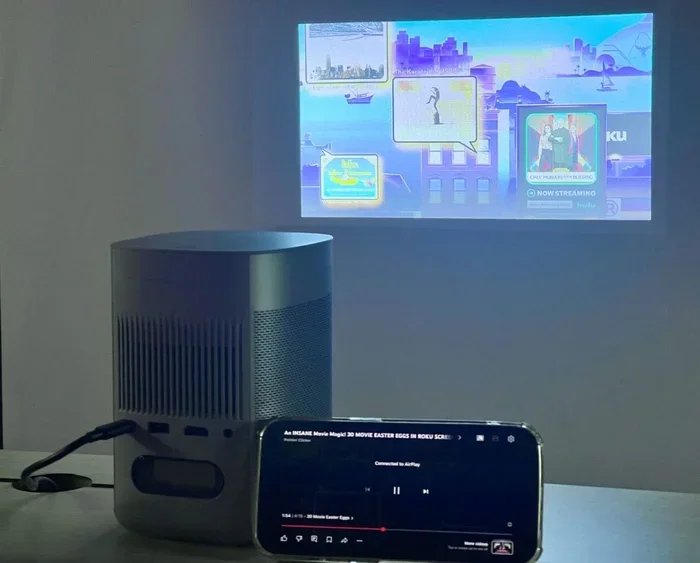
AirPlay is Apple’s wireless streaming technology. It lets you send what is on your iPhone screen to another device. If your projector supports AirPlay, this is the easiest method. Many modern smart projectors come with built-in AirPlay support. Apple TV also works as a bridge between your iPhone and a projector that does not have AirPlay built in.
Here is how to use AirPlay to stream Netflix from iPhone to projector:
- Make sure your iPhone and the projector are on the same Wi-Fi network.
- Open the Netflix app on your iPhone.
- Start playing the movie or show you want to watch.
- Swipe down from the top right corner of your iPhone screen to open Control Center.
- Tap the Screen Mirroring icon. It looks like two overlapping rectangles.
- Select your projector or Apple TV from the list.
- Your iPhone screen is now mirrored on the projector.
That is it! You should see Netflix playing on the big screen now. The video plays directly from your iPhone, so the quality depends on your Wi-Fi signal strength.
Tips for the Best AirPlay Experience
- Use a strong Wi-Fi connection. A weak signal causes lag and buffering.
- Keep your iPhone close to the projector. This helps maintain a stable connection.
- Turn off notifications. Incoming messages can interrupt your movie.
- Lower your screen brightness. This saves battery during long viewing sessions.
Method 2: Connect with an HDMI Adapter (Wired)
What You Need for a Wired Connection
If your projector does not support AirPlay or you want a more stable connection, a wired setup is the way to go. You need a Lightning to HDMI adapter or a USB-C to HDMI adapter, depending on your iPhone model. These adapters are affordable and widely available online.
Here is how to set up a wired connection to stream Netflix from iPhone to projector:
- Plug the HDMI adapter into your iPhone’s charging port.
- Connect an HDMI cable from the adapter to your projector.
- Turn on the projector and select the correct HDMI input.
- Unlock your iPhone. You may see a message asking to trust the device.
- Open Netflix and start playing your content.
The wired method gives you a direct, reliable connection. There is no lag, no buffering, and no Wi-Fi dependency. This is ideal for presentations or movie nights where stability matters.
Wired vs. Wireless: Which Is Better?
Both methods have their strengths. Here is a quick comparison:
| Feature | AirPlay (Wireless) | HDMI Adapter (Wired) |
|---|---|---|
| Setup ease | Very easy | Easy |
| Connection stability | Depends on Wi-Fi | Very stable |
| Video quality | Good, may compress | Full quality |
| Cable needed | No | Yes |
| Latency | Small delay possible | No delay |
| Portability | Excellent | Good |
For most people, AirPlay works great for casual viewing. If you need perfect quality and zero lag, go with the HDMI adapter. Both methods let you stream Netflix from iPhone to projector without any hassle.
Method 3: Use a Streaming Device as a Bridge
Apple TV as a Bridge
If your projector does not have smart features, you can use Apple TV as a bridge. Apple TV connects to your projector via HDMI. Your iPhone then uses AirPlay to send content to the Apple TV. This setup gives you access to the Apple TV app, which supports Netflix streaming directly.
This method is great because it keeps your iPhone free. You can use your phone for other things while Netflix plays on the projector. It also means better streaming performance since Apple TV has a dedicated processor and Wi-Fi antenna.
Other Streaming Devices
You can also use devices like Roku or Chromecast with your projector. However, these work differently. Instead of mirroring your iPhone screen, you cast content from the Netflix app directly to the device. This is called casting, and it often provides better quality than screen mirroring.
To cast Netflix using Chromecast:
- Connect Chromecast to your projector’s HDMI port.
- Make sure your iPhone and Chromecast are on the same Wi-Fi network.
- Open Netflix on your iPhone.
- Tap the cast icon (a small rectangle with Wi-Fi waves in the corner).
- Select your Chromecast device.
This is a clean way to stream Netflix from iPhone to projector without mirroring your entire screen. Only the Netflix video appears on the projector.
Common Problems and How to Fix Them
Netflix Blocks Screen Mirroring
Here is a frustrating issue many people face. Netflix sometimes blocks screen mirroring or casting. This happens because of digital rights management (DRM). Netflix wants to prevent piracy, so it restricts certain types of connections. When this happens, you may see a black screen or an error message.
Here are some fixes that work:
- Use the HDMI wired method. Wired connections usually bypass DRM restrictions.
- Update the Netflix app. Make sure you have the latest version installed.
- Restart both devices. A simple restart often resolves temporary glitches.
- Check for iOS updates. Apple regularly fixes compatibility issues with updates.
Poor Video Quality or Lag
If your stream looks blurry or stuttery, the problem is usually your Wi-Fi connection. Here is what you can do:
- Move closer to your Wi-Fi router.
- Reduce the number of devices using the same network.
- Restart your router and projector.
- Lower the Netflix streaming quality in the app settings.
Audio Sync Issues
Sometimes the audio and video get out of sync. This is common with wireless streaming. To fix this:
- Switch to a wired HDMI connection.
- Reduce the distance between your iPhone and projector.
- Check if any Bluetooth devices are connected. Disconnect them temporarily.
Tips for the Best Viewing Experience
Once you have your setup working, you want to make sure the experience is great. Here are some tips I always follow:
Optimize Your Projector Settings
- Use the brightest mode. This makes the image clearer, especially in rooms with some light.
- Set the resolution to match your content. Most Netflix content is 1080p or 4K.
- Adjust the focus. A sharp image makes a huge difference in enjoyment.
Save Your iPhone Battery
Streaming Netflix drains your battery quickly. Here is how to make it last longer:
- Keep your iPhone plugged into a charger or power bank.
- Lower your screen brightness before mirroring.
- Turn on Low Power Mode.
- Close other apps running in the background.
Sound Quality Matters
Most projectors have weak built-in speakers. If you want better sound, consider connecting external speakers. You can use Bluetooth speakers or connect them via the projector’s audio output. Good sound really makes your Netflix sessions feel like a real theater experience.
Quick Tips for Success
- Always test your setup before a movie night.
- Keep your HDMI cables organized and away from foot traffic.
- Use a dark room for the best image quality.
- Download Netflix content for offline viewing if your Wi-Fi is unreliable.
- Clean your projector lens regularly for a clear picture.
- Use a tripod or stable surface for your iPhone if you are mirroring wirelessly.
Final Thoughts
Streaming Netflix from your iPhone to a projector is totally doable and incredibly fun. You have multiple options, from simple wireless AirPlay to reliable HDMI cables. Each method has its own benefits, so pick the one that fits your setup and needs best.
If you run into issues, do not worry. Most problems have simple fixes. Check your Wi-Fi, update your apps, and try a wired connection if the wireless method gives you trouble. With the right setup, you can turn any room into your personal Netflix theater.
Now that you know how to stream Netflix from iPhone to projector, it is time to try it out. Grab some popcorn, dim the lights, and enjoy your favorite shows on the big screen. You will wonder why you did not set this up sooner.
Frequently Asked Questions
Can I stream Netflix from my iPhone to any projector?
Most projectors can work with an iPhone, but the method depends on the projector’s features. Smart projectors with Wi-Fi support AirPlay directly. Older projectors without smart features can still work with an HDMI adapter or a streaming device like Apple TV or Chromecast.
Why does Netflix stop playing when I mirror my screen?
Netflix uses DRM protection that can block screen mirroring in some cases. This is a copyright protection measure. Using a wired HDMI connection or casting through a streaming device like Apple TV usually fixes this problem.
Do I need Wi-Fi to stream Netflix from my iPhone to a projector?
For wireless methods like AirPlay, yes, you need Wi-Fi. For wired methods using an HDMI adapter, you do not need Wi-Fi at all. However, you still need Wi-Fi if you want to download content from Netflix before watching.
What HDMI adapter do I need for my iPhone?
If you have an iPhone with a Lightning port, get a Lightning to HDMI adapter. If you have a newer iPhone with a USB-C port, get a USB-C to HDMI adapter. Both are inexpensive and widely available online and at electronics stores.
Can I use Bluetooth to connect my iPhone to a projector?
Bluetooth is not typically used for video streaming. Bluetooth is great for audio, but it does not carry video signals well. Use AirPlay for wireless video or an HDMI cable for a wired video connection to your projector.
Is streaming Netflix from iPhone to projector legal?
Yes, streaming Netflix from your iPhone to a projector for personal use is completely legal. You just need an active Netflix subscription. However, sharing your account credentials or using unauthorized methods to bypass DRM protections may violate Netflix’s terms of service.
=== CONCLUSION ===
Streaming Netflix from your iPhone to a projector opens up a world of entertainment. You can watch movies and shows on a massive screen with minimal setup. Whether you choose AirPlay for convenience or an HDMI adapter for reliability, the process is straightforward and rewarding.
Remember to keep your Wi-Fi strong for wireless streaming, use the right adapter for wired setups, and troubleshoot common issues with the tips shared above. With a little preparation, your next movie night will be unforgettable. Start setting up your projector and iPhone today, and enjoy Netflix the way it was meant to be seen.