Can I Add Memory To My Laptop And Boost Your Performance
Can I add memory to my laptop? The answer is yes for most models, and it is one of the easiest ways to breathe new life into an older machine. Upgrading your laptop RAM can dramatically improve multitasking speed, reduce lag, and make everyday tasks feel much smoother. Whether you use your laptop for work, school, or entertainment, adding memory is a cost-effective upgrade that delivers real results. In this guide, we walk you through everything you need to know, from checking compatibility to installing new modules yourself.
Have you ever noticed your laptop slowing down when you have too many tabs open? Maybe your system freezes when you try to edit a photo or run two apps at the same time. These frustrating moments often point to one thing: not enough memory.
The good news is that can I add memory to my laptop is a question with a positive answer for most users. Upgrading your laptop’s RAM is one of the simplest and most affordable ways to speed things up. You do not need to be a tech expert. With a little guidance, you can do it yourself and notice the difference right away.
In this article, we will cover everything you need to know about laptop RAM upgrade. We will explain what memory does, how to check if your laptop supports it, what type of memory to buy, and how to install it. By the end, you will feel confident about upgrading your own machine.
Key Takeaways
- Most laptops can accept more memory: Adding RAM is one of the simplest and most affordable upgrades you can make.
- Check compatibility first: Not all laptops support memory upgrades, so verify your model’s specifications before buying anything.
- DDR4 and DDR5 are the current standards: Understanding the type of memory your laptop uses is essential for a successful upgrade.
- DIY installation is straightforward: With the right tools and a little patience, you can add memory at home in under 30 minutes.
- More RAM means better multitasking: Upgraded memory helps with heavy workloads, gaming, video editing, and running multiple apps at once.
- Know how much you need: 8GB is the minimum for most users, but 16GB or more is ideal for demanding tasks.
- Avoid common mistakes: Buying the wrong type, skipping the BIOS update, or ignoring warranty terms can cause problems.
📑 Table of Contents
- Understanding Laptop Memory And Why It Matters
- Can I Add Memory To My Laptop? How To Check Compatibility
- Types Of Laptop Memory And What You Need To Know
- How To Add Memory To Your Laptop: Step-By-Step Guide
- How Much Memory Do You Really Need
- Common Mistakes To Avoid When Upgrading Laptop Memory
- Expert Insights: Maximizing Performance After Your Memory Upgrade
- How Much Does A Laptop Memory Upgrade Cost
- When Adding Memory Will Not Help
- Conclusion
Understanding Laptop Memory And Why It Matters
Before you decide to upgrade, it helps to understand what computer memory actually does. Think of RAM as your laptop’s short-term workspace. When you open an app, browse the web, or edit a document, your laptop pulls data from the hard drive and places it in RAM for quick access.
The more RAM you have, the more data your laptop can hold in this workspace at the same time. This is why system performance improves so much after an upgrade. With more memory, your laptop does not need to constantly swap data back and forth, which causes those annoying delays.
How RAM Affects Everyday Tasks
Here is how memory upgrade benefits your daily use:
- Faster multitasking: You can switch between apps without waiting.
- Smoother browsing: Dozens of browser tabs stay open without freezing.
- Better gaming: Games load faster and run more smoothly.
- Quicker file editing: Photo and video editing software responds faster.
- Improved virtual memory use: Your laptop handles heavy workloads more efficiently.
If your current setup feels sluggish, the RAM capacity might be the bottleneck. Most budget laptops come with 4GB or 8GB of memory, which is fine for basic tasks but struggles with modern demands.
Can I Add Memory To My Laptop? How To Check Compatibility
The first step before buying any memory is to confirm that your laptop actually supports an upgrade. Not all laptops allow you to add memory. Some models have RAM soldered directly to the motherboard, which means you cannot change it.
Step 1: Find Your Laptop Model And Specifications
Start by finding your exact laptop model. You can usually find this on a sticker on the bottom of the laptop or in the system settings. Once you know the model number, search for its specifications online. Look for details about memory slots, max RAM supported, and the type of memory it uses.
Step 2: Check How Many Memory Slots Are Available
Most laptops have one or two memory slots. Some older models have even more. If one slot is already occupied and the other is empty, you can simply add a new module. If both slots are filled, you might need to replace the existing modules with larger ones.
Use a free tool like CPU-Z or check the manufacturer’s website to find out how many slots your laptop has. This information is critical because it determines what kind of memory upgrade you can do.
Step 3: Verify The Memory Type
Laptops use a special type of memory called SODIMM, which is smaller than the memory sticks used in desktop computers. The two main types today are DDR4 RAM and DDR5 RAM. You must match the type your laptop supports. Mixing different types will not work.
Quick Tip: Always double-check your laptop’s manual or the manufacturer’s website for the exact memory specifications. Buying the wrong type is the most common mistake people make.
Types Of Laptop Memory And What You Need To Know
Understanding the different types of memory modules can feel overwhelming at first, but it is simpler than it seems. Let us break it down.
DDR4 vs DDR5
DDR4 RAM has been the standard for several years and is still used in the majority of laptops today. It offers solid performance and is widely available at reasonable prices. DDR5 RAM is the newer standard and offers faster speeds and better efficiency. However, not all laptops support DDR5, so check your model first.
RAM Speed And Frequency
Memory speed is measured in megahertz (MHz). Higher numbers generally mean faster performance. For example, 3200MHz memory is faster than 2666MHz. However, the speed difference is usually small for everyday tasks. If you are a gamer or a video editor, faster memory can make a noticeable impact.
Here is a quick comparison of common laptop memory types:
| Memory Type | Speed Range | Best For | Availability |
|---|---|---|---|
| DDR4 SODIMM | 2400MHz – 3200MHz | Everyday use, office work | Very common |
| DDR5 SODIMM | 4800MHz – 6400MHz | Gaming, video editing | Growing |
| DDR3 SODIMM | 1600MHz – 1866MHz | Older laptops | Limited |
Most users will benefit most from a DDR4 RAM upgrade. It offers a great balance of performance and price. DDR5 is worth considering if your laptop supports it and you need the extra speed.
Single Channel vs Dual Channel Memory
Some laptops perform better when memory is installed in matching pairs. This is called dual channel configuration. If your laptop has two slots, installing two identical memory modules can improve performance over using a single module in one slot.
If you are currently using one 8GB stick, adding another 8GB stick of the same brand and speed will give you the benefits of dual channel mode. This is an easy way to get more from your upgrade your laptop experience.
How To Add Memory To Your Laptop: Step-By-Step Guide
Now for the fun part. Installing memory in a laptop is much easier than most people think. You do not need expensive tools or technical training. Here is a simple walkthrough.
What You Will Need
- The new memory modules you purchased
- A small Phillips-head screwdriver
- A clean, flat workspace
- An anti-static wrist strap (optional but recommended)
Step 1: Power Down And Unplug
Turn off your laptop completely. Unplug the power cable and disconnect any external devices. Remove the battery if your laptop has a removable one. This keeps you safe and protects the components.
Step 2: Find The Memory Access Panel
Flip your laptop over and look for a small panel on the bottom, usually marked with a memory icon or labeled “RAM.” This panel covers the memory slots. Use your screwdriver to remove the screws holding it in place.
Step 3: Remove The Old Module (If Needed)
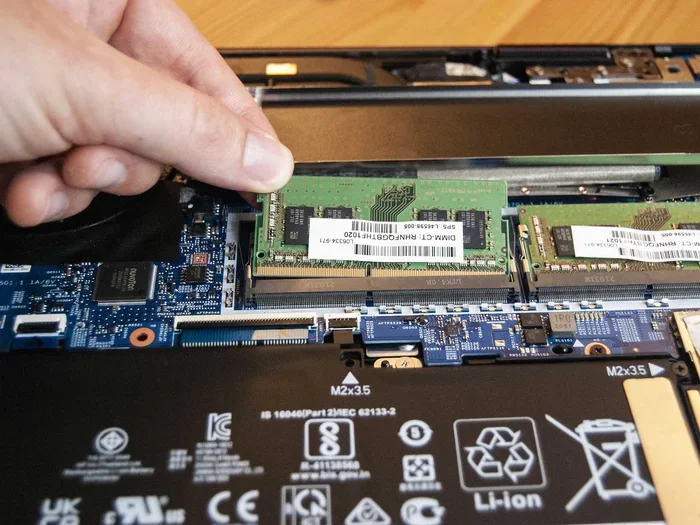
If you are replacing existing memory, gently push the clips on either side of the module outward. The stick will pop up at an angle. Carefully pull it out. If you are adding to existing memory, skip this step.
Step 4: Install The New Module
Hold the new SODIMM module at a 30-degree angle and align the notch with the slot. Gently push it down until the clips on both sides click into place. The module should sit flat and feel secure.
Step 5: Replace The Panel And Power On
Put the access panel back on and screw it in place. Reconnect the battery and power cable. Turn on your laptop. The system should recognize the new memory automatically.
To confirm the upgrade worked, go to your system settings and check the RAM capacity. You should see the new total amount of memory listed.
Quick Tip: If the system does not recognize the new memory, try reseating the module. Sometimes it needs a second push to click fully into place.
How Much Memory Do You Really Need
One of the most common questions people ask is how much memory they should add. The answer depends on what you use your laptop for.
Minimum Requirements For Different Users
- Basic users: 8GB is enough for web browsing, email, and document editing.
- Multitaskers: 16GB lets you run multiple apps and browser tabs smoothly.
- Gamers: 16GB to 32GB provides a great gaming experience.
- Content creators: 32GB or more handles video editing and graphic design workloads.
Most people will see the biggest improvement by going from 4GB to 8GB or from 8GB to 16GB. These upgrades make a real difference in system performance and daily usability.
Before you buy, check your laptop’s max RAM supported. Some older models can only handle 8GB or 16GB total. Buying more than your laptop can use would be a waste of money.
Common Mistakes To Avoid When Upgrading Laptop Memory
Upgrading memory is simple, but mistakes can still happen. Here are the most common ones to watch out for.
Buying The Wrong Memory Type
This is the number one mistake. DDR4 will not work in a slot designed for DDR3, and DDR5 will not work in a DDR4 slot. Always verify the exact memory type your laptop supports before making a purchase.
Ignoring The Warranty
Some laptop manufacturers void the warranty if you open the back panel and upgrade components yourself. Check your warranty terms before you start. If you are unsure, consider having a professional do the upgrade for you.
Not Updating The BIOS
In some cases, a laptop needs a BIOS update to recognize new or larger memory modules. Check the manufacturer’s website for any available updates before you install the new RAM.
Mixing Different Brands Or Speeds
While it is technically possible to mix different memory brands and speeds, it can cause instability. For the best results, use matching modules from the same manufacturer with the same speed rating.
Forcing The Module Into The Slot
Memory modules should slide in smoothly with gentle pressure. If you have to force it, something is wrong. Check the alignment and try again. Forcing the module can damage both the stick and the slot.
Expert Insights: Maximizing Performance After Your Memory Upgrade
Adding memory is a great first step, but there are a few more things you can do to get the most out of your upgraded laptop.
Optimize Your Memory Management Settings
Windows and macOS both have settings that affect how your system uses memory. On Windows, you can adjust the virtual memory settings to let your laptop use a portion of the hard drive as additional memory. On macOS, the system manages this automatically, but restarting your laptop regularly helps clear out unused memory.
Close Unnecessary Background Programs
Even with upgraded RAM capacity, running too many programs in the background will slow things down. Use your task manager to see which apps are using the most memory and close the ones you do not need.
Keep Your System Updated
Operating system updates often include improvements to memory management. Keeping your laptop updated ensures you are getting the best performance from your new hardware.
Consider A Solid State Drive Upgrade Too
If your laptop still uses a traditional hard drive, upgrading to a solid state drive (SSD) paired with more RAM will transform your experience. The combination of fast storage and ample memory is the best way to make an older laptop feel new again.
Expert Insight: According to many tech professionals, a memory upgrade combined with an SSD swap is the single most impactful improvement you can make to an aging laptop. The cost is low, but the results are dramatic.
How Much Does A Laptop Memory Upgrade Cost
One of the best things about upgrading laptop memory is the price. A standard 8GB DDR4 SODIMM module costs between $20 and $40. A 16GB stick typically runs $40 to $70. These prices have come down significantly over the past few years, making memory upgrades one of the most budget-friendly improvements you can make.
Compare this to the cost of buying a brand new laptop, and the value is clear. A memory upgrade cost of $40 to $80 can extend your laptop’s useful life by several years. That is a smart investment for anyone looking to get more out of their current machine.
When Adding Memory Will Not Help
It is important to be realistic about what a memory upgrade can and cannot do. If your laptop’s slowdown is caused by an old processor, a failing hard drive, or a software problem, adding RAM will not fix the issue.
Here are some signs that a memory upgrade will help:
- Your laptop slows down when you open several apps
- You see the memory usage bar near full when doing everyday tasks
- Your system uses the hard drive heavily as virtual memory (a sign it is running out of RAM)
- Games or creative apps crash or lag due to insufficient memory
If you do not see these signs, your performance issues might be caused by something else. In that case, it is worth investigating other possible solutions before spending money on memory.
Conclusion
The answer to can I add memory to my laptop is almost always yes, as long as your model supports it. Upgrading your laptop RAM is one of the easiest, most affordable, and most effective ways to improve system performance. Whether you are a student, a professional, or a casual user, more memory can make your daily computing experience faster and more enjoyable.
Start by checking your laptop’s specifications. Find out what type of memory it uses, how many slots are available, and how much it can support. Then pick the right memory modules and follow the simple installation steps we covered. In less than half an hour, you can have a faster, more capable laptop.
Do not let a slow laptop hold you back any longer. A memory upgrade is a small investment with big returns. Your laptop will thank you with smoother performance, faster multitasking, and fewer frustrating freezes.
Frequently Asked Questions
Can I add memory to any laptop?
No, not all laptops support memory upgrades. Some models have RAM soldered to the motherboard, which means it cannot be replaced or added. Always check your laptop’s specifications before purchasing new memory to confirm it is upgradeable.
How do I know if my laptop needs more memory?
If your laptop slows down when you have multiple apps open, freezes during multitasking, or frequently uses virtual memory, it is a sign you need more RAM. You can also check your system’s memory usage in the task manager to see how much of your current memory is being used.
Can I mix different brands of RAM in my laptop?
Technically yes, but it is not recommended. Mixing brands, speeds, or sizes can cause compatibility issues and instability. For the best results, use matching memory modules from the same manufacturer with identical specifications.
Is it safe to upgrade laptop memory myself?
Yes, it is generally safe and straightforward. Just make sure your laptop is powered off, unplugged, and the battery is removed if possible. Handle the memory modules carefully and avoid touching the gold contacts. If you feel unsure, consult your laptop’s manual or seek help from a professional.
Will adding more RAM void my laptop warranty?
This depends on the manufacturer and your warranty terms. Some brands consider user-installed RAM as user modification and may not cover related issues. Check your warranty documentation before opening your laptop, or contact the manufacturer directly to confirm.
How much does it cost to upgrade laptop memory?
A standard 8GB DDR4 SODIMM memory module costs between $20 and $40, while a 16GB stick typically runs $40 to $70. This makes memory upgrades one of the most cost-effective ways to improve your laptop’s performance without buying a new machine.