Can I Use Airplay Without Internet Heres The Answer
Yes, you can use AirPlay without internet in many cases. AirPlay supports peer-to-peer connections and local streaming that dont require a live Wi-Fi connection. Whether you want to mirror your iPhone screen or cast audio to a speaker, offline AirPlay is possible with the right setup.
Have you ever been in a situation where you wanted to stream something to your TV but had no Wi-Fi? Maybe you were at a cabin in the woods, or your router just decided to take a break. Whatever the reason, the question can I use AirPlay without internet comes up a lot.
The short answer is yes. You can use AirPlay without an active internet connection in many scenarios. But the full story is a bit more nuanced. There are different types of AirPlay connections, device requirements, and limitations you need to know about. This guide walks through everything you need to use AirPlay offline like a pro.
In this article, we will cover how wireless streaming works without the web, which devices support offline AirPlay, and practical tips to get the best experience. By the end, you will know exactly what to do when the internet goes down but your entertainment does not have to.
Key Takeaways
- AirPlay works without internet: You can stream content using peer-to-peer connections and local networks.
- No Wi-Fi is not always required: Some devices support direct device-to-device AirPlay connections offline.
- You still need compatible hardware: An AirPlay receiver or Apple TV is essential for offline streaming.
- Content availability matters: DRM-protected or cloud-based content may not work without internet access.
- Bluetooth and HDMI alternatives exist: If AirPlay fails offline, other methods can fill the gap.
- Peer-to-peer AirPlay is a game changer: This feature lets you connect devices directly without a router.
- Setup matters: Proper device pairing and settings make offline AirPlay smooth and reliable.
📑 Table of Contents
What Is AirPlay and How Does It Work?
AirPlay is Apples wireless streaming technology. It lets you send audio, video, and screens from one Apple device to another. You can mirror your iPhone to an Apple TV, stream music to AirPlay speakers, or share photos to a compatible display.
The technology uses a combination of Wi-Fi and Bluetooth to establish connections. Most people think AirPlay always needs the internet. That is not entirely true. AirPlay relies on a local network for most operations, but it can also work through peer-to-peer AirPlay, which does not need a router at all.
How Peer-to-Peer AirPlay Works
Peer-to-peer AirPlay is a clever feature. It creates a direct wireless link between two devices. One device acts as the sender, and the other acts as the receiver. They communicate directly without needing a central router or internet access.
This means your iPhone can talk directly to an Apple TV or an AirPlay-compatible speaker even if neither device is connected to the web. The connection uses a mix of Bluetooth for discovery and Wi-Fi Direct for data transfer. It is fast, it is wireless, and it works without internet connectivity.
What About Screen Mirroring?
Screen mirroring is one of the most popular uses of AirPlay. You mirror your phones or laptops screen to a bigger display. Without internet, screen mirroring still works for local content. If you have videos, photos, or presentations stored on your device, you can mirror them to a TV or projector.
However, streaming services like Netflix or Hulu may not work offline. These apps require an internet connection to fetch content and verify licenses. So while screen mirroring itself works without the web, the content you are trying to show might not.
Can You Use AirPlay Without Internet? The Short Answer
The answer to can I use Airplay without internet is a solid yes, with some important caveats. AirPlay does not inherently require the internet to function. It primarily needs a local connection between devices. This can be a home Wi-Fi network, a peer-to-peer link, or even a direct wired connection in some cases.
Here is the key distinction. AirPlay uses your local network to find devices and send data. It does not need the wider internet to do this. Think of it like talking to someone in the same room. You do not need a phone line or a satellite connection. You just need to be in the same space.
But there are exceptions. Some content is protected by digital rights management, or DRM. This includes movies and shows from streaming apps. These require an internet connection to verify that you have the right to watch them. So while the AirPlay technology works offline, the content might not.
When Does AirPlay Need Internet?
There are specific situations where AirPlay without internet will not work. Here are the main ones:
- Streaming from cloud services: If you are trying to play content stored in iCloud or streamed from YouTube, you need the internet.
- DRM-protected content: Movies and shows from Netflix, Disney Plus, and similar services require online verification.
- Software updates: Some devices need a brief internet check to validate AirPlay connections.
- Remote streaming: If you want to AirPlay to a device that is not on the same local network, you need the internet.
For everything else, offline AirPlay works great. Local music files, locally stored videos, photos, and presentations all stream smoothly without a web connection.
How to Use AirPlay Without Wi-Fi or Internet
Setting up offline AirPlay is straightforward. You do not need a router or an active internet plan. You just need compatible devices and the right settings. Here is how to do it step by step.
Step 1: Make Sure Your Devices Are Compatible
Not every device supports offline AirPlay. You need at least one sender and one receiver. The sender is the device that plays the content. The receiver is the device that displays or plays it.
Common senders include iPhones, iPads, and Mac computers. Common receivers include Apple TVs, AirPlay-enabled smart TVs, and third-party AirPlay speakers. Make sure both devices support AirPlay mirroring or AirPlay audio before you start.
Step 2: Enable Peer-to-Peer AirPlay
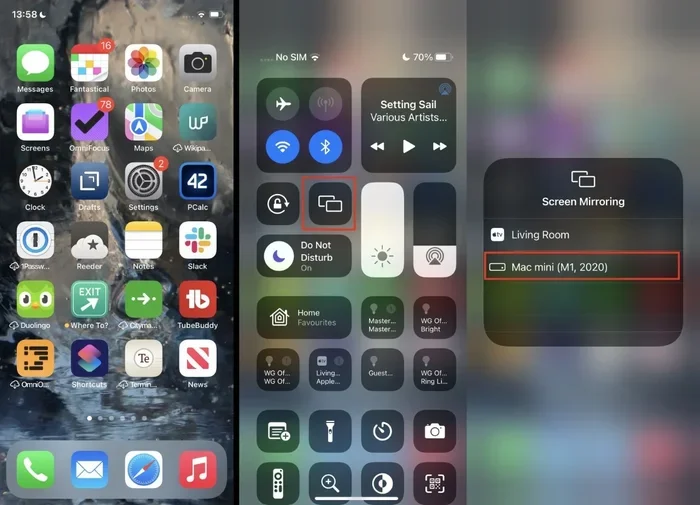
On your iPhone or iPad, open the Control Center. Tap the Screen Mirroring button. Look for your receiver device in the list. If it appears without you being connected to Wi-Fi, peer-to-peer AirPlay is working.
On a Mac, click the Screen Mirroring icon in the menu bar. Select your target device. The connection should establish even without an internet connection.
Step 3: Play Local Content
Once the connection is live, play content that is stored directly on your device. This could be a downloaded movie, a playlist of local music, or photos in your camera roll. The content will stream to your receiver device in real time.
Avoid trying to open streaming app content. Instead, use files that are already saved on your phone or computer. This ensures the smoothest offline wireless streaming experience.
Quick Tips for Offline AirPlay Setup
- Turn on Bluetooth and Wi-Fi on both devices. You do not need to connect to a network, but the radios must be active.
- Keep devices close together. Peer-to-peer AirPlay works best within 30 feet.
- Restart both devices if connection fails. A quick reboot often fixes discovery issues.
- Check for software updates beforehand. Make sure both devices run the latest operating system.
- Disable personal hotspots. Sometimes a hotspot can interfere with peer-to-peer connections.
What Devices Support Offline AirPlay?
Not all devices handle offline AirPlay the same way. Here is a breakdown of the most common devices and their offline capabilities.
| Device | Offline AirPlay Support | Notes |
|---|---|---|
| Apple TV (4th gen and later) | Full support | Peer-to-peer AirPlay works natively |
| iPhone and iPad | Full support | Works as sender and receiver |
| Mac computers | Full support | Screen mirroring and audio output |
| AirPlay-compatible smart TVs | Partial support | May need a network for initial setup |
| Third-party AirPlay speakers | Full support | Audio-only offline streaming works well |
| Chromecast devices | No native AirPlay | Requires Google Cast, not AirPlay |
| Android phones | No native AirPlay | AirPlay is Apple ecosystem only |
As you can see, Apple devices have the best offline AirPlay support. If you are in the Apple ecosystem, you are in good shape. Third-party AirPlay receivers from brands like Belkin, Sonos, and Bose also work well offline, but always check the specific models compatibility.
Best Devices for Offline AirPlay
If you plan to use AirPlay without internet regularly, consider these options:
- Apple TV 4K: The gold standard for AirPlay receiving. It handles peer-to-peer connections flawlessly.
- HomePod Mini: Great for offline AirPlay audio. Small but powerful for streaming music without the web.
- AirPlay-enabled smart TVs: Many modern TVs from Samsung, LG, and Sony support AirPlay natively.
- Belkin SoundForm AirPlay speakers: Affordable and reliable for offline audio streaming.
Limitations of Using AirPlay Without Internet
Offline AirPlay is convenient, but it has limits. Understanding these limitations helps you set realistic expectations and avoid frustration.
Content Restrictions
The biggest limitation is content availability. Streaming services need the internet to deliver content. You cannot AirPlay a Netflix show if your phone has no web connection. The app will not be able to fetch the video stream.
However, downloaded or offline content works perfectly. If you have downloaded movies or music to your device, you can AirPlay them to your TV or speaker without any issues. This makes offline AirPlay ideal for road trips, flights, or remote locations.
DRM and Licensing Issues
Digital rights management is another hurdle. Even if you have downloaded content, some apps lock it with DRM. This prevents offline playback or AirPlay sharing. Apple Music tracks downloaded for offline listening generally work fine. But Spotify offline downloads may have restrictions depending on the subscription tier.
Range and Stability
Peer-to-peer AirPlay has a limited range. It works best within about 30 feet. Walls, furniture, and other obstacles can weaken the signal. Without a router to boost the connection, the range is shorter and less stable than a typical Wi-Fi setup.
No Access to Online Features
Without internet, you lose access to online features. You cannot browse the web, check social media, or use apps that require a connection. AirPlay itself works, but the overall device experience is limited.
Common Mistakes to Avoid
- Assuming all content works offline: Only locally stored files stream without internet.
- Forgetting to enable peer-to-peer mode: Some users expect AirPlay to work automatically without Wi-Fi. It needs to be set up correctly.
- Ignoring device compatibility: Not all smart TVs support offline AirPlay. Check before you buy.
- Placing devices too far apart: Keep sender and receiver within close range for the best experience.
- Not restarting devices when troubleshooting: A simple reboot solves most connection issues.
Tips for the Best AirPlay Experience Without Internet
Want to get the most out of offline AirPlay? Follow these practical tips to ensure smooth and reliable streaming.
Download Content Before You Go Offline
The simplest and most effective tip is to download everything you need before you lose internet access. Download movies, TV shows, music playlists, and podcasts to your device. This way, you have a full library of offline content ready to stream via AirPlay.
Apple Music, Netflix, and Spotify all offer offline download options. Make sure you have enough storage space on your device before downloading large video files.
Use an HDMI Adapter for Wired Connections
If wireless AirPlay gives you trouble, consider a wired alternative. You can use a Lightning to HDMI adapter or a USB-C to HDMI cable to connect your iPhone or iPad directly to a TV. This gives you a stable, lag-free connection without needing any wireless technology at all.
This approach is especially useful for presentations or watching downloaded videos where reliability matters more than convenience.
Keep Your Devices Updated
Software updates often include fixes for AirPlay connectivity issues. Before you plan to use offline AirPlay, make sure both your sender and receiver devices are running the latest software. This reduces the chance of unexpected bugs or compatibility problems.
Expert Insights on Offline AirPlay
According to networking experts, peer-to-peer AirPlay was designed specifically for situations where a router is not available. The technology uses a Wi-Fi Direct protocol that creates its own mini-network between devices. This is different from traditional Wi-Fi streaming, which depends on a router to manage traffic. Offline AirPlay is actually a well-engineered feature, not a workaround.
Tech reviewers also note that the quality of offline AirPlay depends heavily on the distance between devices and the number of obstacles in the way. For the best results, keep devices in the same room with minimal interference from walls or electronics.
Key Takeaways for Offline AirPlay
- AirPlay works without internet through peer-to-peer connections and local networks.
- You need compatible devices on both the sending and receiving ends.
- Local content streams best offline. Download files before you go without web access.
- Streaming services will not work offline. DRM and licensing require an internet connection.
- Keep devices close together for the strongest peer-to-peer signal.
- Wired alternatives like HDMI adapters provide a reliable backup when wireless fails.
- Regular software updates keep your AirPlay experience smooth and bug-free.
Conclusion
So, can I use AirPlay without internet? The answer is a clear and confident yes. AirPlay is designed to work in local environments, and peer-to-peer technology makes offline streaming entirely possible. You can mirror your screen, stream your music, and share your photos without ever touching a Wi-Fi network.
The key is understanding what works offline and what does not. Locally stored content streams beautifully. Streaming services and DRM-protected material do not. By downloading content ahead of time and using compatible devices, you can enjoy a full AirPlay experience even in the most remote locations.
Whether you are camping in the woods, flying on a plane, or dealing with a downed internet connection, offline AirPlay keeps your entertainment going. The technology is robust, the setup is simple, and the results are reliable. So the next time someone asks you can I use AirPlay without internet, you will have the complete answer ready.
Embrace the flexibility of offline wireless streaming. Download your favorite content, gather your devices, and enjoy AirPlay without the web. It is one of the most underrated features of the Apple ecosystem, and now you know exactly how to make it work for you.
Frequently Asked Questions
Can I AirPlay music without internet?
Yes, you can AirPlay music without internet if the music files are stored locally on your device. Downloaded tracks from Apple Music or files saved on your phone work perfectly for offline AirPlay audio streaming to compatible speakers.
Does AirPlay work without Wi-Fi on iPhone?
Yes, AirPlay works without Wi-Fi on iPhone using peer-to-peer connections. Both your iPhone and the receiving device need Wi-Fi and Bluetooth turned on, but they do not need to be connected to a router or the internet.
Can I mirror my iPhone screen without internet?
You can mirror your iPhone screen without internet using peer-to-peer AirPlay. This works for locally stored videos, photos, and presentations. Streaming app content will not mirror without an active internet connection.
What do I need for offline AirPlay?
You need at least two compatible Apple devices, with Bluetooth and Wi-Fi enabled on both. The sender device should have content stored locally. The receiver device should support AirPlay, such as an Apple TV or an AirPlay-compatible speaker or TV.
Why does my AirPlay not work without internet?
If AirPlay does not work without internet, it could be because you are trying to stream cloud-based or DRM-protected content. Also, make sure peer-to-peer AirPlay is enabled, both devices are updated, and they are within close range of each other.
Can I use AirPlay offline with non-Apple devices?
Some third-party devices support AirPlay, such as certain smart TVs and speakers from brands like Sonos, Bose, and Belkin. However, Android devices do not natively support AirPlay. You need Apple devices or certified AirPlay receivers for offline streaming.