Can A Cell Phone Be Used As A Projector For Presentations
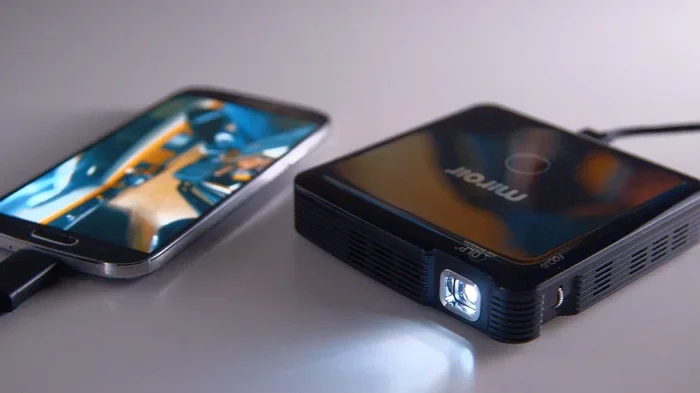
Yes, you can absolutely use your cell phone as a projector for presentations. With the right apps, cables, or wireless tools, your smartphone turns into a powerful portable projector that saves time and money. Whether you are in a boardroom or a classroom, phone-based projection makes sharing your slide deck quick and easy. This guide covers everything you need to know to get started.
Have you ever been in a meeting and wished you could just show your phone screen on the big display? Maybe you have a great slide deck on your phone but no laptop to connect it. The good news is that you can use your cell phone as a projector. It sounds like something from a sci-fi movie, but it is very real and very doable today.
The idea of wireless projection from a phone has come a long way. A few years ago, it felt clunky and unreliable. Now, the technology is smooth, fast, and works in most conference room setups. Whether you use an iPhone or an Android device, there is a way to cast your screen to a TV, monitor, or real projector. This guide walks you through every method, every tool, and every tip you need.
By the end of this article, you will know exactly how to turn your phone into a smartphone projector. You will learn about the best apps, the right cables, and the mistakes most people make. Let us dive in.
Key Takeaways
- Phone projection is simple: You can mirror your screen using apps, cables, or wireless protocols like AirPlay and Chromecast.
- Apps do the heavy lifting: Tools like Epson iProjection, Screen Mirroring, and Chromecast turn your phone into a mobile presentation tool.
- Hardware matters: A good HDMI adapter or Wi-Fi Direct connection makes a big difference in projection quality.
- Brightness and setup tips boost results: Simple adjustments like dimming the room and raising screen brightness improve visibility.
- Know when to upgrade: For large audiences or dark rooms, a dedicated digital projector still wins.
📑 Table of Contents
- How Can A Cell Phone Be Used As A Projector
- Best Apps To Turn Your Phone Into A Projector
- What You Need To Set Up Phone Projection
- Tips For Better Phone-to-Screen Projection Quality
- Comparison: Phone Projection Methods
- Common Mistakes When Using Your Phone As A Projector
- When To Use A Real Projector Instead
- Final Thoughts
How Can A Cell Phone Be Used As A Projector
The short answer is yes. Your cell phone can project images and videos onto a larger screen. But the way you do it depends on what equipment you have. There are three main methods people use today. Each one has its own strengths and ideal use cases.
Let us break them down so you can pick the best option for your needs.
Method 1: Wireless Screen Mirroring
Screen mirroring sends your phone display to another screen without any cables. This is the most popular method because it is fast and easy. You do not need to buy extra gear. Most modern TVs and displays support wireless display sharing right out of the box.
Here is how it works. Your phone sends a signal to a receiving device. That device could be a smart TV, a casting device like Chromecast, or a dedicated wireless projector. The signal carries your screen in real time. Whatever you do on your phone shows up on the big screen.
Quick Tip: Make sure both devices are on the same Wi-Fi network for the smoothest wireless projection experience.
Method 2: HDMI Cable Connection
If wireless is not an option, a cable works great. You can connect your phone directly to a display using an HDMI adapter. This method gives you a stable, lag-free connection. It is ideal for presentation software where timing matters.
For iPhones, you need a Lightning to HDMI adapter. For Android phones, a USB-C to HDMI cable works well. Just plug one end into your phone and the other into the TV or projector. Your phone screen instantly appears on the larger display.
Method 3: Dedicated Projector Apps
Several apps are designed specifically to turn your phone into a portable projector. These apps often come with extra features like slide controls, laser pointers, and annotation tools. They are perfect for people who present often and want a polished experience.
Some apps work by connecting to a smart TV or projector over the network. Others let you prepare and present your slide deck directly from your phone. We will cover the best apps in the next section.
Best Apps To Turn Your Phone Into A Projector
Not all projection apps are created equal. Some are free, some cost a few dollars, and some are built into your phone already. Here are the top options that actually work well for mobile presentation tools.
Epson iProjection
Epson iProjection is one of the best free apps for Android users. It connects directly to Epson projectors over Wi-Fi. You can project photos, documents, and spreadsheets from your phone. The app also lets you control the projector remotely, which is a nice touch for conference room setups.
Screen Mirroring / Cast Screen
Many Android phones have a built-in screen casting feature. Look for the “Cast” option in your quick settings panel. This uses Google Cast technology, which is the same engine behind Chromecast. It works with most smart TVs and streaming devices.
For iPhones, the built-in feature is AirPlay. You just swipe up, tap the AirPlay icon, and select your TV or projector. It is incredibly simple and requires no extra downloads.
ApowerMirror
ApowerMirror is a powerful cross-platform app. It works on both Android and iOS. You can mirror your phone to a PC, TV, or projector. It supports Wi-Fi Direct and USB connections. The free version has ads, but the paid version removes them and adds extra features like drawing on your screen during presentations.
LetsView
LetsView is another great free option. It supports wireless display on multiple devices. The app is lightweight and easy to set up. It works well for sharing screen brightness-adjusted content like photos and videos. It is a solid choice for quick, informal presentations.
What You Need To Set Up Phone Projection
Setting up your phone as a digital projector is easier than you think. But you do need a few things in place before you start. Let us go through the essentials.
Compatible Phone
Almost any modern smartphone can project its screen. iPhones from the iPhone 5 onward support AirPlay. Android phones from the last five years support Google Cast and most screen mirroring apps. If your phone can stream Netflix or YouTube to a TV, it can project.
A Display Or Projector
You need something to receive the signal. This could be a smart TV, a computer monitor, or an actual projector. If you are using a real projector, make sure it has Wi-Fi or an HDMI input. Many modern projectors support wireless projection natively.
A Stable Connection
For wireless setups, a strong Wi-Fi signal is essential. A weak connection causes lag, stuttering, and dropped frames. If you are presenting in a large building, check the Wi-Fi strength in the room beforehand. A Bluetooth projector or a direct Wi-Fi Direct connection can help if the network is crowded.
Power Source
Screen mirroring drains your phone battery fast. Plan to keep your phone plugged in during the presentation. A long charging cable or a portable battery pack keeps your phone running throughout the session.
Adequate Room Lighting
Phone screens are not as bright as real projectors. Dim the lights in the room for the best viewing experience. A darker room makes the projected image much easier to see, even on a smaller screen.
Tips For Better Phone-to-Screen Projection Quality
Getting your phone to project is only half the battle. Making it look good takes a little extra effort. These practical tips will improve your projection quality dramatically.
Raise Your Screen Brightness
Your phone’s screen brightness directly affects how clear the projected image looks. Turn it up to maximum before you start presenting. This is especially important in rooms with any ambient light. A bright phone screen produces a sharper, more visible projection.
Use Landscape Mode
Always present in landscape mode. Most projectors and TVs are widescreen. Portrait mode creates black bars on the sides and wastes screen space. Rotate your phone before you begin, and your slide deck will fill the entire display.
Close Background Apps
Running too many apps in the background slows down screen mirroring. Close everything you do not need. This frees up memory and processing power. Your presentation will run smoother and faster as a result.
Turn Off Notifications
Nothing kills a professional presentation faster than a popup notification. Turn on Do Not Disturb mode before you start. This stops calls, texts, and app alerts from appearing on the big screen. Your audience stays focused, and you stay in control.
Test Everything Before The Meeting
Always do a test run before your actual presentation. Connect your phone, load your slide deck, and check the audio. Make sure the video plays smoothly. Testing saves you from embarrassing tech failures in front of a live audience.
Use A Remote Control App
Some presentation software apps let you control your slides from your phone. You can advance slides, highlight points, and even use a virtual laser pointer. This frees you from standing next to the laptop and makes you more dynamic as a presenter.
Comparison: Phone Projection Methods
Not sure which method is right for you? Here is a quick comparison of the three main ways to use your phone as a projector.
| Feature | Wireless Mirroring | HDMI Cable | Projector App |
|---|---|---|---|
| Setup Speed | Very fast | Fast | Moderate |
| Connection Stability | Good | Excellent | Good |
| Cable Required | No | Yes | Sometimes |
| Best For | Quick sharing | High-stakes meetings | Frequent presenters |
| Cost | Free | Low (adapter cost) | Free to low |
| Latency | Slight delay | None | Slight delay |
As you can see, each method has its place. For a quick team huddle, wireless mirroring is perfect. For a critical client pitch, an HDMI cable gives you the most reliable connection. For regular presenters, a dedicated projector app adds professional features that make your life easier.
Common Mistakes When Using Your Phone As A Projector
Even with the best setup, things can go wrong. Here are the most common mistakes people make when using phone projection and how to avoid them.
Skipping the Test Run
This is the number one mistake. Never assume everything will work on the day of your presentation. Test your setup days in advance. Make sure the app is updated, the connection is stable, and the display looks correct. A quick test saves you from a stressful situation in front of your audience.
Ignoring Audio Issues
People focus so much on the video that they forget about sound. Check your audio settings before you start. Some wireless setups route audio through the phone speakers instead of the display. Make sure the sound comes through the right output device.
Using Too Many Animations
Phone screens are small, and screen mirroring can make complex animations lag. Keep your slide deck simple and clean. Use static images and minimal transitions. This ensures a smooth, professional-looking presentation every time.
Not Having a Backup Plan
Technology can fail. Wi-Fi goes down. Adapters get lost. Always have a backup plan. Carry a spare cable. Save a copy of your presentation on a USB drive or in the cloud. Being prepared for the worst means you never have to panic in front of your audience.
Forgetting About Battery Life
Screen mirroring and wireless projection drain your phone battery quickly. A one-hour presentation can eat up 30 to 40 percent of your charge. Plug in your phone and consider closing other apps to conserve power. A dead phone in the middle of a presentation is a nightmare scenario.
When To Use A Real Projector Instead
Using your phone as a projector is incredibly convenient, but it is not always the best choice. There are times when a dedicated portable projector or a digital projector makes more sense.
If you are presenting to a large audience of 50 or more people, a phone screen will not cut it. The image simply is not bright enough for a big room. Similarly, if you need to project detailed charts or high-resolution images, a real projector delivers much better clarity.
For everyday team meetings with 5 to 10 people, phone projection works great. It is fast, portable, and requires no extra equipment beyond a TV or monitor. The convenience factor is hard to beat. For one-time events or travel presentations, your phone might be all you need.
The key is knowing your audience and your environment. A small team meeting calls for phone projection. A boardroom presentation to executives might need a real projector. Use your judgment and pick the right tool for the job.
Final Thoughts
So, can a cell phone be used as a projector for presentations? Absolutely. The technology today makes it simple, affordable, and surprisingly effective. Whether you use wireless screen mirroring, an HDMI adapter, or a dedicated app, your phone can handle the job.
The best approach depends on your setup and your audience. For quick, informal sharing, wireless casting is your friend. For polished, high-stakes presentations, an HDMI connection gives you reliability. And for frequent presenters, a good projector app adds features that make your life easier.
Remember the tips we covered. Test your setup beforehand. Brighten your screen. Dim the room lights. And always have a backup plan. Follow these steps and your phone-based projection will look professional and impressive.
You do not need expensive gear to share your ideas on a big screen. Your cell phone is already in your pocket. With the right approach, it becomes a powerful portable projector that works anywhere, anytime. Start experimenting with these methods today, and you will wonder how you ever presented without them.
Frequently Asked Questions
Can any cell phone be used as a projector?
Almost any modern smartphone can project its screen. iPhones and Android phones from the last five years support wireless screen mirroring and casting. You just need a compatible display, TV, or projector to receive the signal. Older phones may not support the latest casting protocols.
Do I need special apps to use my phone as a projector?
Not always. Many phones have built-in casting features like AirPlay and Google Cast. However, dedicated projection apps like Epson iProjection or ApowerMirror add useful features like remote controls and annotation tools. Free apps work well for most users.
Is the projection quality good enough for professional presentations?
For small to medium rooms, phone projection quality is more than sufficient. The image clarity depends on your phone’s screen brightness and the display you are using. For large auditoriums or detailed graphics, a dedicated digital projector produces better results.
Can I use my phone as a projector without Wi-Fi?
Yes. You can use an HDMI adapter for a wired connection that does not need Wi-Fi at all. Some apps also support Wi-Fi Direct or Bluetooth projector connections that work without a shared network. Wired connections tend to be more stable.
Does projecting from my phone drain the battery quickly?
Yes, wireless projection and screen mirroring use significant battery power. A one-hour presentation can reduce your battery by 30 to 40 percent. Keep your phone plugged in during the session and close background apps to conserve energy.
What is the best way to present from my phone in a dark room?
In a dark room, wireless screen mirroring to a smart TV works best. Turn up your phone’s screen brightness and use a dedicated presentation software app for smooth slide transitions. A dark room makes your phone’s display look much brighter and more vivid on the big screen.
=== CONCLUSION ===
Can a cell phone be used as a projector for presentations? The answer is a clear yes. You now know the three main methods, the best apps, and the practical tips that make phone projection work beautifully. From wireless screen casting to wired HDMI adapter connections, you have options that fit every situation.
Use the comparison table to choose the right method for your needs. Follow the expert tips to avoid common mistakes. And remember, your phone is a versatile tool that can replace expensive equipment when used the right way.
Start small. Try projecting your next team update from your phone. Once you see how easy and effective it is, you will never go back to hauling around a laptop. Embrace the convenience of mobile projection and take your presentations wherever you go.