How Do I Access My Iphone Keychain On My Mac Today
Accessing your iPhone Keychain on your Mac is easier than you think. When you sign in with the same Apple ID and enable iCloud Keychain, your saved passwords, Wi-Fi credentials, and login details sync automatically between devices. This guide walks you through every step so you can find, view, and manage your stored passwords on your Mac right now.
Have you ever stood in front of your Mac, trying to pull up a password your iPhone saved, and thought, “Where did it go?” You are not alone. Millions of Apple users rely on iCloud Keychain to store their login details, Wi-Fi passwords, and even credit card information. But when you need those details on your Mac, the process can feel confusing at first.
The good news? How do I access my iPhone Keychain on my Mac is a straightforward question with a simple answer. Whether you want to retrieve a saved password, check your stored wireless network keys, or just peek at what your Keychain holds, this guide covers everything. You will learn the exact steps, find troubleshooting fixes, and discover tips to keep your data safe. Let us dive in.
Before we jump into the steps, let us quickly cover what the Keychain actually is and why it matters. Understanding the basics makes everything else much easier to follow.
Key Takeaways
- iCloud Keychain syncs your passwords: As long as you use the same Apple ID, your saved login credentials travel seamlessly between your iPhone and Mac.
- Two methods work to access your Keychain: You can use System Settings or the dedicated Keychain Access app on your Mac.
- Troubleshooting is simple: Most syncing issues fix themselves with a quick sign-out and sign-back-in or a restart.
- Security stays top-notch: Your Keychain data remains encrypted end-to-end, so only you can read your stored passwords.
- Quick Tips save time: Using Safari autofill and the Passwords preferences window makes daily access faster.
- Avoid common mistakes: Skipping two-factor authentication or using different Apple IDs breaks the sync chain.
📑 Table of Contents
What Is the iPhone Keychain and How Does It Work?
Your iPhone Keychain is Apple built-in password manager. It lives on your iPhone, iPad, and Mac, storing usernames, passwords, and other sensitive details in an encrypted vault. When you save a login in Safari or through an app, it goes straight into this secure space.
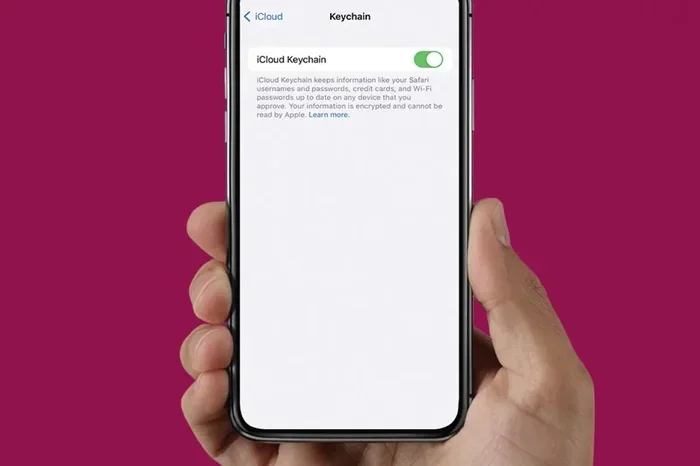
The magic happens through iCloud Keychain. This feature syncs your saved credentials across all your Apple devices. As long as you sign in with the same Apple ID and have iCloud Keychain turned on, your passwords travel safely through the cloud to your Mac and back.
Here is how the system works at a high level:
- You save a password on your iPhone using Safari or an app.
- iCloud syncs it to your other Apple devices in real time.
- Your Mac receives it and stores it in the local Keychain database.
- You access it whenever you need it through System Settings or the Keychain Access app.
Everything stays encrypted. Apple does not hold the keys to your data. Only your devices with your Apple ID can unlock and read what is stored. This is why two-factor authentication plays such a big role in keeping your Keychain safe.
How to Access Your iPhone Keychain on Your Mac
Now let us get to the core question. How do you actually pull up those saved passwords on your Mac? There are two main ways. Both work well, and I will walk you through each one step by step.
Method One: Through System Settings
This is the fastest way to view your synced passwords. It works on macOS Ventura, macOS Sonoma, and newer versions. Here is what to do:
- Open System Settings from the Apple menu in the top-left corner of your screen.
- Click your Apple ID name at the top of the Settings window.
- Select iCloud from the sidebar on the left.
- Click Passwords or Keychain depending on your macOS version.
- Enter your Mac password or use Touch ID to authenticate.
- Browse your saved passwords organized by website or app name.
That is it. You should now see every password your iPhone Keychain has synced to your Mac. You can search for a specific site, click on an entry, and reveal the password after authenticating again.
Method Two: Using the Keychain Access App
The Keychain Access app is a more advanced tool built right into macOS. It gives you a deeper look at everything stored in your login Keychain. Here is how to find it:
- Open Spotlight by pressing Command and the Space bar together.
- Type “Keychain Access” and press Enter.
- Select the “login” Keychain from the sidebar on the left.
- Browse or search for the password you need.
- Double-click any entry to see its details.
- Check the “Show password” box and enter your Mac password to reveal it.
The Keychain Access app also stores things beyond passwords. You can find secure notes, certificates, and even Wi-Fi network keys buried in there. It is a powerful tool once you get used to navigating it.
Quick Comparison: System Settings vs. Keychain Access
| Feature | System Settings | Keychain Access App |
|---|---|---|
| Ease of Use | Very simple and visual | More technical interface |
| Search Function | Built-in search bar | Search bar with filters |
| Password Visibility | One-click reveal | Check box to show password |
| Secure Notes | Not visible here | Fully accessible |
| Wi-Fi Keys | Not shown | Stored in System keychain |
| Best For | Quick password lookups | Advanced keychain management |
Most people will find System Settings easier for everyday use. But if you are troubleshooting or need to dig deeper, the Keychain Access app gives you more control.
Using the Keychain Access App on Mac
The Keychain Access app deserves its own spotlight. It is the traditional way Mac users have managed their stored credentials for years. Even though System Settings now offers a simpler path, Keychain Access remains the go-to for power users.
Navigating the Keychain Access Interface
When you first open Keychain Access, the interface can look a little overwhelming. But stick with me. The layout is logical once you know where to look.
- Sidebar on the left: Shows your Keychains, including “login,” “System,” and “iCloud.”
- Search bar at the top: Lets you type in a website name or app to find the right entry fast.
- Main window in the center: Lists all stored items matching your search or selected Keychain.
- Keychain Info panel: Appears when you double-click an item to view or edit its details.
Finding iPhone-Saved Passwords
Your iPhone passwords appear in the “login” Keychain by default. To find them quickly, type the name of the website or app into the search bar. Results will populate in seconds. Look for entries marked with a globe icon, which indicates a web password synced from your iPhone.
One thing to keep in mind: if you do not see your iPhone passwords on your Mac, check that iCloud Keychain is active on both devices. You can verify this by going to System Settings, clicking your Apple ID, then selecting iCloud, and making sure Passwords is toggled on.
Adding and Editing Entries
You can also add new passwords or edit existing ones directly from Keychain Access. Just right-click an entry and choose “Edit” or “Add Password.” This comes in handy when you set up a new account on your Mac and want it to sync back to your iPhone automatically.
Common Problems When Accessing Your Keychain
Even with a simple setup, things sometimes go wrong. Here are the most common issues people run into when trying to access their iPhone Keychain on a Mac, along with fixes that work.
Passwords Not Syncing Between Devices
This is the number one complaint. You saved a password on your iPhone, but it does not show up on your Mac. The fix is usually simple:
- Check your Apple ID: Make sure you are signed in with the same Apple ID on both devices.
- Verify iCloud Keychain is on: Go to Settings on your iPhone, tap your name, then iCloud, and confirm Keychain is enabled.
- Check your Mac settings: Open System Settings, click your Apple ID, select iCloud, and make sure Passwords is toggled on.
- Restart both devices: A quick reboot often forces the sync to kick in.
Keychain Access App Won’t Open
If the Keychain Access app crashes or refuses to open, try these steps:
- Force quit and reopen: Press Command, Option, and Escape, select Keychain Access, and click Relaunch.
- Reset the login Keychain: Go to Keychain Access, click Keychain Access in the menu bar, choose Preferences, and reset your default Keychain.
- Update macOS: An outdated operating system can cause compatibility issues. Check for updates in System Settings.
You Cannot See Any Passwords at All
If your Keychain appears empty, you might be looking at the wrong Keychain. In Keychain Access, make sure the “login” Keychain is selected in the sidebar. Also, check that you are not accidentally viewing the “System” Keychain, which stores different types of credentials.
Expert Insight: Apple support specialists recommend signing out of iCloud and signing back in if syncing issues persist. This refreshes the connection and often resolves stubborn sync problems without losing any stored data.
Tips to Keep Your iPhone Keychain Secure
Your Keychain holds some of your most sensitive information. Taking a few extra steps to protect it is well worth the effort. Here is what I recommend.
Enable Two-Factor Authentication
Two-factor authentication adds a second layer of protection to your Apple ID. Even if someone gets your password, they cannot access your Keychain without a verification code sent to your trusted devices. Turn it on by going to Settings, tapping your name, then Passwords and Security, and selecting Two-Factor Authentication.
Use a Strong Mac Password
Your Mac password is the gatekeeper to your Keychain. Make it long, unique, and hard to guess. Avoid simple words or personal information. A strong password keeps your stored credentials safe if someone ever gets physical access to your Mac.
Lock Your Keychain When Not in Use
By default, your login Keychain unlocks when you sign in to your Mac. If you want an extra layer of security, you can set it to lock automatically after a period of inactivity. Go to Keychain Access, right-click your login Keychain, choose Change Password for Keychain, and adjust the settings.
Review Stored Passwords Regularly
Make it a habit to check your saved passwords every few months. Look for duplicates, weak passwords, or entries for services you no longer use. Deleting old or unnecessary entries reduces your exposure if a data breach ever occurs.
Quick Security Tips at a Glance
- Use a unique password for every account.
- Enable Face ID or Touch ID for quick, secure Keychain access.
- Keep your devices updated to the latest macOS and iOS versions.
- Never share your Apple ID password with anyone.
- Set up a recovery contact in case you ever get locked out.
Wrapping Up: Making the Most of Your Keychain
So there you have it. How do I access my iPhone Keychain on my Mac comes down to two simple paths: System Settings for quick lookups or the Keychain Access app for deeper management. Both methods work seamlessly when iCloud Keychain is enabled and your Apple ID is consistent across devices.
Your passwords, Wi-Fi keys, and secure notes live in a beautifully encrypted space that Apple makes easy to use. The key is keeping everything synced, secure, and up to date. With the steps and tips in this guide, you should feel confident finding and managing your stored credentials on your Mac whenever you need them.
Take a few minutes today to check your Keychain settings on both your iPhone and Mac. Make sure iCloud sync is working, review your saved passwords, and update anything that looks outdated. A little maintenance now saves a lot of frustration later.
Your digital life runs on convenience and security. Apple Keychain delivers both, and now you know exactly how to tap into it on your Mac. Happy browsing, and stay safe out there.
Frequently Asked Questions
Can I access my iPhone Keychain on a Mac without iCloud?
No, iCloud Keychain must be enabled for your iPhone passwords to sync to your Mac. Without it, the two devices do not share stored credentials. Make sure you sign in with the same Apple ID on both devices and toggle iCloud Keychain on in settings.
Why are my iPhone passwords not showing up on my Mac?
This usually happens when iCloud Keychain is turned off on one of your devices or when you are using different Apple IDs. Check your settings on both the iPhone and Mac, ensure the same Apple ID is active, and confirm that Passwords is enabled under iCloud. Restarting both devices often fixes the issue.
Is it safe to store passwords in the iPhone Keychain?
Yes, Apple uses end-to-end encryption to protect everything stored in your Keychain. Your passwords are never stored on Apple servers and can only be unlocked by your trusted devices. Enabling two-factor authentication adds an extra layer of safety.
Can I view my Wi-Fi passwords from my iPhone Keychain on my Mac?
Yes, Wi-Fi passwords are stored in your Keychain and sync across devices. You can find them in the Keychain Access app on your Mac under the System keychain. Look for your network name, double-click it, and check the Show Password box after authenticating.
What should I do if I forget my Mac Keychain password?
If you forget your login Keychain password, you can reset it through Keychain Access by right-clicking the login Keychain and choosing Reset My Default Keychain. You will lose the stored passwords in that Keychain, so always keep a backup of important credentials elsewhere.
Does accessing my Keychain on my Mac affect my iPhone?
No, accessing your Keychain on your Mac does not change or delete anything on your iPhone. Any edits you make, such as adding or updating a password, sync back to your iPhone automatically through iCloud Keychain.