Do I Really Need To Install Logitech Unifying Software
Logitech Unifying Software lets you connect multiple Logitech devices to a single USB receiver, but not everyone needs it. If you use a Logitech wireless mouse or keyboard, this software simplifies your setup and frees up USB ports. However, if you only have one device or prefer Bluetooth, you might skip it entirely.
You just unboxed a new Logitech wireless mouse or keyboard. You plug in the tiny USB receiver, and it works instantly. But then you see a prompt or a notification about Logitech Unifying Software. Do you really need it? That’s the question many users ask, and it’s a fair one.
The short answer is: it depends on how many Logitech wireless devices you use and what features you want. Logitech Unifying Software offers a neat way to connect multiple devices to one receiver. But for casual users with a single device, it might be overkill. Let’s break this down in detail so you can make the right choice for your setup.
In this article, we’ll cover exactly what Logitech Unifying Software does, who benefits from it, and when you can safely skip it. By the end, you’ll know whether installing it makes sense for you. No fluff, no jargon, just clear and practical advice.
Key Takeaways
- Single USB Receiver: Logitech Unifying Software lets you pair up to six devices to one tiny USB dongle.
- Not Always Required: Many Logitech devices work plug-and-play without installing any extra software.
- Extra Features: The software offers custom buttons, battery monitoring, and firmware updates for your devices.
- Bluetooth Alternative: Some newer Logitech devices connect via Bluetooth, removing the need for a Unifying receiver altogether.
- Compatibility Matters: Not all Logitech devices work with the Unifying system, so check before you install.
- Easy to Remove: If you don’t need it, uninstalling the software is simple and won’t harm your devices.
📑 Table of Contents
- What Is Logitech Unifying Software?
- Who Actually Needs Logitech Unifying Software?
- Benefits of Installing Logitech Unifying Software
- Drawbacks of Installing Logitech Unifying Software
- Logitech Unifying Software vs. Logitech Options Software
- Common Mistakes People Make with Logitech Unifying Software
- How to Install Logitech Unifying Software
- Quick Tips for Getting the Most Out of Logitech Unifying Software
- Expert Insights: What the Pros Say About Logitech Unifying Software
- Final Verdict: Should You Install Logitech Unifying Software?
What Is Logitech Unifying Software?
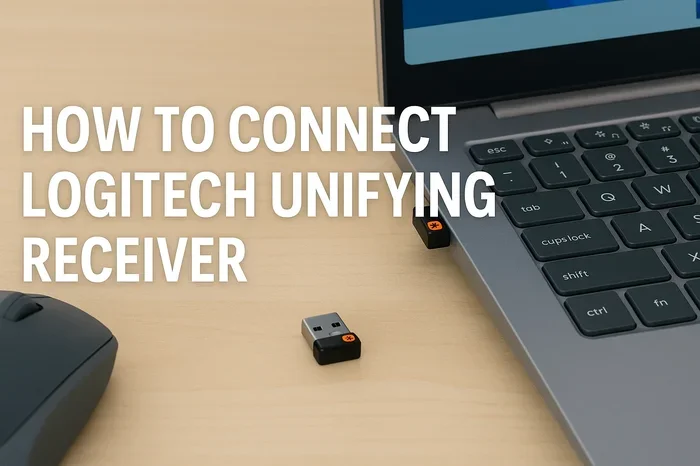
Logitech Unifying Software is a small application that lets you connect multiple Logitech wireless devices to a single USB receiver. Think of it as a hub for your wireless peripherals. Instead of using a separate USB dongle for each mouse or keyboard, you can pair them all to one tiny Unifying receiver.
The Unifying receiver is a small USB plug-in device made by Logitech. It uses a proprietary wireless protocol to communicate with Logitech accessories. This technology has been around for years and works with a wide range of Logitech mice, keyboards, and trackballs.
Here’s what makes it appealing. You plug one receiver into your computer’s USB port. Then you add up to six Logitech devices to that single receiver. This saves USB ports and reduces cable clutter on your desk. It’s especially useful for people who use multiple devices throughout the day.
How Does the Unifying Technology Work?
The Unifying system uses a low-power wireless connection. The receiver talks to your Logitech devices using a 2.4 GHz wireless signal. This is different from Bluetooth, which is another wireless option found on many modern Logitech devices.
When you install Logitech Unifying Software, it helps your computer recognize the receiver and the paired devices. The software also handles device management. You can add new devices, remove old ones, and check the battery status of each connected peripheral.
The pairing process is simple. You plug in the Unifying receiver, open the software, and follow the on-screen steps. The software searches for compatible Logitech devices nearby. Once found, you pair them by pressing a button on the device or following a quick setup wizard.
Who Actually Needs Logitech Unifying Software?
Not everyone needs this software. Whether you should install it depends on your setup, your workflow, and the Logitech devices you own. Let’s look at the different user profiles to help you figure out where you stand.
You Need It If You Use Multiple Logitech Devices
If you have a Logitech wireless mouse for your desk and another one for your laptop, the Unifying Software is a great fit. You can switch the receiver between computers or keep it plugged into one machine and use all your devices across it. This is a huge time-saver for people who work with multiple peripherals.
For example, many professionals use a Logitech wireless keyboard at their desk and a compact mouse for travel. With the Unifying Software, both devices can share one receiver. You just unplug the receiver from one computer and plug it into another. Both devices reconnect automatically.
You Might Skip It If You Only Have One Device
If you have a single Logitech wireless mouse or keyboard, you probably don’t need the Unifying Software. Most Logitech wireless devices come with a built-in nano receiver. These receivers work right out of the box without any extra software installation.
Plug in the receiver, and your device starts working within seconds. You don’t get the multi-device management features, but for basic use, you don’t need them. The device functions perfectly fine on its own.
You Might Skip It If You Use Bluetooth Devices
Many newer Logitech devices support Bluetooth connectivity. If your mouse or keyboard connects directly to your computer via Bluetooth, you don’t need a Unifying receiver at all. You also don’t need the Unifying Software. The Bluetooth connection handles everything on its own.
Bluetooth-enabled Logitech devices are becoming more popular. They offer a clean desk setup without any USB receiver at all. If you value minimalism and simplicity, Bluetooth devices might be the better choice for you.
Benefits of Installing Logitech Unifying Software
There are several real advantages to installing Logitech Unifying Software. Let’s walk through the main benefits so you can see what you gain.
1. One Receiver for All Your Devices
This is the biggest benefit. A single Unifying receiver can support up to six Logitech devices. That means fewer USB ports used and less clutter on your desk. If you work in a multi-monitor setup or switch between a desktop and a laptop, this feature is incredibly useful.
Imagine having a Logitech wireless mouse, a Logitech wireless keyboard, and a Logitech trackball all connected to one tiny receiver. You carry that one receiver with you when you travel, and everything just works. It’s a clean and efficient setup.
2. Easy Device Management
The Unifying Software gives you a dashboard to manage all your connected devices. You can see which devices are paired, check their battery levels, and update firmware. This centralized management is something you can’t get with standard plug-and-play setups.
Battery monitoring is especially handy. You’ll get notifications when a device’s battery is running low. This helps you avoid the frustration of your mouse or keyboard dying mid-task. You can charge or replace batteries before it becomes a problem.
3. Customizable Button Functions
The software allows you to reprogram buttons on your Logitech devices. You can assign custom actions, macros, or shortcuts to specific buttons. This is a great feature for productivity users and gamers who want to streamline their workflow.
For instance, you might set a side button on your mouse to open a specific application or switch between virtual desktops. These small tweaks can save you significant time over the course of a workday.
4. Firmware Updates
Logitech occasionally releases firmware updates for its devices. These updates can improve performance, fix bugs, and add new features. The Unifying Software makes it easy to check for and install these updates.
Without the software, you might miss out on important improvements. Firmware updates can enhance wireless range, reduce input lag, and fix connectivity issues. Keeping your devices updated ensures they run at their best.
Drawbacks of Installing Logitech Unifying Software
It’s not all positives. There are some drawbacks to consider before you install Logitech Unifying Software. Let’s be honest about the downsides so you can make a fully informed decision.
1. Extra Software on Your Computer
Some users don’t like installing extra software. Every application you add takes up space and can potentially slow down your system. If you’re a minimal user with just one device, installing the Unifying Software might feel unnecessary.
You can still use your Logitech device without the software. The receiver and device will work on their own. The software just adds extra management features that not everyone needs.
2. Limited to Logitech Unifying Devices
The Unifying system only works with Logitech devices that support it. Not every Logitech wireless device uses the Unifying protocol. Some devices use a different receiver format, and others connect via Bluetooth only.
Before you invest in the Unifying ecosystem, make sure your devices are compatible. Check the Logitech website or the product packaging for the Unifying logo. If your devices don’t support it, the software won’t help you.
3. Receiver Can Be Easy to Lose
The Unifying receiver is very small. That’s great for portability, but it’s also easy to lose. If you lose the receiver, you can’t use your wireless devices until you get a replacement. Some Logitech devices come with a slot to store the receiver, but not all of them do.
To avoid this problem, consider keeping the receiver plugged into your laptop when you travel. Or use a receiver holder that attaches to your device. These small precautions can save you a lot of hassle.
4. Software Updates and Compatibility
Logitech occasionally updates the Unifying Software, and sometimes these updates can cause issues. Some users report compatibility problems after updates, especially with older devices. While these issues are not common, they do happen.
If you rely heavily on your Logitech devices for work, you might want to think carefully before enabling automatic updates. It’s a good idea to check user reviews before updating to make sure there are no widespread problems.
Logitech Unifying Software vs. Logitech Options Software
You might have heard of another Logitech software called Logitech Options (or Logi Options+). It’s natural to wonder how these two compare. Let’s break down the differences so you know which one you actually need.
Logitech Unifying Software
The Unifying Software focuses on device connectivity and management. Its main job is pairing devices to the Unifying receiver. It handles firmware updates and basic device settings. It’s a lightweight tool that does one thing well.
This software is ideal for users who want a simple way to manage multiple Logitech devices on one receiver. It doesn’t offer deep customization options, but it keeps things straightforward and easy to use.
Logitech Options (or Logi Options+)
Logitech Options is a more advanced software suite. It offers deeper customization for your Logitech devices. You can create complex macros, remap keys in detail, and switch between multiple computers with a single keyboard and mouse.
Logi Options+ is the newer version of this software. It works with both Unifying and Bluetooth devices. If you want maximum control over your Logitech peripherals, Logi Options+ is the better choice. In fact, many users install both programs for the best experience.
| Feature | Unifying Software | Logi Options+ |
|---|---|---|
| Multi-device pairing | Up to 6 devices | Up to 6 devices |
| Button customization | Basic | Advanced |
| Firmware updates | Yes | Yes |
| Battery monitoring | Yes | Yes |
| Multi-computer switching | No | Yes |
| Bluetooth support | No | Yes |
| System requirements | Lightweight | Moderate |
Common Mistakes People Make with Logitech Unifying Software
Avoid these common pitfalls to get the best experience with your Logitech Unifying setup.
Forgetting to Check Device Compatibility
Not all Logitech devices work with the Unifying system. Before you buy a Unifying receiver or install the software, verify that your devices are compatible. Look for the Unifying logo on the product packaging or check the Logitech website for a list of supported devices.
Ignoring Firmware Updates
Some users install the software, pair their devices, and then forget about it. Over time, firmware updates can improve performance and fix bugs. Make it a habit to check for updates every few months to keep your devices running smoothly.
Using the Wrong Receiver
Logitech has different types of wireless receivers. The Unifying receiver is not the same as a proprietary receiver that comes with a specific device. Make sure you’re using the correct Unifying receiver for your setup. Mixing them up can cause connection problems.
Overloading the Receiver
While the Unifying system supports up to six devices, adding too many can sometimes cause interference. If you notice connectivity issues, try disconnecting a device and see if the problem improves. Keeping the number of paired devices reasonable helps maintain a stable connection.
How to Install Logitech Unifying Software
If you’ve decided to install the software, the process is straightforward. Here’s a quick step-by-step guide.
- Visit the Logitech website. Go to the official Logitech support page and search for “Unifying Software.”
- Download the installer. Choose the version that matches your operating system. Logitech supports Windows, macOS, and Chrome OS.
- Run the installer. Open the downloaded file and follow the on-screen instructions.
- Plug in your Unifying receiver. Insert it into an available USB port on your computer.
- Pair your devices. Open the software and follow the prompts to add your Logitech devices to the receiver.
- Check for updates. Once everything is set up, check for any available firmware updates for your devices.
The entire process usually takes less than ten minutes. It’s a quick and painless setup that can greatly improve your wireless experience.
Quick Tips for Getting the Most Out of Logitech Unifying Software
- Keep your receiver in a USB hub. If you’re short on USB ports, use a small USB hub to connect the receiver. This keeps it accessible and reduces strain on your computer’s ports.
- Label your paired devices. If you have multiple devices connected, give them descriptive names in the software. This makes it easy to identify which device is which.
- Store the receiver safely. Use a small case or a receiver holder to prevent losing it. Some Logitech mice even have a built-in slot for storing the receiver.
- Restart your computer after installing. This ensures all drivers are loaded correctly and your devices are recognized properly.
- Use the software to monitor battery levels. Don’t wait until your device dies. Keep an eye on battery status and charge or replace batteries proactively.
Expert Insights: What the Pros Say About Logitech Unifying Software
Tech reviewers and professionals who work with multiple peripherals often recommend the Unifying Software. It simplifies complex setups and reduces cable clutter. Many office workers and IT professionals swear by the single-receiver approach for managing their Logitech devices.
However, some experts point out that the software is not essential for basic use. If your device works fine without it, there’s no obligation to install it. The decision should be based on your specific needs and how many devices you use.
One thing most experts agree on is that the Unifying system is reliable and well-tested. It’s been a staple of Logitech’s wireless ecosystem for years. The software and receiver combination has proven itself in offices and homes around the world.
Final Verdict: Should You Install Logitech Unifying Software?
So, do you really need to install Logitech Unifying Software? The answer comes down to your setup. If you use multiple Logitech wireless devices, the software is absolutely worth installing. It saves USB ports, simplifies device management, and adds useful features like battery monitoring and button customization.
If you only have one Logitech wireless device, or if your device connects via Bluetooth, you can probably skip the software. Your device will work perfectly fine without it. The software is a bonus, not a requirement, for single-device setups.
Either way, installing the software is free and takes only a few minutes. There’s no harm in trying it out. If you find it useful, great. If not, you can always uninstall it. The choice is yours, and now you have all the information you need to make it confidently.
Take a moment to assess your current setup. Count how many wireless Logitech devices you use. Think about whether you’d benefit from a single receiver managing them all. Then make your decision based on what works best for your workflow. That’s the smartest approach, and it’s exactly what we recommend.
Frequently Asked Questions
Can I use Logitech Unifying Software with a Logitech gaming mouse?
Yes, many Logitech gaming mice support the Unifying system. However, some gaming mice use a proprietary USB receiver that is not compatible with the Unifying Software. Check your mouse model on the Logitech website to confirm compatibility before purchasing a Unifying receiver.
Is Logitech Unifying Software free to download?
Yes, the Logitech Unifying Software is completely free. You can download it from the official Logitech website without any cost. There are no hidden fees or premium tiers required to use the basic features.
Can I connect Logitech Unifying devices to a Mac or Chromebook?
Yes, Logitech Unifying Software supports Windows, macOS, and Chrome OS. You can pair your Unifying devices with any of these operating systems. The setup process is the same across all platforms, making it very convenient for multi-OS users.
What happens if I lose my Unifying receiver?
If you lose your Unifying receiver, you can purchase a replacement from Logitech. The replacement receiver will need to be re-paired with your devices. To avoid this issue, consider buying a spare receiver or using a receiver holder that attaches to your device.
Does Logitech Unifying Software work with all Logitech wireless devices?
No, the software only works with Logitech devices that support the Unifying protocol. Devices that use Bluetooth or proprietary receivers are not compatible. Always check the product specifications or the Logitech website before assuming a device is Unifying-compatible.
Can I use Logitech Unifying Software and Logi Options+ together?
Yes, many users run both programs simultaneously. The Unifying Software handles device pairing and receiver management, while Logi Options+ provides advanced customization options. Together, they offer a complete solution for managing your Logitech peripherals.
=== CONCLUSION ===
Logitech Unifying Software is a handy tool, but it’s not for everyone. If you juggle multiple wireless Logitech devices, it can truly simplify your life. One receiver, one software dashboard, and fewer USB port headaches. That’s a win in our book.
On the other hand, if you have a single device or prefer Bluetooth connections, you can skip the installation without missing out on anything important. Your device will work just fine on its own.
The beauty of this setup is its flexibility. You decide what works best for you. Install the software if it adds value, and don’t feel guilty about skipping it if it doesn’t. Either way, your Logitech devices are built to deliver a great experience.
We hope this guide has given you the clarity you needed. Now you can make a confident decision about whether to install Logitech Unifying Software. Happy computing!