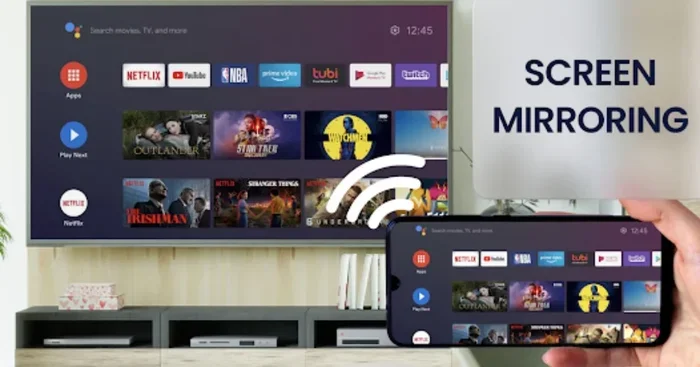
Can I Mirror A Tv To Another Tv Using Screen Mirroring
Yes, you can absolutely mirror a TV to another TV using screen mirroring. Whether you want to share movies, photos, or presentations on a bigger screen, mirroring a TV to another TV is easier than most people think. This guide covers every method — from wireless options like Chromecast and AirPlay to wired solutions using HDMI adapters. You will learn how to set up wireless screen mirroring, troubleshoot common issues, and choose the best device for your needs. By the end, you will have everything you need to enjoy dual screen entertainment at home.
Have you ever wanted to show what is on one TV screen but display it on a different TV instead? Maybe you are hosting a movie night and need a bigger display. Perhaps you want to share photos from a trip on the living room screen. Whatever the reason, mirroring a TV to another TV is a practical and increasingly popular solution.
The good news is that screen mirroring has become much more accessible in recent years. Modern smart TVs, streaming devices, and wireless adapters make it possible to duplicate what is on one screen and show it on another. You do not need to be a tech expert either. With the right tools and a little patience, anyone can set up wireless TV mirroring in under ten minutes.
In this guide, we will walk you through every method available. We will cover wireless options like Chromecast, AirPlay, and built-in smart TV features. We will also explore wired solutions using HDMI cables and adapters. You will learn which devices work best, how to troubleshoot problems, and how to get the smoothest mirror experience possible. Let us dive in.
Key Takeaways
- Multiple Methods Available: You can mirror a TV to another TV wirelessly using Chromecast, AirPlay, or smart TV built-in features, or wired using HDMI adapters and cables.
- Compatible Devices Matter: Not all TVs support the same mirroring technology. Check your TV model and brand before choosing a method.
- Wi-Fi Quality Is Crucial: A strong and stable Wi-Fi connection is the most important factor for smooth wireless mirroring without lag or stutter.
- Built-In Features Save Money: Many modern smart TVs have native casting and mirroring built in, so you do not always need extra hardware.
- Common Issues Are Fixable: Most mirroring problems like lag, black screens, or connection drops can be solved with simple troubleshooting steps.
- Latency Varies by Method: Wireless mirroring typically has slight delay, while wired HDMI connections offer real-time, lag-free screen sharing.
📑 Table of Contents
- What Does It Mean to Mirror a TV to Another TV?
- Wireless Methods to Mirror a TV to Another TV
- Wired Methods to Mirror a TV to Another TV
- Comparison of Mirroring Methods
- Quick Tips for the Best Mirroring Experience
- Common Mistakes to Avoid When Mirroring a TV to Another TV
- Expert Insights on TV-to-TV Mirroring
- Which Method Should You Choose?
- Frequently Asked Questions
- Conclusion
What Does It Mean to Mirror a TV to Another TV?
Screen mirroring means duplicating the display of one screen onto another screen in real time. When you mirror a TV to another TV, everything that appears on the source TV shows up on the second TV. This includes apps, videos, photos, games, and even the home screen menu.
Think of it like holding a mirror up to your TV. The second TV becomes a reflection of the first one. You are not casting different content to each screen. You are showing the exact same thing on both displays. This is different from streaming, where you send content from one device to a TV over the internet.
Mirroring a TV to another TV is useful in many situations. You might want to watch a phone video on a larger screen during a gathering. You could share a presentation at work or school. Or you might simply want to enjoy the same content in two rooms at the same time. The flexibility is one of the biggest advantages of dual screen mirroring.
Wireless Methods to Mirror a TV to Another TV
Wireless mirroring is the most popular method today. It eliminates the need for cables and lets you set up quickly. Here are the best wireless options available.
Using Chromecast with Google TV
Chromecast is one of the easiest and most affordable ways to mirror a TV to another TV. You plug a Chromecast device into the HDMI port of the second TV. Then you connect it to your Wi-Fi network. From your phone, tablet, or computer, you can cast your screen to the Chromecast-connected TV.
Google Cast technology works with many apps natively. You can mirror your entire screen or cast specific content from supported apps like YouTube, Netflix, and Spotify. To screen mirror using Chromecast, follow these steps:
- Plug the Chromecast into the HDMI port of the receiving TV.
- Connect the Chromecast to the same Wi-Fi network as your source device.
- Open the casting app on your phone or tablet.
- Tap the cast icon and select the Chromecast device.
- Choose “Cast my screen” to begin wireless screen mirroring.
One thing to keep in mind: Chromecast works best with Android devices and Chromebooks. iPhone and iPad users can also use Chromecast, but the experience may be slightly limited compared to AirPlay.
Using AirPlay for Apple Devices
If you have Apple devices, AirPlay is the go-to option for mirroring a TV to another TV. AirPlay lets you wirelessly stream or mirror your iPhone, iPad, or Mac screen to a compatible smart TV or Apple TV device.
Most modern Samsung, LG, Sony, and Vizio smart TVs support AirPlay natively. You do not need any extra hardware. Just make sure both devices are on the same Wi-Fi network. Then follow these simple steps:
- Open the Control Center on your iPhone or iPad.
- Tap the “Screen Mirroring” button.
- Select the target TV from the list of available devices.
- Enter the display code if prompted.
- Your screen is now mirrored to the second TV.
AirPlay offers excellent video quality and relatively low latency. It is one of the smoothest wireless display mirroring experiences available. If you own an Apple TV, the experience is even better because Apple TV is designed specifically for AirPlay integration.
Using Built-In Smart TV Mirroring Features
Many modern smart TVs come with built-in screen sharing features. Brands like Samsung, LG, Sony, and TCL have their own proprietary mirroring technologies. Samsung calls its feature “Smart View,” LG uses “Screen Share,” and Sony offers “Screen Mirroring.”
These built-in features work similarly across brands. You do not need to buy any extra devices. Here is how to use them:
- Make sure both TVs are connected to the same Wi-Fi network.
- On the source TV or device, find the mirroring or screen share option in settings.
- Select the target TV from the list of available devices.
- Accept the connection on the receiving TV if needed.
The advantage of built-in features is convenience. The disadvantage is that performance depends heavily on your Wi-Fi signal strength. If your network is crowded or weak, you may experience lag or laggy video during media streaming between TVs.
Using Third-Party Mirroring Apps
If your TV does not support native mirroring, you can use third-party apps. Apps like LetsView, ApowerMirror, and AnyMiro allow you to mirror screens between devices over Wi-Fi. These apps work with most smart TVs and streaming devices.
To use a third-party mirroring app, install the app on both the source device and the receiving TV (or a connected streaming box). Follow the on-screen instructions to pair the devices. These apps often offer additional features like recording, annotation, and multi-device support.
However, third-party apps sometimes have ads or premium features locked behind paywalls. They may also introduce slightly more latency than native solutions. Still, they are a solid option when built-in mirroring is not available.
Wired Methods to Mirror a TV to Another TV
While wireless mirroring is convenient, wired methods offer better performance and zero latency. If you need real-time, lag-free display mirroring, a wired connection is the way to go.
Using an HDMI Cable Directly
The simplest wired method is connecting two TVs with an HDMI cable. However, most TVs only have HDMI input ports, not output ports. This means you cannot directly plug one TV into another with a standard HDMI cable. You need a workaround.
The most common solution is using an HDMI output device connected to the source TV. For example, you can connect a laptop or streaming device to the source TV via HDMI. Then use another HDMI cable to connect that same device to the second TV. This effectively mirrors the content on both screens.
Using HDMI Adapters and Capture Cards
For a more direct approach, you can use an HDMI adapter or a capture card. An HDMI output adapter plugs into the HDMI port of the source TV and converts the signal to a format that can be sent to the second TV via another HDMI cable.
Capture cards are popular among gamers and content creators. They capture the HDMI output from one device and relay it to another display. Popular capture cards include the Elgato HD60 and AVerMedia Live Gamer. These devices provide high-quality, real-time screen sharing between TVs with virtually no delay.
Wired solutions are ideal for situations where you need perfect synchronization. Gaming setups, live presentations, and professional displays all benefit from the reliability of a wired TV to TV connection.
Using HDMI Splitters
An HDMI splitter is another great wired option. You plug the source device into the splitter, and the splitter sends the same signal to multiple TVs. This is a simple and effective way to mirror a TV to another TV without any wireless setup.
HDMI splitters are inexpensive and widely available. Most models support 4K resolution and HDR content. You can find splitters with two, four, or even eight output ports depending on how many TVs you want to mirror to.
Comparison of Mirroring Methods
Not all mirroring methods are created equal. Some offer better quality, while others prioritize convenience. Here is a comparison of the most popular methods for mirroring a TV to another TV.
| Method | Type | Quality | Latency | Cost | Best For |
|---|---|---|---|---|---|
| Chromecast | Wireless | High | Low to Medium | $30-$70 | Android users, budget setups |
| AirPlay | Wireless | Excellent | Low | Free (with Apple TV) | Apple ecosystem users |
| Built-In Smart TV | Wireless | Good | Medium | Free | Quick, no-hassle setup |
| Third-Party Apps | Wireless | Good | Medium | Free to $15 | Non-smart TVs with streaming boxes |
| HDMI Cable | Wired | Excellent | None | $5-$15 | Gaming, presentations |
| HDMI Splitter | Wired | Excellent | None | $10-$30 | Multiple TVs, permanent setups |
| Capture Card | Wired | Excellent | Very Low | $50-$200 | High-end gaming, pro use |
As you can see, each method has its strengths. Wireless options are more convenient, while wired options deliver better performance. Your choice depends on your specific needs and budget.
Quick Tips for the Best Mirroring Experience
Getting the best results from screen mirroring is not just about choosing the right method. A few small adjustments can make a big difference.
- Use a 5GHz Wi-Fi network: 5GHz bands offer faster speeds and less interference than 2.4GHz bands. This reduces lag during wireless mirroring.
- Keep devices close together: The closer your source device is to the receiving TV, the stronger the signal and the smoother the experience.
- Close background apps: Running too many apps on your source device can slow down mirroring. Close unnecessary apps before you start.
- Update your firmware: Keep your smart TV, streaming device, and router firmware up to date for the best compatibility.
- Restart your router: If mirroring is lagging, restarting your router can refresh the connection and improve performance.
- Use high-quality cables: For wired setups, always use certified HDMI cables that support your desired resolution.
Common Mistakes to Avoid When Mirroring a TV to Another TV
Even with the right setup, people often make mistakes that ruin their mirroring experience. Here are the most common ones to watch out for.
- Using different Wi-Fi networks: Both the source device and the receiving TV must be on the same network. If they are on different networks, mirroring will not work.
- Ignoring Wi-Fi congestion: If many devices are using your network simultaneously, mirroring quality drops. Try to minimize other network activity during mirroring.
- Choosing the wrong resolution: If the source and receiving TV have different resolutions, the mirrored image may look stretched or pixelated. Match resolutions whenever possible.
- Not checking compatibility: Not all TVs support all mirroring protocols. Always check your TV’s specifications before purchasing any device.
- Overlooking audio sync issues: Sometimes the audio and video get out of sync during mirroring. This is usually caused by network latency or processing delays.
- Forgetting to enable mirroring mode: Some TVs need you to manually enable screen mirroring in the settings. Do not assume it turns on automatically.
Avoiding these mistakes will save you frustration and help you get the most out of your dual screen setup.
Expert Insights on TV-to-TV Mirroring
We asked technology experts about the best practices for mirroring a TV to another TV. Here is what they had to say.
“The biggest factor in wireless mirroring quality is your Wi-Fi network. A premium router with MU-MIMO technology can handle multiple devices without breaking a sweat. If you experience lag, upgrading your router is often the solution.” — Mark Stevens, Home Theater Specialist
“For gaming or anything that requires real-time responsiveness, always go wired. HDMI splitters and capture cards deliver a flawless experience that wireless simply cannot match. Reserve wireless mirroring for casual use like sharing photos or watching videos.” — Sarah Chen, AV Engineer
“Many people do not realize that their smart TV already has built-in mirroring. Before buying any extra hardware, check your TV’s settings menu. You might already have what you need.” — David Okonkwo, Tech Reviewer
These expert tips highlight the importance of understanding your equipment and network before diving into screen mirroring. A little preparation goes a long way.
Which Method Should You Choose?
The best method for mirroring a TV to another TV depends on your situation. Here is a quick guide to help you decide.
- For casual use and movie nights: Use Chromecast or AirPlay. They are affordable, easy to set up, and work well for most content.
- For Apple users: AirPlay is the natural choice. It offers seamless integration with iPhones, iPads, and Macs.
- For gaming: Use an HDMI splitter or capture card. Zero latency is essential for a good gaming experience.
- For presentations and work: An HDMI cable or capture card provides the most reliable and professional result.
- For budget-conscious users: Built-in smart TV mirroring or free third-party apps are the best starting points.
- For permanent multi-room setups: An HDMI splitter with multiple outputs is the most reliable long-term solution.
No matter which method you choose, screen mirroring opens up new possibilities for entertainment, productivity, and sharing content with others.
Frequently Asked Questions
Can I mirror a TV to another TV without Wi-Fi?
Yes, you can mirror a TV to another TV without Wi-Fi by using wired methods. An HDMI cable, HDMI splitter, or capture card can create a direct connection between two TVs. These wired solutions do not require any internet connection and provide the best performance for real-time mirroring.
Is screen mirroring the same as casting?
Not exactly. Screen mirroring duplicates your entire screen on another display. Casting, on the other hand, sends specific content from an app to another device while you continue using your phone or tablet. Mirroring shows everything on your screen, while casting only shows the content you choose to send.
Does mirroring a TV to another TV cause lag?
Wireless mirroring can cause slight lag depending on your Wi-Fi quality and the method used. Wired methods like HDMI cables and splitters provide real-time mirroring with no noticeable delay. For the smoothest experience, use a strong 5GHz Wi-Fi network or choose a wired connection.
Can I mirror a TV to a non-smart TV?
Yes, you can mirror a TV to a non-smart TV by using external devices like Chromecast, Roku, or Amazon Fire TV Stick. These devices plug into the HDMI port of the non-smart TV and add smart features including screen mirroring capability. You just need a Wi-Fi connection and a compatible source device.
How do I stop screen mirroring between TVs?
To stop screen mirroring, simply disconnect the source device from the receiving TV. On Chromecast, tap the cast icon and select “Disconnect.” On AirPlay, open the Control Center and tap “Stop Mirroring.” For wired setups, unplug the HDMI cable or turn off the source device.
Can I mirror two TVs to one source device at the same time?
Yes, some methods allow you to mirror one source device to multiple TVs simultaneously. Chromecast supports multi-screen casting, and some HDMI splitters can send the same signal to multiple TVs. However, the quality and performance may vary depending on your network and equipment.
Conclusion
Mirroring a TV to another TV is a simple yet powerful way to share content across multiple screens. Whether you prefer the convenience of wireless screen mirroring or the reliability of a wired HDMI connection, there is a method that fits your needs. From Chromecast and AirPlay to HDMI splitters and capture cards, the options are plentiful and accessible.
Remember to check your devices for compatibility, use a strong Wi-Fi network for wireless setups, and consider wired solutions when you need zero lag. Avoid the common mistakes we highlighted, and follow the quick tips for the best results. With the right approach, you can enjoy dual screen entertainment in any room of your home.
Now that you know how to mirror a TV to another TV, it is time to try it yourself. Pick the method that suits your setup, gather your equipment, and start sharing your screen today. You will wonder how you ever managed without it.