Can Hdmi Splitter Extend Display To Multiple Screens
A HDMI splitter can duplicate your screen across multiple displays, but extending your desktop requires a different approach. Most splitters mirror content, while a powered HDMI splitter with EDID management can help you run multiple screens from one source. Understanding the difference between mirroring and extending is key to getting the setup you actually want.
Have you ever sat at your desk and thought, “I wish I could use more than one screen”? Maybe you are working from home and need a second display for emails while you focus on your main task. Or perhaps you want to share your laptop screen with a projector during a presentation. The idea of extending your display sounds simple, but the tools you use can make or break the experience.
One device that comes up a lot in this conversation is the HDMI splitter. People assume it can just spread their screen across multiple monitors. But here is the thing — most HDMI splitters do something different. They mirror your display, not extend it. Let us dive into what this means, how these devices actually work, and what you should know before buying one.
The short answer is yes and no. A HDMI splitter can send the same signal to multiple screens, but extending your desktop across those screens depends on the type of splitter and your source device. In this guide, we will break it all down so you do not waste money on the wrong equipment.
Key Takeaways
- HDMI splitters primarily mirror content: They duplicate the same signal to multiple screens rather than extending your desktop workspace.
- Powered splitters perform better: They boost the HDMI signal and support longer cable runs without quality loss.
- EDID management matters: Proper EDID handling ensures all connected displays communicate correctly with your source device.
- Resolution and refresh rate depend on your splitter: Not all HDMI splitters support 4K or high refresh rates.
- For true desktop extension, consider alternatives: DisplayPort daisy-chaining or software-based solutions may work better for multi-monitor setups.
- HDCP compliance is essential: Non-compliant splitters will block protected content like Netflix or Blu-ray discs.
- Setup is simple but requires the right cable: Using quality HDMI cables prevents signal degradation and display issues.
📑 Table of Contents
- What Is an HDMI Splitter and How Does It Work?
- Can an HDMI Splitter Actually Extend Your Display?
- Types of HDMI Splitters for Multi-Screen Setups
- Setting Up Your HDMI Splitter for Multiple Screens
- HDMI Splitter vs. HDMI Switch vs. Display Adapter
- Benefits of Using an HDMI Splitter for Multi-Screen Display
- Common Problems and How to Fix Them
- Expert Insights on HDMI Splitter Display Extension
- Key Takeaways
- Conclusion
What Is an HDMI Splitter and How Does It Work?
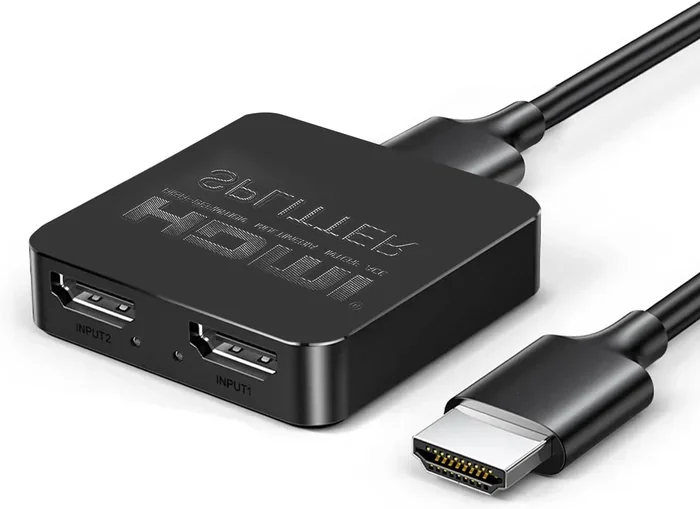
An HDMI splitter takes a single HDMI input and splits it into multiple outputs. Think of it like a water pipe that branches into several smaller pipes. The same video and audio signal flows through each branch and reaches every connected screen.
There are two main types of HDMI splitters you will encounter:
- Powered splitters: These need an external power source. They amplify the signal and can support longer cable runs and more output ports.
- Passive splitters: These do not need power. They simply divide the signal. They work best for short distances and fewer outputs.
How Signal Splitting Works
When you plug your laptop or media player into a HDMI splitter, the device reads the video signal from your source. It then replicates that exact signal and sends it out through each output port. Every screen connected receives the same resolution, the same content, and the same audio track.
The EDID (Extended Display Identification Data) plays a big role here. This is the data that tells your source device what kind of display is connected. A good HDMI splitter manages EDID properly so your source does not get confused when multiple screens are attached.
Mirroring vs. Extending
This is where most people get confused. Screen mirroring means every display shows the exact same thing. It is like looking into two mirrors facing each other. Display extension means each screen shows different content and together they form one large workspace.
A basic HDMI splitter only mirrors. If you want to extend your desktop, you need a different solution or a smarter splitter with EDID management capabilities.
Can an HDMI Splitter Actually Extend Your Display?
The honest answer depends on what kind of splitter you buy and what you expect it to do. A standard HDMI splitter will not extend your desktop. It will mirror the same image on every connected screen. However, some advanced models come with features that get closer to true extension.
When a Splitter Works for Extension
Some powered HDMI splitters include EDID management that allows each output to act independently. In these cases, your source device may recognize each monitor as a separate display. This is not true extension in the way Windows or macOS handles it natively, but it can give you a similar result for certain use cases.
For example, if you connect a 4K HDMI splitter to a desktop computer with multiple graphics outputs, you can assign different content to each monitor. The splitter itself does not do the extension — your graphics card does. The splitter just distributes the signal.
When a Splitter Does Not Work for Extension
If you plug a HDMI splitter into a laptop with a single HDMI port and connect two external monitors, both monitors will show the same content. You cannot drag a window from one screen to the other. The video signal is identical on every output because that is how splitting works by design.
This limitation frustrates a lot of people. They buy a splitter expecting to expand their workspace, only to find every screen showing the same thing. Understanding this before you buy saves time and money.
What You Really Need for Desktop Extension
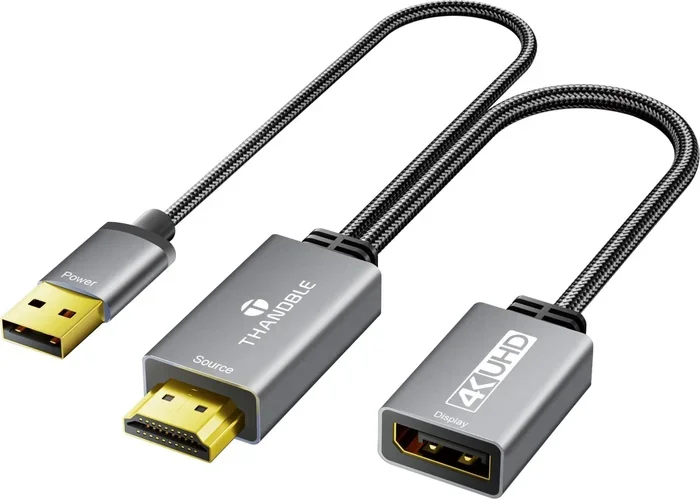
To truly extend your display, you need a source device with multiple video outputs. Most modern computers support this natively. You can use a combination of HDMI cables, DisplayPort connections, or USB-to-HDMI display adapters to connect each monitor individually.
If your device has only one HDMI output, consider a USB display adapter or a docking station. These add extra video outputs and allow your operating system to treat each screen as a separate display.
Types of HDMI Splitters for Multi-Screen Setups
Not all HDMI splitters are the same. The market offers several options, and choosing the right one depends on your specific needs. Let us look at the most common types.
1×2 HDMI Splitter
This is the most popular type. It has one input and two outputs. You connect your source device to the input, and two displays receive the signal. This works great for screen mirroring in conference rooms, classrooms, or home entertainment setups.
1×4 and 1×8 HDMI Splitters
These splitters take one input and distribute it to four or eight screens. They are common in digital signage, retail displays, and surveillance setups where the same content needs to appear on many screens at once.
HDMI Splitter with EDID Management
These models handle EDID more intelligently. They allow you to set a fixed resolution for all outputs. This prevents your source device from auto-detecting each display and getting confused. For dual monitor setups where both screens need the same resolution, these splitters are very useful.
4K HDMI Splitter
If you want high-resolution output, a 4K HDMI splitter is the way to go. These support Ultra HD resolution and often include HDCP 2.2 compliance. They work well for home theater setups and professional presentations where image quality matters.
Setting Up Your HDMI Splitter for Multiple Screens
Setting up a HDMI splitter is straightforward, but a few steps make the difference between a smooth experience and a frustrating one. Follow this guide to get everything working correctly.
Step-by-Step Setup Process
- Choose your splitter: Pick a powered HDMI splitter if you are running cables longer than 15 feet. Passive splitters work fine for short distances.
- Connect the input: Plug the HDMI cable from your source device into the splitter input port.
- Connect the outputs: Run HDMI cables from each output port to your displays.
- Power the splitter: If you have a powered model, plug in the adapter.
- Turn on your displays: Power on all screens and your source device.
- Check the signal: Verify that each screen shows the correct content and resolution.
Quick Tips for Best Performance
- Use high-quality HDMI cables rated for the resolution you need.
- Keep cable runs under 50 feet for the best signal quality.
- If you experience flickering, try a powered splitter with a stronger signal amplifier.
- Check that your splitter supports the refresh rate of your source device.
- Make sure all connected displays have the same native resolution for the best results.
Common Setup Mistakes to Avoid
- Using a passive splitter for long cable runs. This causes signal loss and display issues.
- Ignoring HDCP requirements. If your splitter is not HDCP compliant, it will block protected content.
- Connecting too many displays without a powered splitter. The signal weakens with each output.
- Not checking EDID compatibility. Mismatched EDID settings can cause black screens or no signal.
HDMI Splitter vs. HDMI Switch vs. Display Adapter
People often confuse HDMI splitters with HDMI switches and display adapters. These are very different devices, and using the wrong one leads to disappointment. Let us compare them clearly.
| Device | Function | Best Use Case |
|---|---|---|
| HDMI Splitter | Takes one input, outputs to multiple screens with the same content | Screen mirroring, presentations, digital signage |
| HDMI Switch | Takes multiple inputs, outputs to one screen | Switching between gaming consoles, streaming devices, or Blu-ray players |
| Display Adapter | Converts video signals or adds extra outputs to a device | Desktop extension, adding a second monitor to a laptop |
As you can see, if your goal is to extend your desktop across multiple screens, a display adapter or USB docking station is the right choice. A HDMI splitter serves a completely different purpose.
Benefits of Using an HDMI Splitter for Multi-Screen Display
Even though a HDMI splitter does not extend your desktop in the traditional sense, it still offers real value. Here are the main benefits:
- Easy screen mirroring: Perfect for sharing content in meeting rooms, classrooms, or training sessions.
- Simple plug-and-play setup: No software installation needed. Just connect and go.
- Affordable solution: Splitters are budget-friendly compared to multi-port graphics cards or docking stations.
- Wide compatibility: Works with laptops, desktops, media players, gaming consoles, and streaming devices.
- Signal boosting: Powered splitters strengthen the video signal over longer cable distances.
- Multi-room display: You can send the same content to screens in different rooms from one source device.
Common Problems and How to Fix Them
Even with the right equipment, you might run into issues. Here are the most common problems people face with HDMI splitters and how to solve them.
No Signal on One or More Screens
This usually happens when the splitter cannot handle the resolution or refresh rate of your source device. Try lowering the output resolution in your display settings. Also, check that all HDMI cables are securely connected and rated for the signal you are sending.
Flickering or Intermittent Display
Flickering often points to a weak signal. Use a shorter cable, or upgrade to a powered HDMI splitter with a built-in amplifier. Cheap, unbranded cables are a common culprit here.
Audio Not Working on Some Displays
Some HDMI splitters do not pass audio through every output. Check your splitter specifications to confirm it supports audio extraction on all ports. You can also try connecting audio separately through an audio cable.
HDCP Error or Black Screen
If you see a black screen or get an HDCP error when trying to play protected content, your splitter may not be HDCP compliant. Replace it with an HDCP 2.2 certified model to watch Netflix, Blu-ray, or other protected content without issues.
Expert Insights on HDMI Splitter Display Extension
From a technical standpoint, understanding the difference between splitting and extending is crucial. Many consumers walk into a store asking for an “HDMI splitter to extend display,” and they walk out with the wrong product. The terminology creates confusion, but the solution is straightforward once you know what you need.
If you want to share one screen across many viewers, a HDMI splitter is perfect. If you want to expand your workspace across multiple screens where each shows different content, you need a multi-output graphics solution or a display adapter. The right tool for the right job makes all the difference.
Professional AV installers almost always recommend powered splitters with EDID management for any serious multi-screen setup. The investment is small compared to the headaches you avoid down the road. And always buy from reputable brands that offer clear specifications and customer support.
Key Takeaways
- A standard HDMI splitter mirrors content, not extends it: Every connected screen shows the same image and audio.
- Powered splitters deliver better performance: They boost the signal and support longer cable runs without quality loss.
- EDID management is essential for multi-screen setups: It ensures your source device communicates properly with every display.
- For true desktop extension, use a display adapter or multi-output graphics card: These tools let each monitor show different content.
- HDCP compliance matters: Non-compliant splitters block protected content from streaming services and Blu-ray players.
- Match your splitter to your resolution needs: A 4K HDMI splitter is necessary if you want Ultra HD output on all screens.
- Quality HDMI cables make a big difference: Cheap cables cause signal degradation, flickering, and audio issues.
Conclusion
So, can an HDMI splitter extend display to multiple screens? The answer is nuanced. A basic HDMI splitter will mirror your content across every connected screen. It duplicates the same video signal and audio to all outputs. For sharing presentations, playing the same movie in different rooms, or running digital signage, this works perfectly.
But if your goal is to extend your desktop and use each screen independently, you need a different approach. A display adapter, USB docking station, or a computer with multiple video outputs will give you true desktop extension. The HDMI splitter is a mirroring tool, not an extension tool — and knowing this difference saves you from buying the wrong product.
Take the time to understand your needs before you shop. Decide whether you want to mirror or extend, pick the right device, and invest in quality HDMI cables and a powered splitter if your setup demands it. With the right equipment and a little knowledge, you can create a seamless multi-screen experience that actually works the way you want it to.
The world of multi-monitor setups has become more accessible and affordable than ever. Whether you are a professional who needs extra screen space for productivity, a gamer wanting to expand your field of view, or someone who simply wants to share content with a group, the right display solution is out there. Just make sure you choose the right tool for the job, and your HDMI splitter will serve you well.
Frequently Asked Questions
Can I use an HDMI splitter to extend my desktop across multiple monitors?
No, a standard HDMI splitter mirrors content, meaning every screen shows the same image. To extend your desktop, you need a device with multiple video outputs or a USB display adapter that your operating system recognizes as a separate display.
Do I need a powered HDMI splitter for a multi-screen setup?
Yes, if you are running cables longer than 15 feet or connecting more than two screens. A powered HDMI splitter amplifies the signal and prevents quality loss. For short distances with fewer outputs, a passive splitter may work fine.
What is EDID and why does it matter for HDMI splitters?
EDID stands for Extended Display Identification Data. It is the communication between your source device and your displays that tells them what resolution and format to use. A good HDMI splitter manages EDID properly so all connected screens display correctly without conflicts.
Will an HDMI splitter support 4K resolution?
Only if the splitter specifically supports 4K. Look for a 4K HDMI splitter that is rated for Ultra HD resolution and HDCP 2.2 compliance. Standard 1080p splitters will not pass 4K content properly.
What is the difference between an HDMI splitter and an HDMI switch?
An HDMI splitter takes one input and sends it to multiple screens. An HDMI switch takes multiple inputs and sends them to one screen. They do opposite things. Make sure you buy the right device for your needs.
Can I connect a mixer and an HDMI splitter together?
Yes, you can connect an HDMI mixer before a splitter to combine multiple video sources into one output, then split that combined signal to several screens. This setup is common in live events and multi-camera productions.
=== CONCLUSION ===
An HDMI splitter is a powerful tool for screen mirroring and multi-screen content distribution, but it is not a desktop extension device. Understanding this distinction helps you make the right purchase and set up your displays exactly the way you want them. Whether you need to mirror content for a presentation, run digital signage across multiple screens, or build a complex multi-monitor workspace, choosing the right device makes all the difference.
Invest in a quality HDMI splitter, pair it with reliable cables, and follow the setup tips in this guide. You will enjoy a seamless multi-screen experience that meets your needs without the frustration of guessing what works and what does not.