Can You Add Ram To A Laptop Here Is Everything You Need
Yes, you can add RAM to a laptop in most cases — but it depends on your laptop model, motherboard design, and the type of memory slots available. This guide covers everything you need to know about upgrading your laptop memory, from checking compatibility to installing new RAM modules. Whether you need a performance boost for gaming or multitasking, adding RAM to your laptop is one of the most affordable upgrades you can make.
Key Takeaways
- Most laptops allow RAM upgrades: Many laptops have accessible RAM slots, though some ultra-thin models have soldered memory that cannot be upgraded.
- Check compatibility first: Always verify your laptop motherboard supports the RAM type, speed, and maximum capacity before purchasing.
- Installation is straightforward: Installing RAM modules takes about 10-15 minutes and requires just a screwdriver and basic care.
- DDR4 and DDR5 are current standards: Make sure you buy the correct generation of memory for your laptop.
- Dual-channel memory improves performance: Matching RAM sticks in pairs delivers better results than a single stick.
- Cost is reasonable: A RAM upgrade typically costs between $20 and $80, making it a budget-friendly improvement.
📑 Table of Contents
- Why RAM Matters for Your Laptop Performance
- Can You Add RAM To A Laptop? Check Your Compatibility First
- How to Add RAM to Your Laptop: Step-by-Step Guide
- How Much RAM Do You Really Need?
- Common Mistakes When Upgrading Laptop RAM
- Expert Tips for Getting the Most from Your RAM Upgrade
- How Much Does a RAM Upgrade Cost?
- Conclusion
Why RAM Matters for Your Laptop Performance
Before we dive into the how, let us talk about the why. RAM, or random access memory, is your laptop short-term memory. It holds data that your processor needs quick access to right now.
When you open too many browser tabs, run heavy software, or try to game, your laptop pulls from RAM. If you do not have enough, things slow down. Your system starts using the hard drive as temporary memory, which is way slower.
Think of RAM like a desk. A small desk means you can only spread out a few papers at a time. A bigger desk lets you work on many things at once without cluttering. Adding more RAM gives your laptop a bigger desk.
This is why a memory upgrade can transform a sluggish laptop into a smooth, responsive machine. It directly affects how well your laptop handles daily tasks, creative work, and entertainment.
Signs Your Laptop Needs More RAM
How do you know if your laptop needs more memory? Here are common warning signs:
- Your laptop takes forever to open programs.
- You hear the fan running constantly at full speed.
- Browser tabs crash or freeze frequently.
- Your system lags when you switch between apps.
- Task Manager shows memory usage near 100%.
- Video editing or rendering takes much longer than it should.
If you notice several of these, a RAM upgrade could help. Sometimes more RAM is all your laptop needs to feel brand new again.
Can You Add RAM To A Laptop? Check Your Compatibility First
So, can you add RAM to a laptop? The short answer is usually yes. But not every laptop supports RAM upgrades. The long answer depends on several factors.
Some laptops come with all memory soldered directly onto the motherboard. Many modern ultra-thin laptops and MacBooks use this approach. If your RAM is soldered, you cannot add more. You are stuck with what came installed.
However, most standard laptops, gaming laptops, and business laptops still have at least one open RAM slot. This means you can install additional memory yourself.
How to Check if Your Laptop Supports RAM Upgrades
Here is how to find out if your specific laptop allows a memory upgrade:
- Check the manufacturer website: Look up your laptop model. The specs page will tell you the maximum RAM capacity and whether slots are replaceable.
- Use system information tools: On Windows, open Task Manager and go to the Performance tab. It shows how many RAM slots are in use and how many are available.
- Open your laptop: Sometimes the only way to know is to look. Removing the bottom panel lets you see the RAM slots physically.
- Check the user manual: Many manuals list upgrade options and compatible memory types.
Do not guess. Always verify before buying any RAM modules. Wrong memory will not work, and you will waste money.
Understanding RAM Slots and Maximum Capacity
Most laptops have either one or two RAM slots. Some high-end models have four slots on the laptop motherboard. The number of slots determines how you can expand memory.
Your laptop also has a maximum RAM capacity. This is set by the laptop motherboard and its chipset. For example, a laptop might support two DDR4 slots with a max capacity of 32GB. That means you can install two 16GB sticks or one 32GB stick, depending on availability.
Always match your upgrade plan to these limits. Going over the maximum capacity will not work, no matter what the RAM specs say.
How to Add RAM to Your Laptop: Step-by-Step Guide
Ready to install RAM? Let us walk through the process. Installing RAM modules is simpler than most people think. You do not need advanced technical skills. You just need patience and care.
What You Will Need
- A Phillips-head screwdriver (small size).
- Your new RAM modules (correct type and size).
- An anti-static wrist strap (optional but recommended).
- A clean, flat surface to work on.
- Your laptop user manual (for reference).
Step 1: Power Down and Unplug
Turn off your laptop completely. Do not just put it to sleep. Shut it down fully. Unplug the power adapter and remove the battery if possible. This prevents electrical damage during installation.
Step 2: Access the RAM Compartment
Flip your laptop over. Find the panel that covers the RAM slots. On many laptops, it is clearly marked with a small memory icon. Remove the screws holding it in place. Use your screwdriver for this.
Gently lift the panel off. You should see the existing RAM modules sitting in their slots. If you are unsure which panel to remove, check your laptop manual or search for a teardown video for your exact model.
Step 3: Remove Existing RAM (If Needed)
If you are replacing RAM, gently push the clips on both sides of the existing RAM module outward. The stick will pop up at an angle. Pull it straight out carefully. Set it aside safely.
If your laptop has an open slot, skip this step entirely.
Step 4: Install the New RAM Module
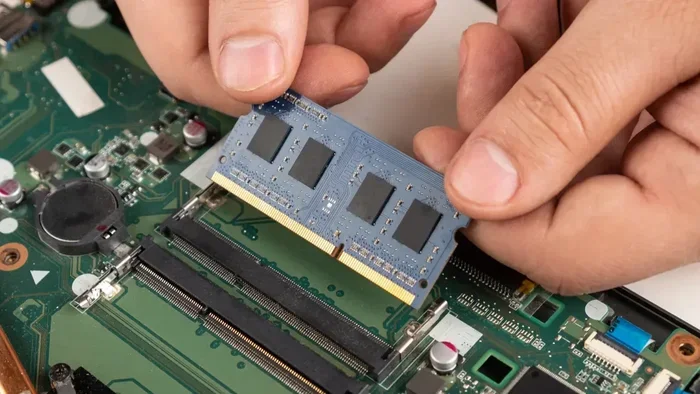
Hold your new RAM stick by its edges. Do not touch the gold contacts. Align the notch on the bottom of the stick with the ridge inside the slot. This ensures correct orientation.
Insert the stick at a 30-degree angle. Push it down gently until it clicks. Then press it flat and push it toward the laptop. The side clips will snap into place automatically. You should hear a click. That means it is seated properly.
Step 5: Close Up and Test
Replace the bottom panel and screw it back on. Reconnect the battery and power adapter. Turn on your laptop.
Go to Task Manager and check the Performance tab. Your new RAM capacity should show up immediately. If it does not, power off and double-check that the stick is fully seated.
Quick Tips for RAM Installation
- Always ground yourself before handling RAM to prevent static damage.
- Work on a non-carpeted surface.
- Do not force the RAM into the slot. If it resists, check the orientation.
- Keep the anti-static bag your RAM came in to store the old module.
How Much RAM Do You Really Need?
One of the most common questions about laptop RAM is how much is enough. The answer depends entirely on what you use your laptop for. There is no one-size-fits-all number.
System memory requirements have grown over the years. What was plenty five years ago may feel tight today. Let us break it down by usage type.
RAM Requirements by Use Case
- Basic tasks (browsing, email, documents): 8GB is plenty. Most users do fine here.
- Multitasking (multiple apps and tabs): 16GB is the sweet spot. It handles everyday workloads smoothly.
- Gaming: 16GB minimum. Some modern games recommend 32GB for best results.
- Content creation (video editing, graphic design): 32GB or more. Large files eat up memory fast.
- Programming and virtual machines: 32GB or higher. Running multiple systems demands serious memory.
Is 8GB Enough in 2024?
Honestly, 8GB is the bare minimum now. It works for basic tasks, but you will feel limits fast. If you are on a tight budget, 8GB can still be functional. But if you can afford a memory upgrade, go for 16GB. It is a noticeable improvement in daily use.
Many budget laptops ship with only 4GB. If that sounds familiar, a RAM upgrade should be your first priority. Pair it with a storage upgrade for even better results.
Understanding RAM Speed and Dual-Channel Memory
RAM speed matters, but not as much as most people think. Measured in MHz, faster RAM can slightly improve performance. DDR4 RAM typically runs at 2400MHz to 3200MHz. DDR5 starts at 4800MHz.
However, dual-channel memory makes a bigger difference than speed alone. When you install two matching RAM sticks, the memory controller accesses both simultaneously. This doubles the bandwidth and gives your laptop a real performance boost.
So when buying RAM, consider getting a matched pair. Two 8GB sticks are often better than one 16GB stick. Always check RAM compatibility with your laptop before purchasing.
Common Mistakes When Upgrading Laptop RAM
Upgrading RAM is simple, but people make avoidable mistakes. Here are common errors to watch out for.
Buying the Wrong Type of RAM
This is the number one mistake. Laptop RAM uses smaller modules called SODIMM. Desktop RAM uses DIMMs, which are larger. You cannot install desktop RAM in a laptop. Always confirm you are buying laptop memory modules.
Also, pay attention to the RAM generation. DDR3 will not work in a DDR4 slot, and DDR4 will not fit in a DDR5 slot. The notch position is different. Check your laptop specifications carefully.
Ignoring Maximum Capacity Limits
As mentioned earlier, every laptop has a maximum supported RAM capacity. Installing more than the limit will not work. The system simply will not recognize the extra memory. Always verify the maximum RAM capacity for your specific model before buying anything.
Touching the Gold Contacts
The gold pins on a RAM module carry electrical signals. Touching them can transfer oils from your fingers or cause static damage. Always hold RAM by the edges. Keep your hands off the contacts.
Forgetting to Check Dual-Channel Support
If your laptop has two slots and only one is filled, you are running in single-channel mode. Adding a matching stick in the second slot unlocks dual-channel memory. This gives you better performance without spending much more. Skipping this opportunity is a common oversight.
Expert Tips for Getting the Most from Your RAM Upgrade
You have installed your new memory. Now let us make sure you get every bit of benefit from it. Here is some practical advice from experienced tech professionals.
Pair Your RAM Sticks for Best Results
If your laptop has two slots, fill both with identical sticks. Same brand, same size, same speed. This ensures dual-channel memory works correctly. Mismatched sticks can still work, but they may run at lower speeds or cause instability.
Update Your BIOS and Drivers
Sometimes a BIOS update improves memory compatibility. Check your laptop manufacturer support page for the latest BIOS version. Updating it can help your laptop recognize new RAM modules more reliably. Same goes for chipset drivers.
Run a Memory Test After Installation
After installing RAM, run a quick diagnostic. Windows Memory Diagnostic is built in. Search for it in the Start menu and run it. This checks for errors and confirms your new memory works properly. Do this before you rely on the upgrade for important work.
Consider a Storage Upgrade Alongside RAM
RAM and storage work together. If your laptop has a traditional hard drive, switching to an SSD gives a bigger speed boost than RAM alone. Many users benefit from both a memory upgrade and a storage upgrade at the same time. Together, they transform overall laptop performance dramatically.
Keep Your Old RAM as a Backup
When you remove existing RAM during an upgrade, do not throw it away. Keep it in the anti-static bag. If your new RAM ever fails or you need to troubleshoot, having the original module gives you a quick fallback option. It also holds resale value if you ever decide to sell your old laptop parts.
Monitor Your Performance After Upgrading
After a RAM upgrade, keep an eye on Task Manager. Watch how memory usage changes under your normal workload. You should see less paging to disk and fewer slowdowns. If performance does not improve, the issue might not be memory. Consider other bottlenecks like a slow storage drive or an aging processor.
How Much Does a RAM Upgrade Cost?
One of the best things about adding RAM to a laptop is the low cost. RAM upgrade pricing is reasonable and much cheaper than buying a new laptop.
As of now, here is a rough breakdown of RAM upgrade costs:
- 8GB DDR4 laptop RAM: Around $15 to $25.
- 16GB DDR4 laptop RAM: Around $30 to $50.
- 16GB DDR5 laptop RAM: Around $40 to $70.
- 32GB DDR5 laptop RAM: Around $70 to $100.
These prices vary by brand and retailer. Shopping during sales can save you even more. Overall, a RAM upgrade costs a fraction of what a new laptop would. For most users, the performance improvement feels dramatic compared to the small investment.
If you are on a tight budget, start with adding an 8GB stick to an existing 8GB setup. This brings you to 16GB total and unlocks dual-channel memory. It is the most cost-effective upgrade path for most laptops.
Conclusion
So, can you add RAM to a laptop? In most cases, absolutely yes. As long as your laptop has open memory slots and supports the type of RAM you want to install, you can do this yourself at home. It is one of the easiest, most affordable laptop upgrades available.
We covered how RAM affects your laptop performance, how to check compatibility, how to install new RAM modules step by step, how much memory you actually need, and common mistakes to avoid. You also learned about RAM speed, dual-channel memory, and upgrade costs.
A memory upgrade can breathe new life into an aging laptop. Whether you need more power for work, gaming, or creative projects, adding RAM delivers real results. Just remember to verify compatibility, handle your RAM modules carefully, and pair sticks when possible for the best experience.
Take action today. Check your laptop specs, order the right RAM, and give your laptop the boost it deserves. A small investment in RAM can make a world of difference in how your laptop feels every single day.
Frequently Asked Questions
Can I add 16GB RAM to a laptop that has 8GB?
Yes, you can. Most laptops with two RAM slots let you add a 16GB stick alongside your existing 8GB module. Your laptop will run with 24GB total. However, for dual-channel memory, it is better to use matching pairs, like two 8GB sticks instead of mixing sizes.
Can I mix DDR4 and DDR5 RAM in my laptop?
No, you cannot. DDR4 and DDR5 are different generations of memory with different physical notches and electrical designs. Your laptop motherboard only supports one generation. Always check which type your laptop supports before purchasing any RAM modules.
Will adding RAM improve gaming performance?
Yes, it can. If your laptop runs low on memory during gaming, adding more RAM reduces stuttering and loading times. However, if you already have enough RAM, the upgrade may not make a big difference. A RAM upgrade works best when your current memory is the bottleneck limiting laptop performance.
Can I add RAM to a laptop with soldered memory?
No. Some laptops, especially ultra-thin models and certain MacBook versions, have RAM soldered directly onto the motherboard. These cannot be upgraded or replaced. You can confirm this by checking your laptop specifications or physically opening the back panel to see if the memory is soldered.
How do I know what type of RAM my laptop needs?
Check your laptop manufacturer website for the exact model specifications. You can also use built-in Windows tools like Task Manager or Command Prompt commands to see your current memory type and speed. The most common types today are DDR4 and DDR5 in SODIMM form factor for laptops.
Is it worth upgrading RAM and storage at the same time?
Yes, it often is. A RAM upgrade improves multitasking and application speed, while a storage upgrade to an SSD improves file access and boot times. Together, they deliver the biggest overall laptop performance boost. If your budget allows, doing both gives you the best value and the most noticeable improvement in daily use.
=== META DESCRIPTION ===
Wondering can you add RAM to a laptop? Learn everything about laptop RAM upgrades, compatibility, step-by-step installation, costs, and expert tips to boost performance. === META DESCRIPTION ===