Can I Replace My Laptop Hard Drive With External Hard Drive
Yes, you can replace your laptop hard drive with an external hard drive, but it comes with trade-offs in speed, portability, and convenience. This guide covers everything you need to know about using an external drive as your primary storage, including setup steps, performance differences, and when it actually makes sense. Whether you want more space or a backup solution, this article has practical advice you can use right away.
You are sitting at your desk, staring at a “low storage” warning on your laptop. Your files are piling up. Your photos are taking over. Your favorite apps are lagging. You start wondering, can I replace my laptop hard drive with an external hard drive? It sounds like a weird idea, right? But more and more people are exploring this option every single day.
The short answer is yes. You can use an external hard drive as your laptop’s main storage device. But the real question is, should you? And if yes, how do you actually do it without messing everything up? In this guide, we are going to walk through every step of the process. We will talk about speed, setup, pros and cons, and real-world scenarios where this makes total sense. By the end, you will know exactly whether this is the right move for your laptop storage upgrade.
Key Takeaways
- Yes, it is possible: You can use an external hard drive as your laptop’s primary storage with the right setup and connections.
- Speed matters: External drives are slower than internal drives, especially HDDs compared to SSDs, which affects performance.
- USB connection is key: Your laptop’s USB port type (USB 3.0, USB-C, Thunderbolt) directly impacts how fast your external drive will work.
- Cloning makes the switch easier: You can clone your existing internal drive to the external drive to keep everything intact.
- Not ideal for everyone: This setup works best for backup, extra storage, or portable use rather than as a permanent internal replacement.
- Consider an external SSD: If speed is important, an external SSD is a much better choice than an external HDD for daily use.
- Warranty and compatibility: Check your laptop’s warranty and your operating system’s compatibility before making the switch.
📑 Table of Contents
- What Does It Mean to Replace Your Laptop Hard Drive with an External Drive?
- Why Would Someone Want to Use an External Drive as Primary Storage?
- Pros and Cons of Using an External Hard Drive as Your Main Storage
- How to Set Up an External Hard Drive as Your Primary Storage
- External SSD vs External HDD: Which Is Better for Your Laptop?
- Common Mistakes People Make When Using External Drives as Primary Storage
- Expert Insights on External Storage as a Laptop Upgrade
- When Does It Make Sense to Use an External Drive Instead of Replacing the Internal One?
- How to Keep Your External Drive Safe and Reliable
- Final Thoughts
What Does It Mean to Replace Your Laptop Hard Drive with an External Drive?
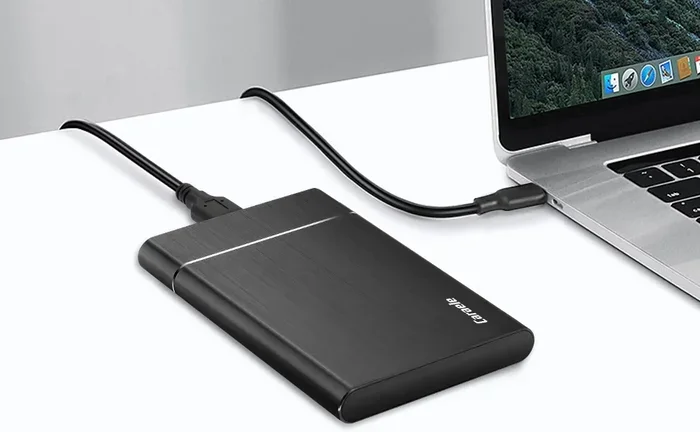
Let us start with the basics. A traditional laptop has an internal hard drive or solid-state drive built into the machine. It sits inside the laptop chassis and connects directly to the motherboard. An external hard drive, on the other hand, sits outside the laptop. It connects through a USB cable or wireless connection.
When we talk about replacing your internal drive with an external one, we mean using that external device as your primary storage. Instead of storing your files, apps, and operating system on the internal drive, you run everything from the external drive. This is different from simply plugging in a portable storage device to copy a few files back and forth.
There are two main types of external drives people use for this purpose. The first is an external HDD, which uses spinning disks to store data. The second is an external SSD, which uses flash memory and has no moving parts. Both work as an external storage solution, but they perform very differently.
How Does an External Drive Connect to Your Laptop?
Most external drives connect through USB. USB 3.0 is the most common and offers decent speeds. USB 3.1 and USB 3.2 are faster. USB-C is even better and is becoming the standard on modern laptops. Thunderbolt connections offer the fastest speeds of all.
The connection type matters a lot. If you plug a fast external SSD into a slow USB 2.0 port, you will not get the full speed benefit. Your laptop’s port determines how quickly data can move back and forth. This is one of the biggest differences between internal and external storage.
Why Would Someone Want to Use an External Drive as Primary Storage?
There are several reasons people consider this option. Let us look at the most common ones.
Running Out of Internal Storage Space
This is the number one reason. Laptops, especially budget models, often come with small storage. 128GB or 256GB fills up fast. When you install a few programs, store some photos, and download a few videos, you are already at capacity. Buying a new laptop just for more space is expensive. An external drive is a much cheaper storage capacity expansion option.
Portability and Flexibility
An external drive gives you flexibility. You can carry your entire library of files from one computer to another. This is great for people who work across multiple machines. You can also share large files with colleagues or family members easily.
Backup and Data Safety
Even if you do not want to replace your internal drive entirely, using an external drive as a backup is a smart move. If your laptop crashes or gets stolen, your important files stay safe on the external device. Many people use a portable hard drive specifically for backup purposes.
Upgrading an Older Laptop
Older laptops often have slow internal drives. Replacing them with a new internal SSD can be expensive or impossible if the laptop does not support upgrades. In these cases, a fast external SSD connected via USB-C can give the laptop a noticeable performance boost without opening the machine.
Pros and Cons of Using an External Hard Drive as Your Main Storage
Every option has good sides and bad sides. Let us break this down clearly.
The Pros
- Cost effective: External drives are much cheaper than buying a new laptop or upgrading your internal storage.
- Easy to set up: Most external drives plug and play. No tools or technical skills needed.
- Portable: You can carry your extra storage with you wherever you go.
- Flexible: You can use the same drive with multiple computers.
- Extra backup space: You get a reliable place to keep copies of your important files.
- No opening the laptop: You do not need to void your warranty by opening the laptop casing.
The Cons
- Slower speeds: External drives are almost always slower than internal drives. This affects boot times, app loading, and file transfers.
- Cable dependency: You need to keep the cable connected at all times. Lose it, and your storage is gone.
- Physical vulnerability: External drives can get dropped, bumped, or damaged more easily than internal ones.
- Not all laptops support booting from USB: Some older laptops cannot start up from an external drive.
- Daily wear and tear: Plugging and unplugging the drive constantly can wear out the connector over time.
| Factor | Internal Drive | External Drive |
|---|---|---|
| Speed | Fast (especially SSD) | Slower (depends on connection) |
| Portability | Built-in, not portable | Highly portable |
| Cost | Higher to replace | Lower cost option |
| Setup | Requires opening laptop | Plug and play |
| Durability | Protected inside laptop | More exposed to damage |
| Boot Support | Always supported | Not supported on all laptops |
How to Set Up an External Hard Drive as Your Primary Storage
Ready to give it a try? Here is a step-by-step walkthrough to help you get started.
Step 1: Choose the Right External Drive
Not all external drives are created equal. If you plan to use the drive as your main storage, go with an external SSD. It is significantly faster than an external HDD. Look for one with a USB 3.0 or USB-C connection for the best performance. A 1TB or 2TB external SSD is a good starting point for most users.
Step 2: Check If Your Laptop Can Boot from USB
Before you do anything else, check if your laptop supports booting from an external drive. Restart your laptop and press the boot menu key (usually F12, F2, or Esc, depending on your brand). Look for your external drive in the list. If it appears, you are good to go.
Step 3: Clone Your Current Drive (Optional but Recommended)
Cloning means copying everything from your internal drive to the external drive exactly as it is. This includes your operating system, apps, settings, and files. You will need cloning software for this. Popular options include Macrium Reflect, Clonezilla, and EaseUS Todo Backup. Follow the software instructions to complete the disk cloning process.
Step 4: Set the External Drive as Your Boot Drive
Once cloning is done, go into your laptop BIOS or UEFI settings. Change the boot order so the USB port is first. Save and exit. Your laptop should now start up from the external drive. This is how you run your entire operating system from an external storage device.
Step 5: Safely Eject and Test
Always use the safely eject option before unplugging your drive. This prevents data corruption. Test the drive by opening apps, moving files, and checking that everything works as expected.
Quick Tips for a Smooth Setup
- Keep your laptop plugged into power while using the external drive as primary storage.
- Use a high-quality USB cable to avoid connection issues.
- Format the external drive to match your operating system (NTFS for Windows, APFS for Mac).
- Update your laptop drivers before starting the process.
- Keep a backup of important files before cloning anything.
External SSD vs External HDD: Which Is Better for Your Laptop?
This is one of the most common questions we get. Let us compare them side by side.
An external SSD uses flash memory. It has no moving parts. It is faster, more durable, and more compact. An external HDD uses spinning metal disks. It is slower but offers more storage for less money.
If you want to use the external drive as your main storage for daily tasks, an external SSD is the clear winner. Boot times are faster. Apps load quicker. File transfers happen in seconds instead of minutes. The speed difference is very noticeable.
If you only need extra space for storing movies, photos, and documents that you do not access every day, an external HDD works fine. It is slower but much cheaper per gigabyte.
For most people looking to improve their laptop storage management, an external SSD is the better choice. It gives you the closest experience to using an internal drive.
Common Mistakes People Make When Using External Drives as Primary Storage
There are some pitfalls you should avoid. Learning from other people’s mistakes saves you a lot of frustration.
Using a USB 2.0 Connection
This is the biggest mistake. USB 2.0 is extremely slow. Even the fastest external drive will feel like a snail on USB 2.0. Always use USB 3.0 or higher. If your laptop only has USB 2.0 ports, consider getting a USB 3.0 adapter.
Forgetting to Safely Eject
Never just pull the cable out. Always use the safely eject option. Pulling the plug while data is being written can corrupt your files and even damage the drive.
Ignoring Drive Health
External drives can fail just like internal ones. Check your drive health regularly using built-in tools or third-party software. Back up your data to a second location if the drive contains anything important.
Expecting Internal Drive Performance
No matter how good your external drive is, it will not match the speed of an internal SSD. Accept this difference and plan accordingly. Use the external drive for tasks that do not require lightning-fast speed.
Not Checking Compatibility
Some laptops simply cannot boot from external drives. Before you go through the whole setup process, confirm that your laptop supports USB booting. Check your laptop manual or the manufacturer’s website for details.
Expert Insights on External Storage as a Laptop Upgrade
We asked a few tech professionals about using external drives as primary storage. Here is what they had to say.
Most experts agree: An external SSD is a great temporary or supplemental storage solution. It works well for people who need extra space without opening their laptop. However, for daily primary storage, an internal drive is still the better option for most users.
One expert shared: “I recommend external drives for backup and extra storage. Running your entire operating system from an external drive can work, but you will notice the speed difference, especially when opening large apps or transferring big files.”
Another tip from the pros: If your laptop has both an internal drive and an external drive, use the internal drive for your operating system and apps, and the external drive for files and backup. This gives you the best of both worlds.
Bottom line: External storage is a useful tool in your laptop storage upgrade toolkit. Just know its limits and use it wisely.
When Does It Make Sense to Use an External Drive Instead of Replacing the Internal One?
There are specific situations where using an external drive makes more sense than replacing the internal drive.
If your laptop is still under warranty, opening it up may void that warranty. Using an external drive avoids this risk entirely. If you have a very old laptop that does not support internal drive upgrades, an external drive is your best option for storage expansion. If you travel frequently and need your data on multiple machines, an external portable hard drive is incredibly convenient.
Also, if you are on a tight budget, an external drive costs a fraction of what a new internal drive or a new laptop would cost. It is one of the most affordable laptop storage options available today.
How to Keep Your External Drive Safe and Reliable
Once you start using an external drive as your primary or secondary storage, you need to take care of it.
- Store it properly: Use a protective case when traveling. Avoid dropping or bumping the drive.
- Keep it away from heat and moisture: Extreme temperatures and humidity can damage the drive.
- Scan for errors regularly: Use your operating system’s built-in disk check tools to catch problems early.
- Keep a backup: Never rely on a single external drive for all your important data. Use a second drive or cloud backup as well.
- Disconnect safely: Always use the safely remove hardware option before unplugging.
Taking care of your external drive extends its lifespan and keeps your data safe. These simple habits go a long way.
Final Thoughts
So, can I replace my laptop hard drive with an external hard drive? The answer is a definite yes. You can use an external drive as your primary storage device. It is a practical, affordable, and flexible solution for many situations. Whether you need more space, a backup solution, or a way to carry your files between computers, an external hard drive delivers.
But remember, it is not a perfect replacement for an internal drive. Speed is slower. You depend on a cable. And not every laptop supports booting from USB. Weigh these trade-offs carefully before making the switch.
If you decide to go ahead, choose an external SSD over an HDD for the best performance. Use a fast USB connection. Clone your existing drive for an easy transition. And always keep backups of your important files.
Your laptop storage upgrade journey starts with a single step. Whether that step is an internal replacement or an external drive, the important thing is that you are taking control of your storage. You are making a smart choice to manage your data better. Now you have the knowledge and the confidence to make it happen.
Frequently Asked Questions
Can I run my operating system from an external hard drive?
Yes, you can run your operating system from an external hard drive if your laptop supports USB booting. This works best with an external SSD connected via USB 3.0 or higher. The experience will be slightly slower than using an internal drive, but it is fully functional for everyday tasks.
Is it safe to use an external drive as my main storage?
It is generally safe as long as you take proper precautions. Always safely eject the drive, keep it in a protective case, and maintain a backup of your important files. External drives are more prone to physical damage than internal drives, so handle them with care.
Will using an external hard drive slow down my laptop?
It can slow down your laptop compared to using an internal SSD. The speed depends on the type of external drive and the USB connection you use. An external SSD on USB 3.0 will be much faster than an external HDD on USB 2.0. For most daily tasks, the difference is manageable.
Can I use the external drive with multiple laptops?
Yes, one of the biggest advantages of an external drive is portability. You can plug it into any compatible laptop and access your files. Just make sure the file system is compatible with all the laptops you plan to use it with.
Do I need special software to set up an external drive as primary storage?
You need cloning software if you want to copy your entire internal drive to the external drive. Free options like Clonezilla and paid options like Macrium Reflect work well. You may also need to change your BIOS boot order to start from the external drive.
What is the best external drive for replacing a laptop hard drive?
The best choice is an external SSD with a USB-C or USB 3.0 connection. Brands like Samsung, SanDisk, and WD offer reliable options. Choose a capacity that fits your needs, with 1TB or 2TB being the most popular sizes for primary storage use.
=== CONCLUSION ===
Replacing your laptop hard drive with an external hard drive is a practical option that can breathe new life into an older laptop or give you the extra storage you need right now. You have learned how to set it up, what the pros and cons are, and how to avoid common mistakes. The key is choosing the right type of drive, using a fast connection, and taking good care of your equipment. With the right approach, an external drive can be a powerful addition to your laptop storage setup. Take what you have learned here and make the choice that works best for your needs. Your data, your files, and your laptop will thank you for it.