Can I Connect My Laptop To A Projector Wirelessly
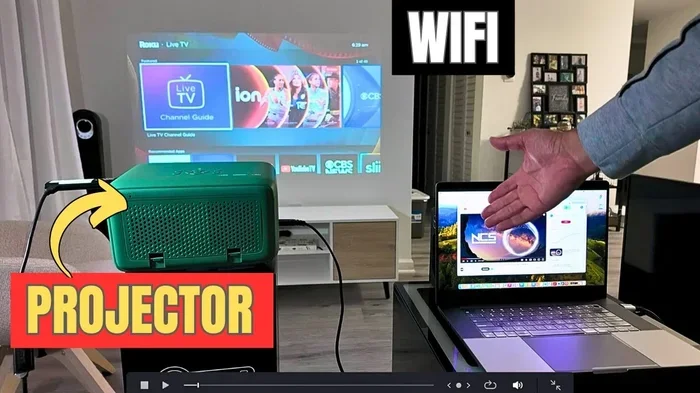
Yes, you can connect your laptop to a projector wirelessly using several methods like Wi-Fi Direct, Miracast, AirPlay, and wireless HDMI adapters. Wireless laptop-to-projector connections eliminate cable clutter and make presentations easier. You can stream content from your laptop to a wireless projector in just a few simple steps. Setting up a wireless display is simpler than most people think, and it works with Windows, Mac, and Chromebooks. This guide covers every method, tip, and troubleshooting trick you need.
Picture this. You walk into a meeting room, open your laptop, and within seconds your screen is glowing on a huge projector display. No cables. No fumbling. No waiting. That is the power of a wireless laptop-to-projector connection. It is faster, cleaner, and way more convenient than plugging in cords.
If you have ever wondered can I connect my laptop to a projector wirelessly, the answer is a confident yes. Whether you are giving a work presentation, hosting a movie night, or teaching a class, wireless projection saves time and impresses everyone in the room. This guide walks you through every method, setup process, and tip you need to know.
Wireless projector setups have become incredibly popular in recent years. Schools, offices, and homes all use them to share screens without the hassle of cables. The technology has improved a lot too. Today, you can stream high-quality video and crystal-clear presentations wirelessly with very little lag. Let us dive into how it all works.
Key Takeaways
- Multiple wireless methods exist: You can use Wi-Fi Direct, Miracast, AirPlay, Chromecast, or wireless HDMI adapters to connect your laptop to a projector without cables.
- Compatibility matters: Check if your projector supports wireless features or if you need an external adapter before you start.
- Setup is straightforward: Most modern laptops and projectors allow wireless screen mirroring in under 10 minutes.
- Latency can be an issue: Wireless connections may have slight delays, which matters for video or gaming presentations.
- Security is important: Use secure networks and encryption when projecting wirelessly in public or shared spaces.
- Troubleshooting is simple: Most connection problems can be fixed by updating drivers, restarting devices, or checking network settings.
📑 Table of Contents
- How Wireless Laptop-to-Projector Connections Work
- Methods to Connect Your Laptop Wirelessly
- Setting Up a Wireless Projector Connection
- Troubleshooting Common Wireless Connection Issues
- Benefits and Drawbacks of Wireless Projection
- Expert Tips for the Best Wireless Projector Experience
- Comparison: Wired vs. Wireless Laptop-to-Projector Connections
- Is Wireless Projection Right for You?
- Final Thoughts
How Wireless Laptop-to-Projector Connections Work
Understanding the basics makes the setup process much easier. When you connect wirelessly, your laptop sends a signal to the projector over your local network or a direct connection. The projector then displays what is on your screen in real time.
Wi-Fi Direct and Screen Mirroring
Wi-Fi Direct lets two devices talk to each other without a router. Your laptop and the projector create a direct link. This means you do not need an internet connection. Screen mirroring is the most common use of this technology. It copies your laptop screen exactly onto the projector.
Many modern projectors come with built-in Wi-Fi Direct support. You simply enable it in the projector menu, and your laptop can find it. This method works great for wireless presentations in small to medium rooms. The signal stays strong as long as both devices are within range.
Wireless HDMI and Streaming Adapters
Some projectors do not have built-in wireless capabilities. That is where wireless HDMI adapters come in. These small devices plug into the projector’s HDMI port and connect to your laptop over Wi-Fi or Bluetooth.
Popular options include devices like the IOGEAR wireless HDMI kit or the Microsoft Wireless Display Adapter. You plug the adapter into the projector, and it acts as a bridge between your laptop and the display. Wireless streaming through these adapters gives you flexibility without needing a smart projector.
Methods to Connect Your Laptop Wirelessly
There are several ways to achieve a wireless connection between laptop and projector. Each method has its strengths. Let us break them down so you can pick the best one for your needs.
Method 1: Miracast (Best for Windows Laptops)
Miracast is a wireless display standard built into most Windows laptops. It lets you cast your screen to a compatible projector or display. Here is how it works.
- Make sure your projector supports Miracast or has a Miracast dongle.
- On your Windows laptop, press the Windows key plus K to open the Connect panel.
- Select your projector from the list of available devices.
- Your screen will now mirror on the projector.
Miracast is free, easy, and does not require extra software. It is one of the most popular ways to do wireless screen casting from a Windows laptop.
Method 2: AirPlay (Best for Mac and iPhone Users)
If you use a Mac or an iPhone, AirPlay is your best friend. Apple’s wireless streaming protocol lets you send your screen to an AirPlay-compatible projector or Apple TV connected to a projector.
- Make sure both your Mac and the projector are on the same Wi-Fi network.
- Click the AirPlay icon in your Mac menu bar.
- Select the projector or Apple TV from the list.
- Your screen is now live on the big display.
AirPlay offers smooth performance and great image quality. It is especially good for wireless presentations in environments where Apple devices are common.
Method 3: Chromecast (Best for Chromebooks and Budget Setups)
Google Chromecast is a small, affordable device that plugs into a projector’s HDMI port. You can cast your laptop screen to the projector using the Chrome browser. This method works well with Chromebooks but also with Windows and Mac laptops.
- Plug the Chromecast into the projector’s HDMI port.
- Connect both devices to the same Wi-Fi network.
- Open Chrome on your laptop and click the three-dot menu.
- Select Cast and choose your Chromecast device.
Chromecast is budget-friendly and reliable. It is a great option for classrooms and small meeting rooms where cost matters.
Method 4: Manufacturer Apps and Software
Many projector brands offer their own wireless apps. Epson has iProjection, BenQ has QCast, and Optoma has its own display connector app. These apps let you connect your laptop to the projector over Wi-Fi.
These apps often include extra features like annotation tools and file sharing. They are a solid choice if you own a specific projector brand and want the best compatibility. Check your projector’s manual for the right app.
Setting Up a Wireless Projector Connection
Setting up a wireless projector connection is easier than you might think. Follow these general steps, and you will be projecting in minutes.
Step 1: Check Compatibility
Before anything else, check if your projector supports wireless connectivity. Look for Wi-Fi, Miracast, or AirPlay labels on the box or in the manual. If your projector does not have built-in wireless, you will need an external adapter.
Also, check your laptop’s capabilities. Most laptops made after 2015 support Wi-Fi Direct or screen mirroring natively. If yours does not, a USB Wi-Fi adapter can help.
Step 2: Connect Both Devices to the Same Network
For most wireless methods, both the laptop and the projector need to be on the same Wi-Fi network. This is the most important step. If they are on different networks, they cannot find each other.
If you are using Wi-Fi Direct, you do not need a shared network. The devices will pair directly. But for AirPlay, Chromecast, and manufacturer apps, a shared Wi-Fi network is essential.
Step 3: Enable Wireless Display on the Projector
Go to the projector’s settings menu and enable the wireless display feature. The exact steps vary by brand, but you will usually find it under Network Settings or Display Settings. Some projectors show a wireless icon on the home screen when the feature is active.
Step 4: Connect from Your Laptop
On your laptop, open the wireless display or casting feature. On Windows, use the Connect panel. On Mac, use AirPlay. On Chromebooks, use the casting menu. Select the projector from the list and wait for the connection to establish.
Once connected, your laptop screen will appear on the projector. You can now present, watch videos, or share anything on your screen wirelessly.
Troubleshooting Common Wireless Connection Issues
Wireless connections are convenient, but they are not always perfect. Here are the most common problems and how to fix them.
Projector Not Showing Up on the Laptop
If your laptop cannot find the projector, start by checking the network. Make sure both devices are on the same Wi-Fi network. Restart both devices and try again. Also, check if the projector’s wireless display feature is turned on.
Sometimes, firewalls or antivirus software block the connection. Temporarily disable them and try again. If the problem persists, update your laptop’s Wi-Fi drivers and the projector’s firmware.
Lag or Delay During Screen Mirroring
A slight delay is normal with wireless projection. But if the lag is noticeable, it can be frustrating. Here is what you can do.
- Move closer to the Wi-Fi router or use a 5 GHz band for faster speeds.
- Reduce the resolution of the projected image to lower the data load.
- Close unnecessary apps on your laptop to free up processing power.
- Use a dedicated Wi-Fi network for projection instead of sharing with many users.
For video-heavy content, consider using a wired connection or a high-quality wireless HDMI adapter for better performance.
Poor Image Quality or Flickering
If the projected image looks fuzzy or flickers, the Wi-Fi signal might be weak. Check your signal strength and reduce interference from other devices. Also, make sure the projector’s resolution settings match your laptop’s output resolution.
Interference from Bluetooth devices, microwaves, or other Wi-Fi networks can also cause issues. Switching to a less crowded Wi-Fi channel can help a lot.
Benefits and Drawbacks of Wireless Projection
Wireless projection has clear advantages, but it also has some limitations. Understanding both helps you make the right choice.
Benefits
- No cables needed: You eliminate cable clutter and setup time.
- Flexibility: You can move around the room while presenting.
- Multiple device support: Several people can present from their own laptops.
- Quick setup: Most wireless connections take less than a minute.
- Cleaner look: No cables across the floor or table makes for a professional appearance.
Drawbacks
- Latency: Wireless connections can have a slight delay, which matters for live video or gaming.
- Network dependency: You need a stable Wi-Fi network for most methods.
- Compatibility limits: Not all projectors support all wireless standards.
- Security risks: Wireless signals can be intercepted if proper precautions are not taken.
Overall, the benefits of a wireless laptop-to-projector setup far outweigh the drawbacks for most use cases. For critical presentations, keep a cable backup just in case.
Expert Tips for the Best Wireless Projector Experience
Getting the most out of your wireless projector setup comes down to a few smart habits. Here are expert tips that make a big difference.
Use a Dedicated Network
If possible, set up a separate Wi-Fi network just for projection. This reduces congestion and improves performance. In offices and schools, a dedicated network for presentations keeps things running smoothly.
Keep Your Devices Updated
Firmware and driver updates often fix bugs and improve wireless performance. Check for updates on both your laptop and projector regularly. Outdated software is one of the top causes of connection problems.
Test Before the Big Event
Always test your wireless setup before an important presentation. Do a full run-through to make sure everything works. Testing saves you from embarrassing tech failures in front of an audience.
Invest in a Good Wireless Adapter
If your projector does not have built-in wireless, a quality adapter makes all the difference. Look for adapters that support the latest Wi-Fi standards and offer low latency. A good adapter gives you a near-wired experience wirelessly.
Optimize Your Projector Settings
Adjust the projector’s brightness, contrast, and resolution settings for the best image quality. In a bright room, increase brightness. In a dark room, lower it slightly for sharper text and colors. Matching settings to your environment makes a noticeable difference.
Comparison: Wired vs. Wireless Laptop-to-Projector Connections
Deciding between wired and wireless depends on your needs. Here is a quick comparison to help you choose.
| Feature | Wired Connection | Wireless Connection |
|---|---|---|
| Setup Speed | Fast (plug and play) | Fast (1-2 minutes) |
| Image Quality | Excellent, no compression | Very good, slight compression |
| Cable Clutter | Yes | No |
| Mobility | Limited | Full freedom to move |
| Latency | None | Slight delay possible |
| Cost | Low (just a cable) | May need adapter |
| Reliability | Very reliable | Good, depends on network |
For most everyday uses like presentations, slideshows, and video watching, wireless works great. For high-stakes events or gaming, a wired connection gives you the most reliability. Many people use both: wireless for convenience and wired as a backup.
Is Wireless Projection Right for You?
The answer depends on how you plan to use the projector. If you give regular presentations, host movie nights, or teach classes, wireless projection is a game-changer. It saves time, reduces setup hassle, and looks professional.
For casual home use, a wireless setup is almost always the better choice. You can project from your laptop, phone, or tablet without any cables. The flexibility is unbeatable.
If you work in a corporate or educational environment, wireless projection enables seamless collaboration. Multiple people can share their screens without swapping cables. This boosts productivity and keeps meetings moving.
So, can I connect my laptop to a projector wirelessly? Absolutely. The technology is mature, affordable, and easy to use. Whether you use Miracast, AirPlay, Chromecast, or a wireless HDMI adapter, you will enjoy a cable-free projection experience.
Final Thoughts
Connecting your laptop to a projector wirelessly is one of the simplest upgrades you can make to your presentation setup. It removes cables, saves setup time, and gives you the freedom to move around. With the right method and a little preparation, you will be projecting wirelessly in no time.
Start by checking your projector’s wireless capabilities. Pick the method that suits your devices best. Follow the setup steps, test before your next presentation, and enjoy the convenience of wireless projection. The future of screen sharing is cable-free, and it is waiting for you.
Wireless laptop-to-projector connections are here to stay. Embrace the technology, and you will wonder how you ever managed with cables. Get out there and make your next presentation wireless. You will love the difference.
Frequently Asked Questions
Can any laptop connect to a projector wirelessly?
Most modern laptops can connect wirelessly. Windows laptops made after 2015 usually support Miracast, and Macs support AirPlay. If your laptop lacks built-in wireless display support, you can use a USB Wi-Fi adapter or a wireless HDMI dongle to make it work.
Do I need a special projector for wireless connection?
Not necessarily. Many new projectors come with built-in Wi-Fi and screen mirroring features. However, if your projector does not support wireless, you can use an external adapter like a wireless HDMI kit or a Chromecast device to add wireless capability.
Is there a delay when projecting wirelessly?
A slight delay or latency is normal with wireless projection. It is usually not noticeable during slideshows or presentations. However, for video playback or gaming, the delay might be more apparent. Using a 5 GHz Wi-Fi network or a dedicated wireless HDMI adapter can reduce lag significantly.
Can I connect multiple laptops to one wireless projector?
Yes, most wireless projection systems allow multiple devices to connect. You can switch between laptops by selecting the new device from the projector’s input or your laptop’s casting menu. This makes group presentations and collaborative meetings much easier.
Is a wireless projector connection secure?
Wireless connections can be secure if you take the right precautions. Use a password-protected Wi-Fi network and avoid projecting on public or open networks. Some projector apps also offer encryption for wireless screen sharing. Always check your device security settings before presenting sensitive content.
What is the best wireless method for connecting a laptop to a projector?
The best method depends on your devices. For Windows laptops, Miracast is the easiest and most reliable. For Mac users, AirPlay works best. Chromecast is a great budget option, and wireless HDMI adapters offer the best image quality for all device types. Choose based on your laptop, projector, and budget.
=== CONCLUSION ===
Can I connect my laptop to a projector wirelessly? Yes, and it is easier than you think. From Miracast to AirPlay, Chromecast to wireless HDMI adapters, you have plenty of options to choose from. Each method offers a cable-free way to share your screen on a big display.
Wireless projection brings convenience, flexibility, and a professional touch to any setup. Whether you are in a boardroom, a classroom, or your living room, the ability to project without cables is a game-changer. Follow the steps in this guide, pick the method that fits your needs, and enjoy seamless wireless screen sharing.
Start today. Try connecting your laptop to your projector wirelessly for your next presentation or movie night. Once you experience the simplicity of a wireless laptop-to-projector connection, you will never go back to cables. The future of projection is wireless, and it is ready for you.