How Do I Export All Passwords From Chrome Right Now
Learning how do I export all passwords from Chrome is easier than you think. Google Chrome lets you download your saved passwords as a CSV file right from the browser settings. Whether you are switching browsers, creating a backup, or moving to a new device, this guide walks you through every method on desktop and mobile.
Have you ever needed to move your saved passwords from Chrome to another browser or device? Maybe you are switching to a new password manager or simply want to create a backup of all your login details. Whatever the reason, knowing how do I export all passwords from Chrome is a skill that saves time and reduces stress.
Google Chrome stores all your saved passwords securely, but it does not make the export process obvious. Many users search for this exact question and find the answer buried in menus and settings. This guide breaks it down into simple steps that anyone can follow. You will learn how to export passwords on desktop, on mobile, and how to use the file once you have it.
The process is straightforward once you know where to look. Chrome includes a native export tool that works on both computers and phones. You do not need any special software or technical skills. Just a few clicks and your passwords are ready to go. Let us dive in and walk through everything you need to know.
Key Takeaways
- Chrome has a built-in export feature that lets you download all saved passwords as a CSV file in just a few clicks.
- You can export passwords on both desktop and mobile, though the steps differ slightly between Windows, Mac, Android, and iPhone.
- The exported file is a plain CSV, which you can open in Excel, Google Sheets, or any text editor.
- Always protect your exported password file by storing it in a secure location and never sharing it openly.
- Importing passwords to another browser or manager is straightforward once you have the CSV file ready.
- Common mistakes include forgetting to update exports and leaving the file in unsecured locations.
📑 Table of Contents
- What Is Chrome Password Export and Why Do You Need It
- How Do I Export All Passwords From Chrome on Desktop
- Exporting Passwords From Chrome on Mobile Devices
- What Format Does Chrome Use for Password Export
- How to Import Passwords Into Another Browser or Manager
- Common Mistakes and How to Avoid Them
- Tips for Managing Exported Passwords Securely
- Frequently Asked Questions
- Conclusion
What Is Chrome Password Export and Why Do You Need It
Chrome password export is a built-in feature that lets you download all your saved login credentials from the browser. When you use Chrome to save passwords for websites, those passwords stay stored in your Chrome profile. The export feature pulls them all out into a single file you can download and use elsewhere.
Understanding Chrome’s Built-In Password Manager
Before you export, it helps to understand how Chrome stores your passwords. Chrome uses its own password manager that syncs with your Google account. Every time you log in to a website and Chrome offers to save the password, it stores that information securely. You can view, edit, or delete these saved passwords at any time.
The password manager also auto-fills login forms for you. This makes browsing faster and more convenient. But convenience comes with a trade-off. If you ever need to leave Chrome or switch to a different tool, you need a way to get those passwords out. That is where exporting comes in.
When You Need to Export Your Passwords
There are many reasons you might need to download passwords from Chrome. Here are some common scenarios:
- Switching to a different browser like Firefox, Edge, or Safari and want to bring your saved logins with you.
- Moving to a third-party password manager such as LastPass, 1Password, or Bitwarden for better security.
- Creating a backup of all your login details in case you lose access to your Chrome profile.
- Sharing credentials with a team member for work purposes (with proper security precautions).
- Setting up a new device and wanting to manually transfer your saved logins.
No matter the reason, the export process is the same. Chrome makes it simple once you know the steps.
How Do I Export All Passwords From Chrome on Desktop
If you use Chrome on a Windows PC or Mac, exporting your passwords takes less than a minute. Here is the exact process you need to follow. These steps work on all recent versions of Chrome.
Step-by-Step Guide for Windows and Mac
Follow these steps carefully to export all your saved passwords from Chrome on your computer:
- Open Google Chrome on your desktop computer.
- Click the three-dot menu in the top-right corner of the browser window.
- Select Settings from the dropdown menu.
- Scroll down and click Autofill in the left sidebar menu.
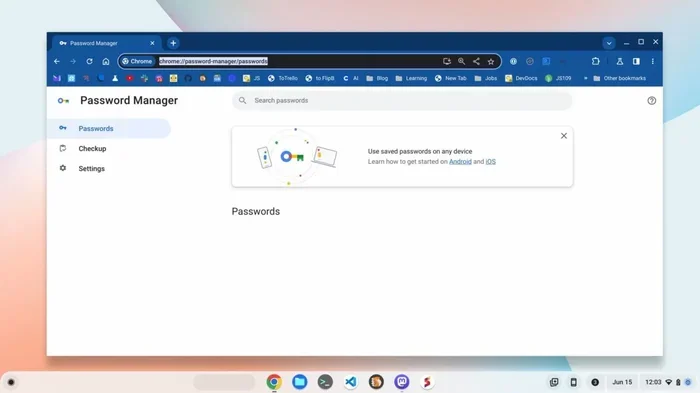
- Click Passwords to open your saved password list.
- Look for the Export Passwords button next to the Saved Passwords section.
- Click Export Passwords and confirm your action when prompted.
- Choose a location on your computer to save the file.
- Click Save and wait for the file to download.
That is it. Chrome will generate a CSV file containing all your saved usernames, passwords, and website URLs. The file is plain text and easy to open with any spreadsheet program.
Where to Find the Exported File
After you click Save, Chrome will download the file to your default download folder. On most Windows computers, this is the Downloads folder. On Mac, it is also the Downloads folder in your user directory. You can also choose a custom location during the save process.
Make sure you remember where you saved the file. The file name will typically include the word “passwords” and the date. It ends with a .csv extension, which stands for comma-separated values.
Quick Tip: Right after exporting, open the file to make sure it contains all your expected passwords. This simple check can save you from headaches later.
Exporting Passwords From Chrome on Mobile Devices
Not everyone uses Chrome only on a desktop. Many people rely on their phones for browsing. Good news: you can also export passwords from Chrome on mobile devices. The process is slightly different depending on whether you use Android or iPhone.
Exporting on Android
If you use Chrome on an Android phone or tablet, follow these steps:
- Open the Chrome app on your Android device.
- Tap the three-dot menu in the top-right corner.
- Tap Settings from the menu that appears.
- Tap Passwords under the Basics section.
- Tap the three-dot menu in the top-right corner of the Passwords screen.
- Tap Export Passwords.
- Confirm your choice and grant any permissions Chrome requests.
- Choose where to save the file on your device.
Android gives you direct access to the export feature. The downloaded CSV file can be found in your device’s file manager or downloads folder.
Exporting on iPhone and iPad
Exporting passwords from Chrome on iOS devices works a bit differently. Here is what you need to do:
- Open Chrome on your iPhone or iPad.
- Tap the three-dot menu at the bottom of the screen.
- Tap Settings.
- Tap Passwords.
- Tap Export Passwords at the top of the screen.
- Confirm the export and authenticate with Face ID, Touch ID, or your device passcode.
- Choose a sharing method to save or send the file.
On iPhone, Chrome may prompt you to share the file through AirDrop, Mail, or the Files app. Choose the option that works best for you. The file will be saved as a CSV that you can access later.
What Format Does Chrome Use for Password Export
When you export passwords from Chrome, the browser creates a CSV file. CSV stands for comma-separated values. It is a simple file format that stores data in a table structure using plain text.
Understanding the CSV File Format
A CSV file is easy to read and works with many programs. Each row in the file represents one saved password. The columns typically include:
- Website URL – the address of the site where the password is used.
- Username – the login name or email you use on that site.
- Password – the actual password for that account.
The file looks like a simple spreadsheet. You can open it in Microsoft Excel, Google Sheets, Apple Numbers, or even a basic text editor like Notepad.
How to Open and Read the Exported File
Opening the exported file is simple. Here is how to do it on different devices:
- On Windows: Double-click the CSV file. It should open in Excel or your default spreadsheet program.
- On Mac: Double-click the file. It will open in Numbers or Excel if installed.
- On Android: Use the Files app to locate the file and tap it. It will open in Google Sheets or your preferred spreadsheet app.
- On iPhone: Open the Files app, find the CSV, and tap it. Choose a compatible app to view it.
Quick Tip: If the file does not open correctly, try renaming it to add .csv at the end or open it directly in Google Sheets by uploading it to your Google Drive.
How to Import Passwords Into Another Browser or Manager
Once you have your Chrome passwords exported, you might want to use them in a different browser or a dedicated password manager. The good news is that most modern tools support importing from CSV files.
Switching to a Different Browser
If you are moving from Chrome to another browser, the import process is usually straightforward. Here are examples for popular browsers:
- Microsoft Edge: Go to Settings, select Profiles, then Passwords, and click Import. Choose your Chrome CSV file.
- Firefox: Go to Settings, select Logins and Passwords, and look for the import option. Select your CSV file.
- Brave: Navigate to Settings, then Passwords, and use the import feature to load your Chrome export.
Each browser handles the import slightly differently, but the core process is the same. Upload the CSV file and the browser reads the data into its own password manager.
Using a Third-Party Password Manager
Third-party password managers offer stronger security features than built-in browser tools. Popular options include 1Password, LastPass, Bitwarden, Dashlane, and Keeper. Most of these tools let you import passwords from a CSV file.
The general steps are similar across all managers:
- Log in to your password manager account.
- Navigate to the import or data settings section.
- Select Import from CSV or a similar option.
- Upload your Chrome export file.
- Review the imported data and make any needed corrections.
Using a dedicated password manager is a smart move for long-term password security. These tools offer features like encryption, breach monitoring, and cross-platform sync that Chrome does not provide.
Common Mistakes and How to Avoid Them
Exporting passwords sounds simple, but people make mistakes that can cause problems. Here are the most common errors and how to avoid them.
Forgetting to Update After Export
Your Chrome password list grows and changes over time. If you export passwords today and add new ones next week, your export file will be outdated. Make it a habit to re-export your passwords regularly, especially before switching tools or devices.
Leaving the Exported File in an Insecure Location
A CSV file with all your passwords is a goldmine for anyone who finds it. Never leave the file on your desktop, in an unsecured cloud folder, or attached to an email you no longer need. Always store it in a secure location such as an encrypted drive or a protected folder.
Not Checking the File Before Deleting Passwords From Chrome
Some people export passwords and immediately delete them from Chrome. This is risky. Always open the exported file first and verify that all your important passwords are there. Only then should you consider removing them from Chrome.
Using Public Wi-Fi During the Export Process
While exporting passwords does not send data over the internet, handling sensitive files on public networks is risky. Always export and manage your password files on a secure, private network.
Expert Insight: Security professionals recommend treating your exported password file like a physical key to your digital life. Keep it locked up, back it up separately, and delete it when you no longer need it.
Tips for Managing Exported Passwords Securely
Exporting is only half the battle. How you handle the file afterward matters just as much. Here are some best practices for managing your exported Chrome passwords safely.
- Encrypt the file with a tool like 7-Zip or VeraCrypt before storing or sharing it.
- Use a strong, unique password to protect any archive containing your exported data.
- Delete the file from your Downloads folder after you have securely stored it elsewhere.
- Consider using a password manager instead of keeping raw password files on your device.
- Enable two-factor authentication on all accounts that support it for an extra layer of protection.
- Review your saved passwords regularly and remove any you no longer use.
Taking these extra steps might seem like overkill, but they make a real difference in keeping your accounts safe. Password security is not just about strong passwords. It is also about how you store and manage them.
Frequently Asked Questions
Can I export passwords from Chrome without a Google account?
Yes, you can export passwords from Chrome even without syncing with a Google account. The export feature is available in Chrome settings as long as you have saved passwords stored locally in your browser profile. However, syncing with a Google account ensures your passwords are available across devices and makes the export process smoother.
Is it safe to export Chrome passwords to a CSV file?
Exporting passwords to a CSV file is safe as long as you store the file securely. The CSV file contains your passwords in plain text, which means anyone with access to the file can read them. Always encrypt the file or store it in a protected location, and delete it once you no longer need it.
Can I export passwords from Chrome on my phone and use them on my computer?
Yes, you can export passwords from Chrome on your phone and transfer the CSV file to your computer. On Android, you can use a USB cable, cloud storage, or email to move the file. On iPhone, you can use AirDrop, iCloud Drive, or email. Once on your computer, open the file with any spreadsheet program.
What should I do if the Export Passwords option is grayed out?
If the export option is grayed out, it usually means your Chrome profile is managed by an organization, such as a work or school account. In this case, you may need to contact your IT administrator to request export access. On personal accounts, make sure your Chrome browser is updated to the latest version.
Will exporting passwords delete them from Chrome?
No, exporting passwords does not delete them from Chrome. The export process only creates a copy of your saved passwords in a file. Your passwords remain stored in Chrome exactly as they were. You can delete them manually from Chrome settings if you choose to do so after verifying the export.
How often should I export my Chrome passwords?
There is no set schedule, but exporting your passwords whenever you make a significant change is a good practice. This includes after adding many new saved passwords, before switching browsers, or before uninstalling Chrome. Regular exports help ensure you always have a current backup of your login credentials.
Conclusion
Knowing how do I export all passwords from Chrome gives you control over your digital life. Whether you are switching browsers, moving to a password manager, or simply creating a backup, the export process is quick and easy. You have learned how to export on desktop, on Android, and on iPhone. You understand the CSV format and how to use the file. You also know how to avoid common mistakes and keep your exported data secure.
The key is to act with care. Your passwords are sensitive information, and handling them responsibly matters. Always store exported files securely, verify the contents before making any changes, and consider using a dedicated password manager for long-term safety.
Take a few minutes today to export your Chrome passwords. It is one of the simplest yet most valuable things you can do for your online security. Once you have done it, you will feel more confident knowing your login credentials are backed up and ready whenever you need them.