Can I Use NVMe As External Storage for Faster Speeds
Yes, you can use NVMe as external storage with the right enclosure or adapter. This guide covers everything you need to know about turning an NVMe drive into a portable, high-speed external storage device. You will learn about NVMe enclosures, adapter options, real-world speed benefits, and how to choose the best setup for your needs.
Have you ever wondered if you can use NVMe as external storage? The short answer is yes. But the full picture is more interesting than a simple yes or no. NVMe drives are incredibly fast, and using one externally can transform how you move, store, and access your files. In this guide, we will walk through everything you need to know.
Whether you are a video editor, a gamer, or someone who just wants faster backup speeds, external NVMe storage is a game changer. We will cover enclosures, adapters, speed benchmarks, and common mistakes so you can make the right choice. Let us dive in.
Key Takeaways
- NVMe can work as external storage: You just need an NVMe enclosure or adapter to connect it externally.
- Speed is the biggest advantage: External NVMe drives offer read speeds up to 1000 MB/s or more.
- USB-C and Thunderbolt are the best connections: These ports unlock the full potential of NVMe drives.
- Enclosures are the easiest option: They are plug-and-play and require no technical setup.
- Not all enclosures are equal: Choose one with proper cooling and chipset support for best results.
- NVMe is not the same as a regular external SSD: The NVMe protocol is much faster than SATA-based drives.
📑 Table of Contents
- What Is NVMe and Why Does It Matter for External Storage?
- How Can You Use NVMe as External Storage?
- Speed Benefits of Using NVMe Externally
- Best NVMe Enclosures for External Use
- Common Mistakes When Using NVMe Externally
- Can You Boot from an External NVMe Drive?
- Is External NVMe Worth It?
- Final Thoughts on Using NVMe as External Storage
What Is NVMe and Why Does It Matter for External Storage?
NVMe stands for Non-Volatile Memory Express. It is a storage protocol designed specifically for flash storage. Unlike older protocols, NVMe communicates directly with the CPU through the PCIe interface. This means much faster data transfer compared to traditional SATA drives.
How NVMe Differs from SATA
A standard SATA SSD tops out around 550 MB/s. An NVMe drive can reach speeds of 3500 MB/s or higher. That is a massive difference. When you use NVMe as external storage, you get to keep most of that speed advantage.
The protocol matters because it affects how quickly your computer can read and write data. If you have ever waited for a large file to copy, you know how valuable speed is. NVMe slashes those wait times dramatically.
Why People Want NVMe Externally
There are several reasons people look into portable NVMe storage:
- Faster file transfers: Move gigabytes of data in seconds instead of minutes.
- Video editing on the go: Edit 4K footage directly from an external drive.
- Gaming: Store and load large game libraries faster.
- Backup solutions: Back up entire systems quickly and reliably.
- Portability: Carry a tiny, ultra-fast drive in your pocket.
The bottom line is simple. NVMe technology was built for speed, and using it externally lets you bring that speed wherever you go.
How Can You Use NVMe as External Storage?
So, can I use NVMe as external storage? Absolutely. There are two main ways to do this. You can use an NVMe enclosure or an NVMe adapter. Both methods work, but they serve different needs and budgets.
Option 1: NVMe Enclosure
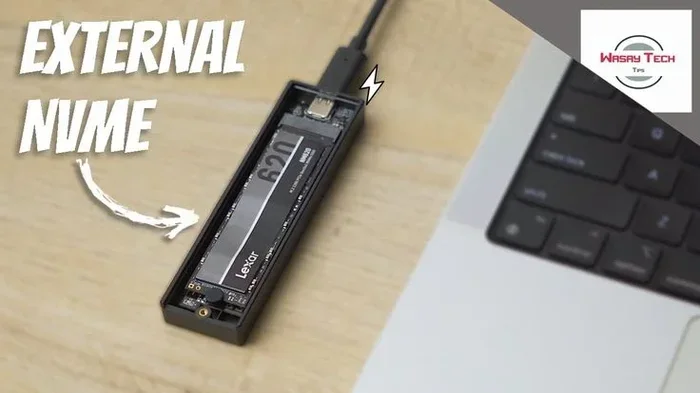
An NVMe enclosure is a small shell that houses your NVMe drive. It connects to your computer through USB-C or Thunderbolt. You slide the drive in, close the case, and plug it in. It is plug-and-play and works on most modern computers.
Here is why enclosures are popular:
- They are simple to use. No technical skills needed.
- Most models are compact and portable.
- They protect your drive from dust and drops.
- They support NVMe M.2 drives of various sizes.
Popular brands like Sabrent, UGREEN, and SSK make reliable enclosures. Prices range from $20 to $80 depending on features.
Option 2: NVMe Adapter
An NVMe adapter is a small board that plugs directly into your computer’s USB port. You place the NVMe drive on the adapter. This option is more temporary and less protective than an enclosure. But it works well for quick transfers or testing.
Adapters are great when you want to:
- Access an NVMe drive without buying an enclosure.
- Clone or image a drive quickly.
- Test a drive before committing to a full setup.
Which Option Should You Choose?
For most users, an enclosure is the better choice. It offers protection, a cleaner setup, and often better thermal management. Adapters are better for temporary or occasional use.
Speed Benefits of Using NVMe Externally
The main reason people want to use NVMe as external storage is speed. Let us talk about what you can realistically expect.
Real-World Speed Benchmarks
When you connect an NVMe drive through a USB-C enclosure, you can expect speeds between 800 MB/s and 1000 MB/s. With a Thunderbolt 3 or 4 enclosure, you can push closer to 2000 MB/s or more. These numbers depend on your drive model and the enclosure quality.
Compare this to a standard external hard drive. A typical 2.5-inch external HDD runs at around 100 to 150 MB/s. An external SATA SSD hits about 500 MB/s. NVMe crushes both of these by a wide margin.
| Storage Type | Typical Read Speed | Typical Write Speed |
|---|---|---|
| External HDD | 100 MB/s | 80 MB/s |
| External SATA SSD | 500 MB/s | 450 MB/s |
| External NVMe (USB-C) | 800 MB/s | 700 MB/s |
| External NVMe (Thunderbolt) | 2000 MB/s | 1800 MB/s |
What Makes the Difference?
Several factors affect your real-world speeds:
- The NVMe drive itself: Higher-end drives like the Samsung 980 Pro or WD Black SN850 deliver top-tier performance.
- The enclosure chipset: The ASMedia and Phison chipsets are known for reliable performance.
- The connection type: USB 3.2 Gen 2 and Thunderbolt offer the best bandwidth.
- Your computer’s ports: An older USB 3.0 port will bottleneck your speeds.
- Thermal throttling: Hot drives slow down. Good enclosures include heat sinks or fans.
Quick tip: Always check that your computer has USB-C ports that support USB 3.2 Gen 2 or Thunderbolt. Without the right port, you will not see the full speed benefits.
Best NVMe Enclosures for External Use
Not all NVMe enclosures are created equal. Some are cheap and slow. Others deliver excellent performance and keep your drive cool. Here are some of the best options on the market right now.
Top Picks by Budget
Budget Option: UGREEN NVMe Enclosure – This enclosure costs around $20 and supports USB 3.2 Gen 2. It handles speeds up to 1000 MB/s. It is compact, lightweight, and works great for everyday use.
Mid-Range Option: Sabrent EC-NVDS – Priced around $35, this enclosure features an aluminum body that acts as a passive heatsink. It supports NVMe M.2 2230, 2242, 2260, and 2280 drives. Reliable and well-built.
Premium Option: SSK IT-TF667 Thunderbolt Enclosure – For around $70, this Thunderbolt enclosure pushes speeds past 2000 MB/s. It is ideal for professionals who need the fastest possible external storage.
What to Look for When Buying
When shopping for an NVMe enclosure, keep these factors in mind:
- Chipset quality: ASMedia and Phison are trusted brands.
- Connection speed: USB-C 3.2 Gen 2 or Thunderbolt for best results.
- Drive size support: Make sure it fits your M.2 drive form factor.
- Thermal design: Look for enclosures with metal shells or built-in fans.
- Compatibility: Check that it works with your operating system.
Quick tip: Read reviews before buying. Some cheap enclosures use outdated chipsets that limit your NVMe drive’s full speed. Spending a little extra on a quality enclosure pays off in performance.
Common Mistakes When Using NVMe Externally
Even with the right equipment, people make mistakes that hurt performance or damage their drives. Here are the most common ones and how to avoid them.
Using the Wrong Cable or Port
Not all USB-C cables are created equal. Some only support USB 2.0 or USB 3.0. If you use a slow cable, your NVMe drive will run at slow speeds. Always use a cable rated for USB 3.2 Gen 2 or Thunderbolt.
Similarly, plugging your enclosure into an older USB-A port with an adapter will bottleneck performance. Use native USB-C or Thunderbolt ports whenever possible.
Ignoring Thermal Throttling
NVMe drives generate heat. When they get too hot, they slow down to protect themselves. This is called thermal throttling. Cheap enclosures without any cooling are especially prone to this problem.
To avoid thermal throttling:
- Choose an enclosure with a metal body or fan.
- Avoid leaving the drive in direct sunlight.
- Give the drive breaks during long transfer sessions.
- Use a cooling pad if you are running sustained workloads.
Forgetting to Eject Safely
Always eject your external NVMe drive before unplugging it. Pulling the cable out without ejecting can corrupt data. This is true for all external storage, but it is especially important for NVMe drives that handle large active transfers.
Buying an Incompatible Enclosure
Some enclosures only support certain NVMe sizes. If you buy a 2280 drive but get an enclosure that only fits 2242 drives, you will have a problem. Always check the enclosure specifications before purchasing.
Expert insight: The NVMe protocol uses the PCIe bus, which is different from the SATA protocol used in traditional SSDs. Make sure your enclosure specifically supports NVMe, not just M.2 drives in general. Some M.2 enclosures only support SATA M.2 drives and will not work with NVMe.
Can You Boot from an External NVMe Drive?
Yes, you can boot your operating system from an external NVMe drive. This is a popular setup for people who want a portable operating system or a fast boot drive for multiple computers.
How to Set Up a Bootable External NVMe Drive
Setting up a bootable NVMe drive is straightforward:
- Install your NVMe drive into a compatible enclosure.
- Connect the enclosure to your computer.
- Install your operating system (Windows, Linux, or macOS) onto the drive.
- Go into your computer’s BIOS or boot menu.
- Select the external NVMe drive as the boot device.
Keep in mind that boot speeds depend on your computer’s USB or Thunderbolt port. Thunderbolt connections offer the best boot experience. USB-C connections work well too but may be slightly slower.
This setup is especially useful for IT professionals, developers, and anyone who works across multiple machines. You carry your entire operating system and applications on a single portable drive.
Is External NVMe Worth It?
The answer depends on your needs. If you regularly transfer large files, edit video, or want the fastest possible external storage, then yes. External NVMe storage is absolutely worth the investment.
For casual users who just store documents and photos, a standard external SSD or even an external HDD may be enough. But if you want the cutting edge of portable storage speed, NVMe is the way to go.
The cost has come down significantly. A good NVMe enclosure and a 1TB NVMe drive can be purchased for under $100. That is competitive with external SATA SSDs and far cheaper than enterprise-grade portable storage solutions.
Quick tip: If you already have an NVMe drive lying around from an old PC or laptop, an enclosure is the perfect way to repurpose it. You get fast external storage without buying a new drive.
As USB4 and Thunderbolt 5 become more common, external NVMe storage will only get faster. Investing in a quality enclosure now means you are future-proofing your setup.
Final Thoughts on Using NVMe as External Storage
Can I use NVMe as external storage? The answer is a resounding yes. With the right enclosure or adapter, you can turn any NVMe drive into a blazing-fast external storage device. The speed gains over traditional external drives are enormous. File transfers that once took minutes now take seconds.
The key is choosing the right equipment. Pick a quality enclosure with proper cooling and a fast connection. Avoid the common mistakes that bottleneck performance. And always make sure your computer supports the connection type you are using.
Whether you are a professional who needs portable high-speed storage or a tech enthusiast who wants the fastest setup possible, external NVMe storage delivers. It is compact, fast, and more affordable than ever. Give it a try, and you will never want to go back to slower external drives.
Frequently Asked Questions
Can I use NVMe as external storage without an enclosure?
You can use an NVMe adapter without an enclosure, but an enclosure provides better protection and cooling. Adapters are good for temporary use, while enclosures are the better long-term solution for everyday external storage.
What is the fastest way to connect an NVMe drive externally?
The fastest way is through a Thunderbolt 3 or Thunderbolt 4 enclosure. These connections can deliver speeds up to 2000 MB/s or more. USB-C 3.2 Gen 2 enclosures are the next best option, offering speeds around 1000 MB/s.
Will any NVMe enclosure work with my M.2 drive?
Not all enclosures support all M.2 form factors. Check that the enclosure supports your specific NVMe M.2 size, such as 2230, 2242, 2260, or 2280. Most modern enclosures support the common 2280 size.
Can I use an external NVMe drive on a Mac?
Yes, you can use NVMe as external storage on a Mac. You need a Mac with USB-C or Thunderbolt ports. Most NVMe enclosures work with macOS without any additional drivers. Just make sure the enclosure is compatible with your Mac model.
Do NVMe external drives need cooling?
NVMe drives generate heat during use, especially during large transfers. Metal enclosures provide passive cooling, while some models include active fans. Without proper cooling, thermal throttling can reduce your speeds significantly.
Is external NVMe faster than a regular external SSD?
Yes, external NVMe is significantly faster than a regular external SATA SSD. NVMe drives use the PCIe protocol, which delivers much higher data transfer speeds than the SATA protocol used in traditional external SSDs.
=== CONCLUSION ===
Can I use NVMe as external storage? Yes, and it is one of the best upgrades you can make for your workflow. The combination of NVMe speed and portable external storage gives you a powerful tool for work, gaming, and backup. Choose a quality enclosure, use the right cables, and you will experience transfer speeds that traditional external drives simply cannot match. Start exploring your options today and bring NVMe speed into your everyday computing.