Can I Leave My Dell Inspiron Laptop Plugged In All The Time
Can I Leave My Dell Inspiron Laptop Plugged In All The Time? The short answer is yes, but with some important caveats. Modern Dell Inspiron laptops come with built-in battery management features that help prevent overcharging and reduce battery wear. However, keeping your laptop plugged in constantly can still lead to long-term battery degradation if you are not careful. Understanding how lithium-ion batteries work and using the right power management settings will help you get the most life out of your battery. This guide covers everything you need to know about safe charging habits for your Dell Inspiron.
You have a Dell Inspiron laptop sitting on your desk right now. The charger is plugged in. The battery icon shows 100%. And you are wondering, Can I Leave My Dell Inspiron Laptop Plugged In All The Time?
This is one of the most common questions laptop users ask. Whether you use your Dell Inspiron for work, school, or gaming, leaving it plugged in seems convenient. You never have to worry about the battery dying mid-task. But convenience does not always mean it is the best choice for your device.
The truth is that modern laptops are smarter than older models. Dell has built in several safety features to protect your battery health. But that does not mean you should ignore the issue entirely. Small habits can make a big difference over months and years of use.
In this article, we will break down everything you need to know. We will cover how Dell Inspiron batteries work, what happens when you keep them plugged in constantly, and what you can do to protect your investment. By the end, you will have a clear answer and practical steps to follow.
Key Takeaways
- Yes, you can leave it plugged in: Dell Inspiron laptops have safety features that prevent overcharging.
- Battery wear is real: Constant charging at 100% can reduce your battery lifespan over time.
- Use Dell Power Manager: This tool lets you set battery charge thresholds to protect your battery.
- Ideal charge level is 20-80%: Keeping your battery in this range reduces long-term wear.
- Heat is the enemy: Keeping your laptop cool while plugged in helps preserve battery health.
- Calibrate your battery regularly: This ensures accurate battery percentage readings.
- Unplug occasionally: Using battery power periodically helps maintain battery conditioning.
📑 Table of Contents
- How Dell Inspiron Batteries Work
- Can You Actually Leave Your Dell Inspiron Plugged In All The Time?
- The Pros and Cons of Keeping Your Dell Inspiron Plugged In
- How to Protect Your Dell Inspiron Battery While Keeping It Plugged In
- Dell Battery Settings and Tools You Should Know
- Best Charging Habits for Long-Term Battery Health
- Common Mistakes People Make With Laptop Batteries
- Expert Insights on Dell Inspiron Battery Care
- Key Takeaways
- Conclusion
How Dell Inspiron Batteries Work
Before you decide whether to keep your laptop plugged in, it helps to understand the technology inside. Dell Inspiron laptops use lithium-ion batteries. These are the same batteries found in smartphones, tablets, and most modern portable electronics.
What Makes Lithium-Ion Batteries Different
Lithium-ion batteries do not have the “memory effect” that older nickel-cadmium batteries had. This means you do not need to fully drain the battery before recharging. That is good news for daily users.
However, lithium-ion batteries do degrade over time. Every time you charge your battery, it goes through a charge cycle. A full cycle means going from 0% to 100%. But partial counts add up too. For example, draining from 100% to 50% and recharging counts as half a cycle.
The more cycles your battery goes through, the more its overall capacity decreases. This is why older laptops seem to lose battery life faster. The battery physically wears out from repeated use.
How Dell Inspiron Models Handle Charging
Dell has designed its Inspiron line with built-in charging controls. When your battery reaches 100%, the laptop stops drawing power from the battery. It runs directly off the power adapter instead. This prevents overcharging, which used to be a real problem with older battery types.
Some Dell Inspiron models also feature Dell Power Manager software. This tool gives you more control over how your battery charges. You can set limits, check battery health, and even schedule charging times.
Can You Actually Leave Your Dell Inspiron Plugged In All The Time?
So, Can I Leave My Dell Inspiron Laptop Plugged In All The Time? The honest answer is yes, you can. But that does not mean you should without taking precautions. Let us look at what actually happens to your battery when it stays plugged in.
What Happens When You Keep Your Laptop Plugged In
When your Dell Inspiron is plugged in and at 100%, the battery stays at full charge. The laptop bypasses the battery and powers itself directly from the wall outlet. This sounds safe, but there is a catch.
Lithium-ion batteries degrade faster when they stay at high charge levels for long periods. Heat also plays a big role. A laptop that is always plugged in tends to run warmer. That heat accelerates battery wear over time.
After several months of constant charging, you might notice your battery does not hold as much charge as it used to. This is battery degradation. It is a natural process, but keeping your laptop plugged in all the time speeds it up.
The Role of Battery Management Software
Dell understands this problem. That is why newer Inspiron models include battery management tools. Dell Power Manager is the primary software for this purpose. It lets you choose from several charging modes:
- Standard Charge: Charges the battery normally to 100% and then stops.
- Battery Life: Limits charging to around 80% to reduce wear.
- ExpressCharge: Charges the battery quickly when you need it fast.
- Custom Charge: Lets you set a specific charge threshold.
Using these modes can significantly extend your battery lifespan. If you plan to keep your laptop plugged in most of the time, the Battery Life mode is your best friend.
The Pros and Cons of Keeping Your Dell Inspiron Plugged In
Like any setup, keeping your laptop plugged in has advantages and disadvantages. Let us weigh them so you can make an informed decision.
Pros of Keeping Your Laptop Plugged In
- Always ready to use: Your laptop never runs out of power unexpectedly.
- Best performance: Some Dell Inspiron models run faster on AC power because they can draw more energy.
- No battery drain anxiety: You do not need to hunt for an outlet during important tasks.
- Built-in protections: Dell laptops stop charging at 100% to prevent overcharging.
Cons of Keeping Your Laptop Plugged In
- Long-term battery wear: Keeping the battery at 100% constantly speeds up degradation.
- Heat buildup: Plugged-in laptops run warmer, which affects battery health.
- Reduced battery lifespan: After one or two years, your battery may not hold a good charge.
- Dependency on power: If the power goes out, you lose your work if you have not saved.
Who Should Keep Their Laptop Plugged In?
There are situations where keeping your Dell Inspiron plugged in makes perfect sense. If you use your laptop as a desktop replacement, keeping it plugged in is fine. If you play games or run heavy software that needs full power, staying on AC power is smart. And if you rarely move your laptop around, the battery wear matters less because you are not relying on it much anyway.
Who Should Unplug More Often?
If you carry your Dell Inspiron around daily, you want a healthy battery. People who work from coffee shops or travel frequently need their battery to hold a charge. For these users, it is better to use battery power regularly and avoid keeping the laptop at 100% all the time.
How to Protect Your Dell Inspiron Battery While Keeping It Plugged In
If you decide to keep your laptop plugged in most of the time, you can take steps to protect your battery. These simple habits will help you maintain good battery health for years.
Use Battery Charge Thresholds
This is the single most effective thing you can do. Instead of letting your battery charge to 100% every time, set a limit. Most experts recommend keeping your battery between 20% and 80%. This range puts the least stress on lithium-ion cells.
You can set this up in Dell Power Manager. Choose the Battery Life mode or set a custom threshold. Your laptop will stop charging once it hits the limit you set. When the battery drops to 20%, it will start charging again.
Keep Your Laptop Cool
Heat is the number one enemy of lithium-ion batteries. A laptop that runs hot while plugged in will lose battery capacity much faster. Here are some tips to keep temperatures down:
- Use your laptop on a hard, flat surface. Never on a bed or couch.
- Consider a cooling pad if you use your laptop for long sessions.
- Keep vents clear of dust and debris.
- Avoid using your laptop in direct sunlight or very warm rooms.
- Close unnecessary programs that cause your processor to work harder.
Monitor Your Battery Health Regularly
Dell provides a built-in battery report tool. You can generate this report to see how your battery is holding up over time. Here is how to do it:
- Open Command Prompt as Administrator.
- Type
powercfg /batteryreportand press Enter. - The report saves as an HTML file you can open in your browser.
- Check the design capacity versus the full charge capacity.
If the full charge capacity is significantly lower than the design capacity, your battery is wearing out. This report helps you catch problems early.
Unplug and Use Battery Power Periodically
Even if you keep your laptop plugged in most of the time, try to use it on battery power occasionally. This keeps the battery conditioned. Think of it like exercise for your battery. A battery that sits unused for months can develop problems.
A good routine is to unplug your Dell Inspiron once a week and use it on battery until it reaches around 20%. Then plug it back in and recharge. This simple habit helps maintain battery flexibility.
Avoid Extreme Charge Levels
Leaving your battery at 0% for extended periods is just as bad as keeping it at 100%. Deep discharge can damage lithium-ion cells permanently. If you are going to store your laptop for a while, charge it to about 50% first.
Similarly, never let your battery drop to 0% regularly. Try to plug in or charge when it hits around 20%. This keeps the battery in a healthy operating range.
Dell Battery Settings and Tools You Should Know
Dell has packed its Inspiron line with useful tools for managing battery health. Knowing about these tools helps you get the most out of your setup.
Dell Power Manager
Dell Power Manager is the go-to tool for battery management on Dell laptops. It comes pre-installed on most newer Inspiron models. The software gives you a dashboard view of your battery status, charging settings, and health information.
Key features include:
- Battery Health Mode: Limits charging to extend lifespan.
- ExpressCharge: Fast charges your battery when you need it quickly.
- My Charging Settings: Customize when and how your battery charges.
- Battery Information: View charge cycles, design capacity, and more.
Windows Battery Saver Mode
Windows 10 and 11 both include a Battery Saver feature. When turned on, it reduces background activity and lowers screen brightness to conserve power. You can set it to turn on automatically when your battery drops below a certain percentage.
To find this setting, go to Settings > System > Battery. Toggle Battery Saver on and set your preferences. This feature is especially useful when you are running on battery power.
BIOS Battery Settings
Some Dell Inspiron models also offer battery settings in the BIOS. You can access the BIOS by pressing F2 during startup. Look for power management options there. These settings control how the laptop handles charging and power delivery at a deeper level.
Best Charging Habits for Long-Term Battery Health
Building good charging habits is the best way to ensure your Dell Inspiron battery stays healthy. Here are some practical tips that make a real difference over time.
1. Follow the 20-80 Rule
Try to keep your battery between 20% and 80% as much as possible. This is the sweet spot for lithium-ion battery longevity. Charging to 100% is fine occasionally, but making a habit of it will wear your battery faster.
2. Avoid Fast Charging When Possible
Dell ExpressCharge is convenient, but fast charging generates more heat. Heat is bad for battery health. If you have time, use a slower charge rate when you can. Overnight charging with a standard rate is gentler on the battery.
3. Update Your BIOS and Drivers
Dell regularly releases BIOS updates that improve power management. These updates can fix battery charging bugs and optimize performance. Check for updates through Dell SupportAssist or the Dell website regularly.
4. Remove the Battery If Using AC Power Long-Term
Some Dell Inspiron models allow you to remove the battery. If you plan to use your laptop plugged in for weeks or months at a time, removing the battery protects it from long-term full-charge stress. This is an advanced tip but very effective.
5. Calibrate Your Battery Every Few Months
Battery calibration ensures your percentage readings are accurate. To calibrate, charge your battery to 100%, then unplug and use it until it shuts off from empty. Then charge it back to 100% without interruption. This process resets the battery sensor and gives you more accurate readings.
6. Watch for Warning Signs
Your battery will give you clues when something is wrong. Watch for these warning signs:
- The battery drains much faster than before.
- The laptop shuts off suddenly even with a high percentage showing.
- The battery gets noticeably hotter than usual during charging.
- The battery icon shows a red X or “plugged in, not charging.”
If you notice any of these, it is time to check your battery health or consider a replacement.
7. Keep Your Firmware Up to Date
Dell releases firmware updates specifically for battery management. These updates can improve how the laptop handles charging, power delivery, and thermal management. Visit the Dell Support website, enter your service tag, and check for available updates.
Common Mistakes People Make With Laptop Batteries
There are several mistakes that many Dell Inspiron users make without realizing it. Avoiding these habits will help your battery last longer.
Leaving the Laptop in a Hot Car
Extreme heat destroys lithium-ion batteries. Never leave your Dell Inspiron in a hot car or in direct sunlight for long periods. If the laptop gets too hot, let it cool down before charging.
Ignoring Battery Warnings
If Windows or Dell Power Manager warns you about battery health, pay attention. These warnings are based on actual data from your battery’s sensors. Ignoring them means you might miss the window to take corrective action.
Using Cheap or Incompatible Chargers
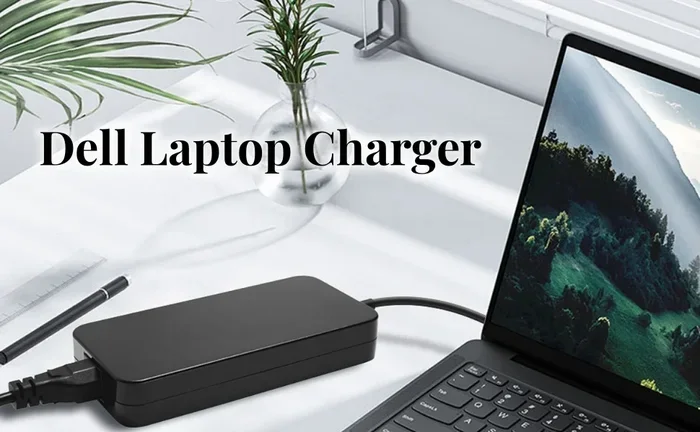
Always use the charger that came with your Dell Inspiron or a Dell-approved replacement. Cheap third-party chargers may not deliver the correct voltage or amperage. This can damage your battery and even void your warranty.
Never Letting the Battery Discharge
While keeping the battery at 100% is bad, never letting it discharge at all is also harmful. Batteries need some movement through their charge range to stay healthy. At least let it drain to 20% once in a while.
Expert Insights on Dell Inspiron Battery Care
Battery experts and Dell engineers agree on a few key principles. First, heat management is the most important factor in battery longevity. Second, avoiding extreme charge levels (0% and 100%) reduces stress on battery cells. Third, regular use and occasional full discharge cycles help keep the battery calibrated.
Dell’s own support documentation recommends using battery charge thresholds whenever possible. This is especially true for users who keep their laptops plugged in for extended periods. The company also advises against storing batteries at full charge or completely empty.
Many Dell service technicians suggest replacing your battery once it drops below 80% of its original design capacity. At that point, the battery no longer provides meaningful runtime. Replacing it at this stage is more cost-effective than struggling with a nearly dead battery.
Key Takeaways
- Can I Leave My Dell Inspiron Laptop Plugged In All The Time? Yes, but you should take precautions to protect your battery.
- Use Dell Power Manager: Set battery charge thresholds to limit charging to 80%.
- Keep your laptop cool: Heat is the biggest factor in battery degradation.
- Follow the 20-80 rule: Keeping your battery in this range reduces wear significantly.
- Calibrate regularly: A full discharge and recharge cycle every few months keeps readings accurate.
- Monitor battery health: Use the built-in battery report tool to track capacity over time.
- Unplug occasionally: Using battery power periodically keeps the battery conditioned.
Conclusion
So, Can I Leave My Dell Inspiron Laptop Plugged In All The Time? Yes, you can. Dell has built strong safety features into the Inspiron line that prevent overcharging and manage power delivery intelligently. But convenience should not come at the cost of your battery’s long-term health.
The key is balance. Use Dell Power Manager to set smart charge limits. Keep your laptop cool and well-ventilated. Follow the 20-80 rule as much as possible. And do not forget to use your battery power from time to time. These small habits add up to a significantly longer battery lifespan.
Your Dell Inspiron is a valuable investment. Taking a few minutes to set up proper charging habits now will save you from battery problems down the road. Start today by checking your Dell Power Manager settings. Your future self will thank you when your battery still holds a solid charge two or three years from now.
Remember, the goal is not to stop plugging in your laptop. The goal is to plug in smarter. With the right settings and habits, you can enjoy the convenience of always being plugged in while keeping your battery healthy and strong.
Frequently Asked Questions
Is it bad to leave a Dell Inspiron plugged in overnight?
No, it is not bad. Modern Dell Inspiron laptops stop charging the battery once it reaches 100%. The laptop runs directly off AC power after that. However, using battery charge thresholds in Dell Power Manager is still a good idea to reduce long-term wear.
How do I stop my Dell Inspiron from charging to 100%?
Open Dell Power Manager and select the Battery Life charging mode. This limits your battery to around 80%. You can also set a custom charge threshold in the My Charging Settings menu. This prevents the battery from staying at full charge for long periods.
How long does a Dell Inspiron battery last when plugged in all the time?
A Dell Inspiron battery typically lasts 2 to 4 years when kept plugged in constantly. The exact lifespan depends on heat exposure, charge habits, and usage patterns. Following the tips in this guide can help extend that timeframe.
Should I remove the battery if I always use my laptop plugged in?
If your Dell Inspiron model allows easy battery removal, taking the battery out while using AC power is a great option. This eliminates the risk of battery degradation from constant charging. Check your specific model to see if the battery is removable.
What is the best battery charge level for a Dell Inspiron?
The ideal charge level for a Dell Inspiron battery is between 20% and 80%. Keeping the battery in this range puts the least stress on lithium-ion cells and helps maximize long-term battery lifespan.
Can I use my Dell Inspiron without a battery if it is plugged in?
Yes, you can run your Dell Inspiron without a battery as long as it is connected to the power adapter. However, if the power adapter is accidentally unplugged, you will lose all unsaved work immediately. Always save your work frequently if you remove the battery.