Can A 144hz Laptop Run A 60hz Monitor Without Issues
Yes, a 144hz laptop can absolutely run a 60hz monitor without any issues. Your laptop’s graphics card can output to a lower refresh rate display easily, and you can adjust settings in Windows or through your GPU control panel. Whether you are gaming, working, or streaming, connecting a 60hz monitor to a 144hz laptop is simple and fully supported by modern hardware and software.
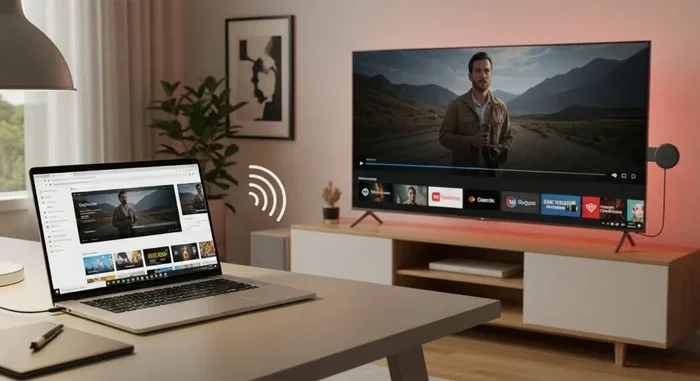
So you have a 144hz laptop and you want to hook it up to a 60hz monitor. Maybe you are setting up a dual display. Maybe you are connecting to a TV or a bigger screen for movie night. Either way, you might be wondering if everything will work smoothly. The short answer is yes. A 144hz laptop can run a 60hz monitor without any problems whatsoever. Let me walk you through exactly how it works and what you need to know.
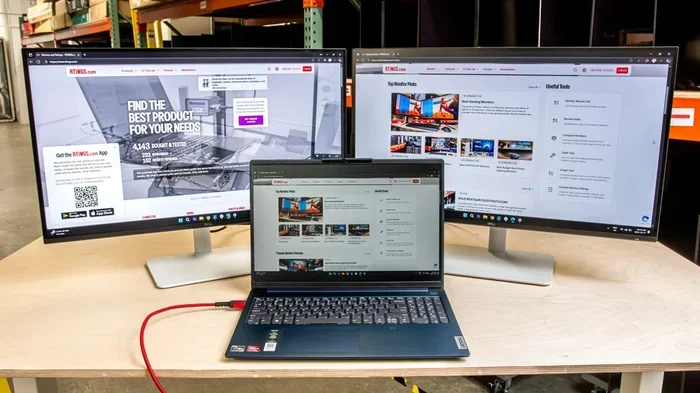
When you think about it, this is really just a matter of display output. Your laptop’s graphics card does not care what refresh rate the connected display supports. It can send a signal at 60hz, 144hz, or anything in between. The refresh rate mismatch between your laptop screen and an external monitor is totally normal and very common. People do this all the time for work, gaming, and entertainment setups.
In this guide, I will cover everything you need to know. From cable choices to display settings, from potential issues to how to fix them. By the end, you will feel confident connecting any 60hz monitor to your high refresh rate laptop. Let us dive in.
Key Takeaways
- A 144hz laptop can run a 60hz monitor: The laptop’s GPU supports downward compatibility with any refresh rate.
- No special hardware is needed: A standard HDMI or DisplayPort cable works perfectly fine.
- You can change the refresh rate in settings: Windows and GPU control panels make it easy to switch between rates.
- You may notice a difference in smoothness: A 60hz monitor will look less fluid than a 144hz screen during fast motion.
- Screen tearing can happen: Enabling V-Sync or adaptive sync helps fix this common issue.
- Gaming performance stays strong: Your laptop still renders at high frame rates even on a 60hz display.
- Setup takes minutes: The whole process is plug-and-play for most users.
📑 Table of Contents
- What Does Refresh Rate Actually Mean?
- Can A 144hz Laptop Run A 60hz Monitor? Here Is How It Works
- How to Connect a 60hz Monitor to Your 144hz Laptop
- Common Issues and How to Fix Them
- Does Running a 60hz Monitor Limit Your 144hz Laptop?
- Tips for Getting the Best Experience
- Quick Tips at a Glance
- Expert Insights on Refresh Rate Compatibility
- Key Takeaways
- Conclusion
What Does Refresh Rate Actually Mean?
Before we go further, let me quickly explain what refresh rate means. It is simple. Refresh rate is how many times per second your screen updates with a new image. It is measured in hertz, or Hz. A 60hz monitor refreshes the image 60 times per second. A 144hz display refreshes 144 times per second. That is a big difference in smoothness.
Why Higher Refresh Rates Feel Smoother
When you move your mouse or scroll through a webpage, a higher refresh rate makes everything look buttery smooth. On a 60hz screen, motion can look a little choppy compared to a 144hz panel. This is especially noticeable during fast gaming or when you are just scrolling through social media feeds. Your eyes pick up on those extra frames even if you do not realize it consciously.
Does Laptop Refresh Rate Matter for External Monitors?
Here is the key thing. Your laptop screen being 144hz does not force your external monitor to also be 144hz. The two displays work independently. Your laptop can output a 60hz signal to a 60hz monitor while still running its own panel at 144hz. This is called multi-display mode and it works great on modern systems.
Can A 144hz Laptop Run A 60hz Monitor? Here Is How It Works
The short answer is a resounding yes. A 144hz laptop can run a 60hz monitor without any issues. Your laptop’s GPU, whether it is an NVIDIA card or an AMD Radeon chip, supports outputting at various refresh rates. When you plug in a 60hz display, the laptop automatically detects the supported rate and adjusts accordingly.
The Role of Your Graphics Card
Your laptop’s video card handles all the heavy lifting here. It renders frames at whatever speed it can manage. Then it sends that signal to the monitor. The monitor displays what it receives, based on its own maximum refresh rate. So even if your laptop can render 120 frames per second, a 60hz monitor will only show 60 of those frames. The extra frames are simply not displayed.
Downward Compatibility Is Built In
Modern GPUs are designed to be fully backward compatible. This means they can output signals at lower refresh rates without any problems. A 144hz laptop sending a signal to a 60hz monitor is one of the most common setups in offices and dorm rooms around the world. There is no technical barrier here. It just works.
How to Connect a 60hz Monitor to Your 144hz Laptop
Setting up a 60hz external monitor with your laptop is straightforward. Here is a step-by-step guide you can follow right now.
Step 1: Pick the Right Cable
You need a cable that supports the display output from your laptop. Most modern laptops use one of these ports:
- HDMI – Very common and works with almost any monitor
- DisplayPort – Offers the best signal quality and bandwidth
- USB-C with DisplayPort Alt Mode – Common on newer laptops
- USB-C Thunderbolt – Found on premium laptops and supports video output
Any of these cables will easily carry a 60hz signal at 1080p or even 1440p resolution. For 4K at 60hz, you will want a high-quality HDMI 2.0 or DisplayPort 1.4 cable. A cheap or old cable might limit your options.
Step 2: Plug In and Wait
Connect the cable from your laptop to the 60hz monitor. Turn on the monitor and switch to the correct input source. Windows should automatically detect the new display within a few seconds.
Step 3: Adjust Display Settings
Right-click on your desktop and open Display Settings. Scroll down to find the Display Resolution and Refresh Rate options. Make sure your monitor is set to 60hz. If it is not showing as an option, try a different cable or port.
Step 4: Configure GPU Control Panel (Optional)
For finer control, open your GPU software. If you have an NVIDIA card, open the NVIDIA Control Panel. Go to Display, then Change Resolution. You will see a refresh rate dropdown. Select 60hz. AMD users can do the same through the AMD Radeon Software. This step ensures your 144hz laptop is outputting exactly what the monitor expects.
Common Issues and How to Fix Them
Even though a 144hz laptop running a 60hz monitor is simple, sometimes you might run into small hiccups. Here are the most common problems and their solutions.
Monitor Not Showing 60hz as an Option
This usually happens because of a bad cable or a wrong port. If you are using an older HDMI cable, it might not support the right bandwidth. Try switching to a certified High Speed HDMI cable or a DisplayPort cable. Also make sure you are plugged into the right port on your laptop. Some laptops have HDMI output only through their dedicated GPU, not the integrated graphics.
Screen Tearing or Stuttering
Screen tearing happens when the monitor and the GPU are out of sync. This can look like a horizontal line cutting across your screen. It is annoying but easy to fix. Open your GPU control panel and enable V-Sync (Vertical Synchronization). This caps your frame rate to match the monitor’s refresh rate. On NVIDIA cards, you can also enable G-Sync Compatible mode. AMD users should look for FreeSync options. These adaptive sync technologies make a huge difference in smoothness.
Laptop Screen Flickering When Monitor Is Connected
Sometimes connecting an external display causes the laptop screen to flicker. This is usually a driver issue. Update your graphics driver through the manufacturer’s website or through Windows Update. Restarting your laptop after the update often fixes the problem completely.
Resolution Looks Blurry or Wrong
If your 60hz monitor looks blurry, the resolution might be set incorrectly. Go to Display Settings and make sure you are using the native resolution of the monitor. For most budget monitors, this is 1920×1080 (Full HD). For higher-end ones, it might be 2560×1440 or 3840×2160 (4K). Using the native resolution always gives you the sharpest image.
Audio Not Working Through the Monitor
If your monitor has built-in speakers, you might notice no sound when you connect it. Go to Windows Sound Settings and change your audio output device to the monitor. Sometimes Windows defaults to the laptop speakers even when a monitor is connected.
Does Running a 60hz Monitor Limit Your 144hz Laptop?
This is a great question and one many people ask. The short answer is no. Using a 60hz monitor does not limit your laptop’s performance in any way. Your GPU still works at full power rendering every frame. It just displays 60 of them per second on the external screen.
Gaming Performance
When you game on a 60hz external monitor, your laptop still renders frames at its maximum capability. If your GPU can push 100 frames per second, it will do so. The monitor will display 60 of those frames. The extra frames help with responsiveness even though you cannot see all of them. This is why many gamers prefer running high frame rates even on 60hz displays. The lower input lag makes controls feel snappier.
For Work and Productivity
If you are using the monitor for work, browsing, or watching videos, you will not notice any difference between 60hz and 144hz. Office tasks, web browsing, and video playback all look great at 60hz. The smoothness benefit of higher refresh rates is most noticeable during fast motion like gaming or scrolling.
Battery Life Considerations
One thing to keep in mind is battery life. When your laptop is connected to an external monitor, it uses more power. The GPU is working harder to render the display output. If you are on battery, expect slightly shorter runtime. Plugging in your charger while using the external monitor is always a good idea.
Tips for Getting the Best Experience
Want to make the most of your 144hz laptop and 60hz monitor setup? Here are some practical tips that will help.
- Use a quality cable: A good HDMI 2.0 or DisplayPort 1.4 cable ensures a clean signal without dropouts.
- Keep your drivers updated: Regular GPU driver updates improve display compatibility and fix bugs.
- Match your resolution to the monitor: Always use the native resolution for the sharpest picture.
- Enable adaptive sync: Turn on FreeSync or G-Sync Compatible to reduce tearing without adding input lag.
- Use the correct port: Some laptops have multiple video output ports with different capabilities. Check which one supports the refresh rate you need.
- Adjust brightness and color: External monitors often have different brightness and color profiles than laptop screens. Spend a few minutes tweaking the settings for comfort.
- Set the monitor as primary or secondary as needed: Right-click your desktop, go to Display Settings, and choose which screen is your main display.
Quick Tips at a Glance
Here is a quick reference guide for common 144hz laptop to 60hz monitor scenarios.
- Plug and play setup: HDMI cable, connect, and Windows auto-detects the display.
- Gaming on a 60hz monitor: Enable V-Sync or adaptive sync to prevent screen tearing.
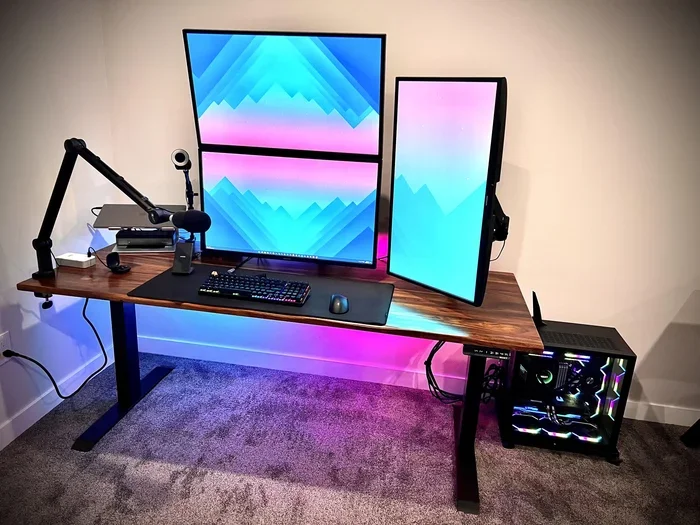
- Dual screen setup: Extend your desktop and set each display to its own refresh rate.
- Blurry image: Check that you are using the monitor’s native resolution.
- No sound: Change audio output in Windows Sound Settings to the monitor.
- 60hz not showing: Try a different cable or update your GPU drivers.
Expert Insights on Refresh Rate Compatibility
According to display technology experts, the refresh rate mismatch between a high refresh rate laptop and a standard monitor is not a problem at all. The GPU handles it seamlessly. What matters most is the cable quality and the correct settings configuration. Display output standards like HDMI and DisplayPort are designed to handle this kind of flexibility easily.
Tech reviewers often point out that many users worry unnecessarily about this setup. They say that connecting a 60hz monitor to a 144hz laptop is one of the simplest and most reliable configurations you can create. The hardware handles everything in the background. You just need to make sure the settings match.
One thing worth mentioning is that some gaming laptops with hybrid GPU architectures (like NVIDIA Optimus) might need you to select the right GPU for the external display. In the NVIDIA Control Panel, go to Manage 3D Settings and set the preferred graphics processor to your high-performance GPU. This ensures the external monitor gets the best possible signal.
Key Takeaways
- A 144hz laptop can run a 60hz monitor: The GPU supports outputting at any refresh rate up to its maximum capability.
- No special hardware is needed: A standard HDMI or DisplayPort cable is all you need for most setups.
- Adjust the refresh rate in Windows or GPU settings: This ensures the monitor receives the correct signal.
- Screen tearing can occur but is easily fixed: Enable V-Sync or adaptive sync through your GPU control panel.
- Your laptop performance is not limited: The GPU still renders at full speed even on a 60hz display.
- Setup takes only a few minutes: Plug in the cable, adjust settings, and you are good to go.
- Use quality cables and keep drivers updated: These small steps prevent most common issues.
Conclusion
To sum it all up, a 144hz laptop running a 60hz monitor is a completely normal and fully supported setup. There are no compatibility issues, no special requirements, and no hidden problems. Your laptop’s graphics card handles the refresh rate difference effortlessly. Whether you are a gamer, a student, or a professional, this setup works beautifully for all use cases.
The whole process is simple. Pick the right cable, plug it in, adjust your display settings, and you are done. If you run into any issues, the fixes are straightforward and well documented. Most people get their external monitor working within five minutes of unboxing it.
So go ahead and connect that 60hz monitor to your 144hz laptop. You will be surprised at how easy and seamless it is. Enjoy your bigger screen, better productivity, and enhanced entertainment experience. This is one of the simplest upgrades you can make to your laptop setup, and it works every single time.
Frequently Asked Questions
Can a 144hz laptop output to a 60hz monitor without any problems?
Yes, absolutely. Your laptop’s GPU supports downward compatibility and can output a 60hz signal to any monitor. This is a standard feature of all modern graphics hardware. The setup works automatically in most cases.
Will using a 60hz monitor reduce my laptop’s performance?
No, your laptop’s GPU still renders frames at full speed regardless of the monitor’s refresh rate. The monitor simply displays 60 of those frames per second. Your gaming performance and frame generation are not affected by the external display’s capabilities.
What cable do I need to connect a 60hz monitor to a 144hz laptop?
A standard HDMI cable or DisplayPort cable works perfectly for a 60hz connection. For 1080p and 1440p at 60hz, almost any modern cable will do. For 4K at 60hz, make sure you use an HDMI 2.0 or DisplayPort 1.4 cable for sufficient bandwidth.
Can I use both my 144hz laptop screen and a 60hz monitor at the same time?
Yes, you can use both screens simultaneously in extended display mode. Your laptop can run its own panel at 144hz while the external monitor runs at 60hz. Windows handles dual displays with different refresh rates without any issues.
Why does my screen tear when using a 60hz monitor with my 144hz laptop?
Screen tearing happens when the frame rate and refresh rate are out of sync. You can fix this by enabling V-Sync or adaptive sync in your GPU control panel. On NVIDIA cards, enable G-Sync Compatible. On AMD cards, enable FreeSync. This aligns the frame output with the monitor’s refresh rate.
Do I need to change any settings after connecting a 60hz monitor?
In most cases, Windows auto-detects the monitor and sets the correct refresh rate. If the refresh rate is wrong or missing from the options, go to Display Settings and manually select 60hz. You may also need to update your GPU drivers or try a different cable if issues persist.