Can I Just Add A Ssd To My Laptop And Make It Faster
Yes, you can just add an SSD to your laptop and make it significantly faster. Upgrading from a traditional hard drive to a solid-state drive is one of the best ways to boost laptop performance. This guide walks you through compatibility checks, setup steps, cloning your old drive, and the real-world speed improvements you will notice.
Key Takeaways
- Easy Upgrade: Most laptops allow you to add or replace an SSD without professional help.
- Big Speed Boost: SSDs load programs and files much faster than old hard drives.
- Check Compatibility First: Confirm your laptop supports SSDs and has the right slot or connector.
- Cloning Is Simple: You can copy your entire old drive to the new SSD and keep everything intact.
- Affordable Improvement: An SSD upgrade costs far less than buying a new laptop.
- Two Main Types: SATA SSDs and NVMe SSDs offer different speeds and fit different laptop models.
📑 Table of Contents
- Can I Just Add A Ssd To My Laptop And Make It Faster
- Why Your Laptop Is Slow
- Is Your Laptop Compatible With An SSD
- Types Of SSDs You Can Add To Your Laptop
- How To Install An SSD In Your Laptop
- How Much Faster Will Your Laptop Be
- Common Mistakes To Avoid When Upgrading
- How Much Does An SSD Upgrade Cost
- Expert Insights On SSD Upgrades
- Final Thoughts
Can I Just Add A Ssd To My Laptop And Make It Faster
If your laptop feels slow, you are not alone. Most older laptops come with a traditional hard drive. These drives use spinning metal disks to read and write data. They work, but they are painfully slow by today’s standards.
The good news is that you can just add an SSD to your laptop and make it faster. A solid-state drive has no moving parts. It uses flash memory to store data. The result is a laptop that boots up in seconds, opens apps instantly, and handles multitasking like a dream.
Many people think they need to buy a brand-new laptop when their old one starts lagging. That is not true. An SSD upgrade is one of the cheapest and most effective ways to breathe new life into an aging machine. Whether you have a Windows laptop or a Mac, this upgrade can transform your daily computing experience.
In this guide, we will walk you through everything you need to know. We will cover compatibility, types of SSDs, how to install one, and how to clone your existing drive. By the end, you will know exactly whether your laptop can handle this upgrade and how to do it yourself.
Why Your Laptop Is Slow
Before we dive into the SSD upgrade process, let us talk about why laptops slow down over time. Understanding the root cause helps you appreciate what an SSD can do for you.
The Problem With Traditional Hard Drives
Most budget and older laptops come equipped with a traditional hard disk drive, or HDD. These drives have spinning platters inside them. A read/write head moves across the disk to access data. This mechanical process is inherently slow.
When you boot up your laptop, the HDD has to spin up and locate thousands of small files. When you open a program, the drive has to find and load all the related data. Over time, as the drive fills up, it slows down even more. Fragmentation also becomes a problem. Files get scattered across the disk, and the drive has to work harder to piece them together.
Even if you clean up your storage and remove unused programs, an HDD will still feel sluggish compared to modern storage. The bottleneck is the physical hardware itself. No amount of software tweaking can fully overcome this limitation.
What An SSD Does Differently
A solid-state drive works completely differently. There are no moving parts. Data is stored on NAND flash memory chips. This means the drive can access any piece of data almost instantly.
SSDs offer dramatically higher read and write speeds. A typical HDD might deliver speeds of 80 to 160 megabytes per second. A SATA SSD can reach 500 to 550 megabytes per second. And an NVMe SSD can push well beyond 3,000 megabytes per second. The difference is night and day.
When you boot up a laptop with an SSD, the operating system loads in seconds instead of minutes. Programs launch almost instantly. File transfers complete much faster. Even your laptop feels more responsive when you switch between tasks. This is why an SSD upgrade is so popular among laptop users.
Is Your Laptop Compatible With An SSD
Not every laptop supports an SSD upgrade. But most modern laptops do. Here is how you can check whether your laptop is compatible.
Check Your Laptop Model
Start by finding out your laptop model. You can usually find this on a sticker on the bottom of the laptop. You can also check the system information in your operating system. Once you know the model, search online for its specifications.
Look for terms like “storage slot,” “upgradeable,” or “supports SSD.” Many laptop manufacturers list this information on their support pages. If your laptop has a 2.5-inch drive bay or an M.2 slot, it likely supports an SSD.
Identify The Right Connector Type
SSDs come in different form factors and connectors. The two most common types are 2.5-inch SATA SSDs and M.2 NVMe SSDs.
A 2.5-inch SATA SSD looks like a small flat rectangle, similar to a traditional laptop hard drive. It connects through a SATA interface. This type is the easiest to install in most older laptops.
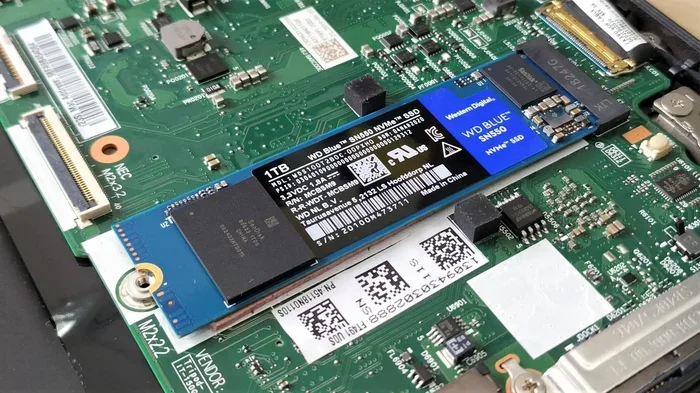
An M.2 SSD is a small stick-shaped module that plugs directly into the motherboard. NVMe M.2 SSDs are the fastest option. However, not all laptops have an M.2 slot. Check your laptop specifications carefully before purchasing.
If your laptop only has a 2.5-inch bay and no M.2 slot, a 2.5-inch SATA SSD is your best bet. If it has an M.2 slot, you can choose between a SATA M.2 drive or a faster NVMe M.2 drive.
What If Your Laptop Has Soldered Storage
Some ultra-thin laptops and Chromebooks have storage that is soldered directly onto the motherboard. This means you cannot remove or upgrade the storage. If your laptop falls into this category, an SSD upgrade is not possible.
However, many laptops in this category still have a secondary slot or an SD card reader that you can use for expanded storage. Check your specific model online to see what options are available.
Types Of SSDs You Can Add To Your Laptop
Not all SSDs are the same. Understanding the different types helps you choose the right one for your laptop and budget.
SATA SSDs
SATA SSDs are the most common and widely compatible type. They use the same SATA interface that traditional hard drives use. This makes them easy to swap into most laptops that have a 2.5-inch drive bay.
SATA SSDs offer speeds up to about 550 megabytes per second. This is already a massive improvement over a traditional hard drive. For most everyday tasks like browsing the web, watching videos, and using office apps, a SATA SSD is more than enough.
SATA SSDs are also the most affordable option. You can find a 500GB SATA SSD for around $30 to $50. A 1TB drive typically costs between $50 and $80. This makes them a great budget-friendly upgrade.
NVMe M.2 SSDs
NVMe M.2 SSDs are the fastest consumer storage available today. They plug directly into the motherboard through an M.2 slot. They use the PCIe interface, which is much faster than SATA.
NVMe SSDs can deliver read speeds of 3,000 to 7,000 megabytes per second or more. This means the operating system boots in seconds and large files transfer almost instantly.
However, NVMe SSDs cost a bit more than SATA SSDs. A 500GB NVMe drive might cost $40 to $70, and a 1TB drive could be $70 to $120. They also require an M.2 slot on your laptop, which not all models have.
Which SSD Should You Choose
For most laptop upgrades, a SATA SSD is the safest and easiest choice. It works in almost any laptop with a 2.5-inch drive bay. If your laptop has an M.2 slot and you want the fastest possible performance, go with an NVMe drive.
Consider your storage needs too. If you only use your laptop for basic tasks, a 500GB drive should be fine. If you store lots of photos, videos, or games, a 1TB or 2TB drive might be a better fit.
How To Install An SSD In Your Laptop
Installing an SSD is one of the easiest laptop upgrades you can do yourself. You do not need to be a tech expert. Here is a step-by-step guide.
What You Will Need
- A compatible SSD (SATA or M.2, depending on your laptop)
- A small Phillips-head screwdriver
- A USB-to-SATA adapter or enclosure (for cloning)
- Your laptop’s user manual or an online teardown guide
Step 1: Back Up Your Data
Before you do anything, back up your important files. Even though the upgrade process is straightforward, accidents can happen. Copy your most important documents, photos, and files to an external hard drive or a cloud storage service.
This step is especially important if you plan to clone your existing drive. A backup gives you a safety net in case anything goes wrong during the process.
Step 2: Clone Your Old Drive (Optional But Recommended)
Cloning means copying everything from your old hard drive to the new SSD. This includes your operating system, programs, settings, and files. After cloning, you simply swap the drives, and your laptop works exactly as before, but much faster.
To clone, you will need a USB-to-SATA adapter or an external enclosure. Connect your old hard drive to your laptop through the adapter. Then use free cloning software like Macrium Reflect, Clonezilla, or Samsung Data Migration to copy the drive to the new SSD.
The cloning process can take anywhere from 30 minutes to several hours, depending on the size of your drive and the amount of data. Let it run without interruption.
Step 3: Open Your Laptop And Swap The Drives
Power off your laptop completely. Unplug the power adapter. Remove the battery if it is removable.
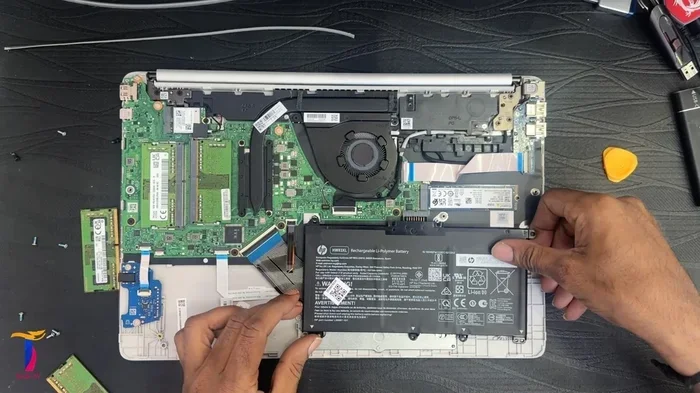
Locate the storage bay on the bottom of your laptop. Use your screwdriver to remove the screws holding the panel in place. Carefully slide out the old hard drive or SSD.
Insert the new SSD into the same slot or bay. Secure it with screws if needed. Make sure it is firmly seated and connected properly.
Replace the panel and screw it back in. Reinsert the battery and plug in your power adapter.
Step 4: Boot Up And Test
Turn on your laptop. If you cloned your drive, it should boot up just like before, but noticeably faster. If you installed a blank SSD, you will need to install the operating system fresh.
You can create a bootable USB drive with the Windows or macOS installer. Follow the on-screen prompts to install the operating system on your new SSD.
After setup, check your disk management settings to make sure the SSD is recognized and formatted correctly. You should see a significant improvement in boot times and app loading speeds right away.
How Much Faster Will Your Laptop Be
The speed improvement from an SSD upgrade is one of the most dramatic you will ever experience. Here is what you can realistically expect.
Boot Time
A laptop with a traditional hard drive might take two to four minutes to boot up. After adding an SSD, boot times typically drop to 15 to 30 seconds. That is a massive improvement that you will notice every single day.
App Launch Times
Programs that took several seconds to open on a hard drive launch almost instantly on an SSD. Web browsers, office applications, and creative tools all benefit from the faster storage speeds.
File Transfers And General Responsiveness
Copying files, saving documents, and opening large files all happen much faster with an SSD. Your laptop will feel snappier and more responsive overall. Even simple tasks like searching for files and opening folders feel quicker.
Multitasking Performance
When you have multiple apps open at the same time, an SSD helps your laptop keep up more easily. The faster storage reduces bottlenecks and allows your system to swap data in and out of memory more quickly.
While an SSD upgrade will not turn a very old laptop into a brand-new machine, it is still the single best value upgrade you can make. Combined with a RAM upgrade, it can make an older laptop feel like new again.
Common Mistakes To Avoid When Upgrading
Even though the process is straightforward, there are a few common mistakes you should watch out for.
- Buying the wrong SSD type: Make sure you know whether your laptop needs a 2.5-inch SATA SSD or an M.2 NVMe SSD before you buy.
- Skipping the backup: Always back up your data before swapping drives. Even a simple cloning mistake can cause data loss.
- Forgetting to clone: If you want to keep your existing setup, do not forget to clone your old drive before removing it.
- Not updating BIOS: Some older laptops need a BIOS update to recognize newer NVMe SSDs. Check your laptop manufacturer’s website for updates.
- Losing the screws: Keep track of all the small screws when opening your laptop. A magnetic tray or a small bowl can help.
- Skipping the TRIM command: After installing an SSD, make sure TRIM is enabled in your operating system. This helps the SSD maintain its performance over time.
How Much Does An SSD Upgrade Cost
One of the biggest advantages of adding an SSD to your laptop is the low cost. A 500GB SATA SSD typically costs between $30 and $50. A 1TB SATA SSD runs about $50 to $80. NVMe M.2 SSDs are slightly more expensive but still very affordable.
Compare this to the cost of a new laptop, which can range from $400 to $1,500 or more. An SSD upgrade gives you a huge performance boost for a fraction of the price. It is one of the smartest upgrades you can make for any laptop.
If your laptop is more than three or four years old, an SSD upgrade can easily extend its useful life by another two to three years. That is excellent value for a small investment.
Expert Insights On SSD Upgrades
Many tech professionals recommend SSD upgrades as the first thing to try when a laptop starts feeling slow. According to computer repair technicians, the vast majority of slow laptops improve dramatically after an SSD swap.
Even adding a second SSD to a laptop that already has a hard drive can help. You can use the SSD as your boot drive for the operating system and keep the hard drive for storing large files like photos and videos. This setup gives you the best of both worlds.
Some users also ask whether they should upgrade their RAM at the same time. The answer depends on your usage. If your laptop frequently runs out of memory while multitasking, adding more RAM alongside the SSD can make a noticeable difference. However, for most users, the SSD alone provides the most visible improvement.
Final Thoughts
So, can you just add an SSD to your laptop and make it faster? The answer is a clear yes. An SSD upgrade is one of the simplest, most affordable, and most effective ways to speed up a slow laptop.
Whether you choose a SATA SSD or a faster NVMe drive, the results speak for themselves. Your laptop will boot faster, launch apps instantly, and feel much more responsive in everyday use. The entire upgrade process can be done at home in under an hour, and the cost is usually under $100.
If your laptop has been feeling sluggish lately, do not rush out to buy a new one. Consider an SSD upgrade first. It might be all your laptop needs to feel fast and responsive again. With the right SSD and a little patience, you can give your old laptop a new lease on life.
Take the time to check your laptop’s compatibility, pick the right SSD, and follow the installation steps carefully. The performance gains will be well worth the effort. Your laptop will thank you for it.
Frequently Asked Questions
Can I add an SSD to any laptop?
Most laptops can accept an SSD upgrade, but not all of them. Check whether your laptop has a 2.5-inch drive bay or an M.2 slot. Some ultra-thin models have soldered storage that cannot be upgraded. Look up your specific laptop model online to confirm compatibility before purchasing an SSD.
Do I need to reinstall my operating system after adding an SSD?
Not necessarily. If you clone your old hard drive to the new SSD, your operating system and all your files will transfer over automatically. You can then simply swap the drives and boot up. However, if you prefer a fresh start, you can install the operating system on the new SSD yourself.
How much faster is a laptop with an SSD compared to one with a hard drive?
The difference is dramatic. Boot times drop from several minutes to under 30 seconds. Apps launch almost instantly. File transfers and general system responsiveness improve significantly. Most users notice the biggest difference right after the first boot up with the new SSD.
What is the difference between a SATA SSD and an NVMe SSD?
A SATA SSD connects through the SATA interface and delivers speeds up to about 550 megabytes per second. An NVMe SSD uses the PCIe interface and can reach speeds of 3,000 megabytes per second or more. NVMe SSDs are faster but also more expensive and require an M.2 slot on your laptop.
Can I use both an SSD and a hard drive in my laptop at the same time?
Yes, many laptops have room for both. You can install an SSD as your boot drive for the operating system and keep the hard drive for storing large files. This setup gives you fast system performance and plenty of storage space at the same time.
Is adding an SSD worth the cost?
Absolutely. An SSD upgrade is one of the best values in laptop improvement. A new SSD costs between $30 and $100 depending on the size. The performance boost is enormous, and it can extend your laptop’s useful life by several years. It costs a fraction of what a new laptop would.