Can I Connect Hdmi Without Cable And How To Do It Now
Yes, you can connect HDMI without cable using wireless transmitters, Wi-Fi adapters, and screen mirroring technology. These solutions let you stream HD video from your laptop, phone, or console to your TV without any messy wires. We will walk you through every option, compare top devices, and share practical tips to get the best results. Whether you want a clean setup or need flexibility, going wireless with HDMI is easier than you think.
Have you ever looked at a tangle of cables behind your TV and wished you could just go wireless? Maybe you want to share a presentation from your laptop to the big screen without fumbling for an HDMI cord. Or perhaps you are tired of stretching cables across the room just to watch a movie. The good news is that you can connect HDMI without cable, and it is way simpler than most people think.
Wireless HDMI technology has come a long way in just the last few years. What used to be clunky and expensive is now affordable and easy to set up. Whether you use a transmitter and receiver pair, a Wi-Fi streaming stick, or built-in screen mirroring, you have real options. In this guide, we will break down every method, compare the best devices, and give you honest advice so you can pick the right one for your setup.
Can I connect HDMI without cable? Absolutely. And by the end of this article, you will know exactly how to do it. We will cover wireless HDMI transmitters, Wi-Fi-based alternatives, HDMI dongles, and even Bluetooth options. You will learn the pros and cons of each approach, see a side-by-side comparison, and get practical tips to avoid common mistakes. Let us dive in.
Key Takeaways
- Wireless HDMI transmitters and receivers offer the closest experience to a wired HDMI connection with minimal lag.
- Wi-Fi-based screen mirroring is a free and easy option if you already have a smart TV or streaming stick.
- HDMI-over-Wi-Fi dongles like Chromecast and Roku provide solid alternatives for streaming content without a physical cable.
- Bluetooth HDMI adapters exist but work best for audio and short-range connections.
- Wireless HDMI can introduce slight latency, so it matters more for gaming or real-time video than for movies.
- Setting up a cable-free HDMI connection takes minutes and requires no technical expertise.
- Choosing the right solution depends on your budget, devices, and what you plan to watch or share.
📑 Table of Contents
- Understanding How HDMI Works Without a Cable
- Wireless HDMI Transmitter and Receiver Systems
- Using Wi-Fi and Screen Mirroring As HDMI Alternatives
- HDMI Over Wi-Fi Devices and Streaming Dongles
- Comparing Wireless HDMI Options Side by Side
- Common Mistakes to Avoid When Going Wireless With HDMI
- Quick Tips for the Best Wireless HDMI Experience
- Expert Insights on Wireless HDMI Technology
- Key Takeaways
- Conclusion
Understanding How HDMI Works Without a Cable
Before we get into the how, let us quickly understand the what. A standard HDMI cable sends audio and video signals from one device to another. When we talk about connecting HDMI without a cable, we mean replacing that physical wire with a wireless signal. The signal still carries the same high-definition video and sound, but it travels through the air instead of through a wire.
How Wireless HDMI Transmission Works
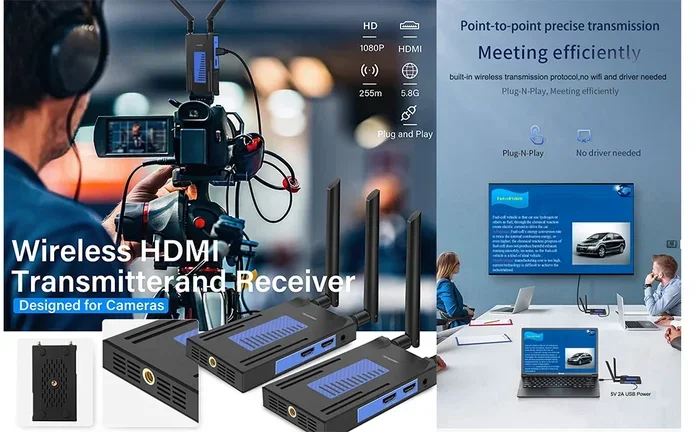
Most wireless HDMI systems use a simple transmitter-and-receiver setup. You plug the transmitter into your source device, like a laptop or gaming console. The receiver plugs into your TV’s HDMI port. The transmitter sends the audio and video signal wirelessly to the receiver. Think of it like a TV remote, but for your entire HDMI signal.
These systems usually operate on the 5 GHz Wi-Fi band or a dedicated wireless frequency. This helps reduce interference from other devices in your home. The result is a smooth, high-quality connection that feels almost identical to a wired HDMI cable.
Why Go Wireless With HDMI?
There are several good reasons to ditch the HDMI cable. First, it creates a cleaner, more organized space. No more visible wires running across the floor or behind the furniture. Second, wireless HDMI gives you flexibility. You can move your laptop around the room or change your seating arrangement without worrying about cable length.
Third, wireless setups are great for presentations and sharing content in group settings. You can mirror your screen to a TV from anywhere in the room. Finally, going cable-free reduces wear and tear on your ports. Over time, HDMI ports can loosen or get damaged from frequent plugging and unplugging.
Wireless HDMI Transmitter and Receiver Systems
The most popular way to connect HDMI without cable is by using a wireless HDMI transmitter and receiver kit. These kits come as a pair and are designed to replace your HDMI cable entirely. They work with almost any device that has an HDMI output, including laptops, Blu-ray players, and game consoles.
How to Set Up a Wireless HDMI Transmitter
Setting up a wireless HDMI transmitter is straightforward. Follow these steps to get started:
- Step 1: Plug the transmitter into the HDMI output of your source device.
- Step 2: Connect the USB power cable to the transmitter and plug it into a power outlet or USB port.
- Step 3: Plug the receiver into the HDMI input on your TV.
- Step 4: Power on the receiver using its USB cable or power adapter.
- Step 5: Switch your TV to the correct HDMI input channel.
- Step 6: The screen should mirror automatically. If not, press the sync button on the transmitter or receiver.
Most kits support 1080p or even 4K resolution at ranges of 30 to 100 feet. The exact range depends on the model and whether there are walls or obstacles in the way.
Top Wireless HDMI Transmitter Brands to Consider
Several brands stand out in the wireless HDMI space. IOGEAR offers reliable kits at reasonable prices. Toshiba makes solid options for basic needs. Avantree is known for low-latency performance, which matters for gaming. Nyrius is another trusted name that delivers good range and picture quality.
When shopping, look for kits that support the resolution you need. If you have a 4K TV, make sure the transmitter and receiver both support 4K. Also check the latency rating if you plan to use it for gaming or live streaming.
Using Wi-Fi and Screen Mirroring As HDMI Alternatives
If you do not want to buy extra hardware, Wi-Fi screen mirroring is a great option. Most modern smart TVs and streaming devices support some form of wireless screen sharing. This lets you send your phone, tablet, or laptop screen to your TV without any cables at all.
Built-In Screen Mirroring Options
Apple devices use AirPlay to mirror screens to Apple TV or compatible smart TVs. Android and Windows devices use Google Cast or Miracast for the same purpose. Samsung TVs have Smart View, and many other brands have their own built-in mirroring features. All of these let you connect HDMI-like content to your TV wirelessly.
To use screen mirroring, both your source device and your TV need to be on the same Wi-Fi network. Open the mirroring or cast feature on your device, select your TV, and your screen will appear on the big display. It really is that simple.
Limitations of Wi-Fi Screen Mirroring
Screen mirroring works well for browsing, presentations, and casual video watching. But it does have some limitations. The video quality depends heavily on your Wi-Fi signal strength. If your router is far away, you may experience lag or reduced resolution.
Also, screen mirroring can introduce a slight delay. This delay, called latency, might not matter when you are browsing the web. But if you are playing a fast-paced game, the lag can be noticeable. For gaming, a dedicated wireless HDMI transmitter is usually a better choice.
HDMI Over Wi-Fi Devices and Streaming Dongles
Another popular way to go cable-free is by using an HDMI-over-Wi-Fi dongle or streaming stick. These small devices plug directly into your TV’s HDMI port and connect to your Wi-Fi network. They let you stream content from your phone, tablet, or computer to your TV without any wires.
Popular HDMI Streaming Dongles
Google Chromecast is one of the most well-known options. It plugs into your TV’s HDMI port and connects to your Wi-Fi. You can cast content from your phone or laptop directly to the TV. Amazon Fire TV Stick offers similar functionality with a wider app selection and Alexa voice control built in.
Roku Streaming Stick is another solid choice. It supports screen mirroring from mobile devices and has a very user-friendly interface. For Apple users, the Apple TV box provides premium wireless streaming with AirPlay support and excellent picture quality.
How These Dongles Replace HDMI Cables
While these devices do not replace an HDMI cable directly, they eliminate the need for one in most use cases. Instead of plugging your laptop into the TV with a cable, you simply cast or mirror your screen over Wi-Fi. The dongle handles the wireless connection and sends the signal to your TV’s display.
Most streaming dongles support 1080p or 4K resolution. They also handle audio, so you get both picture and sound through your TV speakers or connected sound system. The main requirement is a stable and fast Wi-Fi connection.
Comparing Wireless HDMI Options Side by Side
With so many options available, it can be hard to choose the right one. Here is a quick comparison of the main wireless HDMI methods to help you decide.
| Feature | Wireless HDMI Kit | Screen Mirroring | Streaming Dongle |
|---|---|---|---|
| Hardware Cost | $30 to $200 | Free (built-in) | $30 to $150 |
| Setup Difficulty | Easy | Very Easy | Easy |
| Latency | Low to Medium | Medium to High | Low to Medium |
| Resolution Support | Up to 4K | Up to 4K | Up to 4K |
| Range | 30 to 100 feet | Wi-Fi range | Wi-Fi range |
| Best For | Gaming, presentations | Casual viewing | Streaming content |
| Cables Needed | Power cables only | None | Power cable only |
As you can see, each option has its strengths. Wireless HDMI kits offer the lowest latency and most reliable performance. Screen mirroring is the easiest and most affordable. Streaming dongles are great for everyday entertainment and app-based content.
Which Option Should You Choose?
If you need the best picture quality with the least delay, go with a wireless HDMI transmitter and receiver kit. If you mostly watch streaming services and want a simple setup, a streaming dongle like Chromecast or Fire TV Stick is perfect. If you just need to share a quick presentation or browse the web on a bigger screen, built-in screen mirroring is all you need.
Common Mistakes to Avoid When Going Wireless With HDMI
Even though wireless HDMI is easy, there are a few common mistakes that can cause frustration. Avoiding these pitfalls will save you time and help you get the best experience.
- Skipping the firmware update. Many wireless HDMI devices need a firmware update right out of the box. Always check for updates before you start using the device.
- Ignoring Wi-Fi interference. Wireless HDMI and screen mirroring both rely on Wi-Fi. If your router is overloaded or too far away, performance will drop. Try to keep your router close to the TV and source device.
- Using a cheap transmitter. Budget wireless HDMI kits can be tempting, but they often have higher latency and lower resolution support. Invest in a reputable brand for a better experience.
- Not testing the range. Before you commit to a permanent setup, test the wireless range in your actual space. Walls, furniture, and other electronics can weaken the signal.
- Forgetting about audio settings. Some wireless setups default to the wrong audio output. Check your TV and source device audio settings to make sure sound comes through correctly.
Quick Tips for the Best Wireless HDMI Experience
Here are some expert-backed tips to get the most out of your wireless HDMI setup:
- Use a dedicated Wi-Fi network. If your router supports it, create a separate network for your streaming devices. This reduces interference from phones and computers.
- Place the receiver in a well-ventilated spot. Some wireless HDMI receivers can get warm during long use. Good airflow helps them perform better and last longer.
- Keep your devices updated. Regular firmware updates improve performance and fix bugs. Check for updates every few months.
- Use high-quality power adapters. Cheap USB cables or power adapters can cause connection drops. Stick with reliable brands for consistent performance.
- Test with your actual content. Before you rely on a wireless setup for an important presentation or movie night, test it with the type of content you will be watching. This helps you spot any issues ahead of time.
Expert Insights on Wireless HDMI Technology
According to AV industry experts, wireless HDMI technology has improved dramatically in recent years. The newest generation of transmitters and receivers can handle 4K video at 60 frames per second with barely noticeable latency. This makes them suitable not just for movies and presentations but also for gaming and live sports.
Industry professionals also recommend checking the wireless standard your device uses. Systems that support the 5 GHz band or newer Wi-Fi 6 standards tend to perform much better than older models that use the 2.4 GHz band. If you are in a crowded living space with many Wi-Fi networks nearby, the 5 GHz connection will give you a cleaner, more stable signal.
Another expert tip is to consider your use case before buying. If you need a permanent setup for your home theater, a wireless HDMI kit with dedicated hardware is the way to go. If you just need occasional screen sharing, a free screen mirroring feature or a budget streaming dongle will do the job just fine.
Key Takeaways
- Wireless HDMI transmitters and receivers offer the most reliable cable-free connection with low latency and high resolution.
- Screen mirroring over Wi-Fi is a free and convenient option for casual use and quick presentations.
- Streaming dongles like Chromecast, Fire TV Stick, and Roku provide a versatile alternative for entertainment content.
- A comparison table helps you weigh the pros and cons of each method before making a decision.
- Avoiding common mistakes like ignoring firmware updates and Wi-Fi interference ensures a smooth experience.
- Following expert tips like using a dedicated Wi-Fi band and testing your setup beforehand leads to the best results.
- Can I connect HDMI without cable? Yes, and now you have all the information you need to do it confidently.
Conclusion
So, can I connect HDMI without cable? The answer is a clear and definite yes. You have multiple options available today, from wireless transmitter kits to built-in screen mirroring and streaming dongles. Each method has its own strengths, and the best choice depends on your specific needs, budget, and devices.
Wireless HDMI technology has made it possible to enjoy high-definition audio and video without the hassle of cables. Whether you are setting up a home theater, giving a presentation at work, or just want a cleaner entertainment area, going wireless is a practical and effective solution.
Start by evaluating what you need most. If low latency is your priority, invest in a quality wireless HDMI transmitter and receiver kit. If simplicity matters most, use built-in screen mirroring or grab a streaming dongle. Whatever route you choose, the setup process is quick and the results are impressive.
Now that you know how to connect HDMI without a cable, you can enjoy a cleaner, more flexible setup. Try one of these methods today and experience the freedom of a wireless connection. Your eyes and your living room will thank you.
Frequently Asked Questions
Can I connect HDMI without cable using Bluetooth?
Bluetooth is not ideal for transmitting HDMI video signals because it has limited bandwidth. However, some Bluetooth HDMI adapters exist for audio-only connections. For full HD video, wireless HDMI transmitters or Wi-Fi-based solutions are much better options.
Is wireless HDMI as good as a wired HDMI cable?
Modern wireless HDMI kits come very close to wired performance. They support 4K resolution and have low latency. However, a physical HDMI cable still offers the most stable and consistent connection. For most everyday uses, wireless HDMI is more than good enough.
Do I need special equipment to connect HDMI without cable?
Yes, you will need some form of wireless hardware. This could be a wireless HDMI transmitter and receiver pair, a streaming dongle like Chromecast or Fire TV Stick, or you can use built-in screen mirroring if your TV supports it. No special equipment is needed for screen mirroring since it uses your existing Wi-Fi.
Does going wireless affect HDMI video quality?
Most modern wireless HDMI systems support full HD and 4K resolution without noticeable quality loss. However, signal interference or a weak Wi-Fi connection can reduce quality. Using a 5 GHz band and keeping devices close to the router helps maintain the best picture quality.
Can I use wireless HDMI for gaming?
Yes, but you should choose a system with low latency. Dedicated wireless HDMI transmitters from brands like Avantree and IOGEAR are designed for gaming and offer minimal delay. Wi-Fi screen mirroring tends to have higher latency and is less suitable for fast-paced games.
How far can a wireless HDMI signal travel?
Most wireless HDMI kits work within a range of 30 to 100 feet. The actual range depends on the model and your environment. Walls, furniture, and other electronics can reduce the range. For best results, keep the transmitter and receiver within the recommended distance and in line of sight when possible.