Can I Use Two Laptops As Dual Monitors Today Guide
Can I Use Two Laptops As Dual Monitors? Absolutely! This guide shows you how to turn a second laptop into an extra screen for a dual monitor setup. You’ll discover wired and wireless methods, the best software, and simple tips to boost your work or play.
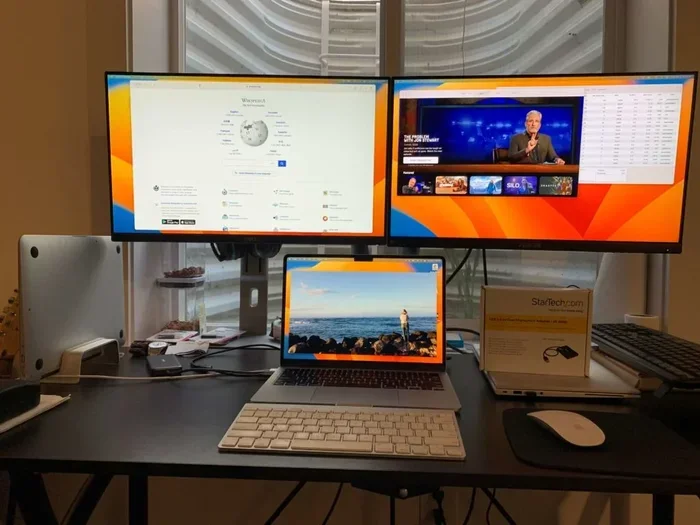
Can I Use Two Laptops As Dual Monitors? The short answer is yes. You can take an old laptop and use its screen as a second display. This gives you more room to work, play, or create. A dual monitor setup with two laptops is a smart way to boost productivity without buying a new external monitor.
Many people think they need a special laptop docking station or expensive gear. That’s not true. You can connect two laptops with a simple HDMI cable, a USB-C adapter, or even wirelessly. This guide will walk you through every step. You’ll learn how to extend your desktop, which software works best, and how to avoid common pitfalls.
Whether you’re a graphic designer, video editor, or a gamer, using two laptop screens can change your workflow. It also works great for students and remote workers. Let’s dive in and see how easy it is.
Key Takeaways
- Yes, you can: Use two laptops as dual monitors with a cable or wirelessly.
- Wired is faster: HDMI, DisplayPort, or USB-C give low latency for gaming and video.
- Wireless is flexible: Apps like Duet Display or SpaceDesk let you extend your desktop without cables.
- Check your ports: Make sure both laptops have matching outputs and inputs.
- Software matters: The right app makes setup easy and improves performance.
- Avoid common mistakes: Don’t close the lid on the second laptop or ignore power settings.
📑 Table of Contents
- What Does It Mean to Use Two Laptops as Dual Monitors?
- Why You Might Want a Dual Laptop Monitor Setup
- How to Connect Two Laptops as Monitors (Wired vs. Wireless)
- Step-by-Step Setup for Windows and macOS
- Best Software to Use a Laptop as a Second Screen
- Pros, Cons, and Expert Tips for a Smooth Experience
- Can I Use Two Laptops As Dual Monitors for Gaming and Creative Work?
- Final Thoughts on Using Two Laptops as Dual Monitors
What Does It Mean to Use Two Laptops as Dual Monitors?
The Basic Idea
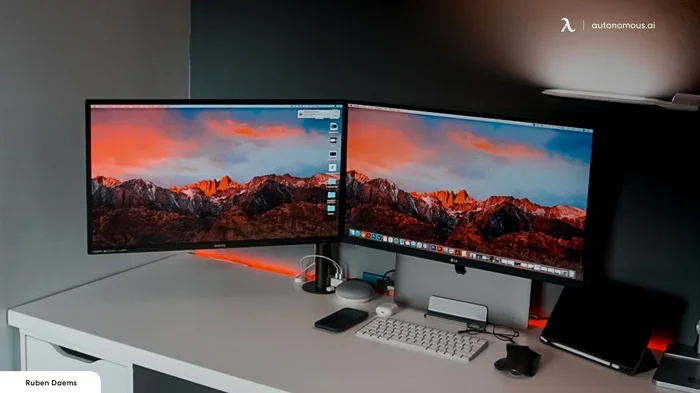
Using two laptops as dual monitors means you take a second laptop and use its laptop screen as an extra display for your main computer. You can drag windows, apps, and files across both screens. It’s like having two big external monitors without the extra cost.
The second laptop can sit flat on your desk or stand behind your main screen. You control it from your main laptop. The laptop display acts just like a regular monitor. You can mirror the same image or extend your desktop to get more space.
How It Differs from a Traditional Monitor
A traditional monitor is a standalone screen. It plugs into your PC with a single cable. A second laptop has its own keyboard, trackpad, and battery. You don’t need those parts when you use it as a monitor. You only need the screen and a connection method.
Some people worry about latency or lag. Wired connections keep lag very low. Wireless methods can have a tiny delay. For most tasks, the difference is unnoticeable. For fast-paced gaming or video editing, a wired setup is better.
Why You Might Want a Dual Laptop Monitor Setup
Boost Your Productivity
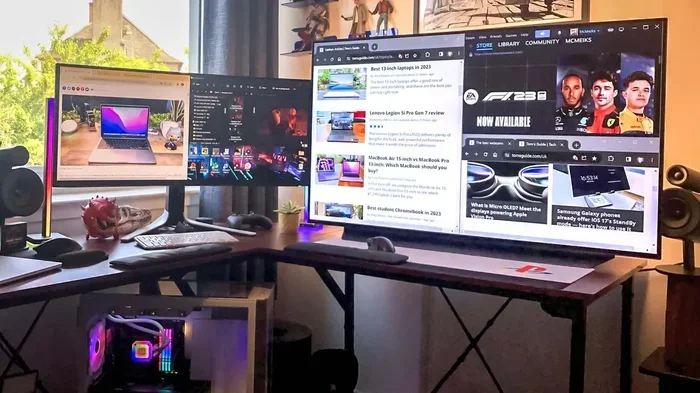
More screen space means you can keep more windows open at once. You can write an email on one screen while reading a document on the other. This multi-tasking saves time and reduces window switching. Many remote workers love this setup for video calls and spreadsheets.
Better for Gaming and Creative Work
Gamers can use the second laptop screen for chat, guides, or game stats. Graphic designers and video editors can preview footage on one screen and edit on the other. The extra space helps you focus on details. A portable workspace becomes much more powerful.
Save Money on Monitors
Buying two good external monitors can cost hundreds of dollars. Using an old laptop you already own is free. You just need the right cable or app. This is a great way to recycle an older device. It’s a budget-friendly screen sharing solution.
How to Connect Two Laptops as Monitors (Wired vs. Wireless)
You have two main paths: a cable connection or a wireless display. Each has its pros and cons. The table below compares them clearly.
| Method | Connection Type | Latency | Setup Difficulty | Best For | Cost |
|---|---|---|---|---|---|
| Wired | HDMI, DisplayPort, USB-C | Very low | Easy | Gaming, video editing | Free (if you have cables) |
| Wireless | Wi-Fi via app | Low to medium | Very easy | Office work, browsing | Free or low-cost app |
Wired Connections: HDMI, DisplayPort, and USB-C
A wired cable connection gives the best performance. You need a cable that plugs from the main laptop’s output into the second laptop’s input. Many modern laptops have USB-C or Thunderbolt ports. These can carry video signals. You may need a simple adapter.
For example, you can use a USB-C to HDMI adapter. Plug one end into the main laptop. Plug an HDMI cable into the adapter. Connect the other end to the second laptop’s HDMI port. The second laptop will show the extended desktop. This method works well for Windows and Mac laptops.
Wireless Methods: Wi-Fi and Apps
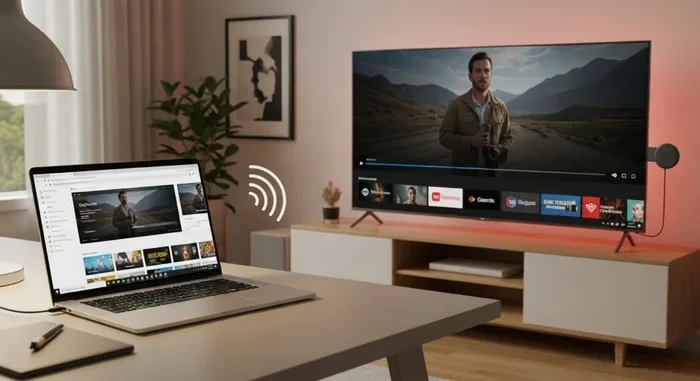
Wireless setup is very convenient. You don’t need any cables. Both laptops must be on the same Wi-Fi network. You install an app on the second laptop that turns it into a wireless display. The main laptop sends the screen signal over the air.
Popular apps include Duet Display, SpaceDesk, and Windows built-in projecting. Wireless is great for a portable workspace. You can move around your desk freely. The only downside is a slight delay. For typing and browsing, it’s perfect.
Quick Tips for Choosing Your Method
- Check ports first: Look at both laptops. Do they share a common port type?
- Use a quality cable: A cheap cable can cause flickering or low resolution.
- Match the resolution: Set the second laptop to its native resolution for the sharpest image.
- Keep both laptops plugged in: Using a laptop screen drains battery faster.
Step-by-Step Setup for Windows and macOS
Setting Up on Windows
Windows makes it easy to extend your desktop. Start by connecting the two laptops with a cable or Wi-Fi app. On the main laptop, press Windows key + P. A menu will appear. Choose “Extend” instead of “Duplicate.”
Windows will detect the second screen. You can drag the second laptop’s window to match its physical position on your desk. Right-click the desktop and select “Display settings.” Here you can adjust the resolution, orientation, and main display. Make sure the second laptop is set to “Extend these displays.”
If you use wireless software, open the app on both laptops. Follow the on-screen prompts. The second laptop will show a “Projecting to this PC” prompt. Accept it, and the dual monitor setup is ready.
Setting Up on macOS
Mac users have a few options. If both laptops are MacBooks, you can use the built-in Sidecar feature. Connect the two laptops with a USB-C cable or wirelessly over Wi-Fi. Click the AirPlay icon in the menu bar. Select the second MacBook. Choose “Use As Separate Display.”
For Windows laptops as a second screen, you need third-party software. Apps like Duet Display work with MacBooks. The Mac acts as the main computer. The Windows laptop becomes the extended screen. Install the app on both machines, connect via cable, and follow the setup wizard.
Quick Tips for Both Systems
- Update your OS: Make sure both laptops have the latest software updates.
- Disable sleep mode: Go to power settings and prevent the second laptop from sleeping.
- Adjust scaling: If text looks tiny, change the scaling in display settings.
- Use a stand: A laptop stand keeps the second screen at eye level.
Best Software to Use a Laptop as a Second Screen
Duet Display
Duet Display is a top-rated app for laptop as a monitor. It works with Windows, Mac, and even iPads. You connect via USB-C or Wi-Fi. The app delivers smooth performance with very low latency. It supports high refresh rates and is great for graphic design and video editing. Duet Display has a free trial and a small one-time fee for the pro version.
SpaceDesk
SpaceDesk is a free wireless display solution for Windows. You install the driver on the main laptop and the app on the second laptop. Both must be on the same network. SpaceDesk turns any Windows laptop into a second screen. It supports multiple monitors and works well for office tasks. It’s not ideal for gaming due to higher latency, but it’s perfect for productivity.
Windows Projecting to This PC
Windows 10 and 11 have a built-in feature called “Projecting to this PC.” It uses Miracast technology. On the second laptop, go to Settings > System > Projecting to this PC. Set it to “Available everywhere.” On the main laptop, press Windows + K and select the second laptop. You can choose to extend or mirror the display. This is completely free and requires no extra software.
Third-Party Apps for Mac
Mac users can try apps like Luna Display or Air Display. These require a small hardware dongle or work over Wi-Fi. They turn your Mac into a wireless hub. The second laptop becomes a monitor for your Mac. These apps are paid but offer excellent stability and color accuracy for creative professionals.
Common Mistakes to Avoid
- Closing the lid on the second laptop: This can put it to sleep and break the display. Change the lid-close action to “Do nothing” in power settings.
- Using a low-quality cable: A bad cable causes flickering, low resolution, or disconnects.
- Ignoring power settings: The second laptop may go to sleep after a few minutes. Set the power plan to “High performance” or “Never sleep.”
- Overlooking Wi-Fi strength: A weak wireless signal causes lag. Keep both laptops close to the router.
Pros, Cons, and Expert Tips for a Smooth Experience
Pros of Using Two Laptops as Monitors
- Cost savings: You reuse an old laptop instead of buying a new monitor.
- Portability: You can take your entire dual monitor setup with you.
- Flexibility: You can adjust the second screen angle or position easily.
- Sustainability: It reduces e-waste by giving an old device a second life.
- Instant setup: Most methods take less than five minutes.
Cons to Watch Out For
- Battery drain: The second laptop battery will deplete faster. Keep it plugged in.
- Weight and bulk: Two laptops on your desk take up more space than one laptop plus one monitor.
- Build quality: The second laptop’s screen may not match the color accuracy of a dedicated monitor.
- Wireless lag: Some wireless apps add a small delay that can bother gamers.
Expert Insights for Better Performance
Expert Insight: “When using two laptops, always set the second laptop’s power plan to prevent sleep. Also, use a wired connection for any task that needs instant response, like gaming or precise photo editing. Wireless is fine for reading, browsing, and writing.” – Tech Reviewer, LaptopMag.
Another tip is to match the refresh rate of both screens if possible. A 60Hz second screen works fine for most tasks. But if you can get 120Hz or 144Hz on the second laptop, the experience feels much smoother. Check your laptop’s specs for supported refresh rates.
Key Takeaways for Your Setup
- Start simple: Try a USB-C cable first. It’s the easiest wired method.
- Choose the right software: Duet Display for Mac and Windows, SpaceDesk for free Windows wireless.
- Adjust display settings: Set the right resolution and scale for comfortable reading.
- Keep both laptops powered: Plug in the second laptop to avoid interruptions.
- Experiment with layouts: Place the second screen above, below, or to the side of your main screen.
Can I Use Two Laptops As Dual Monitors for Gaming and Creative Work?
The answer is yes, but with some caveats. For gaming, a wired connection is essential. Wireless adds input lag that can ruin fast-paced games. Use a high-speed HDMI or DisplayPort cable. The second laptop’s screen doesn’t need to be super fast, but a 120Hz or 144Hz panel helps.
For graphic design and video editing, color accuracy matters. Most laptop screens are not color-calibrated. If you need precise colors, use the second laptop for timeline work or references. Keep the main laptop on the calibrated external monitor if you have one. A dual monitor setup with two different laptops can still be very effective for creative workflows.
Many students and remote workers use this method for research and writing. They keep reference materials on the second screen while writing on the main screen. The flexibility of a portable workspace is a huge advantage. You can set up your laptop as a second screen in a coffee shop or hotel room.
Final Thoughts on Using Two Laptops as Dual Monitors
Can I Use Two Laptops As Dual Monitors? Yes, and it’s easier than you think. Whether you choose a simple cable or a wireless app, you can turn an old laptop into a valuable second screen. This dual monitor setup boosts your productivity, enhances gaming, and supports creative work. You save money and reduce waste by giving an old device a new purpose.
Start with the method that fits your budget and needs. Try a wired connection first for the best performance. Then explore wireless apps if you want more freedom. Follow the quick tips to avoid common mistakes. Soon you’ll wonder how you ever worked with just one screen.
Give it a try today. Your workflow will thank you. A second laptop screen opens up new possibilities for screen sharing, multi-tasking, and creative freedom. Enjoy your expanded workspace!
Frequently Asked Questions
Do I need a special cable to use two laptops as dual monitors?
Not necessarily. You can use a standard HDMI cable, a DisplayPort cable, or a USB-C cable with a video adapter. The exact cable depends on the ports available on both laptops. Many modern laptops use USB-C or Thunderbolt, so a USB-C to HDMI adapter often works perfectly.
Can I use a MacBook as a second monitor for a Windows laptop?
Yes, you can. You will need third-party software like Duet Display or Luna Display. The MacBook can act as a wireless or wired extended display for a Windows laptop. The Mac runs the client app, and the Windows laptop sends the display signal. This setup works well for creative professionals who use both ecosystems.
Is there any lag when using a laptop wirelessly as a monitor?
There is usually a small amount of latency with wireless methods. For typing, browsing, and office work, the lag is barely noticeable. For fast-paced gaming or precise video editing, a wired connection is strongly recommended. Apps like Duet Display minimize lag even over Wi-Fi, but a cable always provides the smoothest experience.
Will using a second laptop as a monitor drain its battery quickly?
Yes, the second laptop’s battery will drain faster because its screen and processor are working hard. It’s best to keep the second laptop plugged into a power outlet during use. You can also change the power settings to prevent it from sleeping or dimming the screen automatically.
Can I use more than two laptops as monitors?
Yes, you can extend your desktop to more than two laptops. Software like SpaceDesk and Duet Display support multiple remote displays. You would need enough output ports on your main computer or a docking station. Each additional laptop acts as another screen in your extended workspace.
What is the best resolution for a second laptop screen?
Use the native resolution of the second laptop for the sharpest image. You can find this in the display settings on the second laptop. Setting a lower resolution will make everything look blurry. If the two laptops have different resolutions, you can adjust scaling in Windows or macOS to make text and icons comfortable to read on both screens.