Can I Connect A Monitor Directly To My Laptop Easily
Yes, you can connect a monitor directly to your laptop, and it is simpler than most people think. Whether you use an HDMI cable, USB-C connection, or a docking station, setting up an external monitor opens up more screen space and boosts productivity. This guide walks you through every step, from checking your laptop ports to adjusting display settings and fixing common issues.
Have you ever sat at your laptop and thought, “I need more screen space”? Maybe you are working on a spreadsheet, editing photos, or just browsing the web, and the tiny laptop screen feels limiting. The good news is that you can connect a monitor directly to your laptop in most cases. It is easier than you might expect, and the benefits are huge.
Connecting an external monitor to your laptop gives you more workspace, better multitasking, and a more comfortable viewing experience. Whether you work from home, study, or just want a bigger screen for movies, this setup can change the way you use your computer. In this article, we will walk you through everything you need to know. We will cover the types of connections, the steps to set it up, common problems, and practical tips to get the best results.
By the end of this guide, you will feel confident plugging in a second screen and getting it running in minutes. Let us dive in and explore how to connect a monitor directly to your laptop without any hassle.
Key Takeaways
- Direct Connection Is Possible: Most modern laptops support connecting a monitor directly using HDMI, USB-C, or Thunderbolt ports.
- Check Your Ports First: Knowing what ports your laptop has is the first and most important step before buying any cable or adapter.
- USB-C and Thunderbolt Are Versatile: These single-cable solutions carry video, data, and power, making them ideal for clean desk setups.
- Display Settings Matter: Adjusting screen resolution, refresh rate, and display mode (extend vs. mirror) can make a big difference in your experience.
- Docking Stations Simplify Everything: A laptop docking station lets you connect multiple peripherals and a monitor with one cable.
- Troubleshooting Is Straightforward: Most connection problems are solved by checking cables, updating drivers, or adjusting display settings.
📑 Table of Contents
- Why Connecting a Monitor to Your Laptop Makes Sense
- What You Need to Connect a Monitor Directly to Your Laptop
- Step-by-Step: How to Connect a Monitor Directly to Your Laptop
- Common Connection Types and Which One to Use
- Tips for the Best Monitor Setup with Your Laptop
- Troubleshooting Common Connection Problems
- Expert Insights: Getting the Most Out of Your Dual-Screen Setup
- Frequently Asked Questions
- Conclusion
Why Connecting a Monitor to Your Laptop Makes Sense
Adding an external display to your laptop is one of the simplest upgrades you can make. It does not matter if you have a Windows laptop, a MacBook, or a Chromebook. The idea is the same. You want more room on your screen so you can do more at once.
Here are some real reasons why people connect a second monitor to their laptop every single day:
- Better multitasking: You can have your email open on one screen and your work document on the other. No more constantly switching between tabs.
- Improved productivity: Studies show that dual-screen setups help people work faster and make fewer mistakes.
- Easier on the eyes: A larger external monitor reduces eye strain, especially during long work sessions.
- Better for creative work: Photo editing, video editing, and graphic design all benefit from extra screen space and a larger laptop display.
- Home entertainment: Want to watch movies or play games on a bigger screen? Connecting a monitor to your laptop works great for that too.
The beauty of this setup is that your laptop screen can still be used as a secondary display. You get the flexibility to extend your desktop across both screens or mirror the same content on both. This versatility is what makes laptop-to-monitor connections so popular among professionals, students, and casual users alike.
What You Need to Connect a Monitor Directly to Your Laptop
Before you grab any cables and start plugging things in, it helps to know what you are working with. Every laptop is a bit different, and the connection options depend on the ports available on your device.
Check Your Laptop Ports
Take a look at the sides or back of your laptop. You will likely find one or more of the following ports:
- HDMI port: This is a very common video output found on most laptops and monitors. It uses a standard HDMI cable to carry both video and audio.
- USB-C port: Many modern laptops come with USB-C ports that support video output. This is a small, oval-shaped port that can do a lot more than just charge your device.
- Thunderbolt port: Found mostly on newer laptops, especially MacBooks and some Windows devices, Thunderbolt ports look the same as USB-C but offer faster data transfer and video capabilities.
- VGA or DVI port: These are older connection types. You may still find them on some laptops and monitors, but they are becoming rare.
- DisplayPort: This is another video output option that offers high-quality video and is common on desktop monitors.
If your laptop does not have the right port for your monitor, do not worry. You can use an adapter or a cable converter to bridge the gap. For example, if your laptop only has USB-C but your monitor has HDMI, a simple USB-C to HDMI adapter will do the trick.
Gather the Right Cable or Adapter
Once you know what ports your laptop and monitor have, you can pick the right cable. Here is a quick list of what you might need:
- HDMI cable: The go-to option for most setups. It is affordable and widely available.
- USB-C cable: Best for laptops with USB-C video output. Make sure the cable supports video transfer.
- Thunderbolt cable: Required for Thunderbolt ports. These cables handle video and data at very high speeds.
- USB-C to HDMI adapter: A handy bridge when your laptop has USB-C but your monitor uses HDMI.
- USB-C docking station: This is a hub that connects to your laptop and provides multiple ports including HDMI output, USB ports, and sometimes even Ethernet.
Pro tip: Always buy cables and adapters from reputable brands. Cheap, uncertified cables can cause flickering, low resolution, or no signal at all. A good USB-C cable or HDMI cable is a small investment that pays off in reliability.
Step-by-Step: How to Connect a Monitor Directly to Your Laptop
Now that you have your cable or adapter ready, let us walk through the actual connection process. This is straightforward and should take less than five minutes.
Step 1: Power Off Both Devices
Before you plug anything in, turn off your laptop and your external monitor. While it is not always necessary, powering down both devices reduces the risk of electrical issues and helps the connection establish cleanly.
Step 2: Plug in the Cable
Connect one end of your cable to your laptop and the other end to your monitor. If you are using an adapter, plug the adapter into the laptop first, then connect the cable from the adapter to the monitor.
Make sure each connection is snug and secure. A loose cable is one of the most common reasons for no signal or a flickering display.
Step 3: Power On the Monitor
Turn on your external monitor and select the correct input source. Most monitors have a button or a menu on the side or back that lets you choose between HDMI, USB-C, DisplayPort, or VGA inputs. Make sure the input matches the port you plugged the cable into.
Step 4: Power On Your Laptop
Turn on your laptop. In most cases, the external monitor will automatically detect the signal and display something. If you see nothing on the monitor, do not panic. We will cover troubleshooting in a later section.
Step 5: Adjust Your Display Settings
Once both screens are active, you need to tell your laptop how to use the external monitor. Here is how to do it on different operating systems:
- Windows: Right-click on your desktop and select “Display Settings.” From here, you can choose to extend your display, duplicate it, or show the display only on the external monitor.
- Mac: Go to “System Settings” and click “Displays.” Your Mac should automatically detect the external monitor. You can choose to extend or mirror the display from there.
- ChromeOS: Click the clock in the bottom right corner, then select “Settings” and go to “Displays.” You can configure your external monitor from there.
Take a moment to adjust the screen resolution and orientation. You want the external monitor to look sharp and comfortable. Most monitors look best at their native resolution, which is the resolution the screen was designed for.
Common Connection Types and Which One to Use
Not all connections are created equal. The type of cable and port you use affects video quality, ease of setup, and what else the connection can do. Let us break down the most common options.
| Connection Type | Best For | Video Quality | Carries Audio? | Carries Power? |
|---|---|---|---|---|
| HDMI | Most standard setups | Excellent (4K at 60Hz) | Yes | No |
| USB-C | Modern laptops with USB-C | Excellent (4K at 60Hz or higher) | Yes | Yes (with USB-C Power Delivery) |
| Thunderbolt | High-performance setups | Excellent (4K at 120Hz+) | Yes | Yes |
| VGA | Older monitors only | Poor (max 1080p, no audio) | No | No |
| DisplayPort | High refresh rate monitors | Excellent (4K at 144Hz+) | Yes | No |
For most people, HDMI and USB-C are the two best options. HDMI is simple and works with almost any monitor. USB-C is more versatile because it can carry video, data, and power through a single cable. If you have a newer laptop, USB-C or Thunderbolt is the way to go.
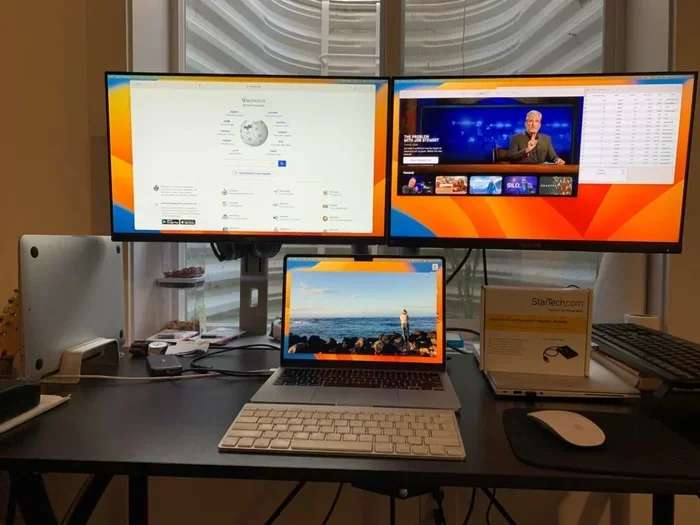
If you are using a docking station, this simplifies things even further. A single USB-C or Thunderbolt cable connects your laptop to the dock, and the dock provides HDMI or DisplayPort output to your monitor. You also get extra USB ports, Ethernet, and sometimes audio jacks. It is a clean and organized way to set up your workspace.
Tips for the Best Monitor Setup with Your Laptop
Getting the monitor connected is only half the battle. To truly enjoy your dual-screen setup, a few extra steps make a big difference.
Set the Right Screen Resolution
Your external monitor will look its best at its native resolution. This is the resolution the manufacturer designed the screen for. In your display settings, look for the recommended resolution and select it. If you set it too low, everything will look blurry. If you set it too high, text and icons might become too small to read comfortably.
Adjust the Refresh Rate
If your monitor supports a higher refresh rate, such as 120Hz or 144Hz, you can enable it in your display or graphics settings. A higher refresh rate makes motion smoother, which is great for video editing, gaming, and even just scrolling through web pages. Note that you need the right cable to support higher refresh rates, especially at 4K resolution.
Position Your Monitor Correctly
Ergonomics matters. Place your external monitor at eye level and about an arm’s length away from your face. Use a monitor stand or a laptop stand to raise the screen to the right height. Your laptop screen can sit below or to the side, depending on your workflow. The goal is to reduce neck strain and keep your posture comfortable during long work sessions.
Use the Right Display Mode
When you connect a second screen, you have a few options for how it works:
- Extend: This gives you a larger workspace. Your desktop stretches across both screens, and you can drag windows between them. This is the most popular mode for work.
- Duplicate (Mirror): Both screens show the same content. This is useful for presentations or when you want to share your screen with others.
- Second screen only: The laptop screen turns off, and only the external monitor is active. This saves battery and gives you a clean, distraction-free setup.
You can switch between these modes easily from your display settings or by using a keyboard shortcut. On Windows, press Windows key plus P. On Mac, press F1 or open the Displays menu in System Settings.
Keep Your Graphics Drivers Updated
Your laptop’s graphics card or integrated graphics handle the video output to your external monitor. Keeping your graphics drivers up to date ensures the best performance, resolution, and compatibility. On Windows, you can check for driver updates through Device Manager or visit the website of your graphics card manufacturer, such as Intel, AMD, or NVIDIA.
Troubleshooting Common Connection Problems
Sometimes things do not work perfectly the first time. That is completely normal, and most issues have simple fixes. Here are the most common problems and how to solve them.
No Signal on the External Monitor
If your monitor shows no signal, start by checking the cable connections. Make sure both ends are firmly plugged in. Try a different cable if you have one available. Also, double-check that you have selected the correct input source on your monitor using the monitor’s built-in menu or buttons.
Flickering or Distorted Display
A flickering screen is often caused by a loose cable or an incompatible adapter. Try reseating the connections. If you are using an adapter, make sure it supports the resolution and refresh rate you are trying to use. Updating your graphics drivers can also fix flickering issues.
External Monitor Not Detected
If your laptop does not recognize the external monitor, go to your display settings and look for an option to detect or identify the second display. On Windows, click “Detect” in the Display Settings menu. On Mac, hold the Option key and click “Detect Displays.” Restarting both devices can also help the connection establish properly.
Poor Image Quality
If the picture looks blurry or pixeled, check that you are running the monitor at its native resolution. Also, make sure you are using a high-quality cable. Cheap or damaged cables can limit the signal quality. If you are using an adapter, ensure it supports the resolution you need, especially for 4K content.
Audio Not Working Through the Monitor
Some people expect sound to come through their external monitor automatically. If it does not, check your audio output settings. On Windows, right-click the speaker icon in the taskbar and select your monitor as the audio output device. On Mac, go to Sound Preferences and choose the external monitor as the output.
Expert Insights: Getting the Most Out of Your Dual-Screen Setup
People who work with dual monitors every day have learned a few tricks that can save you time and frustration.
First, invest in a good cable management solution. A messy desk with tangled cables is distracting and can even damage your connections over time. Use cable clips, velcro ties, or a cable tray to keep things neat.
Second, consider the refresh rate and response time of your external monitor. If you are a gamer or a video editor, a monitor with a high refresh rate and fast response time makes a noticeable difference. For general office work, a standard 60Hz monitor is perfectly fine.
Third, use a laptop stand to elevate your laptop screen to a comfortable height. When your laptop screen and external monitor are at similar eye levels, you reduce neck and eye strain significantly. This small change can make long work sessions much more comfortable.
Finally, if you travel frequently, a USB-C docking station is a game-changer. You can carry one dock and one cable. At your desk, you plug in the dock, and it connects your laptop to the monitor, keyboard, mouse, and internet all at once. When it is time to go, you unplug one cable and you are ready to move.
Frequently Asked Questions
Can I Connect A Monitor Directly To My Laptop Without Any Adapter?
Yes, if your laptop and monitor both have the same type of port, such as HDMI or USB-C, you can connect them directly with a matching cable. No adapter is needed. Just plug the cable into both devices, and your laptop should detect the external monitor automatically.
What Is the Best Cable for Connecting a Monitor to a Laptop?
HDMI is the most universal and widely supported option for most setups. USB-C is the best choice for modern laptops because it carries video, data, and power in one cable. Thunderbolt cables offer the highest performance and are ideal for professional setups that demand top-tier video quality and speed.
Will Connecting an External Monitor Slow Down My Laptop?
No, connecting an external monitor does not slow down your laptop in any noticeable way. The laptop’s graphics processor handles both screens, and modern processors and integrated graphics are more than capable of driving an external display alongside the laptop screen.
Can I Use a USB-C Docking Station to Connect My Monitor?
Absolutely. A USB-C docking station is one of the easiest ways to connect a monitor to your laptop. The dock connects to your laptop with a single USB-C or Thunderbolt cable, and it provides HDMI or DisplayPort output to your monitor. Many docks also add extra USB ports, Ethernet, and audio connections.
How Do I Set Up a Dual Monitor with My Laptop?
Connect your external monitor using the appropriate cable or adapter. Then, go to your display settings and choose “Extend” as your display mode. This stretches your desktop across both screens, giving you more workspace. You can drag windows between screens and arrange the layout to match the physical position of your monitors on your desk.
Can I Connect a Monitor to My Laptop Wirelessly?
Yes, some laptops and monitors support wireless display connections through technologies like Miracast, Chromecast, or Apple AirPlay. However, a wired connection through HDMI or USB-C generally provides a more stable and higher-quality experience. Wireless options are convenient but may have slight latency or lower image quality compared to a direct cable connection.
Conclusion
So, can you connect a monitor directly to your laptop? Absolutely. The process is straightforward, affordable, and incredibly rewarding. Whether you use an HDMI cable, a USB-C connection, or a Thunderbolt docking station, adding an external monitor to your laptop setup instantly boosts your productivity and makes your screen real estate much more useful.
Start by checking your laptop ports, grab the right cable or adapter, and follow the simple steps we covered in this guide. Adjust your display settings, position your screens for comfort, and keep your drivers updated. If you run into any issues, the troubleshooting tips above will help you get back on track quickly.
A dual-monitor setup is one of those small changes that makes a surprisingly big difference in how you work and play. Once you experience the freedom of extra screen space, you will wonder how you ever managed with just your laptop screen alone. Go ahead, plug in that monitor, and enjoy the upgrade.