Can I Extend My Display To 2 Monitors With These Tips
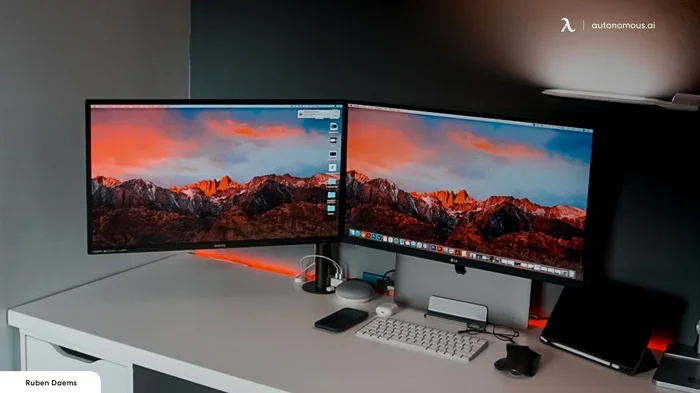
Yes, you can easily extend your display to 2 monitors and boost your productivity dramatically. Whether you use a laptop or desktop, setting up a dual monitor workspace is simpler than most people think. This guide walks you through every step with clear, practical advice.
Have you ever looked at your single screen and thought there has to be a better way? You are not alone. Millions of workers, gamers, and creatives extend their display to 2 monitors every single day. The good news is that doing so is far easier than most people assume. Whether you are a student juggling research and writing or a professional managing spreadsheets and emails, a dual monitor setup can change your workflow completely.
In this guide, we will walk you through everything you need to know. From picking the right cable to configuring your display settings, we have you covered. You will learn how to set up your second screen on both Windows and Mac computers. We will also share practical tips to avoid common pitfalls and get the most out of your multi-monitor configuration. By the end, you will feel confident setting up your own extended desktop in minutes.
Key Takeaways
- Extending your display to 2 monitors is simple: You just need the right cable, port, and a few minutes of setup time.
- Both Windows and Mac support dual monitor setups: Each operating system has built-in tools to help you configure your second screen quickly.
- The right hardware matters: Choosing the correct cable type, docking station, or adapter can make or break your experience.
- Display settings give you control: You can adjust resolution, orientation, and primary monitor placement to match your workflow.
- Common problems have easy fixes: Most issues like no signal or flickering screens can be resolved with simple troubleshooting steps.
- A proper setup boosts productivity: Studies show that multi-monitor users can be up to 30% more efficient in their daily tasks.
📑 Table of Contents
- Why Extend Your Display to 2 Monitors?
- What You Need to Extend Your Display to 2 Monitors
- How to Extend Display to 2 Monitors on Windows
- How to Extend Display to 2 Monitors on Mac
- Best Practices for a Dual Monitor Setup
- Common Mistakes to Avoid When Setting Up Dual Monitors
- Troubleshooting Common Issues
- Expert Tips for Getting the Most Out of Your Dual Monitor Setup
- Conclusion
Why Extend Your Display to 2 Monitors?
There are many reasons people choose to add a second screen to their workspace. Let us explore the biggest benefits that make extending your display worth the effort.
Boost Your Productivity
A second screen lets you keep important windows visible while working on other tasks. Imagine having your email open on one monitor while writing a report on the other. You do not need to constantly switch between tabs or minimize windows. This simple change can save you dozens of minutes every hour. Many professionals report a noticeable productivity boost after adding a second display to their desk.
Improve Your Workflow
When you extend your desktop, you create more space for your applications. You can place your design tools on one screen and your reference materials on the other. Video editors benefit from having their timeline on one monitor and their preview on the other. Writers can keep their research browser open while typing on the main screen. The possibilities are nearly endless when you have two screens to work with.
Enhance Your Entertainment
Beyond work, a dual monitor setup is great for entertainment too. You can stream a movie on one screen while browsing the web or chatting with friends on the other. Gamers sometimes use a second monitor to keep walkthroughs, chat, or system monitoring tools visible while they play. It adds a whole new dimension to how you use your computer.
What You Need to Extend Your Display to 2 Monitors
Before you start setting things up, you need to know what equipment and tools are required. Having the right gear makes the entire process smooth and frustration-free.
Check Your Ports and Connections
The first step is to look at the ports available on your computer and your monitor. Most modern laptops and desktops come with HDMI ports, which are the most common connection type. Some computers also feature USB-C or DisplayPort connections. Your monitor might have different ports than your computer, and that is perfectly fine. You just need the right cable or adapter to bridge the gap.
Here is a quick look at the most common cable types:
- HDMI: The most widely used and affordable option. Works with most monitors and laptops.
- DisplayPort: Offers excellent quality and is common on desktop computers and high-end monitors.
- USB-C: A versatile option that can carry video signals, especially on newer laptops.
- VGA: An older analog connection that still works but is less common on modern devices.
Choose the Right Monitor
Not all monitors are the same, and picking the right one for your dual monitor setup matters. Consider the monitor resolution carefully. Matching resolutions between your two screens creates a seamless visual experience. A mismatch can cause stretching or black bars on one display. Also think about the monitor refresh rate if you are into gaming or video editing. A higher refresh rate means smoother motion and a more comfortable viewing experience.
Consider a Docking Station
If your laptop has limited ports, a USB-C docking station or laptop docking station can be a game changer. These devices add multiple connection options in a single compact hub. You can plug in your monitor, keyboard, mouse, and other peripherals all at once. A good display adapter can also solve compatibility issues when your computer and monitor use different port types.
Gather Your Other Essentials
Do not forget the small but important items. A good monitor stand helps you position your screens at the right height. Proper cable management keeps your desk tidy and prevents accidental disconnections. You might also want a monitor arm for flexible positioning. These accessories may seem minor, but they make a big difference in your daily comfort.
How to Extend Display to 2 Monitors on Windows
Windows makes it straightforward to set up a second screen. Whether you are using Windows 10 or Windows 11, the process is very similar. Follow these steps to get your extended desktop up and running.
Step-by-Step Setup for Windows
First, connect your second monitor to your computer using the appropriate cable. Once the physical connection is secure, follow these steps:
- Right-click on an empty area of your desktop.
- Select Display Settings from the menu that appears.
- You should see two rectangles representing your monitors. If you do not see the second one, click the Detect button.
- Scroll down to the Multiple Displays dropdown menu.
- Select Extend these displays from the list of options.
- Click Apply to save your changes.
That is it. Your extended desktop is now active. You can drag windows between screens and arrange them however you like.
Adjust Display Settings for the Best Experience
Once your displays are extended, take a few minutes to fine-tune your settings. Click on each monitor rectangle in the display settings menu to select it. You can change the resolution for each screen individually. For the best visual quality, set each monitor to its native resolution. You can also adjust the scale and layout if text or icons appear too small or too large on one screen.
Another important setting is the primary monitor. This is the screen where your taskbar and Start menu appear by default. To set your preferred primary display, select the monitor rectangle and check the box that says Make this my main display. Drag windows between screens to test the layout and make sure everything feels natural.
Keyboard Shortcuts You Should Know
Windows offers handy keyboard shortcuts that make managing your dual monitor setup even easier. Press the Windows key plus P to open the projection menu quickly. From there, you can switch between PC screen only, Duplicate, Extend, and Second screen only modes. Learning this shortcut saves you time and makes switching between display modes effortless.
How to Extend Display to 2 Monitors on Mac
Apple computers also support extending your display to a second monitor with ease. The process on a Mac is slightly different but just as simple. Here is everything you need to know.
Setting Up a Second Monitor on macOS
Start by connecting your external monitor to your Mac using the appropriate cable or adapter. Then follow these steps:
- Click the Apple menu in the top-left corner of your screen.
- Select System Settings (or System Preferences on older Macs).
- Click on Displays in the settings menu.
- Your Mac should automatically detect the second monitor.
- If it does not, click the Detect Displays button.
- Choose Extend Display instead of Mirror Display.
Your Mac now treats the second monitor as an extension of your desktop. You can move your cursor across both screens and open applications on either one.
Arranging Your Displays
In the Display Settings on your Mac, you will see a layout showing both screens. You can drag these rectangles to match the physical arrangement of your monitors on your desk. This ensures that moving your cursor from one screen to the other feels natural and intuitive. You can also set which monitor is the primary display by dragging the white menu bar to your preferred screen.
Mac users can also adjust the refresh rate and resolution for each display individually. Click on the display you want to adjust and choose your preferred settings from the dropdown menus. For the sharpest image quality, always select the native resolution of each monitor.
Best Practices for a Dual Monitor Setup
Setting up two monitors is only half the battle. To get the most out of your extended display, follow these best practices that experienced multi-monitor users swear by.
Position Your Monitors Correctly
The placement of your monitors affects both comfort and productivity. Ideally, your main monitor should be directly in front of you at eye level. Place your second monitor to the side at roughly the same height and distance. This arrangement reduces neck strain and eye fatigue during long work sessions. An adjustable monitor stand or monitor arm makes it easy to get the perfect positioning.
Match Your Monitor Settings
For the smoothest experience, try to match the resolution and color settings of both monitors. When both screens display at the same brightness and color profile, transitioning your cursor between them feels seamless. If one monitor is significantly brighter or a different size, it can be distracting and strain your eyes over time.
Use Display Management Software
Several free and paid tools can enhance your dual monitor experience. Software like DisplayFusion and Ultramon offer features like customizable taskbars, window snapping, and monitor-specific wallpaper. These tools give you finer control over how your extended desktop behaves and help you work more efficiently across both screens.
Manage Your Cables
A clean workspace reduces stress and makes it easier to focus. Use cable ties, clips, or a cable management tray to keep your cords organized. Labeling your cables also helps you troubleshoot quickly if something goes wrong. Good cable management is a small investment that pays off every day.
Common Mistakes to Avoid When Setting Up Dual Monitors
Even with the best intentions, people sometimes make mistakes when setting up their second screen. Avoiding these common errors saves time and frustration.
Using the Wrong Cable
One of the most frequent mistakes is using an incompatible cable. Not all cables support the same resolutions or refresh rates. For example, older VGA cables cannot carry high-definition video signals. Always check your monitor and computer specifications before purchasing a cable. When in doubt, HDMI or DisplayPort cables offer the best compatibility and performance.
Ignoring Driver Updates
Your graphics card drivers play a crucial role in multi-monitor performance. Outdated drivers can cause flickering, resolution issues, or even prevent your second monitor from being detected. Make it a habit to check for driver updates regularly through your computer manufacturer’s website or graphics card software.
Setting Identical Resolutions on Different-Sized Monitors
If your two monitors are different sizes, setting them to the same resolution can cause problems. A 24-inch monitor and a 27-inch monitor will display content at different physical sizes even at the same resolution. Adjust the scale settings on each monitor independently to ensure text and icons appear at a comfortable size on both screens.
Troubleshooting Common Issues
Sometimes things do not go as planned when you extend your display. Here are solutions to the most common problems you might encounter.
Second Monitor Not Detected
If your computer does not recognize the second monitor, start by checking the physical connection. Unplug the cable and plug it back in firmly. Try a different cable if possible, as damaged cables are a common culprit. You can also try a different port on your computer or monitor. On Windows, go to Display Settings and click the Detect button. On Mac, click Detect Displays in the Display settings.
Screen Flickering or Blinking
A flickering second screen is often caused by an incompatible cable or outdated drivers. Try replacing the cable first, as this solves the issue in most cases. If the problem persists, update your graphics card drivers. You can also try lowering the refresh rate temporarily to see if that resolves the flickering.
Display Resolution Problems
If your text or images appear blurry on one monitor, check the resolution settings. Each monitor should be set to its native resolution for the clearest image. You can find this information in your monitor’s manual or on the manufacturer’s website. On Windows, go to Display Settings and select the recommended resolution for each screen.
Cursor Getting Stuck on One Screen
If your mouse cursor gets stuck and will not move to the second monitor, check your display arrangement in settings. Make sure the screens are positioned correctly relative to each other. On Windows, go to Display Settings and drag the monitor rectangles to match your physical setup. On Mac, adjust the display layout in System Settings to ensure the screens align properly.
Expert Tips for Getting the Most Out of Your Dual Monitor Setup
Experienced multi-monitor users have learned a few tricks over the years that can elevate your setup. Here are some expert-level tips to consider.
Use monitor profiles. Many modern monitors allow you to save custom profiles for different tasks. You can set one profile for work with warm colors and another for media consumption with vibrant colors. Switching between profiles takes seconds and tailors your screen to the task at hand.
Leverage keyboard shortcuts. Beyond the Windows projection shortcut, learn the keyboard shortcuts specific to your workflow. Many applications have built-in window management features that let you snap windows to half of a screen with a single keystroke. Mastering these shortcuts dramatically speeds up your daily tasks.
Consider a ultrawide monitor as an alternative. If space on your desk is limited, an ultrawide monitor can provide a similar experience to dual monitors without the bezel in the middle. Ultrawide monitors typically range from 34 to 49 inches and offer a wide aspect ratio that replaces two standard monitors with a single screen.
Invest in quality over quantity. A single high-quality monitor paired with a second reliable display will serve you better than two cheap screens with poor color accuracy and slow response times. Your eyes will thank you after long hours of work.
Conclusion
Extending your display to 2 monitors is one of the simplest upgrades you can make to your computer setup. It costs relatively little, takes only minutes to configure, and delivers a significant productivity boost from day one. Whether you are working on a Windows PC or a Mac, the process is straightforward and well-supported by both operating systems.
Remember to choose the right cables and hardware for your needs. Take the time to adjust your display settings so both screens work harmoniously. Avoid the common mistakes we discussed, and do not hesitate to troubleshoot if something does not work right away. With a little patience and the right approach, your dual monitor setup will become an essential part of your daily routine.
Now that you have all the knowledge you need, go ahead and set up your extended desktop. You will wonder how you ever managed with just one screen. The extra space, the improved workflow, and the overall convenience make extending your display to two monitors one of the best investments you can make for your computer experience.
Frequently Asked Questions
Can I extend my display to 2 monitors wirelessly?
Yes, wireless options exist but they are less reliable than wired connections. Devices like wireless display adapters or built-in features like Miracast allow you to extend your screen without cables. However, you may experience slight delays or lower image quality compared to a wired connection. For the best experience, a physical cable connection is recommended.
Do I need a special graphics card to run 2 monitors?
Most modern graphics cards support at least two display outputs. You do not always need a special or expensive card. Check the back of your computer or graphics card to see how many video output ports are available. If your computer only has one port, a USB-C docking station or a basic display adapter can add the second connection you need.
Can I use two different brands of monitors together?
Absolutely. There is no requirement for both monitors to be the same brand or even the same size. Different brands work together seamlessly as long as they connect to your computer using compatible cables. You may need to adjust the resolution and scaling settings individually for each monitor to get the best visual experience.
What is the difference between extending and mirroring a display?
Extending your display means your two screens act as one large workspace. You can drag windows and applications between them. Mirroring means both screens show the exact same content at the same time. Mirroring is useful for presentations, while extending is ideal for everyday work and productivity tasks.
Will extending my display slow down my computer?
In most cases, no. Modern computers handle dual monitor setups without any noticeable performance drop. However, if you are running graphics-intensive applications like video editing or gaming across both screens, your graphics card may work harder. For general office work, browsing, and productivity tasks, extending your display has virtually no impact on performance.
How do I set up a third monitor in addition to my extended display?
Adding a third monitor follows the same basic process as adding a second one. Make sure your graphics card supports three or more displays. Connect the third monitor, go to Display Settings, and select Extend these displays. You may need to adjust the arrangement of all three screens in the display layout menu to match your physical desk setup.
=== CONCLUSION ===
Extending your display to 2 monitors is a straightforward upgrade that delivers real benefits for work, creativity, and entertainment. With the right cable, the correct display settings, and a few minutes of your time, you can transform your single-screen workspace into a powerful dual-monitor setup. Follow the steps in this guide, avoid the common mistakes, and enjoy the productivity gains that come with a properly configured extended desktop. Your future self will thank you for making the switch today.