Can I Plug A Firestick Into A Projector For Streaming
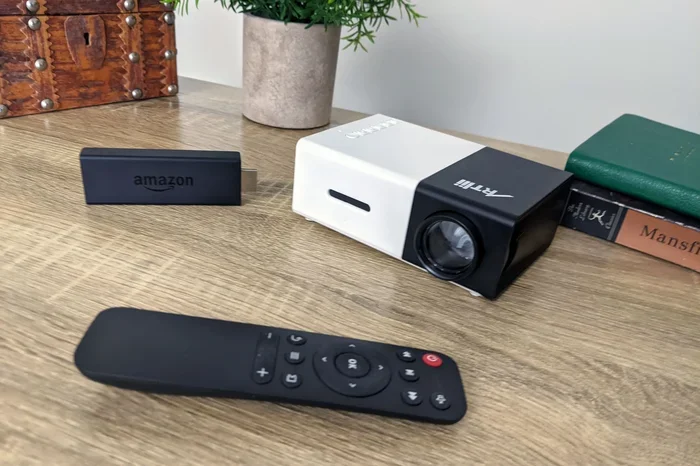
Yes, you can plug a Firestick into a projector for streaming. You simply need an HDMI port on your projector and a compatible cable. This setup turns any projector into a smart streaming device for movies, shows, and more.
Have you ever wanted to watch your favorite shows on a huge screen? Maybe you have a projector sitting in a closet, collecting dust. Or maybe you just bought one and want to make it smarter. The good news is that you can plug a Firestick into a projector for streaming. This simple setup opens up a world of entertainment.
Whether you want to watch movies, sports, or YouTube videos, a Fire TV Stick paired with a projector setup works surprisingly well. It is one of the easiest ways to turn a dumb projector into a smart streaming device. In this guide, we will walk you through everything you need to know. From cables to compatibility, we have you covered.
The process is simpler than most people think. You do not need to be a tech expert. With the right cable connection and a few minutes of your time, you will be watching content on a big screen in no time. Let us dive in and explore how this works.
Key Takeaways
- Easy Connection: Plugging a Firestick into a projector is simple with an HDMI port and the right cable.
- Multiple Options: You can use direct HDMI, HDMI adapters, or wireless casting depending on your projector model.
- Big Screen Fun: A Firestick + projector combo creates an affordable home theater experience.
- Power Matters: Some projectors need a separate power source for the Firestick to work properly.
- Audio Setup: You may need external speakers for better sound quality when streaming.
📑 Table of Contents
- What Is a Firestick and Why Use It with a Projector?
- How to Plug a Firestick Into a Projector
- Things You Need for the Setup
- Audio Setup for Firestick and Projector
- Compatibility and Troubleshooting
- Best Firestick Models for Projector Streaming
- Setting Up Your Home Theater with Firestick and Projector
- Frequently Asked Questions
- Conclusion
What Is a Firestick and Why Use It with a Projector?
A Fire TV Stick is a small streaming device made by Amazon. It plugs directly into an HDMI port. Once connected, it gives your TV or projector access to the internet. You can then download apps like Netflix, Hulu, Disney Plus, and many more.
Using a Firestick with a projector makes a lot of sense. Most projectors do not have built-in smart features. They just display whatever is plugged into them. A Firestick adds all the smart capabilities you need. It is like giving your projector a brain.
This combination is perfect for movie nights, game nights, or even outdoor screenings. The big screen viewing experience is unbeatable. And the cost is very low compared to buying a smart projector.
Why People Love This Combo
- Affordable: A Firestick costs less than most smart projectors.
- Portable: You can carry both devices anywhere easily.
- Simple Setup: No complicated wiring or technical skills needed.
- Huge App Library: Access to thousands of streaming apps.
- 4K Support: Newer Firesticks support high-resolution streaming.
How to Plug a Firestick Into a Projector
The process of connecting a Fire TV Stick to a projector is straightforward. But the exact steps depend on what kind of projector you have. Let us look at the different methods you can use.
Method 1: Direct HDMI Connection
This is the easiest and most common way. If your projector has an HDMI port, you are in luck. Here is what you need to do.
- Plug the Firestick into the HDMI port on your projector.
- Connect the Firestick to a power source using the USB cable.
- Switch your projector to the correct HDMI input.
- Follow the on-screen setup instructions on the Firestick.
- Connect to your WiFi network.
- Start streaming your favorite content.
That is it. You are now ready to enjoy streaming content on a big screen. Make sure your projector supports the resolution of your Firestick for the best picture quality.
Method 2: Using an HDMI Adapter
Not all projectors have HDMI ports. Some older models use VGA or other connectors. In this case, you will need an HDMI adapter. These adapters convert the HDMI signal to match your projector input.
- HDMI to VGA Adapter: For older projectors with only VGA ports.
- HDMI to Composite Adapter: For very old projectors with red, white, and yellow ports.
- HDMI to Component Adapter: Another option for older models.
Keep in mind that adapters may reduce image quality. You might not get the full 4K experience. But for basic streaming, they work just fine.
Method 3: Wireless Screen Mirroring
If your projector supports WiFi or has a screen mirroring feature, you might not need a cable at all. You can cast content from the Firestick to the projector wirelessly. This method works best with smart projectors that have built-in WiFi.
However, wireless connections can sometimes lag. For a smooth experience, a wired HDMI connection is always better. Reserve wireless casting for situations where cables are not practical.
Things You Need for the Setup
Before you start, make sure you have everything ready. Here is a quick checklist of what you need to plug a Firestick into a projector successfully.
Essential Equipment
- Amazon Fire TV Stick: Any model from Firestick Lite to Firestick 4K Max works.
- Projector with HDMI Port: Most modern projectors have this.
- HDMI Cable: Usually included with the Firestick.
- Power Source: A USB port on the projector or a wall adapter.
- WiFi Network: A stable internet connection for streaming.
Optional but Helpful
- HDMI Adapter: If your projector lacks an HDMI port.
- External Speakers: For better audio quality.
- HDMI Extender Cable: Helps with cable management and positioning.
- Screen: A white wall or portable projector screen works great.
Quick Tips
- Always use the original power adapter that comes with the Firestick for best performance.
- Place the Firestick close to the projector to avoid signal issues.
- Use an HDMI extender if the projector port is hard to reach.
- Keep your Firestick firmware updated for the latest features.
Audio Setup for Firestick and Projector
One thing many people overlook is audio. Most projectors have small built-in speakers. They are not great for watching movies. The sound can be tinny and weak. Here is how you can improve your audio experience.
Option 1: Use the Projector Speakers
If you are in a quiet room and just watching casual content, the built-in speakers may be enough. But for a real movie experience, you will want something better.
Option 2: Connect External Speakers
You have several options for better sound. You can connect Bluetooth speakers to the Firestick directly. Many Firesticks support Bluetooth audio output. Simply pair your speaker and enjoy improved sound.
Another option is to use a Bluetooth speaker with an AUX cable. Some speakers do not have Bluetooth but work with a simple wired connection. You can also use a soundbar for a more immersive experience.
Option 3: Use a Receiver
For the best audio quality, connect your projector to an AV receiver. This gives you surround sound and richer audio. It is ideal for home theater setups where sound quality matters a lot.
Common Mistakes to Avoid
- Relying only on projector built-in speakers for a movie night.
- Using a low-quality HDMI adapter that causes signal loss.
- Forgetting to update the Firestick software before setup.
- Placing the Firestick too far from the projector, causing connection issues.
Compatibility and Troubleshooting
Most projectors work well with a Fire TV Stick. But not every combination is perfect. Here are some compatibility tips and common issues you might face.
Projector Compatibility
Check that your projector has an HDMI port. Almost all projectors made after 2010 have one. If your projector is older, you will need an adapter. Also, check the projector resolution. A 1080p or 4K projector will give you the best picture with a Firestick.
Common Issues and Fixes
- No Signal: Make sure the projector is on the right HDMI input. Try a different HDMI port if available.
- No Sound: Check the audio settings on the Firestick. Make sure it is not set to output through a disconnected device.
- Buffering: Slow WiFi causes buffering. Move closer to your router or use a WiFi extender.
- Black Screen: The Firestick might be in standby. Unplug it and plug it back in.
- Poor Picture Quality: Use a high-speed HDMI cable for the best resolution.
Expert Insights
According to home theater experts, the Firestick and projector combo is one of the most cost-effective ways to build a home theater. The key is to focus on a stable WiFi connection and good audio. Many people spend money on expensive projectors but forget about the sound. A great projector paired with a Firestick and decent speakers can rival a cinema experience at a fraction of the cost.
Best Firestick Models for Projector Streaming
Not all Firesticks are the same. Some offer better performance for projector use. Here is a quick comparison of the most popular models.
| Model | Resolution | Best For |
|---|---|---|
| Fire TV Stick Lite | 1080p | Budget-friendly streaming |
| Fire TV Stick 4K | 4K Ultra HD | High-quality projector setups |
| Fire TV Stick 4K Max | 4K Ultra HD | Fast performance and WiFi 6 |
| Fire TV Stick with Alexa | 1080p | Voice control and smart home |
For most projector setups, the Fire TV Stick 4K is the sweet spot. It offers great picture quality without breaking the bank. If you want the fastest performance, go with the 4K Max model.
Setting Up Your Home Theater with Firestick and Projector
Now that you know how to connect everything, let us talk about creating the full experience. A projector setup with a Firestick can become the centerpiece of your home entertainment.
Start by choosing the right room. A dark room works best for projector viewing. Light from windows can wash out the image. Use blackout curtains if needed. Next, position your projector at the right distance from the wall or screen. Check your projector manual for the recommended throw distance.
Place the Firestick somewhere it can stay cool. These devices can overheat if they are in a tight, enclosed space. Use the HDMI extender cable that often comes with the Firestick. This gives it breathing room and improves the signal.
Finally, organize your cables. Use cable ties or a cable management box. A clean setup looks better and prevents tripping hazards. Once everything is in place, sit back and enjoy your streaming device on the big screen.
Key Takeaways
- A Firestick works with almost any projector that has an HDMI port.
- You can use adapters for older projectors without HDMI.
- Audio quality improves significantly with external speakers.
- The Fire TV Stick 4K is the best choice for most setups.
- A stable WiFi connection is essential for smooth streaming.
- This combo is one of the most affordable ways to build a home theater.
Frequently Asked Questions
Can I use any Firestick with any projector?
Most Firesticks work with any projector that has an HDMI port. You just need a free HDMI port and a power source. If your projector does not have HDMI, you will need an adapter. Make sure your projector supports the resolution of your Firestick for the best results.
Do I need an internet connection to use a Firestick with a projector?
Yes, you need WiFi to access streaming apps like Netflix and YouTube. Some content can be downloaded for offline viewing, but live streaming always requires an internet connection. A strong WiFi signal ensures smooth playback without buffering.
Can I use a Firestick with a projector that has no HDMI port?
Yes, you can use an HDMI adapter. HDMI to VGA adapters are common for older projectors. Keep in mind that adapters may reduce image quality. The picture might not be as sharp as with a direct HDMI connection. But basic streaming will still work fine.
Does a Firestick work with portable projectors?
Yes, most portable projectors have HDMI ports and work great with a Firestick. In fact, this is a popular combo for outdoor movie nights. Just make sure your portable projector has enough power and a stable WiFi connection for streaming.
Why is there no sound when I connect my Firestick to a projector?
This usually happens when the audio output is set to the wrong device. Go to the Firestick settings and check the audio output option. Make sure it is set to HDMI or the projector speakers. If you are using external speakers, ensure they are properly paired and turned on.
Can I charge a Firestick using the projector USB port?
Some projectors have USB ports that can power a Firestick. However, not all projector USB ports provide enough power. If the Firestick keeps disconnecting or restarting, use the wall adapter that comes with it. This ensures a stable power supply for uninterrupted streaming.
Conclusion
Plugging a Firestick into a projector for streaming is one of the simplest and most rewarding upgrades you can make. It transforms any projector into a smart entertainment hub. Whether you are setting up a home theater or an outdoor movie night, this combo delivers excellent results.
The setup process is quick and easy. You need a Firestick, a projector with an HDMI port, and a WiFi connection. From there, the world of streaming opens up. Watch movies, binge your favorite shows, or even play games on a big screen. The big screen viewing experience is truly unmatched.
Remember to pay attention to audio quality. A great picture paired with poor sound ruins the experience. Invest in good speakers or a soundbar. And always keep your Firestick updated for the best performance.
With the right setup, your projector and Firestick will give you hours of entertainment. So go ahead, grab a Fire TV Stick, and start streaming today. Your next movie night is going to be unforgettable.