Can I Change My HP Laptop Keyboard Color Yes You Can
Can I Change My HP Laptop Keyboard Color? Yes, you absolutely can! Many modern HP laptops come with RGB lighting and keyboard backlight options that let you customize the glow. Whether you own an HP Omen or an HP Pavilion, changing your keyboard color is easy using built-in shortcuts or software. This guide will show you exactly how to make your laptop uniquely yours.
Key Takeaways
- It is possible: Most modern HP laptops allow you to change the keyboard color.
- Use shortcuts: Press the Fn key and a dedicated lighting key to adjust colors quickly.
- HP Software helps: Tools like HP OMEN Gaming Hub or HP Command Center give you full control.
- Check your model: Not all HP laptops support RGB lighting, so verify your specific model first.
- Customization is fun: You can set single colors, breathing effects, or rainbow waves.
📑 Table of Contents
- Understanding HP Laptop Keyboard Lighting
- How to Change Your HP Laptop Keyboard Color
- HP Laptops That Support RGB Keyboard Colors
- Quick Tips for Customizing Your Keyboard Glow
- Common Mistakes to Avoid
- Expert Insights on Laptop Keyboard Customization
- Comparing Keyboard Color Options Across HP Models
- Conclusion
Understanding HP Laptop Keyboard Lighting
Have you ever looked at your HP laptop and wished the keyboard color matched your mood? You are not alone. Many people love the idea of laptop customization. It makes your PC aesthetics stand out. Before you dive in, it helps to know how the keyboard backlight works on your device.
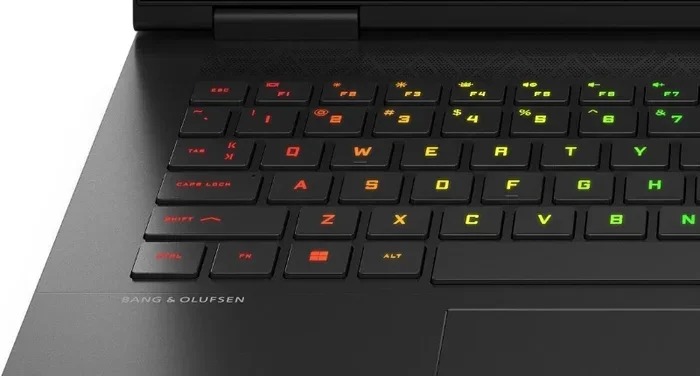
Most HP laptops use LED lights under the keys. These tiny lights can shine in different colors. Some models have a single color that you can dim or brighten. Others have full RGB lighting. RGB stands for Red, Green, and Blue. By mixing these three colors, you get millions of shades. This is what makes laptop customization so much fun.
Knowing your laptop model is the first step. HP Omen laptops are built for gaming. They usually have the best keyboard color options. HP Pavilion models often have simpler lighting. Even some budget HP laptops now include a basic keyboard backlight. You just need to find the right tool to control it.
Do you want to change the light for gaming? Or do you just want a cool look for your desk? Either way, understanding your HP laptop hardware is key. The lighting effects can also help you type in dark rooms. A bright keyboard color makes it easy to see the keys. It also reduces eye strain when you are working late at night.
The good news is that you do not need to be a tech expert. Changing the light is simple. You just need to know where to look. Let us explore the different ways you can control the glow on your HP laptop.
Colors affect how we feel. Blue light is calm and focused. Red light is energetic and intense. Green light feels fresh and natural. When you change your HP laptop keyboard color, you are not just decorating. You are setting a mood. It can make your typing experience much more enjoyable. A dark room with a soft blue glow looks very modern. A bright red keyboard looks great for late-night gaming sessions.
The technology behind these lights is simple. Small bulbs sit under each key. They shine through the letters. The system software tells them when to turn on or off. You can control the brightness too. Sometimes you want a dim glow. Other times you want the whole keyboard bright. It all depends on your preference and the room lighting.
How to Change Your HP Laptop Keyboard Color
So, you want to change your HP laptop keyboard color. Great choice! It is a fun way to personalize your device. There are a few different methods you can use. The method you pick depends on your laptop model. Let us walk through the easiest options.
Using Keyboard Shortcuts
The fastest way to adjust your keyboard color is by using a keyboard shortcut. Most HP laptops with backlighting have a dedicated light key. Look at the top row of your keyboard. You might see a sun icon or a light bulb icon. It is usually near the F keys.
To use the shortcut, press and hold the Fn key. Then, press the light key. Each time you press it, the keyboard backlight will change. You might cycle through colors or brightness levels. On some HP Omen models, pressing Fn plus the light key lets you pick a specific color setting. You might press F1, F2, F3, or F4 to access different modes.
If you only see a brightness option, your laptop might have a single-color backlight. You can still dim it or turn it off. This keyboard shortcut is perfect for quick changes. You do not need to open any software. Just press the buttons and watch the light effects appear. It takes only one second. This is the easiest way to change your HP laptop keyboard color on the fly.
Using HP OMEN Gaming Hub
If you have an HP Omen laptop, you have a powerful tool at your fingertips. The HP OMEN Gaming Hub is free software. It lets you control your RGB lighting in detail. You can download it from the Microsoft Store or the HP website.
Once you open the app, look for the lighting tab. Here, you can choose from many color settings. You can pick a solid color. You can choose a breathing effect where the light fades in and out. You can even set a rainbow wave that moves across your keys. You can also adjust the speed of the effects.
This software gives you full control over your PC aesthetics. You can sync your keyboard color with other HP Omen features. For example, the keyboard might flash red when your laptop gets hot. Or it might turn blue when you are in gaming mode. It is a great way to make your laptop customization unique. The app is very user-friendly. Even beginners can master it in minutes.
Using HP Command Center
Not everyone has an HP Omen. Many people use HP Pavilion or HP Envy models. For these laptops, HP Command Center is the best tool. This app manages your system performance and keyboard backlight. It is built right into many newer HP laptops.
Open HP Command Center from your Start menu. Look for the lighting or device control section. You will see options for your keyboard color. You can often choose from preset modes. These might include steady, breathing, or color cycle. Some models let you pick any custom color you like. You can also adjust the brightness slider.
Using this app is very simple. It is designed for everyday users. You do not need to know anything about system software to make it work. Just click the color you want, and your HP laptop will update instantly. It is the easiest way to change your HP laptop keyboard color on non-gaming models. The interface is clean and straightforward.
HP Laptops That Support RGB Keyboard Colors
Not every HP laptop can show millions of colors. Before you try to change your HP laptop keyboard color, you should check your model. Some laptops only have a white or single-color keyboard backlight. Others have full RGB lighting support. Knowing your model saves you time and frustration.
HP Omen Series
The HP Omen line is HP’s gaming brand. These laptops always have RGB keyboard color support. The HP Omen 15 and HP Omen 16 are very popular. They come with advanced light effects. You can make the keys glow red, green, blue, or any mix in between. The HP Omen keyboards are built for gaming and style. They offer the most customization options available from HP.
HP Pavilion Series
The HP Pavilion is a mainstream line. Many newer HP Pavilion models support RGB lighting. However, some older or budget models only have a white backlight. If you have a HP Pavilion, check your user manual. You can also look for the HP Command Center app. If the app has a lighting section, your laptop supports color settings. The Pavilion line offers a nice balance of style and value.
HP Envy Series
The HP Envy series focuses on style and productivity. Many HP Envy laptops include RGB keyboard color options. They are great for laptop customization. The HP Envy keyboards often look sleek and modern. You can use the HP Command Center to adjust the glow. It makes your PC aesthetics look very premium. These laptops are perfect for professionals who want a touch of flair.
HP ProBook and EliteBook Series
These are business-focused HP laptops. They usually do not have RGB lighting. They might have a simple white keyboard backlight. The focus here is on durability and work, not gaming or flashy light effects. If you own one of these, you might be limited in keyboard color options. You can still adjust the brightness of the white light, though.
Quick Tips for Customizing Your Keyboard Glow
Want to get the most out of your HP laptop keyboard color? Here are some quick tips to help you. These simple steps will improve your experience.
- Keep your drivers updated: Always update your system software. New drivers often add better color settings and fix bugs.
- Use a dark theme: Dark keyboard color settings look great on dark PC aesthetics. It also saves power.
- Match your setup: Pick colors that match your desk lamp or monitor. This creates a nice ambient lighting effect on your desk.
- Turn it off when not needed: Keyboard backlight uses battery. Turn it off during the day to save power consumption and extend your work time.
- Experiment with effects: Try the breathing or wave modes. They make your laptop customization feel alive and dynamic.
These tips work for all HP laptops with lighting. They help you balance style and battery life. A bright keyboard color looks cool, but you do not want your battery to die fast. Use the keyboard shortcut to turn the lights off when you are not gaming. A little planning goes a long way.
Common Mistakes to Avoid
When you are learning how to change your HP laptop keyboard color, you might run into some issues. Avoiding these common mistakes will save you time and frustration.
Mistake 1: Ignoring the Fn lock. Some HP laptops have an Fn Lock key. If it is on, your keyboard shortcut might not work. You might accidentally press F1 or F2 instead of changing the light. Look for a small FnLk or Esc key with a lock symbol. Press it to unlock the function keys. This is a very common oversight.
Mistake 2: Not updating your software. Old system software can cause bugs. If your HP Command Center or HP OMEN Gaming Hub does not open your lighting options, update the app. A simple driver update often fixes the problem. Check the HP Support website for the latest versions. Keeping software current ensures smooth laptop customization.
Mistake 3: Expecting all models to have RGB. As we mentioned, not all HP laptops support RGB lighting. If you bought a basic HP Pavilion and it only has white light, do not worry. You are not doing anything wrong. Your model simply does not have multicolor LEDs. Check your model number online to be sure.
Mistake 4: Forgetting about battery life. Bright light effects and keyboard backlight drain your battery. If you are working on the go, turn down the brightness or switch off the keyboard color. This keeps your power consumption low and your typing experience smooth. You do not want your laptop to die during an important task.
Expert Insights on Laptop Keyboard Customization
We asked a few tech experts about laptop customization. They shared some great advice about HP laptop keyboard color settings. Here is what they had to say.
Expert Tip 1: Start simple. “Do not jump into complex color settings right away,” says a tech reviewer. “Start with a single, solid keyboard color. Once you like it, you can try light effects.” This helps you avoid sensory overload. A steady blue glow is often the best starting point.
Expert Tip 2: Sync your devices. If you have other HP Omen accessories, sync them. Matching your ambient lighting across your mouse and keyboard looks amazing. It takes your PC aesthetics to the next level. A unified glow makes your whole desk feel like a cohesive setup.
Expert Tip 3: Mind the heat. Your HP laptop keyboard glows because of LEDs. LEDs produce a tiny bit of heat. If your laptop is already hot from gaming, the extra heat from the lights is very small. But it is good to keep your laptop on a hard surface for airflow. Good ventilation keeps your typing experience comfortable.
Expert Tip 4: Use it for productivity. Some people set their keyboard color to dim red at night. This reduces blue light exposure. It can help you sleep better after late-night work sessions. It is a simple way to improve your typing experience and protect your eyes. Small changes can make a big difference.
Comparing Keyboard Color Options Across HP Models
Not sure which HP laptop you have? Here is a quick comparison of keyboard color options across popular HP models. This table helps you understand what you can expect.
| HP Model Series | Backlight Type | Customization Level | Control Software |
|---|---|---|---|
| HP Omen | Full RGB | High – Millions of colors and effects | HP OMEN Gaming Hub |
| HP Pavilion | RGB or White | Medium – Presets and some custom colors | HP Command Center |
| HP Envy | RGB | Medium-High – Solid colors and effects | HP Command Center |
| HP ProBook | White Only | Low – Brightness adjustment only | Basic BIOS or None |
As you can see, the HP Omen offers the most laptop customization. Business models like the HP ProBook focus on function over flash. If you want to change your HP laptop keyboard color in many ways, you need an HP Omen or a modern HP Pavilion. The HP Envy also provides excellent options for those who want style and productivity combined. Choose the model that fits your needs.
Conclusion
So, can you change your HP laptop keyboard color? The answer is a big yes! Whether you have an HP Omen, HP Pavilion, or HP Envy, you have options. You can use simple keyboard shortcuts or powerful apps like HP Command Center. Laptop customization is easier than ever. You do not need to be a tech genius to make your HP laptop keyboard color shine.
Your HP laptop keyboard color is not just for looks. It helps you see the keys in the dark. It also makes your PC aesthetics feel personal. Just remember to update your system software and watch your power consumption. With the right tips, you can make your keyboard backlight glow exactly how you want it. A little effort goes a long way.
Now that you know how to change your HP laptop keyboard color, go ahead and try it. Pick your favorite color setting. Enjoy the light effects. Make your typing experience more fun. Your HP laptop is ready to glow. Have fun with it and make your device truly yours!
Frequently Asked Questions
Can I change the keyboard color on any HP laptop?
No, not every HP laptop supports multicolor lighting. Gaming models like the HP Omen and newer HP Pavilion laptops usually have RGB lighting. Basic or business models often only have a white keyboard backlight. Check your laptop manual or software to see if your model supports color settings.
What is the shortcut to change the HP keyboard color?
The most common keyboard shortcut is to hold the Fn key and press the dedicated light key. This key usually has a sun or light bulb icon. It is often found in the top row of your keyboard, near the F-keys. Pressing it will cycle through brightness levels or keyboard color options.
Why can’t I find the lighting settings on my HP laptop?
This usually happens if your system software is out of date. You might also not have the correct app installed. Make sure you have HP Command Center or HP OMEN Gaming Hub downloaded. You should also run a driver update through HP Support Assistant to fix missing options.
Does changing the keyboard color drain the battery?
Yes, using RGB lighting and bright light effects uses more battery than having the light off. Power consumption increases with brighter colors and effects. If you are working on battery power, consider turning down the keyboard backlight or switching to a dimmer color setting.
Can I sync my HP keyboard color with other RGB devices?
Yes, if you have an HP Omen laptop, you can sync the lighting. The HP OMEN Gaming Hub allows you to control ambient lighting across compatible HP Omen accessories. This creates a unified look for your PC aesthetics and enhances your gaming setup.
Is it safe to leave the keyboard backlight on all night?
Yes, it is completely safe. Leaving the keyboard color on will not damage your HP laptop. However, it will slowly drain your battery if the laptop is not plugged in. The LEDs also produce very little heat, so there is no risk of overheating your keyboard backlight.