Can You Connect A Hdmi Cable To A Usb Port Step By Step
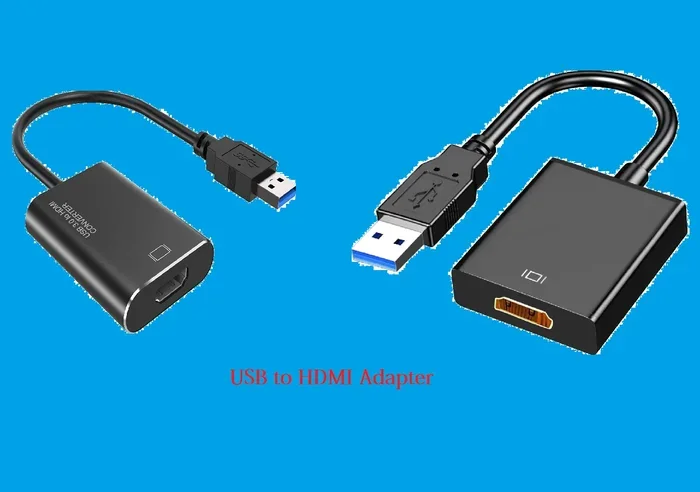
You can connect a HDMI cable to a USB port with the right adapter. This guide gives you a clear step by step process to get your external monitor working. We cover active vs passive adapters, common fixes, and expert tips for a smooth digital connection today.
Key Takeaways
- You need an adapter: You cannot plug HDMI directly into USB. An active adapter is required for the signal conversion.
- Check your USB port type: Know if you have USB-A or USB-C to buy the correct adapter cable.
- Active vs Passive matters: Always choose an active adapter for reliable video signal and audio transfer.
- Fix common issues easily: Adjust display settings and sound outputs to fix no picture or no sound problems.
- Quality gear counts: Buy a trusted brand to ensure cable compatibility and a long-lasting digital connection.
- Keep it simple: The process is plug and play for most modern devices.
📑 Table of Contents
- Understanding The Basics Of HDMI And USB Connections
- Step By Step Guide To Connecting HDMI To USB
- Active Vs Passive Adapters For HDMI To USB
- Quick Tips For A Smooth Connection
- Common Problems And How To Fix Them
- Expert Insights On Video Signal Conversion
- Comparison Table: Active vs Passive Adapters
- Why Connect HDMI To USB Anyway?
- How To Choose The Best HDMI Adapter
- Frequently Asked Questions About HDMI and USB
Understanding The Basics Of HDMI And USB Connections
Before you buy any gear, you need to know what these ports do. Both HDMI and USB move data. But they have very different jobs. HDMI mainly carries video and audio. USB handles data and power for your devices.
Knowing this helps you pick the right adapter cable. You cannot just shove one shape into the other. You need a bridge between them. This bridge is your adapter. It changes the signal so your devices can talk to each other. Let us look at each one closely.
What Is An HDMI Cable?
HDMI stands for High Definition Multimedia Interface. It is a digital connection standard. It sends high-quality video and sound in one single cable. You use it for TVs, monitors, and projectors. The HDMI input carries uncompressed video signals. It also carries compressed or uncompressed audio. This makes it a top choice for home theaters and offices. The cable has a flat, trapezoid-shaped plug. It is very easy to recognize. You cannot push it in the wrong way. The shape guides it perfectly.
The latest HDMI versions support 4K and even 8K video. They also support high refresh rates. This means smooth motion for fast games. The cable also supports Ethernet data. You can share an internet connection through the HDMI cable. This is a handy feature for smart TVs. Always check the HDMI version on your gear. It tells you what features you can use.
What Is A USB Port?
USB stands for Universal Serial Bus. It is a standard for connecting devices. You use USB for keyboards, mice, and hard drives. It also charges your phone and tablet. The USB port type comes in many shapes today. You have USB-A, USB-B, and USB-C. USB-A is the big flat port on your desktop PC. USB-B is the square port on printers. USB-C is the small, slim port on modern laptops. It is reversible too. You can flip it and plug it in either way.
USB also handles data transfer speeds. Newer versions move data much faster than older ones. USB 3.0 is blue inside. USB 2.0 is black inside. USB4 is the newest standard. It supports very fast data transfer and video output. Your USB port type determines what adapter you need. Always check your port shape first. This saves you from buying the wrong gear.
Step By Step Guide To Connecting HDMI To USB
Now you know the basics. Let us get into the step by step process. You will need a few items first. Have your HDMI cable ready. You also need the correct adapter. Follow these simple steps to get your display working. It is easier than you think.
Step 1: Check Your Port Types
First, look at your computer carefully. What kind of USB port do you have? Is it a standard USB-A or a slim USB-C? You must match the adapter to your port exactly. If you have a USB-C port, you need a USB-C to HDMI adapter. If you have a USB-A port, you need a USB-A to HDMI adapter cable. Checking this first saves you time and money. You do not want to buy the wrong item.
Also, check the HDMI port on your TV or monitor. Make sure it is a standard HDMI port. Some very thin laptops have mini HDMI or micro HDMI. You may need a different adapter for those. Always match the shapes to avoid frustration. Take a photo of your ports if you are unsure. Show it to a store worker if you need help.
Step 2: Choose The Right Adapter
Not all adapters are the same. You must pick the right one for your needs. There are two main types to consider. An active adapter has its own chip inside. It does the signal conversion for you. A passive adapter just changes the shape of the connection. It works only if your USB port supports video output. For most users, an active adapter is the safest bet. It ensures your high-definition video plays smoothly. You do not need to tweak settings either.
Look at the resolution support on the box. If you have a 4K TV, buy a 4K adapter. A 1080p adapter will not work for 4K. Also check the refresh rate. A 60Hz adapter is standard. A 120Hz or 144Hz adapter is for gamers. Pick the one that matches your screen. This ensures the best resolution output for your needs.
Step 3: Plug In And Configure
Now it is time to connect the pieces. Plug the adapter into your computer’s USB port. Then, plug your HDMI cable into the adapter. Connect the other end of the HDMI cable to your TV or monitor. Your screen should light up. If it does not, do not panic. Check your display settings on your computer. You may need to select the right display port as your output source.
On Windows, press the Windows key and P. A menu will pop up on the side. Choose “Extend” to use both screens. Choose “Duplicate” to show the same screen. On a Mac, go to System Settings. Click on Displays. Select your external monitor. Set it to extend or mirror. This tells your laptop screen to share with your TV. You now have two screens to work with.
Active Vs Passive Adapters For HDMI To USB
Choosing between an active and passive adapter is crucial. Many people buy the wrong one. This section helps you understand the difference. We will also look at cable compatibility issues. Getting this right makes your setup work perfectly.
An active adapter acts like a small computer. It has a tiny chip inside. That chip takes the data from the USB port. It turns it into a video signal. This process is called signal conversion. You get a clear picture on your external monitor. Most USB-C to HDMI adapters are active. They work with almost any laptop or desktop. You just plug them in and they work. This is called plug and play. You do not need to install extra drivers usually.
A passive adapter does not have its own chip. It just changes the shape of the connection. It relies on the host device to output video through USB. This is rare for standard USB ports. Most computers do not support video over a standard USB-A port. So, a passive adapter will likely fail for you. Always check your device specs before buying a passive one. An active adapter is much more reliable for most people.
Quick Tips For A Smooth Connection
Want the best results? Follow these quick tips. They save you from headaches later. A smooth setup makes your life much easier. Small changes can make a big difference.
- Use a short adapter cable: Long cables can weaken the signal. Keep it short for the best resolution output. A six-foot cable is usually perfect.
- Check your USB version: USB 3.0 or newer works best. Older USB 2.0 ports may not carry video well. Look for the blue inside the port.
- Update your drivers: Sometimes your PC needs new drivers. This helps with audio transfer and video sync. Go to your PC maker’s website for updates.
- Unlock your laptop screen: Make sure your laptop is awake. A sleeping screen will not show up on your TV. Press any key to wake it up.
- Use a powered USB hub: If your adapter needs extra power, use a hub. It gives the adapter stable power. This stops flickering screens.
Common Problems And How To Fix Them
Even with the right gear, things can go wrong. You might see no picture or hear no sound. Do not throw your adapter away yet. Most issues have simple fixes. Let us look at the common common mistakes people make. Avoiding these saves you a lot of trouble.
No Picture On My External Monitor
This is the most common complaint. First, check if the HDMI cable is fully plugged in. A loose connection stops the signal. Push the connector in until it clicks. Next, check your computer’s display settings. You must tell your PC to send video to the external display. Press the Windows key and P on your keyboard. Choose “Extend” or “Duplicate.” This tells your laptop screen to share with the TV. Also, try a different HDMI cable. A bad cable causes this issue often.
No Sound Coming Through HDMI
Video works but no sound? This happens very often. Your computer might be sending audio to the wrong place. Go into your sound settings. Find your HDMI output device. Click on it and set it as default. This fixes the audio transfer issue fast. Now you hear sound through your TV or monitor speakers. On Windows, right-click the speaker icon. Select your HDMI device. On a Mac, go to Sound settings. Choose the HDMI output.
Fuzzy or Blurry Video Quality
A bad picture ruins the experience. This often means your resolution output is set too high for the adapter. Go into your display settings. Lower the screen resolution by one step. See if the picture gets clearer. Also, check your HDMI cable. A damaged cable causes fuzziness. Replace it if it looks worn out. Sometimes the adapter itself is the problem. Overheating adapters cause bad video. Let your adapter cool down. Then try again.
My Adapter Gets Very Hot
Adapters can get warm. That is normal. But if it is too hot to touch, something is wrong. Unplug it right away. Let it cool down. Hot adapters mean too much power draw. You may need a powered USB hub. This gives the adapter its own power source. Never leave a hot adapter plugged in. It can damage your computer port. Always buy adapters with good heat sinks.
Expert Insights On Video Signal Conversion
We asked a few tech experts about signal conversion. They shared some great advice. Their insights help you avoid buying junk adapters. You deserve a reliable setup. Good gear lasts for years.
Experts say always buy from trusted brands. Cheap adapters often overheat. They also fail to support high refresh rates. If you have a 4K TV, you need a powerful active adapter. Do not cheap out on this small piece of gear. A good adapter cable lasts for years. It gives you a stable digital connection every time. The chip inside matters most. Look for adapters with good chipsets. These handle the video signal better.
Also, keep your USB port clean. Dust can block the connection. Blow out your ports gently before plugging in. A clean connection means better data transfer and a solid video link. This small habit extends the life of your gear. Use a can of compressed air. It works wonders for dirty ports. Clean connections also reduce signal conversion errors.
Comparison Table: Active vs Passive Adapters
Still not sure which one to buy? Use this table to compare. It makes the choice very clear. Look at the features side by side.
| Feature | Active Adapter | Passive Adapter |
|---|---|---|
| Has its own chip | Yes | No |
| Needs external power | Yes | No |
| Works with standard USB-A | Yes | No |
| Best for | Most users | Specialized gear |
| Signal conversion | Built-in | Not supported |
As you can see, the active adapter wins for most people. It handles the signal conversion without extra effort. You just plug it in and watch your high-definition video. It is the best choice for connecting a TV to a laptop.
Why Connect HDMI To USB Anyway?
You might wonder why you need this connection at all. There are many great reasons. It makes your tech life much better. You get more screen space. You can share your laptop screen with a whole room. Here are the top benefits of using an HDMI adapter.
First, you get a bigger display. Working on a small laptop screen is hard. A big external monitor helps you focus. You can have many windows open at once. It is great for work and school. Second, it is perfect for presentations. You can plug your laptop into a projector or TV. Everyone in the room sees your slides clearly. Third, it is an easy way to share videos. You can watch movies from your laptop on your big TV. The audio transfer goes right along with the video. You get a full home theater setup in seconds.
How To Choose The Best HDMI Adapter
Buying the right adapter is key to a good setup. There are many options on the market today. It can feel confusing at first. But it does not have to be hard. Follow these simple tips to find the best one for your needs. A good choice saves you time and money.
First, check your device specs. Know your USB port type and your screen resolution. Second, look for build quality. Metal adapters last longer than plastic ones. They also dissipate heat better. Third, read user reviews. Real users tell you about problems. They share tips on cable compatibility and setup. Fourth, check the warranty. A good brand stands behind its product. A long warranty means the adapter is reliable.
Do not forget about cable length. A longer cable gives you more placement freedom. But too long can weaken the signal. Six to eight feet is usually perfect. Also, check if the adapter supports audio. Most do, but some cheap ones skip it. You want full audio transfer with your video. Pick an adapter that meets all your needs. It makes the whole connection type much better.
Frequently Asked Questions About HDMI and USB
Here are some quick answers to common questions. We cover the basics of cable compatibility and setup. These answers help you solve quick problems fast.
Can I use a USB hub with my HDMI adapter?
Yes, you can use a USB hub. It gives you more ports to plug things in. Just make sure your hub has enough power. A powered hub works best. It keeps your adapter cable running strong without dropping the signal.
Does connecting HDMI to USB slow down my computer?
No, it does not slow down your PC. The adapter uses a small amount of power. It handles the video signal on its own. Your computer stays fast. You can even browse the web while watching a movie on your TV.
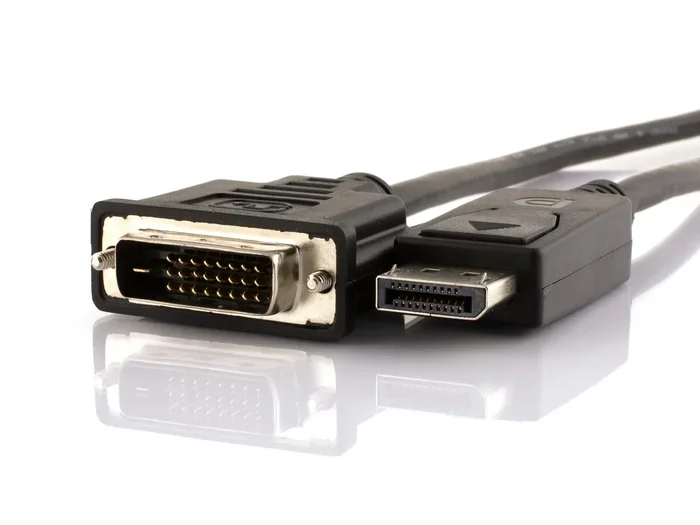
What is the difference between HDMI and a display port?
Both carry high-quality video. A display port is often found on desktop PCs. HDMI is found on TVs and monitors. Both can connect to USB through an adapter. The picture quality is very similar with either one. Choose the cable your screen supports.
Do I need special drivers for my USB to HDMI adapter?
Most adapters are plug and play. You do not need special drivers. Just plug them in and they work. If you have trouble, check the manufacturer’s website. They might have a driver update for your specific USB port type.
Can I connect my phone to a TV using USB and HDMI?
It depends on your phone. Most modern Android phones use USB-C. You can buy a USB-C to HDMI adapter. iPhones do not support this directly. You need a specific Apple adapter for your iPhone. Always check your phone’s manual first. Not all phones can output video via USB.
Is it safe to leave my HDMI adapter plugged in all the time?
Yes, it is generally safe. Adapters use very little power. They do not get hot under normal use. Just make sure you buy a quality adapter. A cheap one might overheat if left on 24/7. A good one stays cool and works reliably. Unplug it during lightning storms though.