Do I Need Internet Or Just Wi Fi For Streaming And More
Wi-Fi and internet are two different things. Wi-Fi is a wireless connection that links your devices to a router, while the internet is the global network that delivers content to your screen. You can use Wi-Fi without internet for local streaming, but you need an active internet connection for platforms like Netflix, YouTube, and Spotify.
Let us start with a simple truth that confuses a lot of people. Do I Need Internet Or Just Wi-Fi is one of the most common questions we get asked. The answer is not as straightforward as you might think. Many folks plug in their router, see the Wi-Fi light blinking, and assume they are ready to stream anything they want. But here is the catch. Wi-Fi is just the bridge between your device and your router. It does not magically create content. The internet is what brings the shows, movies, and music to your screen. Without it, your Wi-Fi is like a road with no destinations. You can drive around in circles, but you are not going anywhere meaningful.
So why does this matter for streaming? Well, if you want to watch Netflix, browse YouTube, or listen to Spotify, you need a working internet connection. But if you want to watch a movie you already downloaded or cast content from a local device, Wi-Fi alone might be enough. Understanding this difference helps you troubleshoot problems, save money on your internet plan, and set up your home network the right way. Whether you are a casual viewer or a binge-watching enthusiast, knowing the difference between Wi-Fi and internet makes your life easier.
Key Takeaways
- Wi-Fi and internet are not the same: Wi-Fi is a local wireless connection, while the internet is the global network that provides online content.
- You can stream offline content with Wi-Fi only: Downloaded movies, local media servers, and screen mirroring work without an internet connection.
- Streaming services require internet: Netflix, Hulu, Disney+, and YouTube all need a live internet connection to deliver content.
- Your internet speed matters for streaming quality: HD streaming needs at least 5 Mbps, and 4K needs 25 Mbps or more.
- A good Wi-Fi router improves your experience: The right router ensures strong Wi-Fi signal and reliable wireless network performance.
- Ethernet can be better than Wi-Fi for streaming: A wired ethernet connection offers more stable speeds and less buffering.
- Common mistakes hurt both Wi-Fi and internet performance: Router placement, outdated firmware, and too many connected devices can slow things down.
📑 Table of Contents
What Is the Difference Between Wi-Fi and Internet?
This is where most people get confused. They use the words Wi-Fi and internet like they mean the same thing. But they really do not. Let us break it down in simple terms.
How Wi-Fi Actually Works
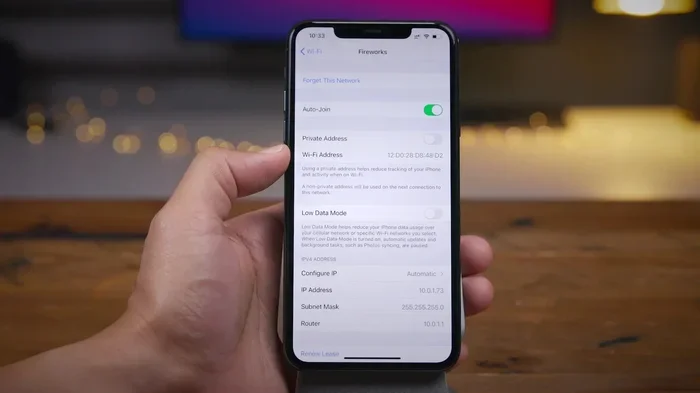
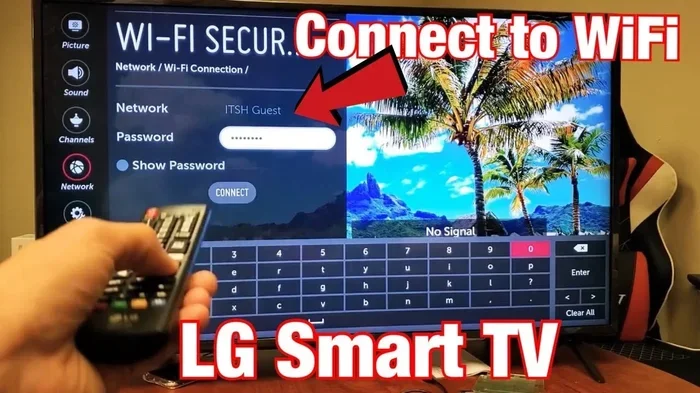
Wi-Fi stands for Wireless Fidelity. It is a technology that lets your phone, laptop, smart TV, or tablet connect to your Wi-Fi router without using cables. Think of Wi-Fi as a invisible string that links your device to the router. The router itself is a box, usually provided by your internet service provider, that sends and receives data. When you connect to Wi-Fi, your device talks to the router. The router then talks to the rest of the world, but only if it has an active internet connection.
Here is an easy way to think about it. Wi-Fi is like the hallway in your house. It connects your rooms. But the internet is like the outside world beyond your front door. You can walk down the hallway all day, but if the front door is locked, you are not going anywhere. Your wireless network works the same way. The Wi-Fi signal just creates the pathway. It does not provide the destination.
What Internet Really Means
The internet is a massive global network of computers and servers. When you open a web browser or launch a streaming app, your request travels from your device to the router, then through your broadband connection to the internet, and finally to the server hosting the content. The server sends the data back along the same path, and your screen displays the video or music.
Your internet service provider, or ISP, is the company that gives you access to this global network. Companies like Comcast, AT&T, Spectrum, or Verizon provide the actual connection to the internet. You pay them monthly for an internet plan that includes a certain speed, usually measured in Mbps (megabits per second). Without an ISP and an active plan, your router has no way to reach the outside world. That is the key difference. Wi-Fi connects your devices to your router. The internet connects your router to the world.
Do I Need Internet for Streaming?
This is the big question, and the answer depends on what kind of streaming you want to do. Let us look at both scenarios so you can figure out exactly what applies to your situation.
Streaming With Just Wi-Fi (Offline Content)
You can absolutely stream content using only Wi-Fi without an internet connection. How? By accessing content that is already stored on your local network. Here are some examples:
- Local media servers: Devices like Plex or Emby let you store movies and shows on a hard drive. You can stream them to any device on your home network using Wi-Fi. No internet needed.
- Downloaded content: Netflix, Disney+, and other apps let you download movies and shows for offline viewing. Once downloaded, you can watch them without the internet, using just your Wi-Fi connection to the device.
- Screen mirroring: You can mirror your phone or laptop screen to a smart TV over Wi-Fi. If the content is already on your device, you are streaming locally.
- DLNA and casting to local devices: Apps like AllCast let you send photos, videos, and music from your phone to your TV over a local Wi-Fi network.
All of these methods use Wi-Fi but do not require the internet. They work great for people who want to watch their own media library or content they have already saved. This is a huge money-saver too, since you are not burning through your data cap or paying for a high-speed broadband connection just to watch local files.
Streaming With an Active Internet Connection
Now let us talk about the real-world streaming most people do. If you want to watch Netflix, YouTube, Hulu, Amazon Prime Video, or any streaming service, you need the internet. Period. These platforms host their content on remote servers. Your device sends a request over your internet connection, and the server sends back the video data in real time.
Here is what happens step by step when you hit play on a show:
- Your device sends a request through your Wi-Fi router.
- The router forwards that request through your broadband connection to the internet.
- The streaming service server receives the request and starts sending video data back.
- The data travels back through the internet to your router.
- Your router sends it over Wi-Fi to your device.
- Your device plays the video in real time.
Every single step in this chain matters. If your internet speed is too slow, the video buffers. If your Wi-Fi signal is weak, the stream stutters. Both the internet and the Wi-Fi need to be working well for a smooth experience. This is why people often blame their Wi-Fi when the real problem is their internet connection or vice versa.
What You Need for Smooth Streaming at Home
Now that you understand the difference between Wi-Fi and internet, let us talk about what you actually need to set up a great streaming setup at home. This part is practical and actionable.
Internet Speed Requirements for Streaming
Not all internet plans are created equal. The speed you need depends on what you want to stream and how many connected devices are using your network at the same time. Here is a simple breakdown:
- Standard Definition (480p): Needs about 3 to 4 Mbps. This is fine for older TVs or casual viewing.
- High Definition (1080p): Needs at least 5 to 8 Mbps. This is the sweet spot for most streaming services.
- 4K Ultra HD: Needs 25 Mbps or more. If you have a 4K TV and want to watch content in full quality, go for a faster plan.
- Multiple devices streaming at once: Add up the speeds. If two people are watching 4K at the same time, you need at least 50 Mbps.
Your bandwidth is the total amount of data your connection can handle at once. Think of it like a highway. More lanes mean more cars can travel at the same time. If too many connected devices are using your network, the highway gets crowded, and your streaming quality drops. This is why families often need faster broadband connections than single-person households.
Wi-Fi Router vs Ethernet Connection
Here is a debate that comes up a lot. Should you use Wi-Fi or plug in an ethernet cable directly to your router? Both have pros and cons.
Wi-Fi Pros:
- No cables cluttering your home
- Easy to connect any device anywhere
- Convenient for phones, tablets, and laptops
Wi-Fi Cons:
- Signal can weaken through walls and floors
- Interference from other devices can slow speeds
- Less stable than a wired connection
Ethernet Pros:
- Faster and more stable speeds
- No interference from other devices
- Better for 4K streaming and gaming
Ethernet Cons:
- Requires a cable running to your device
- Less flexible if you move around the house
For the best streaming quality, an ethernet connection is hard to beat. But if running cables is not practical, a good Wi-Fi router with strong Wi-Fi coverage works just fine for most people. Look for routers that support Wi-Fi 6 or Wi-Fi 6E. These newer standards offer faster speeds and better performance with multiple connected devices.
Common Mistakes People Make With Wi-Fi and Internet
Even smart people make mistakes when setting up their home network. Here are the most common ones and how to avoid them.
Mistake 1: Confusing Wi-Fi with internet. This is the big one. People say “my Wi-Fi is down” when what they really mean is “my internet is down.” Your Wi-Fi might be working perfectly, but if your ISP has an outage or your bill is unpaid, you have no internet. Before you call for help, check if your internet service provider is experiencing issues. A quick call or a visit to their status page can save you a lot of frustration.
Mistake 2: Using an old or cheap router. An outdated router cannot handle modern internet speeds or multiple connected devices. If your router is more than five years old, it might be time for an upgrade. Newer routers support better Wi-Fi coverage and faster wireless network speeds.
Mistake 3: Ignoring router placement. Putting your router in a closet, basement, or behind a TV cabinet kills your Wi-Fi signal. The router needs to be in an open, central spot to spread its signal evenly throughout your home. Good Wi-Fi coverage depends a lot on where the router sits.
Mistake 4: Not checking your internet speed. Many people pay for a fast internet plan but never actually test their speed. If you are paying for 100 Mbps but only getting 10 Mbps, something is wrong. Run a speed test at speedtest.net regularly to make sure you are getting what you pay for.
Mistake 5: Too many devices on one network. Every connected device uses a slice of your bandwidth. Smart TVs, phones, tablets, laptops, smart speakers, security cameras, and game consoles all compete for the same connection. If you have too many devices, your streaming quality will suffer. Consider using a mesh Wi-Fi system or a separate network for streaming devices.
Expert Tips to Improve Your Wi-Fi and Internet Setup
Want to get the most out of your home network? Here are some expert-backed tips that make a real difference.
Tip 1: Update your router firmware regularly. Router manufacturers release updates that improve performance, fix bugs, and boost security. Check your router’s admin panel once a month to see if updates are available. This simple step keeps your wireless network running smoothly.
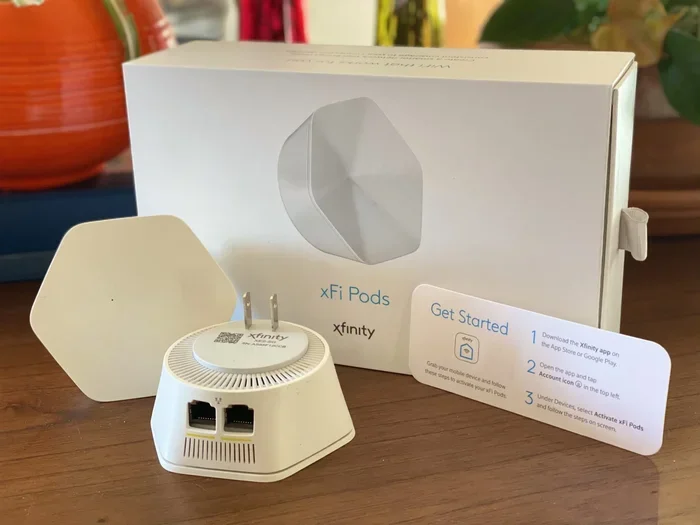
Tip 2: Use a mesh Wi-Fi system for large homes. If you have a big house or thick walls, a single router might not cover every room. A mesh system uses multiple nodes to spread the Wi-Fi signal evenly. This eliminates dead zones and gives you strong Wi-Fi coverage everywhere.
Tip 3: Set up a dedicated streaming network. Many modern routers let you create a separate network just for streaming devices. This keeps your streaming traffic isolated from other devices, which improves streaming quality and reduces buffering.
Tip 4: Adjust your router settings for streaming. Go into your router settings and enable Quality of Service (QoS). This feature prioritizes streaming traffic over other types of data. It is a small change that makes a big difference, especially when multiple people are using the network at once.
Tip 5: Choose the right internet plan for your needs. Look at how many people live in your home and how many devices stream simultaneously. A family of four watching different shows in 4K needs a much faster plan than a single person browsing the web. Contact your internet service provider and ask about plans that match your usage. Do not overpay for speeds you do not need, but also do not skimp if you regularly stream in high definition.
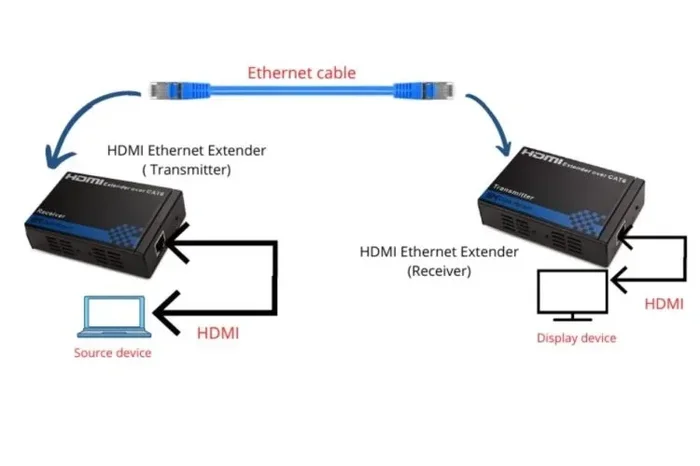
Tip 6: Use an ethernet cable for your main streaming device. If your smart TV or streaming box is near your router, plug it in with an ethernet cable. This gives you the most stable and fastest connection possible. You will notice fewer buffering moments and sharper picture quality.
Final Thoughts
The question Do I Need Internet Or Just Wi-Fi comes down to one simple idea. Wi-Fi is the local connection that links your devices to your router. The internet is the global connection that brings content to your router. You need both for the full streaming experience. Wi-Fi alone can handle local media, downloaded content, and screen mirroring. But for Netflix, YouTube, Hulu, and every other streaming service, you need a working internet connection.
Understanding this difference empowers you to troubleshoot problems faster, choose the right internet plan, and set up your home network for the best possible experience. Whether you are a casual viewer or a dedicated binge-watcher, taking the time to understand your Wi-Fi and internet setup pays off in smoother streams, fewer buffers, and better streaming quality.
Take action today. Check your internet speed, review your router placement, and make sure your connected devices are not slowing each other down. A little effort goes a long way toward a better streaming experience. And now you know exactly what you need to make it happen.
Frequently Asked Questions
Can I use Wi-Fi without an internet connection?
Yes, you can use Wi-Fi without the internet for local tasks. You can stream movies from a local media server, mirror your phone screen to a TV, or use downloaded content on your device. Wi-Fi just needs to connect your devices to each other or to a router. The internet is not required for these local activities.
Why does my streaming keep buffering even with Wi-Fi?
Buffering usually means your internet speed is too slow or your Wi-Fi signal is weak. Run a speed test to check your actual connection speed. If the speed is fine, move closer to your router or reduce the number of connected devices using the network. Interference from other electronics can also cause buffering issues.
What internet speed do I need for 4K streaming?
Most streaming services recommend at least 25 Mbps for 4K streaming. Netflix, for example, suggests 25 Mbps for Ultra HD content. If multiple devices stream at the same time, you need even more speed. Check your internet plan and consider upgrading if your current speed is not enough.
Is ethernet better than Wi-Fi for streaming?
Yes, an ethernet connection is generally better for streaming. It provides a more stable and faster connection with less interference. This means fewer buffering moments and better streaming quality. However, Wi-Fi works great for most people if their router is modern and placed in a good location.
Do I need a special router for streaming?
You do not need a special router, but a good one helps. Look for a router that supports Wi-Fi 5 or Wi-Fi 6, has strong Wi-Fi coverage, and can handle multiple connected devices. A quality Wi-Fi router improves your streaming experience without requiring expensive upgrades to your internet service provider plan.
Can I stream content from my phone to my TV without internet?
Yes, you can stream content from your phone to your TV using screen mirroring or casting over a local Wi-Fi network. Apps like AllCast or built-in casting features let you send local media from your phone to your TV. This works without the internet as long as both devices are on the same home network.