Can You Connect Iphone To 2 4 Ghz Wi Fi Step By Step
Yes, you can connect iPhone to 2.4 GHz Wi-Fi easily if you follow the right steps. This guide walks you through the entire iPhone Wi-Fi settings process, from preparing your device to troubleshooting common problems. You will learn how to find the right network, enter your network password, and get your wireless connection running smoothly in minutes.
Have you ever tried to connect your iPhone to a 2.4 GHz Wi-Fi network and just got stuck? You are not alone. Many people run into Wi-Fi connectivity issues when trying to link their iPhone to the older but still widely used 2.4 GHz frequency band. The good news is that every iPhone supports this band, and the process is straightforward once you know what to do.
This guide will show you exactly how to connect iPhone to 2.4 GHz Wi-Fi with clear, easy-to-follow steps. We will also cover common problems, expert tips, and the differences between 2.4 GHz and 5 GHz bands. By the end, you will feel confident managing your iPhone network settings like a pro.
Whether you are setting up a new wireless router or just trying to get your iPhone online, this article has you covered. Let us dive right in and get your wireless connection working perfectly.
Key Takeaways
- iPhone supports 2.4 GHz Wi-Fi: All modern iPhones can connect to the 2.4 GHz wireless band with ease.
- Step-by-step process is simple: You only need a few taps in your iOS settings to connect successfully.
- Router compatibility matters: Make sure your dual-band router is broadcasting the 2.4 GHz frequency correctly.
- Common issues have easy fixes: Most Wi-Fi connection problems can be solved with a quick reset or settings adjustment.
- 2.4 GHz has unique advantages: It offers better range and wall penetration compared to the 5 GHz band.
- Keep your iPhone updated: The latest iOS updates improve wireless performance and fix known bugs.
📑 Table of Contents
- Understanding 2.4 GHz Wi-Fi and Your iPhone
- Can You Connect iPhone to 2.4 GHz Wi-Fi Step by Step
- How to Check If Your Router Broadcasts a 2.4 GHz Band
- Fixing Common iPhone Wi-Fi Connection Problems
- 2.4 GHz vs 5 GHz Wi-Fi: Which Is Better for iPhone
- Expert Tips for Better Wi-Fi Performance on iPhone
- Key Takeaways
- Conclusion
Understanding 2.4 GHz Wi-Fi and Your iPhone
What Makes the 2.4 GHz Frequency Special
The 2.4 GHz wireless network frequency has been around for a long time. It is one of the two main bands that most dual-band routers use today. The other band is 5 GHz, but 2.4 GHz still holds its own for several important reasons.
First, 2.4 GHz offers a wider range. The signal can travel through walls and floors much better than 5 GHz. This makes it ideal for larger homes or apartments where the router might be far from your iPhone.
Second, 2.4 GHz is compatible with almost every device. Older gadgets, smart home devices, and many IoT products rely on this band. So when you connect iPhone to 2.4 GHz Wi-Fi, you are choosing a frequency that works with nearly everything in your home.
Third, 2.4 GHz has 11 to 14 channels depending on your region. While this sounds like a lot, it also means more devices share the same space. This can sometimes lead to Wi-Fi connection problems in crowded areas like apartments or offices.
How iPhone Handles Wireless Connections
Your iPhone is designed to handle both 2.4 GHz and 5 GHz bands automatically. Apple built iOS settings that let your phone switch between bands based on signal strength and network conditions. However, you can also force your iPhone to use a specific band if needed.
When you look at available wireless networks on your iPhone, you might notice some networks have “2G” or “2.4” in the name. Others might just show the network name SSID without any band indicator. This depends entirely on how your router is configured.
Apple has always kept iPhone Wi-Fi settings simple and user-friendly. You do not need any special apps or technical knowledge to connect. Just a few taps in the Settings app, and you are good to go.
Can You Connect iPhone to 2.4 GHz Wi-Fi Step by Step
Preparing Your iPhone and Router
Before you start, make sure a few things are in place. First, confirm that your router is turned on and broadcasting a 2.4 GHz network. Most modern routers do this by default, but some let you turn bands on or off.
Next, make sure your iPhone is charged or plugged in. A low battery can sometimes cause Wi-Fi connectivity issues during setup. Also, check that you know your network password. You will need it to complete the connection.
If you are in a new location or using a guest network, ask the network owner for the password. Most public and home networks use a simple password that you enter once and your iPhone remembers it.
The Connection Process
Here is the step-by-step process to connect iPhone to 2.4 GHz Wi-Fi:
- Open the Settings app on your iPhone. Look for the gear icon on your home screen.
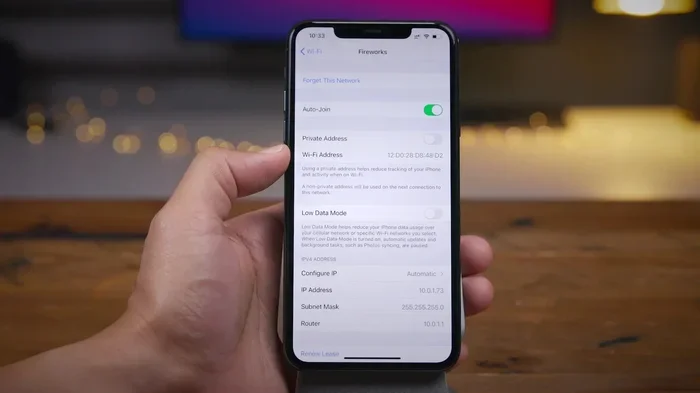
- Tap Wi-Fi at the top of the menu. Make sure the toggle switch is turned on.
- Wait for the list of networks to load. Your iPhone will scan for available wireless networks in the area.
- Find your 2.4 GHz network in the list. Look for the network name or any indicator that shows it is a 2.4 GHz band.
- Tap on the network name. A prompt will appear asking you to enter the network password.
- Type in the password carefully. Make sure you match uppercase and lowercase letters exactly.
- Tap Join in the top right corner of the screen.
- Wait a few seconds for your iPhone to connect. You will see a checkmark next to the network name once connected.
That is it! Your iPhone network settings are now configured for the 2.4 GHz band. You should see a Wi-Fi icon in the top right corner of your screen, and your internet connection should be active.
If your iPhone does not connect right away, do not worry. Move on to the next section where we cover iPhone Wi-Fi troubleshooting tips that solve most common issues.
How to Check If Your Router Broadcasts a 2.4 GHz Band
Accessing Your Router Settings
Sometimes the problem is not your iPhone but your router configuration. Many modern routers combine the 2.4 GHz and 5 GHz bands into one network name. This is called “band steering,” and it can make it hard to know which frequency your iPhone is using.
To check your router settings, open a web browser on any device connected to your network. Type your router’s IP address into the address bar. Common addresses are 192.168.1.1 or 192.168.0.1. Log in with your admin username and password, which are usually printed on a sticker on the router itself.
Once inside, look for a section called “Wireless Settings” or “Wi-Fi Settings.” Here you will see information about both the 2.4 GHz and 5 GHz bands. You can check if the 2.4 GHz band is enabled and what network name SSID it is broadcasting.
Identifying the Correct Network Name
If your router uses separate names for each band, you will see something like “MyNetwork_2G” and “MyNetwork_5G.” The one with “2G” or “2.4” is your 2.4 GHz network. Choose that one when connecting your iPhone.
If your router uses one name for both bands, your iPhone will automatically choose the best one. However, you can force it to use 2.4 GHz by turning off 5 GHz temporarily in your router settings. This is a useful trick when dealing with Wi-Fi connection problems.
Another way to check is by looking at the signal strength on your iPhone. 2.4 GHz signals generally reach farther than 5 GHz, so if you are far from the router, your iPhone is more likely connected to the 2.4 GHz band automatically.
Fixing Common iPhone Wi-Fi Connection Problems
When Your iPhone Won’t Find the 2.4 GHz Network
This is one of the most frustrating Wi-Fi connectivity issues people face. Your iPhone scans for networks but does not show the 2.4 GHz one you want. There are a few things you can try.
First, make sure your iPhone Wi-Fi settings are set to search for all available networks. Go to Settings > Wi-Fi and make sure the toggle is on. Sometimes turning Wi-Fi off and back on forces your iPhone to rescan.
Second, check if your router is hiding the network name. Some people enable “SSID hiding” for security reasons. If the network is hidden, you will need to manually add it. Go to Settings > Wi-Fi > Other and enter the network name SSID and password manually.
Third, restart your router. Unplug it, wait 30 seconds, and plug it back in. This simple iPhone Wi-Fi troubleshooting step fixes many issues. After the router restarts, check if your network appears on your iPhone.
Dealing With Slow Speeds and Drops
Even after you connect iPhone to 2.4 GHz Wi-Fi, you might experience slow speeds or frequent drops. This is common because the 2.4 GHz band shares its space with many other devices and networks.
One major cause of slow speeds is Wi-Fi channel congestion. Your router might be using a channel that is crowded with other networks nearby. You can fix this by logging into your router settings and changing the Wi-Fi channel to a less crowded one. Channels 1, 6, and 11 are usually the best choices for 2.4 GHz.
Another cause is distance from the router. 2.4 GHz has good range, but walls and furniture still weaken the signal. Try moving closer to your router and see if your speeds improve.
Also, check if other devices are hogging your bandwidth. Streaming videos, downloading large files, or online gaming on other devices can slow down your iPhone’s wireless connection. Pausing those activities can help restore speed.
2.4 GHz vs 5 GHz Wi-Fi: Which Is Better for iPhone
Speed and Range Comparison
Choosing between 2.4 GHz vs 5 GHz Wi-Fi depends on what you need most. Each band has its strengths and weaknesses, and understanding them helps you make the best choice for your iPhone.
The 2.4 GHz band offers slower speeds but covers a larger area. It penetrates walls and obstacles much better than 5 GHz. If you are in a different room from your router, 2.4 GHz will likely give you a more stable connection.
The 5 GHz band offers faster speeds but has a shorter range. It works best when you are close to the router with few obstacles in the way. For activities like streaming 4K video or online gaming, 5 GHz is usually the better choice.
Here is a quick comparison to help you decide:
- Range: 2.4 GHz wins. It covers more distance and handles walls better.
- Speed: 5 GHz wins. It delivers faster data transfer rates.
- Congestion: 2.4 GHz suffers more because many devices use it. 5 GHz is less crowded.
- Compatibility: 2.4 GHz works with almost all devices. 5 GHz requires newer hardware.
- Best for: 2.4 GHz is best for general browsing and large spaces. 5 GHz is best for high-speed activities near the router.
When to Use Each Band
For most everyday tasks like browsing the web, checking email, or using social media, 2.4 GHz is perfectly fine. It gives you a reliable wireless connection throughout your home.
Use 5 GHz when you need maximum speed and you are close to the router. If you are downloading a large app, streaming a movie, or playing an online game, 5 GHz will give you a smoother experience.
Some advanced routers let you prioritize one band over the other. Check your router’s manual or app for settings like “band steering” or “smart connect.” These features automatically assign your iPhone to the best band based on your activity.
Expert Tips for Better Wi-Fi Performance on iPhone
Optimizing Your Router Placement
Where you place your wireless router has a huge impact on your Wi-Fi signal strength. The best spot is usually in the center of your home, elevated off the floor, and away from walls and metal objects.
Avoid placing your router near microwaves, cordless phones, or baby monitors. These devices operate on the same 2.4 GHz frequency and can cause interference. Even refrigerators and large mirrors can weaken your wireless network signal.
If you live in a large home, consider using a Wi-Fi extender or mesh network system. These devices boost your signal and eliminate dead zones. They are especially helpful when your iPhone is far from the main router.
Keeping Your iPhone Updated
Apple regularly releases iOS updates that improve wireless performance and fix known bugs. Keeping your iPhone updated ensures you get the best Wi-Fi connectivity possible.
Go to Settings > General > Software Update to check for the latest version. If an update is available, download and install it. This simple step can resolve many Wi-Fi connection problems you might be experiencing.
Resetting Network Settings When Needed
If nothing else works, resetting your iPhone network settings can solve persistent Wi-Fi connectivity issues. This clears all saved Wi-Fi networks, Bluetooth pairings, and VPN settings.
Go to Settings > General > Transfer or Reset iPhone > Reset > Reset Network Settings. You will need to enter your passcode. After the reset, you will need to reconnect to your wireless network and re-enter your network password.
This is a powerful fix for stubborn connection issues. Many users report that their Wi-Fi connection works perfectly after a network settings reset. Just remember to back up your important data before doing this.
Key Takeaways
- iPhone supports 2.4 GHz Wi-Fi: All modern iPhones can connect to the 2.4 GHz wireless band with ease.
- Step-by-step process is simple: You only need a few taps in your iOS settings to connect successfully.
- Router compatibility matters: Make sure your dual-band router is broadcasting the 2.4 GHz frequency correctly.
- Common issues have easy fixes: Most Wi-Fi connection problems can be solved with a quick reset or settings adjustment.
- 2.4 GHz has unique advantages: It offers better range and wall penetration compared to the 5 GHz band.
- Keep your iPhone updated: The latest iOS updates improve wireless performance and fix known bugs.
Conclusion
Can you connect iPhone to 2.4 GHz Wi-Fi? Absolutely yes. The process is simple, fast, and works on every iPhone model. Whether you are at home, at a friend’s place, or setting up a new wireless router, you now have all the steps you need to get connected.
We covered how the 2.4 GHz frequency works, how to connect your iPhone step by step, and how to fix common Wi-Fi connectivity issues. You also learned about the differences between 2.4 GHz and 5 GHz bands and got expert tips for better performance.
Remember that Wi-Fi signal strength and network performance depend on many factors, including your router placement, the number of connected devices, and your iPhone’s software version. Keeping everything updated and properly configured will give you the best experience.
Now that you know how to connect iPhone to 2.4 GHz Wi-Fi, you can enjoy a reliable wireless connection in every room of your home. Try these steps today and see the difference for yourself. Your iPhone network settings will thank you.
Frequently Asked Questions
Can all iPhone models connect to 2.4 GHz Wi-Fi?
Yes, every iPhone model supports the 2.4 GHz frequency band. Whether you have the latest iPhone 15 or an older iPhone 6, your device can connect to 2.4 GHz networks. Apple has always included support for this band across all its devices.
Why does my iPhone connect to 5 GHz instead of 2.4 GHz?
Most modern iPhones automatically choose the best band based on signal strength and network conditions. If you are close to the router, your phone will likely pick 5 GHz for faster speeds. To force a 2.4 GHz connection, you can either disable the 5 GHz band on your router or connect to a network that only broadcasts the 2.4 GHz frequency.
Is 2.4 GHz Wi-Fi slower than 5 GHz?
Yes, 2.4 GHz generally offers slower speeds than 5 GHz. However, it compensates with better range and wall penetration. For everyday tasks like browsing and email, the speed difference is barely noticeable. The choice between bands depends on your specific needs and location relative to the router.
How do I find my 2.4 GHz network name?
Check your router’s settings or look at the sticker on the router itself. Many routers use separate names for each band, such as “HomeNetwork_2G” for the 2.4 GHz band. If your router uses one name for both bands, you can check which band your iPhone is connected to in the iOS settings under Wi-Fi details.
What should I do if my iPhone keeps disconnecting from 2.4 GHz Wi-Fi?
Start by restarting both your iPhone and your router. If the problem continues, check for iOS updates and reset your network settings. Interference from other devices on the same frequency can also cause disconnections, so try changing your Wi-Fi channel in the router settings.
Do I need a special password for 2.4 GHz Wi-Fi?
No, the network password is the same whether you connect to 2.4 GHz or 5 GHz if your router uses one network name. If your router uses separate names for each band, the password is usually the same unless you set different passwords during wireless router setup.