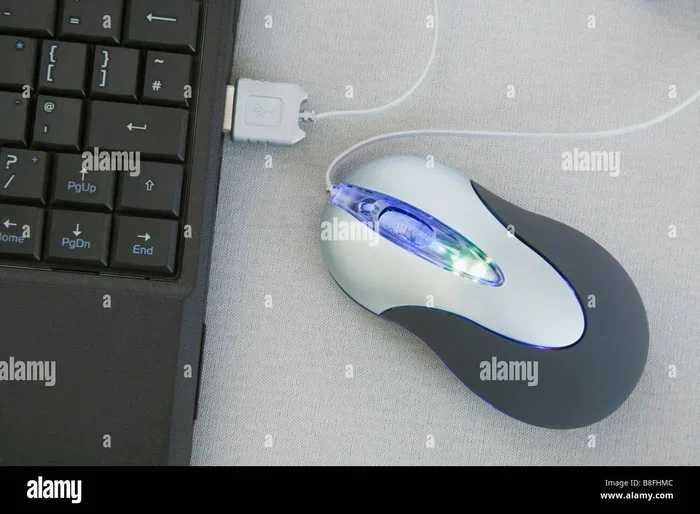
Can I Plug A Mouse Into Any USB Port Without Issues
Yes, you can plug a mouse into almost any USB port without issues. Modern computers recognize mice automatically thanks to plug and play technology. Whether you use a USB-A, USB-C, or even a USB hub, your mouse will typically work right away.
Have you ever sat down at a new computer or laptop and wondered if your trusty mouse will work? Maybe you are traveling and need to use a different setup. Or perhaps you just bought a new desktop with a confusing mess of ports on the back.
The good news is that the answer is simple. Can I plug a mouse into any USB port without running into problems? In most cases, the answer is a resounding yes. USB mice are among the most universally compatible peripheral devices you will ever own. Let us walk through everything you need to know so you can plug in and get to work without any headaches.
USB technology has been around for decades, and it was designed with one goal in mind: make connecting devices easy. Your wired mouse, wireless mouse, gaming mouse, or even a basic travel mouse will almost always work the moment you plug it in. But there are a few details worth knowing. Let us break them down.
Key Takeaways
- Universal Compatibility: USB mice work across all port types and operating systems with minimal setup.
- Plug and Play: Most mice install instantly without needing extra drivers or software.
- Port Types Matter: USB-A, USB-C, and USB 3.0 ports all support mice, but speeds and features may vary.
- Wireless Options: Wireless mice use USB dongles or Bluetooth and work just as easily.
- Troubleshooting Is Simple: Most mouse issues can be fixed with a port change, driver update, or cable swap.
- Gaming Mice: Specialized gaming mice may need software but still work in any standard USB port.
- USB Hubs Are Safe: You can safely connect a mouse through a USB hub without performance loss.
📑 Table of Contents
Understanding USB Ports and Mouse Compatibility
Not all USB ports look the same, but they all serve the same basic purpose: connecting peripheral devices like mice, keyboards, and external drives to your computer. Understanding the different types helps you feel more confident when plugging in your mouse.
USB-A Ports
The USB-A port is the classic rectangular shape you see on almost every desktop and laptop. This is the most common port type for connecting a wired mouse. When you plug a standard USB mouse into a USB-A port, the computer recognizes it instantly. There is no setup required. The plug and play protocol handles everything in the background.
USB-A ports come in different versions, including USB 2.0 and USB 3.0. For a mouse, this difference barely matters. A mouse uses very little data, so even an older USB 2.0 port handles it perfectly fine. You will not notice any lag or delay with a standard mouse on any USB-A port.
USB-C Ports
USB-C is the newer, smaller, oval-shaped port found on modern laptops and tablets. These ports support data transfer and charging, and they work beautifully with mice. You can plug a USB mouse directly into a USB-C port using a simple adapter or a USB-C to USB-A cable.
Some mice even come with a built-in USB-C cable, making them ready to use on newer devices right out of the box. The mouse compatibility with USB-C is excellent across Windows, Mac, and ChromeOS systems.
USB 2.0 vs USB 3.0 for Mice
You might see numbers like USB 2.0 or USB 3.0 printed near your ports. Does this affect your mouse? Not really. USB 3.0 is faster for transferring large files, but a mouse sends tiny amounts of data. Both USB 2.0 and USB 3.0 ports deliver smooth, responsive cursor movement for any mouse.
Here is a quick comparison of how different USB versions handle a standard mouse:
- USB 2.0: Fully supports mice. Zero lag. Works with all mouse types.
- USB 3.0: Same mouse performance as USB 2.0. Faster speeds are wasted on mice but do no harm.
- USB-C: Supports mice natively or with a simple adapter. Fully compatible.
Plugging In Different Types of Mice
Not all mice are built the same way. The type of mouse you use can affect how it connects to a USB port. Let us look at the most common types and what to expect when you plug them in.
Wired Mice
A wired mouse is the simplest option. You plug the cable into any available USB port, and it works immediately. There is no software to install, no batteries to charge, and no dongle to keep track of. Wired mice are ideal for people who want a hassle-free experience.
If you plug a wired mouse into a USB port and nothing happens, try a different port first. Sometimes a specific port may be disabled or faulty. Switching ports solves the problem nine times out of ten.
Wireless Mice with USB Dongles
Many wireless mice come with a small USB receiver, often called a dongle. You plug this tiny receiver into any USB port, and the mouse connects wirelessly to your computer. The dongle takes up very little space and works just as well in USB 2.0, USB 3.0, and USB-C ports.
The device driver for most wireless dongles installs automatically. You do not need to download anything from the manufacturer’s website unless you want advanced features like adjustable DPI settings.
Bluetooth Mice
Bluetooth mice do not need a USB port at all. They connect directly to your computer through a Bluetooth connection. However, if your computer does not have built-in Bluetooth, you can use a Bluetooth adapter plugged into a USB port.
Bluetooth mice are great for laptops and tablets where USB ports are limited. They offer the same plug and play experience once paired with your device.
Gaming Mice
Gaming mice often have extra buttons, higher sensitivity, and customizable features. They work in any USB port just like a regular mouse. However, to unlock all the features, you may need to install the manufacturer’s software.
Even without the software, a gaming mouse will function as a basic pointing device in any USB port. The extra buttons might not be programmable, but the scroll wheel and primary clicks will work perfectly.
Can You Use a USB Hub for Your Mouse?
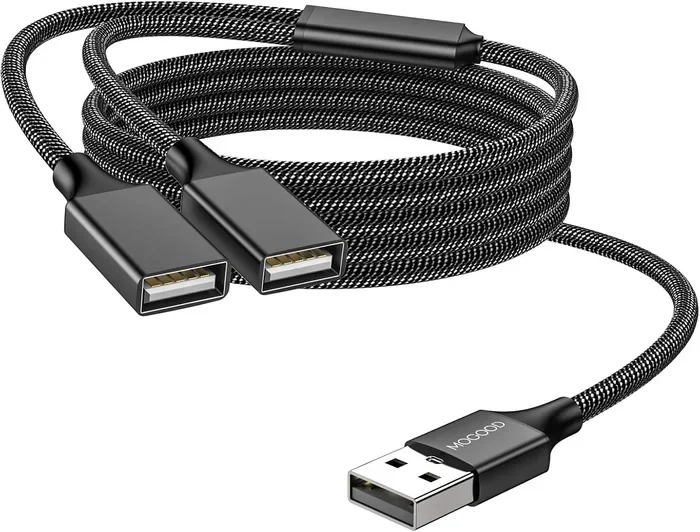
A USB hub expands the number of ports available on your computer. It is a handy device when you run out of ports. But is it safe to plug your mouse into a USB hub? Absolutely.
USB hubs draw power from your computer and distribute it to connected devices. A mouse uses very little power, so a hub will handle it without any issues. You can connect your mouse, keyboard, and other peripherals through a single hub and plug just one cable into your computer.
Here are a few tips for using a USB hub with your mouse:
- Choose a powered USB hub for the best performance, especially if you connect multiple devices.
- Avoid cheap, unbranded hubs that may not deliver consistent power.
- A USB hub does not add any noticeable lag for a mouse.
- Keep the hub close to your computer to avoid cable strain.
Using a hub is a great solution for desks with limited space or laptops that need more connectivity options. Your mouse will work just as smoothly through a hub as it would through a direct port.
Common Issues When Plugging a Mouse Into a USB Port
Even though USB mice are highly compatible, you might run into occasional problems. Here are the most common issues and how to fix them quickly.
Mouse Not Recognized After Plugging In
If you plug in your mouse and the cursor does not move, do not panic. Start by trying a different USB port. The port you are using might be defective or disabled in your system settings. If a different port works, you have your answer.
Next, check the cable. A damaged cable is a common culprit. Try the mouse on another computer to rule out a hardware problem. If the mouse works elsewhere, the issue is with your computer, not the mouse.
Driver Problems
Sometimes your operating system needs an updated device driver to recognize the mouse properly. Windows and macOS usually handle this automatically, but older systems may need a manual update.
To update drivers on Windows, go to Device Manager, find your mouse under “Mice and other pointing devices,” right-click, and select “Update driver.” On a Mac, go to System Preferences, then Software Update, to check for the latest system updates.
Interference With Wireless Mice
Wireless mice can experience interference from other USB devices, especially those that use the same radio frequency. If your wireless mouse is acting up, try moving other USB devices away from the receiver. A USB extension cable can help position the receiver closer to the mouse for a stronger signal.
Slow or Laggy Cursor Movement
A slow or jumpy cursor is frustrating. This issue often happens when a USB port is not providing enough power or when the cable is too long. Try a shorter cable or a different port. If you use a USB hub, connect the hub directly to your computer rather than chaining multiple hubs together.
Charging Ports vs. Data Ports
Some USB ports on laptops and tablets are charging-only ports. They provide power but do not transfer data. If you plug a mouse into a charging-only port, it will not work. Look for the icon next to the port or check your device manual to identify which ports support data transfer.
Quick Tips for the Best Mouse Experience
Want to make sure your mouse always works smoothly? Follow these simple tips:
- Keep your USB ports clean. Dust and debris can cause connection issues.
- Use the original cable that came with your mouse when possible.
- Update your operating system regularly to keep device drivers current.
- Label your USB ports if you use multiple devices, so you always know which port works best.
- Store your wireless mouse dongle in a safe place to avoid losing it.
- Test your mouse on a different computer if you suspect a hardware problem.
These small habits go a long way in keeping your mouse working flawlessly every single day.
Expert Insights on USB Mouse Connectivity
Tech experts agree that USB mice are one of the most reliable and universally compatible devices in the computer world. The Universal Serial Bus standard was specifically designed to simplify connectivity between devices and computers. This is exactly why you can plug a mouse into virtually any USB port and expect it to work.
According to hardware specialists, the only time you should run into issues is when there is a physical problem with the port, a driver conflict, or a faulty cable. The mouse compatibility across different operating systems and port types is remarkably high. This is a testament to how well the USB standard has been adopted across the industry.
For those wondering about peripheral device support on older computers, the answer is still positive. Even computers from the early 2000s with USB 2.0 ports handle modern mice without any problems. The technology has remained consistent and backward compatible for decades.
Key Takeaways
- Universal Compatibility: USB mice work across all port types and operating systems with minimal setup.
- Plug and Play: Most mice install instantly without needing extra drivers or software.
- Port Types Matter: USB-A, USB-C, and USB 3.0 ports all support mice, but speeds and features may vary.
- Wireless Options: Wireless mice use USB dongles or Bluetooth and work just as easily.
- Troubleshooting Is Simple: Most mouse issues can be fixed with a port change, driver update, or cable swap.
- Gaming Mice: Specialized gaming mice may need software but still work in any standard USB port.
- USB Hubs Are Safe: You can safely connect a mouse through a USB hub without performance loss.
Conclusion
The short answer to the question can I plug a mouse into any USB port is yes. Your mouse will work in USB-A, USB-C, USB 2.0, USB 3.0, and even through a USB hub without any special setup. The plug and play nature of USB technology makes this one of the easiest peripheral connections you will ever make.
Whether you use a simple wired mouse for everyday tasks or a feature-packed gaming mouse for intense sessions, the USB port on your computer is ready to accept it. Wireless mice with dongles and Bluetooth options work just as seamlessly, giving you flexibility and convenience.
If you ever run into trouble, the fixes are usually quick and straightforward. Try a different port, check your cable, or update your drivers. Nine times out of ten, the problem is a simple fix that takes just a few minutes.
So go ahead and plug in your mouse with confidence. Your USB port is ready to go, and your mouse will work exactly as it should. Enjoy a smooth, responsive cursor experience no matter which port you choose.
Frequently Asked Questions
Will any USB mouse work on any computer?
Yes, almost any USB mouse will work on any computer that has a USB port. The plug and play standard ensures that mice are recognized automatically by Windows, macOS, and ChromeOS. You may need to install manufacturer software only if you want to customize advanced features.
Can I plug a wireless mouse into a USB port?
You can plug the wireless receiver dongle into any USB port. The dongle communicates with the mouse wirelessly, and the connection works on all USB port types. Bluetooth mice do not need a USB port at all and connect directly through your computer’s built-in Bluetooth.
Does it matter if I use a USB 2.0 or USB 3.0 port for a mouse?
No, it does not matter. A mouse uses very little data, so both USB 2.0 and USB 3.0 ports deliver identical performance. You will not notice any difference in speed, responsiveness, or cursor movement between the two port types.
Why is my mouse not working when I plug it into a USB-C port?
This usually happens when the USB-C port is a charging-only port and does not support data transfer. Check your device manual or look for a data icon next to the port. Using a different USB-C port or a USB-C adapter should resolve the issue.
Can I use a USB hub to connect my mouse?
Yes, a USB hub works perfectly for connecting a mouse. The hub provides additional ports and draws power from your computer. Your mouse will work just as well through a hub as it would through a direct port on your computer.
Do I need to install drivers for a USB mouse?
In most cases, no. Modern operating systems recognize USB mice automatically and install the necessary device driver in the background. You only need to install drivers if you want to access special features like custom button mapping or adjustable DPI settings on a gaming mouse.