Can Any Printer Print On Decal Paper With Great Results
Can any printer print on decal paper? The short answer is no — not every printer works well with decal paper. Your printer type, ink system, and paper settings all matter when creating custom decals that look professional. In this guide, we break down which printers handle decal paper best, what settings to use, and how to avoid common printing mistakes.
Key Takeaways
- Inkjet printers are the most compatible: Most inkjet printers handle decal paper with excellent results when you use the right settings.
- Laser printers need caution: Some laser printers can work with decal paper, but heat sensitivity can cause peeling or warping.
- Decal paper type matters: Clear, matte, and glossy decal papers each require specific printer types for the best output.
- Printer settings make a huge difference: Using the correct paper profile and resolution ensures vibrant, durable decals.
- Home printing is totally doable: You don’t need expensive equipment to create custom decals for personal or small business use.
- Common mistakes ruin decal quality: Wrong paper settings, low-quality ink, and poor cutting all affect the final product.
📑 Table of Contents
- Can Any Printer Print On Decal Paper?
- Inkjet Printers and Decal Paper
- Laser Printers and Decal Paper
- Types of Decal Paper and Their Printer Requirements
- Printer Settings That Make or Break Your Decals
- Common Mistakes When Printing Decals
- How to Make Your Decals Last Longer
- Can You Use Any Printer for Commercial Decal Production?
- Final Thoughts on Printing Decals at Home
Can Any Printer Print On Decal Paper?
If you have a stack of decal paper sitting on your desk, you might wonder whether your printer can handle it. The truth is, not all printers are created equal when it comes to printing on specialty paper. Some machines handle decal paper beautifully, while others struggle with adhesion, ink absorption, and overall print quality.
The good news is that most modern printers can work with decal paper. The key is knowing which type of printer you have and how to adjust your settings. Whether you want to create custom stickers for your business or fun decals for personal projects, understanding your printer’s capabilities is the first step.
Printable vinyl, water slide decals, and adhesive paper all fall under the broader category of decal materials. Each type has unique properties that interact differently with various printers. Let’s dive into what you need to know before you hit print.
Why Printer Compatibility Matters
Not every printer is designed to handle the unique surface of decal paper. The paper often has a special coating that helps ink sit on top rather than soaking in. This coating is essential for creating decals that look sharp and last long. If your printer doesn’t recognize this coating, the results can be disappointing.
Printer compatibility depends on several factors:
- Ink type: Dye-based inks react differently than pigment-based inks on decal surfaces.
- Print head technology: Thermal and piezoelectric print heads each have different interactions with specialty paper.
- Paper feed mechanism: Some printers struggle with the thickness or texture of decal paper.
- Heat output: Laser printers use heat to fuse toner, which can affect adhesive-backed decal paper.
Understanding these factors helps you choose the right printer for your decal printing needs. It also saves you money and frustration from wasted paper and ink.
Inkjet Printers and Decal Paper
Inkjet printers are the most popular choice for printing on decal paper. They work well with most decal paper types, including glossy, matte, and clear decal paper. The reason is simple — inkjet printers deposit liquid ink directly onto the paper surface, which bonds well with the coating on decal sheets.
Why Inkjet Printers Work So Well
Inkjet technology sprays tiny droplets of ink onto the paper. This allows for precise color placement and smooth gradients. When you print on decal paper, the ink sits on the special coating layer and dries quickly. The result is vibrant colors and sharp details that make your custom stickers look professional.
Most home inkjet printers from brands like Canon, HP, Epson, and Brother can handle decal paper without issues. Even budget-friendly models produce impressive results. The key is selecting the correct paper type in your printer settings.
Here are some popular inkjet printers that work great with decal paper:
- Epson EcoTank series: Low running costs and excellent color accuracy.
- Canon PIXMA series: Great for home users who want vibrant decal prints.
- HP Envy series: Reliable performance with a variety of paper types.
- Brother Expression series: Solid all-around printer for sticker and decal projects.
Best Inkjet Settings for Decal Paper
Getting the best results from your inkjet printer requires a few setting adjustments. Don’t just hit print with default settings — take a moment to optimize your print job.
- Select the correct paper type: Choose “Photo Paper” or “Premium Glossy” from your printer driver settings. This tells the printer to use less ink and adjust drying time.
- Set the print quality to high or best: Higher resolution produces sharper details on your decal paper. Look for settings around 1200 dpi or higher.
- Use the correct paper size: Match your printer settings to the exact size of your decal sheets. Mismatched sizes can cause misalignment.
- Disable fast draft mode: Fast modes reduce ink coverage, which can make your decals look faded or washed out.
- Let prints dry fully: Give your decals at least 10-15 minutes to dry before handling or cutting them.
Quick Tip: Always do a test print on regular paper first. This helps you check alignment, colors, and sizing before you waste expensive decal paper.
Laser Printers and Decal Paper
Laser printers present a more complicated picture when it comes to decal paper. While some laser printers can handle decal paper, others cause problems. The main issue is heat. Laser printers use heated rollers to melt toner onto the paper, and this heat can affect the adhesive layer on decal sheets.
When Laser Printers Work
Some laser printers can produce decent decal prints, especially for indoor-use decals that don’t need extreme durability. Monochrome laser printers often work better than color laser printers because they produce less heat during the printing process.
However, there are significant limitations:
- Adhesive softening: The heat from laser printers can soften the adhesive on decal paper, causing sheets to stick together or jam.
- Color limitations: Color laser printers use a four-pass process that adds more heat, increasing the risk of adhesive damage.
- Texture differences: Laser toner sits on top of the paper rather than soaking in, which can create a less natural look on decal surfaces.
Laser Printer Settings for Decal Paper
If you must use a laser printer for decal paper, follow these precautions:
- Use the “Plain Paper” or “Envelope” setting to reduce heat output.
- Choose the fastest print speed available to minimize heat exposure.
- Let prints cool completely before handling to prevent adhesive transfer.
- Consider using heat-resistant decal paper specifically designed for laser printers.
For most users, an inkjet printer is the safer and more reliable choice for decal printing. But if you only have a laser printer, don’t give up — just be prepared to experiment with settings and paper brands.
Types of Decal Paper and Their Printer Requirements
Not all decal paper is the same. Different types serve different purposes and work best with specific printers. Understanding the differences helps you choose the right combination for your project.
| Decal Paper Type | Best Printer Type | Best For | Durability |
|---|---|---|---|
| Glossy Decal Paper | Inkjet | Labels, water bottle decals, indoor decorations | Moderate |
| Matte Decal Paper | Inkjet | Window decals, outdoor signs, matte-finish projects | High |
| Clear Decal Paper | Inkjet | Glass surfaces, transparent labels, professional stickers | Moderate |
| Vinyl Decal Paper | Inkjet (waterproof) | Outdoor decals, vehicle graphics, waterproof applications | Very High |
| Water Slide Decal Paper | Inkjet | Ceramics, models, miniature projects | Moderate |
Glossy vs. Matte Decal Paper
The most common choice for home decal printing is between glossy and matte paper. Glossy paper gives your decals a shiny, vibrant finish that pops with color. Matte paper provides a more subtle, professional look that reduces glare and fingerprints.
Both types work best with inkjet printers. Glossy paper tends to dry faster because the ink sits on the surface, while matte paper absorbs slightly more ink for a softer finish. Your choice depends on the final look you want and where the decal will be used.
Clear Decal Paper
Clear decal paper is perfect for creating stickers that look like they’re part of the surface they’re applied to. You can print on clear paper and leave the background transparent, giving your custom stickers a polished, professional appearance.
Clear decal paper works exclusively with inkjet printers. The clear coating requires precise ink placement, and inkjet technology delivers this accuracy far better than laser printers. If you want to make window decals or product labels, clear decal paper is your best bet.
Printer Settings That Make or Break Your Decals
Having the right printer is only half the battle. The settings you choose when printing directly impact the quality and durability of your decal paper projects. Small adjustments can mean the difference between professional-looking decals and disappointing results.
Resolution and DPI Settings
Resolution determines how sharp and detailed your decals will look. For the best results, set your printer to the highest available resolution, typically between 1200 and 4800 dpi. Higher DPI means more ink dots per inch, which translates to smoother gradients and finer details.
However, higher resolution also means slower print times and more ink usage. For everyday decals, 1200 dpi is usually sufficient. Reserve the highest settings for premium projects where every detail counts.
Color Management
Your printer’s color management settings affect how accurately the printed colors match your digital design. Most printers offer options like “Vivid,” “Standard,” and “Photo” modes. For decal paper, the “Vivid” or “Photo” mode usually produces the most vibrant results.
Consider using color management software or ICC profiles designed for your specific decal paper brand. These profiles tell your printer exactly how to reproduce colors on that particular paper surface, ensuring consistency across multiple print runs.
Print Quality vs. Speed Trade-Off
Faster print modes use less ink and complete jobs quickly, but they sacrifice quality. For decal paper, always prioritize print quality over speed. The extra time spent on a high-quality print job pays off in sharper images and more durable decals.
Expert Insight: “The single biggest mistake people make is printing decals at draft quality to save time. Taking the extra few minutes for a high-quality print makes a dramatic difference in the final product’s appearance and longevity.” — Print industry specialist
Common Mistakes When Printing Decals
Even experienced crafters make mistakes when printing on decal paper. Knowing what to avoid saves time, money, and frustration. Here are the most common errors and how to prevent them.
Using the Wrong Paper Setting
This is the number one mistake. When you select the wrong paper type in your printer driver, the printer applies the wrong amount of ink and drying time. The result is often smudged, faded, or uneven prints. Always match your paper setting to the actual type of decal paper you’re using.
Skipping the Test Print
Never go straight to printing on expensive decal paper without a test run. Use regular printer paper to verify your design, colors, and sizing first. This simple habit prevents wasted decal sheets and helps you catch errors early.
Ignoring Ink Quality
The quality of your ink directly affects your decal output. Low-quality or expired ink can produce dull colors and poor adhesion. Use fresh, manufacturer-recommended ink cartridges for the best results. Third-party inks can work but may vary in quality and consistency.
Cutting Before the Ink Dries
It’s tempting to cut your decals immediately after printing, but wet ink can smear and smudge. Wait at least 10-15 minutes before handling your prints. For best results, let them dry for 30 minutes or use a heat gun on a low setting to speed up the process.
Overloading the Paper Feed
Decal paper is often thicker than regular paper. If you load too many sheets at once, the printer can jam or feed them unevenly. Always use the recommended paper weight settings and don’t overfill the paper tray.
Quick Tip: Fan your decal paper stack before loading it into the printer. This separates the sheets and prevents them from sticking together, reducing the risk of paper jams.
How to Make Your Decals Last Longer
Once you’ve printed your decals on decal paper, you want them to last. The durability of your decals depends on several factors, including the paper type, ink quality, and post-printing treatment.
Lamination and Sealant Options
Applying a clear laminate or sealant over your printed decals adds a protective layer that guards against moisture, UV rays, and wear. You can use a laminating machine or apply spray-on clear coat for smaller projects.
For outdoor decals, consider using a UV-resistant laminate. This protects your custom stickers from fading caused by sunlight exposure. Indoor decals benefit from a standard clear laminate that prevents scratching and moisture damage.
Proper Application Techniques
How you apply your decals matters just as much as how you print them. Follow these steps for the best adhesion:
- Clean the surface thoroughly with rubbing alcohol before applying.
- Peel the backing carefully and align the decal precisely.
- Use a squeegee or credit card to press out air bubbles.
- Apply even pressure across the entire surface.
- Avoid applying decals in humid or very cold conditions.
Storage Tips for Unused Decal Paper
Store your decal paper in a cool, dry place away from direct sunlight. Heat and humidity can damage the adhesive coating and warp the paper. Keep sheets flat and in their original packaging until you’re ready to use them.
Can You Use Any Printer for Commercial Decal Production?
While home printers can handle small to medium decal printing projects, commercial production requires more robust equipment. If you’re planning to sell custom decals or produce them in large quantities, you need to consider higher-volume printers.
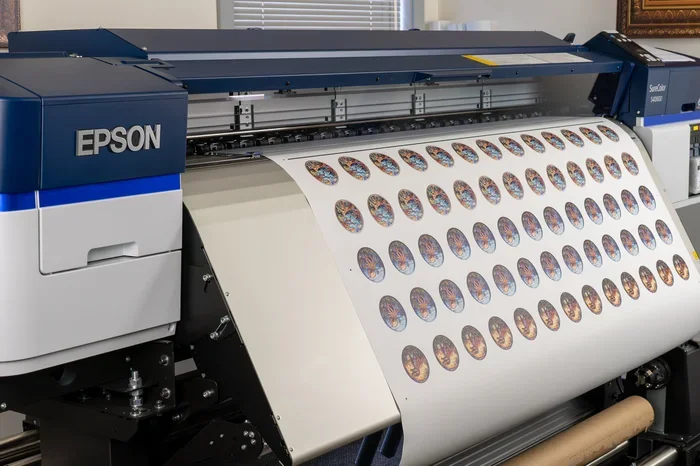
Wide-format inkjet printers are the standard for commercial decal production. These machines handle larger sheets of decal paper and produce consistent, high-quality output at scale. They also support specialized inks that resist fading and weathering.
For small businesses starting out, a high-quality desktop inkjet printer is usually sufficient. You can upgrade to commercial equipment as your demand grows. The important thing is to start with a reliable printer that produces results you’re proud of.
Sublimation Printing as an Alternative
Sublimation printing is another option for producing decals with exceptional color vibrancy and durability. Unlike traditional inkjet printing, sublimation uses heat to transfer dye directly into the material. This creates decals that are incredibly durable and resistant to fading.
However, sublimation requires a specialized sublimation printer and sublimation paper. It also works best on certain materials like polyester and polymer-coated surfaces. If you’re committed to producing high-quality decals at scale, sublimation is worth exploring.
Final Thoughts on Printing Decals at Home
Can any printer print on decal paper? The answer is that most printers can, but not all deliver great results. Your best bet is an inkjet printer with adjustable settings and high-quality ink. Pair it with the right type of decal paper for your project, and you’ll create stunning custom decals right from your home.
Remember that the magic happens in the details. Take the time to select the correct paper type in your printer settings, run test prints, and use quality materials. These small steps add up to decals that look professional and last long.
Whether you’re a hobbyist creating fun stickers or a small business owner producing branded decals, understanding your printer’s capabilities empowers you to achieve professional results without professional equipment. Start experimenting today, and you’ll be amazed at what you can create with a little knowledge and the right approach to decal paper printing.
The world of home printing has come a long way. Modern printers make it easier than ever to produce beautiful, durable decals for any purpose. Don’t let uncertainty stop you. Grab your decal paper, fire up your printer, and start creating.
Frequently Asked Questions
Can I use a laser printer for decal paper?
Some laser printers can work with decal paper, but inkjet printers are generally the better choice. The heat from laser printers can soften the adhesive on decal sheets, causing jams or poor adhesion. If you must use a laser printer, choose a monochrome model and use heat-resistant decal paper for the best results.
What is the best decal paper for inkjet printers?
Glossy and matte inkjet decal papers are the most popular and widely available options. Clear decal paper is also excellent for creating transparent stickers. The best choice depends on your project — glossy for vibrant indoor decals, matte for outdoor or glare-prone applications, and clear for professional-looking product labels.
Do I need a special printer to make custom stickers?
No, you don’t need a special printer. Most standard inkjet printers can produce excellent custom stickers when used with the right decal paper and correct settings. Look for a printer with high resolution (at least 1200 dpi) and good color accuracy for the best sticker quality.
Why do my decals look faded after printing?
Faded decals usually result from incorrect printer settings, low-quality ink, or using the wrong paper profile. Make sure you’ve selected the correct paper type in your printer driver, use fresh ink cartridges, and set your print quality to high or best. Running a test print can help identify the cause quickly.
Can I print decals on both sides of the paper?
Most decal paper is designed for single-sided printing only. The coating on one side is specifically formulated to hold ink, while the other side has the adhesive layer. Printing on the wrong side will result in poor ink adhesion and a messy finish. Always check the manufacturer’s instructions for your specific decal paper.
How long do printed decals last?
The lifespan of your decals depends on the paper type, ink quality, and where they’re used. Indoor decals on glossy or matte paper typically last 1-3 years. Outdoor decals made with waterproof vinyl decal paper and proper lamination can last 3-5 years or more. Applying a UV-resistant laminate significantly extends durability.
=== CONCLUSION ===
Can any printer print on decal paper with great results? Yes — as long as you use the right printer, the right paper, and the right settings. Inkjet printers are your best friend for decal paper printing, offering versatility, vibrant colors, and reliable performance. Take the time to understand your printer’s capabilities, invest in quality decal paper, and always optimize your print settings.
With the knowledge you’ve gained from this guide, you’re ready to create stunning custom decals that look professional and last long. Start with small projects, practice your technique, and gradually take on more ambitious designs. The world of decal printing is wide open, and your creativity is the only limit.