How Do I Reconnect My Google Home To Wi Fi Step By Step
If your Google Home has lost its Wi-Fi connection, you’re not alone. This guide shows you exactly how to reconnect your Google Home to Wi-Fi in just a few minutes, whether you need a quick fix or a full factory reset. We’ll walk you through every step, from checking your router to preventing future drops.
Your Google Home smart speaker suddenly goes silent. The music stops mid-song, and the voice assistant stops answering. The most likely cause? A dropped Wi-Fi connection. This happens to millions of users every month. The good news is that reconnecting your Google Home to Wi-Fi is usually a simple process you can finish in under five minutes.
In this complete guide, we’ll show you how to reconnect your Google Home to Wi-Fi step by step. We’ll cover the quick fix method, what to do when that doesn’t work, and how to prevent future disconnects. Whether you have a Google Nest Mini, a Google Home Max, or any other smart speaker, the steps are similar. Let’s get your device back online.
Key Takeaways
- Quick reconnect works for most cases: Simply restart your Google Home and router to restore the wireless connection.
- Factory reset is your last resort: If the quick method fails, a factory reset clears settings and forces a fresh setup.
- Check your Wi-Fi password and network name: A typo here is the most common reason reconnection fails.
- Placement matters: Moving your Google Home closer to the router can solve frequent disconnects.
- Set a static IP address: This prevents your router from assigning a new address each time, keeping your smart speaker stable.
- Update router firmware: Outdated firmware can cause compatibility issues with your Google Home device.
📑 Table of Contents
Why Does Your Google Home Keep Losing Wi-Fi?
Before you jump into fixes, it helps to understand why your Google Home might be losing its connection. A smart speaker relies on a steady wireless signal. Many things can disrupt that signal. Knowing the cause can save you time.
Common Causes of Wi-Fi Disconnects
- Router reboots or outages: Your internet service provider may restart your router automatically. When it comes back, your Google Home might not reconnect on its own.
- Weak signal strength: If your smart speaker sits far from the router, walls and furniture can block the wireless signal. This leads to frequent dropouts.
- Network congestion: Too many devices streaming video or downloading files can overwhelm your home network. Your Google Home may lose priority.
- Password changes: Did you recently update your Wi-Fi password? The speaker will keep trying the old password and fail to connect.
- Interference from other devices: Microwaves, baby monitors, and even USB 3.0 cables can send out signals that interfere with your 2.4 GHz wireless band.
- Outdated firmware: Your router or Google Home needs regular software updates. Missing updates can cause compatibility problems.
When to Reconnect vs. When to Reset
Not every connection problem requires a full reset. If your Google Home still shows a solid or blinking light, a simple reconnect often works. But if the device is completely unresponsive or stuck on a red light, a factory reset might be necessary. We’ll cover both paths below.
How Do I Reconnect My Google Home To Wi-Fi: The Quick Method
The fastest way to restore your connection is the quick reconnect method. This works when your Google Home just lost its network temporarily. You don’t need to erase any settings. Follow these simple steps.
Step-by-Step Instructions
- Check your Wi-Fi network: First, make sure your router is working. Open a phone or laptop and see if you can browse the internet. If not, restart your router by unplugging it for 30 seconds.
- Unplug your Google Home: Find the power cable at the back of your smart speaker. Pull it out of the wall or power strip. Wait for 10 seconds.
- Plug it back in: Reconnect the power cable. Wait until the light turns on. The speaker will usually try to reconnect automatically.
- Open the Google Home app: On your phone, launch the Google Home app. Make sure you’re connected to the same Wi-Fi network.
- Check the device status: Tap on your Google Home device. Look for a Wi-Fi icon and a status message. If it says “Connected,” you’re all set.
- Test the connection: Say “Hey Google, what’s the weather?” If the speaker answers, your reconnection was successful.
What If the Google Home App Doesn’t Show the Device?
Sometimes the app doesn’t detect your speaker after a power cycle. In that case, try moving your phone closer to the Google Home. Also, make sure your phone’s Bluetooth is on. The app uses Bluetooth to discover devices nearby. If you still see nothing, you may need to remove the device from the app and add it back. This process is simple and we’ll cover it in the next section.
What to Do If the Quick Method Doesn’t Work
When the quick reconnect fails, don’t worry. You have a few more tricks to try. Most connection problems stem from a few common issues. Let’s tackle them one by one.
Power Cycle Your Google Home and Router
A full power cycle refreshes all network connections. This is different from just unplugging the speaker. You’ll restart both your Google Home and your router. This clears temporary glitches in the network memory.
- Unplug your router: Remove the power cable from your wireless router. Wait for 30 seconds.
- Unplug your Google Home: While the router is off, unplug your smart speaker too.
- Plug the router back in first: Wait for the router to fully start up. The lights should become solid.
- Plug the Google Home back in: Now reconnect your speaker’s power.
- Wait for the light pattern: Your Google Home will show a blinking light while searching for the network. Once it connects, the light will turn solid or pulse gently.
The Factory Reset Option
If power cycling doesn’t work, a factory reset is your next step. This erases all your Google Home settings and removes it from your account. You’ll need to set it up again from scratch. But it fixes deep software issues that block reconnection.
How to factory reset your Google Home:
- For most Google Home speakers: Unplug the device. Then, press and hold the microphone mute button and the volume up button at the same time for about 15 seconds. The light ring will flash, indicating a reset.
- For Google Nest devices: The process is similar. Hold the factory reset button (often a small pinhole) with a paperclip for 10 to 15 seconds.
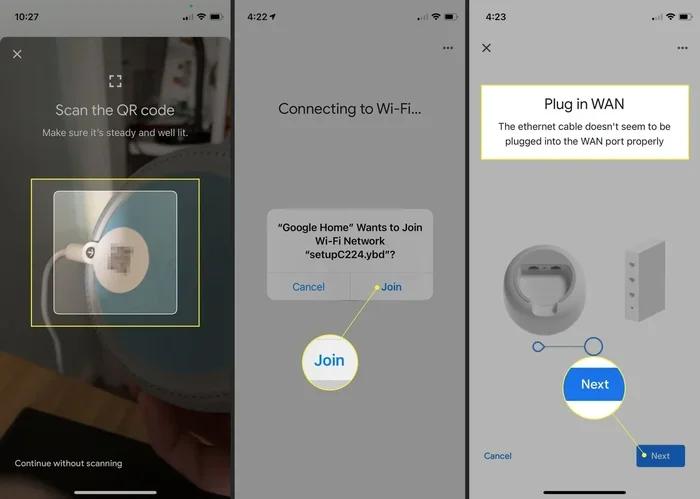
- After the reset: Open the Google Home app. Tap the “+” icon to add a device. Follow the on-screen prompts to connect to your Wi-Fi network. You’ll need your Wi-Fi password here.
Common mistake to avoid: Don’t rush the reset. Holding the buttons for a full 15 seconds is crucial. Letting go too early will not trigger the reset.
Setting Up a Static IP for a Rock-Solid Connection
One advanced trick to prevent future disconnects is assigning a static IP address to your Google Home. Most home networks use DHCP, which gives each device a temporary IP address. Sometimes the router reassigns a new address, and your smart speaker loses track of the network. A static IP locks the address in place.
Why a Static IP Helps
When your Google Home has a fixed IP, it always knows where to find the router. This is especially helpful if you have a busy home network with many devices. It reduces the chances of the speaker dropping off the network during a router reboot.
How to Assign a Static IP via Your Router
- Find your Google Home’s current IP: Open the Google Home app, go to device settings, and look for the IP address under Wi-Fi details.
- Log into your router: Open a web browser and type your router’s IP address (often 192.168.1.1 or 192.168.0.1). Enter your admin username and password.
- Locate the DHCP reservation section: This is sometimes called “Address Reservation” or “Static DHCP.”
- Add a new reservation: Enter your Google Home’s MAC address (found on the device label or in the app). Assign the same IP address you noted earlier.
- Save and reboot: Restart your router. Your Google Home will now always use that same IP address.
Expert tip: If you’re not comfortable with router settings, you can also set a static IP directly on the Google Home device through the Google Home app. However, the router method is more reliable and works even if the speaker loses its settings.
Preventing Future Wi-Fi Drops
Once you’ve successfully reconnected your Google Home to Wi-Fi, you’ll want to keep it connected. A few simple changes can dramatically improve your smart speaker’s stability. These tips apply to all Google Nest and Home devices.
Router Placement Tips
- Central location: Place your router in a central spot in your home. Walls and floors weaken the wireless signal. A central router reaches every room more evenly.
- Elevate the router: Put your router on a shelf or mount it on a wall. Signals travel better downward and outward than through furniture.
- Keep it away from metal objects: Metal cabinets, refrigerators, and mirrors can block wireless signals. Give your router breathing room.
- Avoid corners and closets: Signals get trapped in corners. An open area gives the best coverage.
Update Router Firmware and Channel Settings
Your router’s firmware controls how it communicates with all devices. Manufacturers release updates that fix bugs and improve performance. Log into your router’s admin page once a month to check for updates. Also, consider switching your router to a less crowded wireless channel. If you live in an apartment building, many neighbors might use the same channel, causing interference. Use a free Wi-Fi analyzer app to find the clearest channel.
Reduce Wireless Interference
Your Google Home uses the 2.4 GHz band by default. This band has a longer range but is more prone to interference. If your router supports dual-band, try switching your Google Home to the 5 GHz band. It’s faster and less crowded. Just make sure the speaker is close enough to the router to maintain a strong 5 GHz signal. Also, keep your Google Home away from microwaves and cordless phones, which operate on the same frequency.
Comparing Reconnection Methods
Not all methods work the same for every situation. Here’s a quick comparison to help you choose the right approach.
| Method | Time Required | Data Loss | Best For |
|---|---|---|---|
| Quick Reconnect (Power Cycle Speaker) | 1-2 minutes | None | Temporary signal loss, speaker still responsive |
| Power Cycle Router and Speaker | 3-5 minutes | None | Router reboots, network congestion |
| Remove and Re-add Device in App | 5-10 minutes | Minimal (you’ll redo some settings) | App doesn’t detect speaker, wrong password saved |
| Factory Reset | 10-15 minutes | All settings erased | Speaker unresponsive, stuck on error lights |
| Assign Static IP | 15-20 minutes | None | Frequent random disconnects, busy network |
As you can see, the quick reconnect solves most problems in under two minutes. Reserve factory reset for stubborn issues. The static IP method is a great long-term solution if you’ve struggled with frequent drops.
Conclusion
Losing your Wi-Fi connection doesn’t have to be a frustrating experience. With the steps above, you now know exactly how to reconnect your Google Home to Wi-Fi using simple, proven methods. Start with the quick power cycle. If that doesn’t work, try the full router and speaker power cycle. For deep issues, a factory reset will get your device back on track. And remember, a little prevention goes a long way. Good router placement, firmware updates, and a static IP can keep your smart speaker connected for months. Try these steps today, and enjoy uninterrupted music, reminders, and smart home control again.
Frequently Asked Questions
Why won’t my Google Home connect to Wi-Fi even after a factory reset?
First, double-check that you’re entering the correct Wi-Fi password. A single wrong character will block the connection. Also, make sure your router is broadcasting on the 2.4 GHz band, as most Google Home devices don’t support 5 GHz during initial setup. If the problem persists, try moving the speaker closer to the router to rule out signal weakness.
Can I reconnect my Google Home to a new Wi-Fi network without resetting it?
Yes, you can. Open the Google Home app, select your device, and go to Settings. Tap on Wi-Fi and choose the new network. Enter the new password. The speaker will switch networks without erasing your preferences or routines.
How do I know if my Google Home is connected to Wi-Fi?
Look at the light ring on the speaker. A solid or softly pulsing light usually means it’s connected. You can also open the Google Home app, tap your device, and check the status. If it shows “Connected,” you’re good to go.
What should I do if my Google Home keeps disconnecting throughout the day?
Frequent disconnects often point to a weak signal or router issues. Try moving the speaker closer to the router. Also, check if other devices in your home have the same problem. If they do, the issue is likely your router or internet service, not the Google Home. Consider updating your router’s firmware or switching to a less crowded wireless channel.
Is it safe to leave my Google Home plugged in all the time?
Yes, it’s perfectly safe. Google Home devices are designed for continuous use. Leaving them plugged in ensures they stay connected to your network and ready to respond. Just make sure the power outlet is stable and not prone to frequent surges.
Can interference from other smart home devices cause Wi-Fi drops?
Absolutely. Many smart home devices use the same 2.4 GHz frequency. If you have dozens of Zigbee, Z-Wave, or Bluetooth devices, they can create congestion. Try separating your Google Home from these devices physically, or switch your router to a less crowded channel to reduce interference.