Can USB 2 0 Work With USB 3 0 Port For Fast Data Transfer
Can USB 2.0 Work With USB 3.0 Port? Yes, it absolutely can. A USB 2.0 device will plug into a USB 3.0 port and work just fine. However, the data transfer speed will drop to USB 2.0 levels. This guide covers everything you need to know about backward compatibility, speed differences, and how to get the best results from your USB devices.
Have you ever plugged a USB 2.0 flash drive into a shiny new USB 3.0 port and wondered what happens next? Maybe you found your old external hard drive sitting in a drawer and asked yourself, Can USB 2.0 Work With USB 3.0 Port? The short answer is yes. The longer answer is full of useful details that can save you time, frustration, and even money.
In this guide, we will walk through everything you need to know about using USB 2.0 devices with USB 3.0 ports. We will cover backward compatibility, speed differences, real-world performance, and practical tips to get the most out of your setup. Whether you are transferring photos from a camera or backing up files from an old drive, this article has you covered.
Key Takeaways
- Full Backward Compatibility: USB 2.0 devices work perfectly with USB 3.0 ports without any extra setup.
- Speed Drops to USB 2.0 Levels: When a USB 2.0 device connects to a USB 3.0 port, the transfer rate caps at USB 2.0 speeds.
- No Driver Issues: Most operating systems handle USB 2.0 and USB 3.0 devices with plug and play support.
- Physical Connector Differences Matter: USB Type-A and USB Type-B connectors differ between versions, but adapters can help.
- Cable Quality Affects Performance: A good USB cable can make a real difference in data transfer speed.
- USB 3.0 Is Backward Compatible: USB 3.0 devices also work in USB 2.0 ports, but again at slower speeds.
- Simple Tips Boost Performance: Using the right cable, port, and device placement can improve your experience.
📑 Table of Contents
- Understanding USB 2.0 and USB 3.0 Technology
- Can USB 2.0 Work With USB 3.0 Port? The Short Answer
- How Backward Compatibility Works Between USB Versions
- Speed Differences and Real-World Performance
- Common Devices and Use Cases
- Tips for Getting the Best Performance
- Common Mistakes to Avoid
- Expert Insights on USB Compatibility
- Key Takeaways
- Conclusion
Understanding USB 2.0 and USB 3.0 Technology
Before we dive into compatibility, let us quickly understand what makes USB 2.0 and USB 3.0 different. Both are universal serial bus standards used to connect devices to computers. They share the same basic purpose, but their technology and capabilities are quite different.
What Is USB 2.0?
USB 2.0 came out in the year 2000. It was a big step forward from the original USB 1.1 standard. With USB 2.0, users got a data transfer speed of up to 480 megabits per second, or about 60 megabytes per second. This was fast enough for flash drives, printers, and basic external storage.
USB 2.0 uses a standard USB Type-A connector on the computer side. On the device side, it can use USB Type-A or USB Type-B connectors. The cable has four pins inside, which handle power and data. Most people still have plenty of USB 2.0 cables and devices lying around, and they continue to work perfectly for everyday tasks.
What Is USB 3.0?
USB 3.0 arrived in 2008 and brought a massive upgrade. It introduced SuperSpeed USB technology, which offers transfer rates up to 5 gigabits per second. That is more than ten times faster than USB 2.0. In real terms, you can move a large file in seconds instead of minutes.
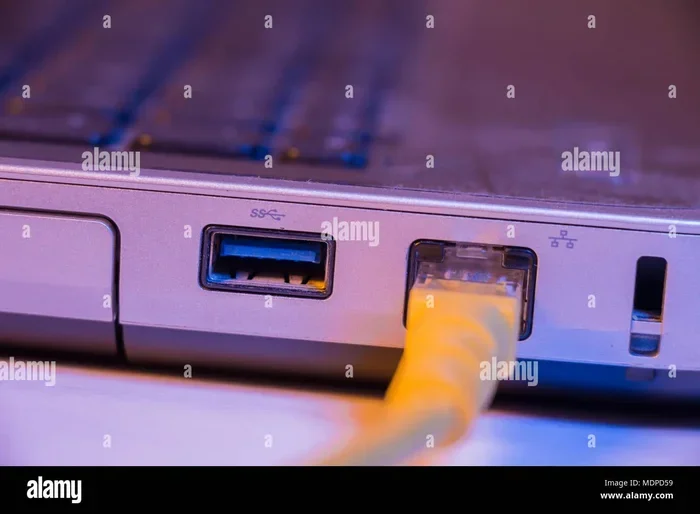
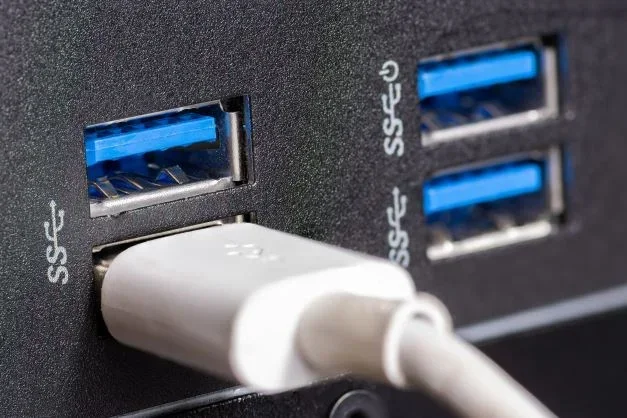
USB 3.0 ports and cables have more pins, typically nine inside the cable. The extra pins handle the increased bandwidth needed for faster data transfer. Physically, USB 3.0 Type-A connectors often have a blue insert inside the port, which helps you tell them apart from USB 2.0 ports.
Key Differences at a Glance
- USB 2.0 Max Speed: 480 Mbps (60 MB/s)
- USB 3.0 Max Speed: 5 Gbps (625 MB/s)
- USB 2.0 Pins: 4 pins inside the cable
- USB 3.0 Pins: 9 pins inside the cable
- USB 2.0 Power Output: Up to 500 milliamps
- USB 3.0 Power Output: Up to 900 milliamps
- USB 2.0 Connector Color: Usually black or white inside the port
- USB 3.0 Connector Color: Usually blue inside the port
Can USB 2.0 Work With USB 3.0 Port? The Short Answer
Yes, Can USB 2.0 Work With USB 3.0 Port is a common question, and the answer is a clear yes. A USB 2.0 device will plug into a USB 3.0 port and function without any problems. This is because of a feature called backward compatibility, which is built into the USB specification.
Backward compatibility means that newer USB standards are designed to work with older devices. So when you plug a USB 2.0 flash drive, a USB 2.0 external hard drive, or any other USB 2.0 device into a USB 3.0 port, the computer recognizes it immediately. The plug and play experience works just as it would with a USB 2.0 port.
However, there is one important catch. The data transfer speed will default to the highest speed supported by the slower device. In this case, that means your USB 2.0 device will run at USB 2.0 speeds, not USB 3.0 speeds. You will not get the faster 5 Gbps transfer rate simply by using a USB 3.0 port.
Why Does Speed Drop Happen?
Think of it like a highway. A USB 3.0 port is like a wide, fast highway with multiple lanes. A USB 2.0 device is like a car that can only go 60 miles per hour. Even if you put that car on the fast highway, it still cannot go faster than its maximum speed. The highway does not make the car faster.
The same logic applies here. The USB 3.0 port can support faster speeds, but the USB 2.0 device itself has a built-in speed limit. The connection negotiates the highest speed both sides support, which in this case is 480 Mbps. This happens automatically and you do not need to do anything to make it work.
How Backward Compatibility Works Between USB Versions
Backward compatibility is one of the strongest features of the USB standard. It was designed from the start so that users would not need to replace all their old devices every time a new USB version came out. Let us look at how this works in practice.
The Role of the USB Controller
Every computer has a USB controller chip that manages all USB connections. When you plug in a device, the controller checks what type of device it is and what speed it supports. Then it adjusts the connection accordingly. If it detects a USB 2.0 device on a USB 3.0 port, it switches the port to USB 2.0 mode.
This process is completely automatic. You do not need to install special USB drivers or change any settings. The operating system, whether it is Windows, macOS, or Linux, handles the negotiation behind the scenes. This is why Can USB 2.0 Work With USB 3.0 Port is such a simple and reliable experience.
Physical Connector Compatibility
The physical connectors also support backward compatibility. A USB 2.0 Type-A plug fits perfectly into a USB 3.0 Type-A port. The shape and size of the connector are the same. The USB 3.0 port simply has more pins inside, but the USB 2.0 plug only uses the original four pins. This means there is no risk of plugging the wrong connector in or damaging your device.
The same goes for USB Type-B connectors. A USB 2.0 Type-B plug will fit into a USB 3.0 Type-B port. Some USB 3.0 Type-B connectors look slightly different because they have extra space for the additional pins, but they still accept USB 2.0 plugs without any issues.
USB 3.0 Devices in USB 2.0 Ports
The reverse is also true. You can plug a USB 3.0 device into a USB 2.0 port, and it will work. The device will simply run at USB 2.0 speeds. This is useful if you have a new USB 3.0 external hard drive but an older computer with only USB 2.0 ports. You can still use the drive, but you will notice slower transfer times for large files.
Speed Differences and Real-World Performance
Now let us talk about what actually happens with speed when you use a USB 2.0 device on a USB 3.0 port. Understanding this helps set realistic expectations.
Theoretical vs. Real-World Speeds
The theoretical maximum speed for USB 2.0 is 480 Mbps. In real life, you rarely see that number. Most USB 2.0 devices transfer data at 25 to 35 MB/s in practice. This is still plenty for small files, documents, and photos.
When a USB 2.0 device connects to a USB 3.0 port, the real-world speed stays the same. You will not see any improvement because the bottleneck is the USB 2.0 device itself, not the port. The port has the capability to go faster, but the device cannot keep up.
What About Large File Transfers?
If you are transferring a 10-gigabyte video file from a USB 2.0 external hard drive to a USB 3.0 port, expect it to take a few minutes. The same transfer from a USB 3.0 external hard drive to the same USB 3.0 port would take just seconds. The difference is dramatic, and it all comes down to the device’s USB specification.
Here is a simple comparison to illustrate the point:
| Device Type | Port Used | Approximate Speed | 10 GB Transfer Time |
|---|---|---|---|
| USB 2.0 Flash Drive | USB 3.0 Port | 30 MB/s | 5 to 6 minutes |
| USB 3.0 Flash Drive | USB 3.0 Port | 200 MB/s | 30 seconds |
| USB 2.0 External HDD | USB 3.0 Port | 30 MB/s | 5 to 6 minutes |
| USB 3.0 External HDD | USB 3.0 Port | 150 MB/s | 1 minute |
| USB 2.0 Flash Drive | USB 2.0 Port | 30 MB/s | 5 to 6 minutes |
| USB 3.0 Flash Drive | USB 2.0 Port | 30 MB/s | 5 to 6 minutes |
As you can see from the table, the port version only matters when both the device and the port support the same high speed. Otherwise, the slower device sets the pace.
Does the USB Cable Matter?
Yes, the cable matters more than many people realize. A poor-quality or damaged USB cable can limit speeds even if both the device and port support USB 3.0. When using a USB 2.0 device, the cable quality has less impact because the speed cap is already at USB 2.0 levels. But if you upgrade to a USB 3.0 device later, a good USB 3.0 cable becomes essential.
Look for cables that are rated for the speed you need. A USB 3.0 cable is usually labeled with SuperSpeed USB branding and has a blue connector inside. A USB 2.0 cable typically has a black or white connector. Using the right cable ensures you get the best possible performance.
Common Devices and Use Cases
Many people have older USB 2.0 devices and wonder whether they should keep using them or upgrade. Let us look at some common scenarios.
USB 2.0 Flash Drives
A USB 2.0 flash drive is still perfectly fine for everyday use. If you just need to move documents, spreadsheets, or a few photos between computers, a USB 2.0 flash drive works great. Plug it into a USB 3.0 port and it will work without any issues. The speed is more than enough for small files.
However, if you regularly transfer large video files or huge backups, you will notice the speed difference. In that case, upgrading to a USB 3.0 flash drive makes a big difference.
USB 2.0 External Hard Drives
External hard drives are one of the most common devices people ask about. An older USB 2.0 external hard drive will work on a USB 3.0 port for basic storage and backup. You can save files to it and retrieve them without any problems.
The main limitation is speed. If you are backing up 100 gigabytes of data, a USB 2.0 connection will take a long time. For quick access and frequent transfers, a USB 3.0 external hard drive is a much better choice.
USB 2.0 Printers and Scanners
Printers and scanners do not need high data transfer speeds. A USB 2.0 printer connected to a USB 3.0 port works perfectly. The print job or scan data is small enough that USB 2.0 speeds are more than sufficient. You do not need to worry about upgrading these devices just for the port speed.
USB Hubs and Adapters
A USB hub can expand your port options. If you have a laptop with only USB 3.0 ports, you can use a USB hub to connect multiple USB 2.0 devices at once. Just make sure the hub supports backward compatibility, which most modern hubs do.
An USB adapter can also help if you need to connect a USB 2.0 device to a newer port type, such as USB-C. These adapters are inexpensive and widely available. They make it easy to keep using your older devices without any hassle.
Tips for Getting the Best Performance
Even though a USB 2.0 device will run at USB 2.0 speeds on a USB 3.0 port, there are still things you can do to improve your overall experience.
Use Quality Cables
Always use a good-quality USB cable that matches your device. Cheap cables can cause connection drops, slow transfers, and even data corruption. A reliable cable from a reputable brand goes a long way in keeping your data safe and transfers smooth.
Keep Your Drivers Updated
While most USB devices use plug and play, keeping your USB driver and operating system updated can help with stability. Manufacturers sometimes release updates that improve how USB ports handle different devices. A quick system update can fix unexpected issues.
Avoid Daisy-Chaining Too Many Devices
If you use a USB hub to connect multiple devices, be careful not to overload it. Too many devices on one hub can reduce the available power and slow down data transfers. If you need to connect several devices, use a powered USB hub that has its own power supply.
Check Your Port Type
It sounds simple, but many people do not check which port they are using. Look for the blue insert inside the port to confirm it is a USB 3.0 port. If you plug a USB 3.0 device into a USB 2.0 port by mistake, you will get USB 2.0 speeds. Knowing your ports helps you make the right connections.
Restart Your Computer if Devices Are Not Recognized
Sometimes a USB device simply does not show up. Before you panic, try restarting your computer. This refreshes the USB controller and often fixes recognition issues. It is a quick and easy first step that solves many problems.
Common Mistakes to Avoid
There are a few mistakes people make when using USB 2.0 devices with USB 3.0 ports. Avoiding these can save you a lot of trouble.
Assuming Faster Speeds Automatically
The biggest mistake is assuming that a USB 3.0 port will automatically make your USB 2.0 device faster. It will not. The device speed is determined by the device itself, not the port. Understanding this helps you set realistic expectations and avoid frustration.
Using Damaged Cables
A frayed or bent USB cable can cause intermittent connections and data errors. Always inspect your cables before use. If a cable looks worn out, replace it. A new cable costs very little and can prevent big headaches.
Ignoring Power Limitations
Some USB 2.0 devices need more power than a single port can provide. If your device is not being recognized or keeps disconnecting, it might be a power issue. Using a powered USB hub can solve this problem easily.
Not Checking for Software Updates
Outdated operating systems or missing driver updates can cause USB devices to behave strangely. Keeping your system up to date ensures smooth plug and play performance with all your USB devices.
Expert Insights on USB Compatibility
Tech experts agree that backward compatibility is one of the best features of the USB standard. It means your investment in older devices does not go to waste when you upgrade your computer or buy a new port. According to the USB Implementers Forum, the organization that oversees USB standards, all USB 3.x ports are required to support USB 2.0 devices.
Experts also recommend checking the USB specification of your device before purchasing a new one. If you need fast transfer speeds, look for USB 3.0 or USB 3.1 devices. If you only need basic connectivity, a USB 2.0 device is still perfectly fine and works with any modern port.
One expert tip is to always keep a few spare USB cables and a small USB hub at home or in your office. These small accessories make it easy to connect any device to any port, no matter the version. They are inexpensive and incredibly useful.
Key Takeaways
- Full Backward Compatibility: USB 2.0 devices work seamlessly with USB 3.0 ports thanks to the USB specification design.
- Speed Is Limited by the Device: When a USB 2.0 device connects to a USB 3.0 port, the transfer rate caps at USB 2.0 levels of up to 480 Mbps.
- No Special Setup Required: The operating system handles everything automatically through plug and play support.
- Physical Connectors Are Compatible: USB Type-A and USB Type-B connectors from USB 2.0 fit into USB 3.0 ports without any issues.
- Cable Quality Matters: A good USB cable ensures stable connections and reliable data transfer.
- USB 3.0 Devices Also Work in USB 2.0 Ports: They run at USB 2.0 speeds, so both directions of backward compatibility work.
- Simple Habits Improve Performance: Using quality cables, updating drivers, and checking port types all contribute to a better experience.
Conclusion
So, Can USB 2.0 Work With USB 3.0 Port? Absolutely yes. The beauty of the USB standard is its backward compatibility, which allows older devices to work with newer ports without any extra effort. You can plug in your USB 2.0 flash drive, external hard drive, or printer into a USB 3.0 port and trust that it will work right away.
The one thing to keep in mind is speed. Your USB 2.0 device will run at USB 2.0 speeds, not the faster USB 3.0 speeds. This is because the device itself has a built-in speed limit that the port cannot override. But for everyday tasks like file transfers, backups, and printing, USB 2.0 speeds are still perfectly usable.
If you need faster data transfer, consider upgrading your USB 2.0 devices to USB 3.0 versions. The difference is noticeable, especially with large files. Until then, you can keep using your existing devices with confidence. They are compatible, reliable, and ready to go whenever you need them.
Take the tips from this guide, use quality cables, keep your system updated, and you will get the most out of every USB connection. The world of USB compatibility is simple once you understand the basics, and now you are equipped to make the most of your devices and ports.
Frequently Asked Questions
Will a USB 2.0 device damage a USB 3.0 port?
No, it will not. USB 2.0 devices are completely safe to use with USB 3.0 ports. The connection is designed to be safe in both directions. The USB specification ensures that older devices work with newer ports without any risk of damage.
How can I tell if my port is USB 3.0?
Look for a blue insert inside the USB port. USB 3.0 ports typically have a blue color inside, while USB 2.0 ports are usually black or white. You can also check your computer or device manual to confirm the port version.
Do I need to install drivers for USB 2.0 devices on USB 3.0 ports?
No, you do not need to install extra drivers. Modern operating systems like Windows, macOS, and Linux support USB 2.0 and USB 3.0 devices through plug and play. The system automatically detects the device and loads the appropriate driver.
Can I use a USB 2.0 cable with a USB 3.0 device?
Yes, you can plug in a USB 3.0 device using a USB 2.0 cable. However, the device will run at USB 2.0 speeds because the cable limits the connection. For full USB 3.0 speeds, always use a USB 3.0 cable.
Is the transfer speed the same when a USB 3.0 device is plugged into a USB 2.0 port?
No, the speed drops to USB 2.0 levels. When a USB 3.0 device connects to a USB 2.0 port, the connection negotiates the highest speed both sides support, which is USB 2.0 speed. You will not get the faster USB 3.0 transfer rate.
What is the best way to transfer large files quickly between USB devices?
Use a USB 3.0 device with a USB 3.0 cable connected to a USB 3.0 port. This setup gives you the fastest possible transfer speeds. Avoid USB hubs when transferring large files, and always use a high-quality cable to ensure the best performance.