Can I Use Old Hp Charger For New Laptop Without Damage
Using an old HP charger for a new laptop is possible in some cases, but it comes with real risks. Compatibility depends on voltage, amperage, connector type, and wattage matching. This guide helps you understand when it’s safe and when it could harm your device.
You just got a shiny new HP laptop, and suddenly you realize your old charger might not fit. Maybe you lost the original one, or maybe you’re trying to save some money. Either way, the question is the same: can I use old HP charger for new laptop?
The short answer is: it depends. Not all HP chargers work with all HP laptops. The connector type, voltage, amperage, and wattage all play a role. Using the wrong charger can lead to poor performance, slow charging, or even permanent damage to your device.
In this guide, we break down everything you need to know about HP charger compatibility. We’ll look at how to check if your old charger works, what risks you face, and how to charge your new laptop safely. Whether you have an HP Pavilion, HP Envy, or HP Spectre, this article covers you.
Key Takeaways
- Match Voltage First: Always ensure the old HP charger matches the voltage requirement of your new laptop.
- Check the Connector: The physical charger tip must fit your laptop’s charging port correctly.
- Wattage Matters: Using a lower-wattage charger can lead to slow charging or battery drain.
- USB-C Changes Everything: Newer HP laptops use USB-C charging, which may not work with older barrel-style chargers.
- OEM vs. Third-Party: Original HP chargers are safer and more reliable than generic alternatives.
- Watch for Warning Signs: Overheating, slow charging, or swelling batteries are red flags you should never ignore.
- When in Doubt, Buy New: Investing in a compatible charger protects your laptop and extends its lifespan.
📑 Table of Contents
Understanding Your HP Charger Basics
Before we dive into compatibility, let’s cover the basics. Every HP laptop charger has three key specs that matter. Understanding these will save you a lot of confusion later.
Voltage: The Pressure Behind the Power
Voltage is measured in volts (V). It’s the electrical pressure that pushes power into your laptop. Every HP laptop model has a specific voltage requirement. For example, one model might need 19.5V, while another needs 20V.
If you use a charger with the wrong voltage, bad things can happen. Too much voltage can fry your internal components. Too little voltage means your laptop won’t charge properly. Always match the voltage exactly when choosing a charger.
Amperage: The Flow of Electricity
Amperage, measured in amps (A), is the rate of electrical flow. Think of it like water through a hose. A higher amp rating means more power can flow. Your laptop will only draw the amperage it needs.
Here’s the good news: you can use a charger with equal or higher amperage. If your laptop needs 3.25A and you have a charger that delivers 4.5A, that’s perfectly fine. The laptop takes what it needs. But never use a charger with lower amperage than required.
Wattage: The Total Power Output
Wattage is simply voltage multiplied by amperage. It tells you the total power the charger can deliver. Most modern HP laptops need between 45W and 135W depending on the model and screen size.
A quick tip: always check your laptop’s power requirements on the bottom label or in the user manual. This gives you the exact numbers you need to find a compatible charger. HP power adapter labels usually list all three values clearly.
Can You Safely Use an Old HP Charger on a New Laptop
This is the big question, and the answer isn’t always straightforward. Whether your old charger works depends on several factors. Let’s walk through them one by one.
Connector Type: The Physical Fit
HP has used different charger connector types over the years. Older HP laptops typically use a barrel connector with a specific pin size. Newer models, especially thin-and-light ones, have switched to USB-C charging.
If your old charger has a barrel tip and your new laptop uses USB-C, they simply won’t connect. You’d need an adapter, and even then, it might not work safely. Always check the physical shape of the charging port on your new laptop first.
HP Laptop Model Compatibility
HP makes dozens of laptop lines. The HP Pavilion series, HP Envy series, HP Omen series, and HP EliteBook series all have different charging needs. A charger that works perfectly with an HP Pavilion might not work with an HP Omen.
Even within the same series, different model years can have different requirements. HP has changed its charging standards multiple times over the past decade. So never assume an old charger works just because it’s the same brand.
USB-C vs. Barrel Connectors
The shift from barrel connectors to USB-C has been a game-changer. USB-C chargers are more universal and convenient. They also support power delivery protocols that allow faster and more efficient charging.
If your new HP laptop supports USB-C charging, you might be able to use a compatible USB-C charger from another device. But an old barrel-style HP charger simply won’t plug into a USB-C port without an adapter. And adapters add another layer of potential problems.
How to Check Charger Compatibility
Don’t guess when it comes to charging your laptop. Follow these simple steps to check if your old charger is compatible with your new HP laptop.
Step 1: Find Your Laptop’s Power Requirements
Flip your laptop over and look for a label. It should list the model number, voltage, and amperage. If the label is worn off, check the user manual or visit HP’s support website. You can also find this information in the BIOS settings.
Write down the voltage and amperage numbers. These are your benchmark for comparison. HP charger compatibility starts with matching these specs exactly.
Step 2: Check Your Old Charger’s Output
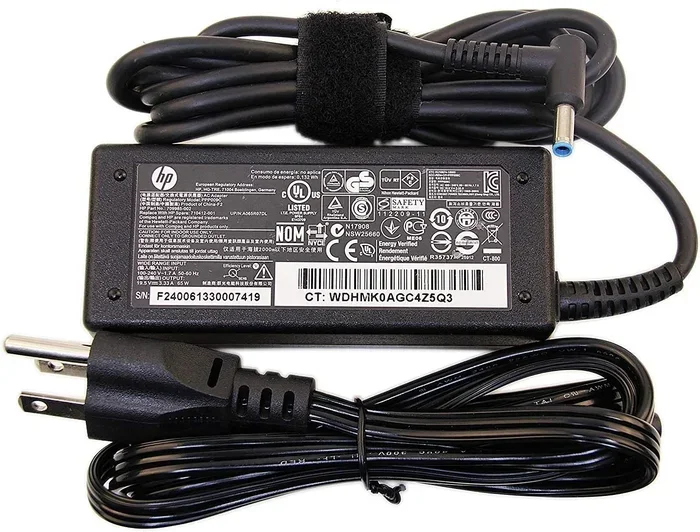
Look at the label on your old HP charger. It should display the output voltage and amperage. Compare these numbers to your laptop’s requirements.
Make sure the voltage matches exactly. The amperage should be equal to or greater than what your laptop needs. If both numbers align, you’re on the right track. If they don’t, stop there and find a different charger.
Step 3: Test the Physical Connection
Even if the numbers match, the connector must fit properly. A loose connection can cause sparking, intermittent charging, or damage to the charging port. Plug the charger in gently and make sure it fits snugly without forcing it.
If the connector doesn’t fit at all, the charger is incompatible. Don’t try to force it or use adapters unless you’re certain they’re rated for your specific setup.
Step 4: Monitor Charging Behavior
Once you plug in the old charger, watch how your laptop responds. Does it start charging immediately? Is the charging icon showing on screen? Does the laptop feel unusually hot?
Normal charging should feel smooth and quiet. If anything seems off, unplug the charger right away. Charger safety should always come first.
Risks of Using an Old HP Charger
Using an incompatible charger is not something to take lightly. There are several real risks that can affect both your laptop and your battery.
Battery Damage and Reduced Lifespan
Your laptop battery is one of its most expensive components. Using the wrong charger can significantly reduce battery health. Over time, you might notice your battery drains faster or doesn’t hold a charge as long.
In worst-case scenarios, the battery can swell or leak. A swollen battery is a serious safety hazard. If you notice your laptop battery looks bulged or deformed, stop using it immediately and replace it.
Overheating Issues
An incompatible charger can cause your laptop to overheat. This happens when the charger delivers too much or too little power. Overheating can damage internal components like the motherboard, hard drive, and RAM.
If your laptop feels hot to the touch while charging, unplug it and check the charger. Using the correct HP power adapter helps prevent overheating and keeps your laptop running cool.
Slow Charging and Power Issues
Even if the old charger doesn’t cause damage, it might not charge your laptop efficiently. A lower-wattage charger will charge slowly or not at all if you’re using the laptop while plugged in.
You might also experience unexpected shutdowns. If your laptop demands more power than the charger can supply, it pulls from the battery instead. This creates a cycle of drain and charge that wears down the battery faster.
Voiding Your Warranty
Here’s something many people don’t think about. Using a non-OEM charger can void your HP laptop warranty. If your laptop gets damaged and HP discovers you were using an incompatible charger, they might refuse to cover repairs.
Always check your warranty terms before using a third-party or old charger. When in doubt, stick with OEM charger options to keep your warranty intact.
When It’s Safe and When It’s Not
Not all situations with an old charger are dangerous. Let’s break down when it’s okay and when you should avoid it entirely.
Safe Scenarios
Using an old HP charger is generally safe when all of these conditions are met. The voltage matches exactly. The amperage is equal to or higher than required. The connector fits snugly. And the wattage is sufficient for your laptop’s needs.
For example, if your old charger is 19.5V and 3.25A (63W) and your new laptop requires 19.5V and 3.25A, you’re in good shape. This is especially common when upgrading within the same HP laptop line.
Unsafe Scenarios
Never use an old charger if the voltage is different. A 12V charger on a 19.5V laptop is a recipe for disaster. Also avoid using chargers with lower amperage than required. And never force a connector that doesn’t fit your charging port.
Another unsafe scenario is using a damaged charger. If the cable is frayed, the tip is bent, or the brick is cracked, replace it. A damaged charger can cause short circuits, power surges, or even fire.
Quick Tips for Safe Charging
- Always use the charger that came with your laptop if possible.
- Keep your charger in a cool, dry place to extend its life.
- Unplug your charger during thunderstorms or power surges.
- Don’t leave your laptop plugged in 24/7; it can reduce battery health.
- Buy replacement chargers from HP or authorized retailers only.
Best Practices for HP Laptop Charging
Whether you’re using an old charger or a brand-new one, following best practices keeps your laptop healthy and safe.
Invest in the Right Charger
If your old charger doesn’t work, invest in a new one. HP sells official chargers on its website and through authorized dealers. Look for the exact model number that matches your laptop.
A quality HP laptop charger might cost between $30 and $90 depending on the wattage. That’s a small price to pay compared to replacing a damaged laptop. Always prioritize quality over cost savings when it comes to power adapters.
Understand Power Delivery Standards
Newer HP laptops support USB Power Delivery (USB-PD). This standard allows compatible USB-C chargers to deliver the right amount of power automatically. If your laptop supports USB-PD, you have more flexibility in choosing chargers.
Just make sure any USB-C charger you buy supports the correct wattage and is certified. Look for chargers that are USB-IF certified for guaranteed safety and performance.
Keep Spare Chargers for Emergencies
Having a spare charger at home or in your office is always a smart move. It saves you from scrambling when your primary charger fails or gets lost.
Label your spare charger with the compatible laptop model. This prevents accidental misuse and ensures you always grab the right one when you need it.
Expert Insights on HP Charger Longevity
HP’s technical support team recommends replacing chargers every three to five years, even if they still work. Over time, internal components degrade and charging efficiency drops. A worn-out charger might not deliver the correct power consistently.
Also, HP engineers advise against using chargers from unknown brands. Third-party charger options vary wildly in quality. Some cheap chargers lack overvoltage protection and other safety features that protect your laptop.
Common Mistakes People Make with Old Chargers
Let’s talk about the mistakes that trip up so many laptop users. Avoiding these pitfalls keeps your device safe and your battery healthy.
Assuming All HP Chargers Are the Same
This is the biggest mistake. Just because it says “HP” on the box doesn’t mean it works with every HP laptop. Different models need different chargers. Always check compatibility before plugging anything in.
Ignoring the Connector Size
The barrel connector on HP chargers isn’t one-size-fits-all. Some HP laptops use a 4.5mm inner diameter, while others use 5.5mm or 7.4mm. Using the wrong size can damage your charging port or fail to deliver power.
Chasing the Cheapest Option
A $10 charger from an unknown seller might seem like a great deal. But it could lack proper safety certifications and deliver unstable power. The risk isn’t worth the savings. Always choose reliable, certified chargers.
Neglecting Warning Signs
If your laptop makes a buzzing sound when plugged in, smells like burning, or the battery drains faster than usual, something is wrong. Don’t ignore these signs. Unplug the charger and have it checked before using it again.
Conclusion
So, can I use old HP charger for new laptop? The answer is: it depends on compatibility. If the voltage, amperage, connector type, and wattage all match, you can use it safely. But if any of those specs are off, you risk damaging your laptop and voiding your warranty.
The safest approach is always to use the charger that came with your laptop or buy an official HP charger designed for your specific model. Taking a few extra minutes to check compatibility saves you from costly repairs and frustration down the road.
Your new HP laptop is a significant investment. Treat it right by using the correct charger. When you’re in doubt, reach out to HP support or visit an authorized service center. They can help you find the perfect charger for your device and give you peace of mind.
Stay safe, charge smart, and enjoy your new laptop for years to come.
Frequently Asked Questions
What happens if I use the wrong HP charger for my laptop?
Using the wrong charger can cause overheating, slow charging, battery damage, or even permanent hardware failure. Always match the voltage exactly and ensure the amperage is equal to or higher than your laptop’s requirement. If you’re unsure, contact HP support before plugging in an unfamiliar charger.
Can I use a USB-C charger instead of my old HP barrel charger?
Only if your new HP laptop supports USB-C charging. Check your laptop’s specifications to confirm. If it does, you can use a compatible USB-C charger that meets the correct wattage and supports USB Power Delivery. However, older HP laptops with barrel connectors cannot use USB-C chargers without an adapter, and adapters can introduce compatibility issues.
How do I find the right charger for my HP laptop?
Check the label on the bottom of your laptop for voltage and amperage requirements. You can also visit HP’s official support website and enter your laptop model number. This will show you the exact charger specs and compatible models. Always buy from HP or authorized retailers to ensure quality and safety.
Is it safe to use a third-party charger with my HP laptop?
It can be safe if the third-party charger meets all of HP’s specifications for your laptop model. Look for chargers that are USB-IF certified and include overvoltage protection. However, OEM chargers from HP remain the safest option. Cheap, uncertified chargers may lack proper safety features and could damage your laptop.
Why is my old HP charger not working with my new laptop?
The most common reasons are a mismatched connector type, different voltage requirements, or insufficient wattage. Newer HP laptops often use USB-C ports, while older chargers use barrel connectors. Additionally, HP has changed power requirements across laptop models over the years. Always verify compatibility before using an old charger.
How can I tell if my HP charger is compatible before buying?
Compare the charger’s output voltage and amperage with your laptop’s listed requirements. The voltage must match exactly. The amperage should be equal to or higher than what your laptop needs. Also confirm the connector type and size match your laptop’s charging port. When all three specs align, the charger is compatible.