Can Type C Be Converted To Hdmi Without Extra Gear
Yes, you can convert Type C to HDMI without extra gear in some cases. USB-C Alt Mode and direct cables make it possible on many modern laptops, phones, and tablets. However, not all devices support this, so knowing your hardware matters. This guide walks you through every option, including direct cables, adapters, and common mistakes to avoid.
You have a laptop or phone with a USB-C port. You want to connect it to your TV or monitor using HDMI. But you do not want to buy extra adapters or dongles. So the big question is, can Type C be converted to HDMI without extra gear? The short answer is yes, but only under certain conditions. Let us break this down completely so you do not waste money or time on the wrong solution.
USB-C has become the standard charging and data port on most modern devices. Smartphones, tablets, and laptops all use it now. And many of these devices can send video signals too. But the way they send that signal varies from device to device. Some support HDMI Alt Mode directly. Others need a USB-C docking station or a dedicated adapter. This guide will show you exactly what works, what does not, and how to avoid common pitfalls.
Whether you want to mirror your screen for a presentation, game on a big TV, or extend your workspace with an external monitor, understanding USB-C to HDMI options is essential. Let us dive in and explore every angle of this topic.
Key Takeaways
- Direct Conversion Exists: Some USB-C devices support HDMI Alt Mode, allowing a direct cable connection without any extra gear.
- Adapters Are Still Common: Most setups require a USB-C to HDMI adapter or dock to get video output to an HDMI display.
- Check Your Device First: Not every USB-C port supports video output. Look for HDMI Alt Mode or Thunderbolt 3/4 support before buying anything.
- Cable Quality Matters: Cheap cables can cause signal loss, flickering, or failure to support 4K resolution on your HDMI display.
- 4K and Beyond Is Possible: With the right USB-C to HDMI adapter or cable, you can output 4K and even 8K video to compatible monitors and TVs.
- Avoid Common Mistakes: Using the wrong cable, ignoring device compatibility, or skipping firmware updates can ruin your setup experience.
- Future-Proof Your Setup: USB-C HDMI 2.1 adapters and Thunderbolt docks offer the best future-proofing for high-resolution displays.
📑 Table of Contents
What Is USB-C HDMI Alt Mode?
USB-C HDMI Alt Mode is a built-in feature that lets a USB-C port send video directly to an HDMI display. It does not need a separate adapter in some cases. The port itself handles the video signal conversion internally. This is the key technology that makes direct Type C to HDMI connections possible.
How Does HDMI Alt Mode Work?
When your device supports HDMI Alt Mode, the USB-C controller can output a video signal through the port. A special USB-C to HDMI cable or adapter then carries that signal to your display. The cable or adapter does not do the heavy lifting. Your device does. This is different from a standard USB-C port that only handles data and power.
Not all USB-C ports are created equal. Some only handle charging and data transfer. Others include video output capabilities. You need to check your device specifications to find out if your port supports this feature. Look for terms like “DisplayPort Alt Mode” or “HDMI Alt Mode” in your device manual or spec sheet.
Which Devices Support HDMI Alt Mode?
Many modern devices support this feature. Here are some common examples:
- Apple MacBook Pro: Most models from 2016 onward with USB-C ports support video output.
- Samsung Galaxy Phones: Many flagship phones from the S series support USB-C to HDMI output.
- Dell XPS Laptops: Several models include USB-C ports with video output capability.
- Google Pixel Devices: Some Pixel phones and Chromebooks support HDMI Alt Mode.
- Lenovo ThinkPad Models: Many business laptops include USB-C ports with video output.
Always double-check your specific model. A quick search of your device name plus “USB-C video output” will tell you if it works. Do not guess. Guessing leads to frustration and wasted purchases.
Can You Use a Direct USB-C to HDMI Cable?
This is where things get interesting. A direct USB-C to HDMI cable looks like a regular cable. One end plugs into your USB-C device. The other end is a standard HDMI connector. You plug it straight into your TV or monitor. No dongle. No adapter block. No extra power source. Just a clean, simple cable.
When Does a Direct Cable Work?
A direct USB-C to HDMI cable works when your device supports HDMI Alt Mode. In that case, the cable handles the signal conversion at the hardware level. The device sends the video data through the USB-C port, and the cable converts it to HDMI format on the fly.
Here are situations where a direct cable works well:
- You have a laptop with USB-C HDMI Alt Mode support.
- You want a clean, minimal setup with no extra hardware.
- You need a quick connection for a presentation or movie night.
- You travel frequently and want to reduce the gear you carry.
When Does a Direct Cable Fail?
Direct cables do not work for every USB-C device. If your port only supports data and charging, a direct cable will not output video. You will get no signal on your HDMI display. This is the most common mistake people make. They assume all USB-C ports can send video. They cannot.
Also, some direct cables only support certain resolutions. A cheap cable might only handle 1080p. If you need 4K or higher, you must check the cable specifications carefully. Look for cables rated for 4K at 60Hz or better for the best results.
Do You Need an Adapter or Dock?
For many setups, a USB-C to HDMI adapter or dock is the way to go. These devices bridge the gap between your USB-C port and an HDMI display. They work with devices that do not support HDMI Alt Mode directly.
Types of USB-C to HDMI Adapters
Not all adapters are the same. Here is a quick breakdown of the main types:
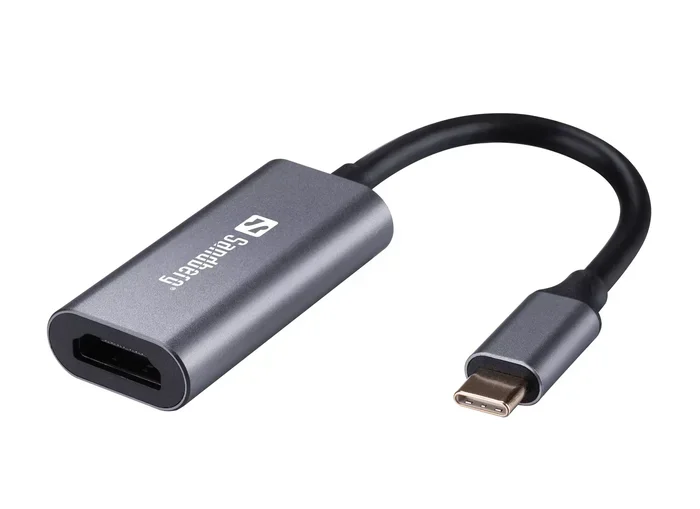
- Simple USB-C to HDMI Adapters: Small dongles that plug into your USB-C port and provide an HDMI output. These are affordable and portable.
- USB-C Docking Stations: Larger hubs that offer HDMI output plus USB ports, Ethernet, and SD card readers. Great for office setups.
- Thunderbolt 3/4 Docks: Premium docks with faster data transfer and more display support. Ideal for professionals who need multiple monitors.
- USB-C HDMI Hubs: Compact hubs that add HDMI and USB-A ports in a small form factor.
Which Adapter Should You Choose?
Your choice depends on what you need. For simple home use, a basic USB-C to HDMI adapter works great. For office work with multiple devices, a docking station is better. If you use a Thunderbolt laptop, invest in a Thunderbolt-compatible dock for the best performance.
Here are some quick tips for choosing the right adapter:
- Check that the adapter supports your target resolution (1080p, 4K, or 8K).
- Look for adapters with good build quality and reliable brand names.
- Make sure the adapter is compatible with your specific device.
- Read user reviews before buying to avoid compatibility headaches.
Comparing Direct Cables vs Adapters
Not sure whether to go with a direct cable or an adapter? This comparison table breaks down the key differences.
| Feature | Direct USB-C to HDMI Cable | USB-C to HDMI Adapter |
|---|---|---|
| Extra Gear Needed | No | Yes |
| Device Compatibility | Requires HDMI Alt Mode | Works with most USB-C devices |
| Portability | Very portable | Slightly bulkier |
| Price Range | Low to moderate | Low to high |
| Resolution Support | Varies by cable | Varies by adapter model |
| Setup Simplicity | Plug and play | Plug and play |
| Additional Ports | No | Depends on model |
As you can see, both options have their place. Direct cables win for simplicity and portability. Adapters win for compatibility and versatility. Your choice should match your specific needs and device capabilities.
Common Mistakes When Converting Type C to HDMI
Many people run into problems when trying to connect USB-C to HDMI. Most of these problems come from avoidable mistakes. Here are the most common ones and how to fix them.
Mistake 1: Assuming All USB-C Ports Support Video
This is the biggest mistake. Not every USB-C port can output video. Some ports are power-only or data-only. Always verify your device specifications before buying a cable or adapter. A five-minute check can save you hours of frustration.
Mistake 2: Buying Cheap, Unverified Cables
Ultra-cheap cables often fail to support high resolutions or stable connections. They might cause flickering, signal drops, or no signal at all. Stick with reputable brands and read reviews before purchasing. A quality USB-C to HDMI adapter or cable is worth the investment.
Mistake 3: Ignoring Firmware and Driver Updates
Sometimes the problem is not your cable or adapter. It is outdated firmware or drivers. Keep your device updated. Manufacturers often release updates that improve USB-C video output compatibility and performance.
Mistake 4: Using the Wrong Resolution Settings
Your device might support 4K output, but your cable or adapter might only handle 1080p. Check the specifications of every component in your setup. Mismatched capabilities lead to disappointing results.
Expert Tips for the Best USB-C HDMI Experience
Here are some insider tips from tech experts to help you get the best results from your USB-C to HDMI setup.
Tip 1: Use High-Speed Cables for 4K and Beyond
If you want 4K resolution at 60Hz or higher, you need a high-speed cable. Look for cables certified as USB-C 3.1 or Thunderbolt compatible. Standard cables may not handle the bandwidth needed for smooth 4K video.
Tip 2: Keep Your Setup Simple When Possible
The fewer components you have, the fewer things can go wrong. If your device supports direct USB-C to HDMI output, use a direct cable. It is simpler, more reliable, and easier to carry around.
Tip 3: Test Before You Commit
Before buying a long-term solution, test with a basic adapter or cable first. This helps you confirm that your device can output video at all. Many electronics stores let you test adapters in-store. Take advantage of this.
Tip 4: Consider a USB-C Hub for Versatility
A USB-C hub gives you HDMI output plus extra USB ports and charging passthrough. It is a great all-in-one solution for anyone who regularly connects to external displays. A good USB-C HDMI hub replaces multiple adapters and cables.
Tip 5: Check Your TV or Monitor Input Settings
Sometimes the problem is on the display side. Make sure your TV or monitor is set to the correct HDMI input. Also check that the HDMI port on your display is not an older version that limits resolution or refresh rate.
Key Takeaways
- Direct Conversion Exists: Some USB-C devices support HDMI Alt Mode, allowing a direct cable connection without any extra gear.
- Adapters Are Still Common: Most setups require a USB-C to HDMI adapter or dock to get video output to an HDMI display.
- Check Your Device First: Not every USB-C port supports video output. Look for HDMI Alt Mode or Thunderbolt 3/4 support before buying anything.
- Cable Quality Matters: Cheap cables can cause signal loss, flickering, or failure to support 4K resolution on your HDMI display.
- 4K and Beyond Is Possible: With the right USB-C to HDMI adapter or cable, you can output 4K and even 8K video to compatible monitors and TVs.
- Avoid Common Mistakes: Using the wrong cable, ignoring device compatibility, or skipping firmware updates can ruin your setup experience.
- Future-Proof Your Setup: USB-C HDMI 2.1 adapters and Thunderbolt docks offer the best future-proofing for high-resolution displays.
Conclusion
So, can Type C be converted to HDMI without extra gear? The answer is yes, but with important caveats. If your device supports HDMI Alt Mode, a direct USB-C to HDMI cable works beautifully. You skip the adapter, the dongle, and the clutter. It is clean, simple, and effective.
For everyone else, a USB-C to HDMI adapter or dock is your best friend. These tools open up the world of external displays to almost any device with a USB-C port. The key is knowing what your device can do and choosing the right gear accordingly.
Avoid the common mistakes we covered. Check your device specs. Buy quality cables and adapters. Keep your firmware updated. Follow these steps and you will enjoy a smooth, reliable USB-C to HDMI connection every time.
The world of USB-C video output is evolving fast. New standards like HDMI 2.1 and USB4 bring even better performance and higher resolutions. Stay informed, stay flexible, and your setup will keep up with the latest technology. Start with what works today, and plan for what comes next.
Can Type C Be Converted To Hdmi Without Extra Gear on All Devices?
No, not all devices support direct conversion. Your USB-C port must include HDMI Alt Mode or Thunderbolt support for a direct cable to work. Check your device specifications to confirm compatibility before attempting a direct connection.
What Is the Difference Between HDMI Alt Mode and a Standard USB-C Port?
HDMI Alt Mode is a specific feature built into certain USB-C controllers that allows them to output video signals directly. A standard USB-C port may only support data transfer and charging, with no video output capability at all.
Do I Need a Special Cable for 4K Output Over USB-C to HDMI?
Yes, for reliable 4K output, you need a high-speed USB-C to HDMI cable rated for 4K at 60Hz or higher. Standard cables may only support 1080p or cause signal issues at higher resolutions.
Can I Connect Multiple Monitors Using a Single USB-C Port?
This depends on your device and dock. Some Thunderbolt 3 and 4 docks support multiple monitors from a single USB-C port. Check the dock specifications to confirm how many displays it can drive simultaneously.
Are USB-C to HDMI Adapters Expensive?
Not necessarily. Basic USB-C to HDMI adapters are quite affordable and widely available. Premium Thunderbolt docks cost more, but simple adapters are budget-friendly and work well for most everyday needs.
Will a USB-C to HDMI Adapter Work with My Gaming Console or Streaming Device?
Some USB-C to HDMI adapters work with devices like the Nintendo Switch or streaming sticks that have USB-C output. However, always check compatibility before buying, as some adapters may not support the specific video output protocol used by your device.
Frequently Asked Questions
What is Can Type C Be Converted To Hdmi?
Can Type C Be Converted To Hdmi is an important topic with many practical applications.