Can I Use USB 30 In A USB 32 Port And What Happens
Yes, you can use USB 3.0 in a USB 3.2 port. The connection works because USB 3.2 is fully backward compatible with older USB standards. Your USB 3.0 device will function perfectly, but it will operate at USB 3.0 speeds instead of the faster USB 3.2 speeds.
Have you ever looked at your USB port and wondered, “Can I use USB 3.0 in a USB 3.2 port?” It is a really common question. The short answer is yes. You can absolutely plug a USB 3.0 device into a USB 3.2 port and it will work. But what happens next is what most people want to know. Will your device run at full speed? Will it charge properly? Is there any risk of damage? These are all fair questions, and I will walk you through every single one of them in this guide.
USB technology has changed a lot over the years. The naming conventions alone can make anyone confused. USB 3.0 came out first. Then USB 3.1 showed up. Then USB 3.2 arrived with even more confusing labels. Add in different connector types like Type-A and Type-C, and things get messy fast. But here is the good news. The USB standard was designed with backward compatibility in mind. That means newer ports work with older devices. Your USB 3.0 gear is safe to use in a USB 3.2 port. Let me explain exactly what happens, why it happens, and how you can get the best results.
Key Takeaways
- Full Backward Compatibility: USB 3.0 devices work perfectly in USB 3.2 ports without any issues or special setup.
- Speed Drops To The Lower Standard: Your USB 3.0 device will run at USB 3.0 speeds, not the faster USB 3.2 speeds.
- No Extra Adapters Needed For Matching Connectors: Plug and play works seamlessly when connector types match.
- Power Delivery Works Normally: Charging and power supply function correctly regardless of the port version.
- Cable Quality Matters: Using a high-quality USB cable ensures the best possible data transfer experience.
- Physical Connector Types Vary: USB 3.0 and USB 3.2 can use different shapes like Type-A and Type-C, requiring adapters in some cases.
- Driver Updates Help: Keeping your system drivers updated ensures smooth USB 3.0 and USB 3.2 compatibility.
📑 Table of Contents
Understanding USB 3.0 And USB 3.2
The Basics Of USB Standards
Before we dive into the compatibility question, let us quickly cover what USB 3.0 and USB 3.2 actually are. USB stands for Universal Serial Bus. It is the standard connection used to link devices to computers and other electronics. Over the years, USB standards have evolved to offer faster data transfer speeds and better power delivery.
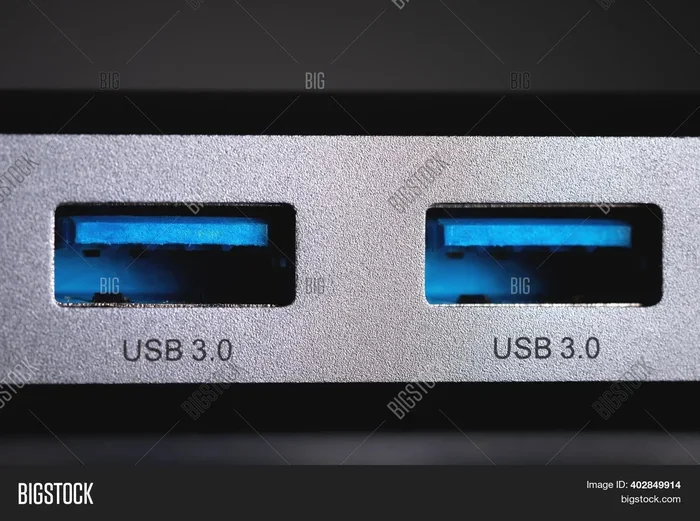
USB 3.0 was introduced back in 2008. It brought a big upgrade over USB 2.0. The main improvement was speed. USB 3.0 can transfer data at up to 5 gigabits per second. That is ten times faster than USB 2.0. It also introduced the SuperSpeed USB branding. You might see a blue insert inside a USB 3.0 port or connector. That blue color is a visual indicator of the USB 3.0 standard.
USB 3.2 came along later. It actually builds on the USB 3.1 foundation. USB 3.2 Gen 1 is essentially the same as USB 3.0, running at 5 Gbps. USB 3.2 Gen 2 doubles that to 10 Gbps. And USB 3.2 Gen 2×2 pushes the limit even further to 20 Gbps. So when you see “USB 3.2,” it can mean different speeds depending on the generation.
Why The Naming Got So Confusing
The USB naming situation is genuinely confusing. Even tech experts get tripped up by it. USB 3.0 became USB 3.1 Gen 1. Then USB 3.1 became USB 3.2 Gen 1. The numbers shifted around, and the marketing names changed too. SuperSpeed USB, SuperSpeed USB 10 Gbps, and SuperSpeed USB 20 Gbps are all part of this naming mess.
The USB Implementers Forum, which is the group that manages USB standards, changed the naming to simplify things in theory. But in practice, it made things harder for regular users. The key takeaway is this. USB 3.2 is backward compatible with USB 3.0 and USB 3.1. Your older USB 3.0 devices will work in USB 3.2 ports. The connection is fully supported.
Can I Use USB 3.0 In A USB 3.2 Port
The Short Answer
Yes, you can use USB 3.0 in a USB 3.2 port. The physical and electronic design of USB ports ensures backward compatibility. When you plug a USB 3.0 device into a USB 3.2 port, the two will communicate and establish a connection. Your device will be recognized by your computer or host device.
Think of it like plugging an older HDMI cable into a newer TV. The TV has more advanced features, but it still accepts the older cable. USB works the same way. The USB 3.2 port is designed to support all previous USB versions. This includes USB 3.0, USB 2.0, and even USB 1.1 in some cases.
How Backward Compatibility Works
Backward compatibility is built into the USB protocol. When a USB 3.0 device connects to a USB 3.2 port, the two devices negotiate the connection speed. They agree on the fastest speed that both devices support. Since USB 3.0 tops out at 5 Gbps, the connection will default to 5 Gbps even though the USB 3.2 port can handle more.
This negotiation happens automatically. You do not need to do anything special. The USB port and your device handle it behind the scenes. Your operating system also plays a role. Windows, macOS, and Linux all include drivers that support USB 3.0 and USB 3.2. So the plug-and-play experience should be seamless.
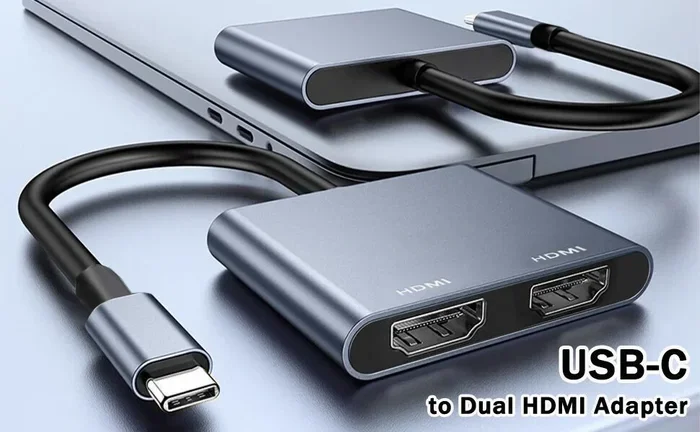
One thing to keep in mind. The connector type matters too. USB 3.0 typically uses a Type-A connector. USB 3.2 often uses Type-C connectors, though it can also use Type-A. If your USB 3.0 device has a Type-A plug and your USB 3.2 port is Type-C, you will need a simple adapter. The adapter does not affect the data transfer speed or compatibility. It just bridges the physical connection gap.
What Happens When You Plug USB 3.0 Into USB 3.2
Speed And Performance
When you connect a USB 3.0 device to a USB 3.2 port, the speed will be limited to USB 3.0 levels. Your device will not magically run at USB 3.2 speeds. The connection will operate at 5 Gbps, which is the maximum speed of USB 3.0.
For most everyday tasks, this speed is more than enough. Transferring photos, backing up documents, and moving small files will feel instant. But if you are working with very large files like 4K video or massive game libraries, you might notice the difference. A USB 3.2 Gen 2 port can move data at 10 Gbps, which is twice as fast as USB 3.0.
Here is a quick example. Let us say you have a USB 3.0 external hard drive. You plug it into a USB 3.2 Gen 2 port on your laptop. The hard drive will work perfectly. But the transfer speed will cap at USB 3.0 speeds. The USB 3.2 port cannot make your USB 3.0 device faster than it was designed to be.
Power Delivery And Charging
Will your USB 3.0 device charge properly when plugged into a USB 3.2 port? Yes, it will. Power delivery works independently of the data transfer standard. USB 3.0 ports provide up to 900 milliamps of power. USB 3.2 ports can provide the same or more, depending on the specific port and device.
If your USB 3.0 device needs charging, it will charge normally. The USB 3.2 port will supply power just like any other port would. There is no risk of undercharging or overcharging. The devices negotiate the power requirements automatically.
One small tip. If you are charging a device and also transferring data, the speed of data transfer might affect charging time slightly. But this is true for any USB connection, not just USB 3.0 in a USB 3.2 port. The difference is usually negligible for most users.
Will Your Device Work At All
In the vast majority of cases, yes. Your USB 3.0 device will work perfectly in a USB 3.2 port. The USB standard is designed to be universal. Devices from different generations are meant to work together.
There are some rare exceptions. Very old USB 3.0 devices with outdated firmware might have issues with newer ports. But this is uncommon. Most modern USB 3.0 devices from reputable brands will work without any problems. If you do run into an issue, updating the device drivers usually fixes it.
Speed Differences You Need To Know
USB 3.0 Speeds Explained
USB 3.0, also known as USB 3.1 Gen 1 or USB 3.2 Gen 1, offers a maximum data transfer rate of 5 Gbps. That translates to about 625 megabytes per second in real-world use. This speed is great for most peripherals. External hard drives, USB flash drives, and card readers all work well at this speed.
For comparison, USB 2.0 maxes out at 480 Mbps. That is roughly 60 megabytes per second. So USB 3.0 is a massive improvement over USB 2.0. If you have been using USB 2.0 devices, upgrading to USB 3.0 feels like night and day.
USB 3.2 Speeds Explained
USB 3.2 comes in three flavors. USB 3.2 Gen 1 runs at 5 Gbps, which is the same as USB 3.0. USB 3.2 Gen 2 runs at 10 Gbps. And USB 3.2 Gen 2×2 runs at 20 Gbps. The higher speeds are only achievable with compatible devices and cables.
To get the full benefit of USB 3.2 Gen 2 or Gen 2×2, you need three things. A USB 3.2 host port, a USB 3.2 device, and a cable that supports the higher speed. If any one of these is missing, the connection will fall back to the highest supported speed.
This is why plugging a USB 3.0 device into a USB 3.2 port does not give you faster speeds. The USB 3.0 device cannot go beyond 5 Gbps. The USB 3.2 port is capable of more, but it has to respect the limits of the connected device.
Real-World Speed Comparison
Let us look at a practical comparison. If you transfer a 10-gigabyte video file using a USB 3.0 connection, it might take about 16 seconds at peak speed. The same transfer on a USB 3.2 Gen 2 connection could take about 8 seconds. On USB 3.2 Gen 2×2, it could be even faster.
But remember, those are peak theoretical speeds. Real-world speeds are usually lower. File size, file type, the number of small files versus one large file, and the quality of the storage medium all affect actual transfer times. Do not expect to hit the maximum advertised speeds every time.
Common Devices And Their Compatibility
USB Flash Drives
USB flash drives are one of the most common USB 3.0 devices. You can use a USB 3.0 flash drive in a USB 3.2 port without any worries. The flash drive will work at USB 3.0 speeds. For everyday use like storing documents or carrying files between computers, the speed difference is barely noticeable.
If you have a USB 3.2 flash drive and plug it into a USB 3.0 port, the same rule applies. The connection will run at USB 3.0 speeds. The fastest component in the chain determines the overall speed.
External Hard Drives
External hard drives are another popular USB device. Many external hard drives are USB 3.0 compatible. They work great in USB 3.2 ports. The drive will be recognized immediately and function normally.
If you want to take advantage of faster USB 3.2 speeds, you need a USB 3.2 compatible external drive. These drives are becoming more common, especially solid-state drives or SSDs. SSDs benefit more from higher USB speeds because they can read and write data faster than traditional hard drives.
USB Hubs And Adapters
USB hubs are useful for expanding your port options. You can plug a USB hub into a USB 3.2 port and then connect USB 3.0 devices to the hub. The hub handles the communication between the devices and the port.
Make sure your USB hub supports the speed you need. A USB 3.0 hub will limit USB 3.2 devices to USB 3.0 speeds. Conversely, a USB 3.2 hub will allow USB 3.0 devices to run at USB 3.0 speeds. The hub does not upgrade the speed of older devices. It just provides additional ports.
Adapters are another common accessory. If your USB 3.0 device has a Type-A connector and your computer only has USB 3.2 Type-C ports, a Type-A to Type-C adapter solves the problem. The adapter is passive, meaning it does not convert or change the signal. It simply adapts the physical shape of the connector.
Tips For Getting The Best Performance
Use The Right Cable
The cable you use matters more than most people realize. A cheap or damaged USB cable can limit your speeds dramatically. Even if you have a USB 3.0 device in a USB 3.2 port, a poor-quality cable can bottleneck the connection.
Look for cables that are certified by the USB Implementers Forum. These cables meet strict quality standards. They are labeled with the USB logo and often list the supported data speed. Avoid ultra-cheap cables from unknown brands. They might not support the full bandwidth of the USB standard.
For USB 3.0 devices, make sure your cable supports 5 Gbps. For USB 3.2 Gen 2 devices, you need a cable rated for 10 Gbps. Using the wrong cable is one of the most common reasons people do not get the speeds they expect.
Check Your Port Type
Not all USB 3.2 ports are the same. Some computers have USB 3.2 Gen 1 ports, while others have USB 3.2 Gen 2 or Gen 2×2 ports. Check your device specifications to know what you are working with.
You can usually find this information in the product manual or on the manufacturer website. Look for the port description. It should tell you the USB version and generation. If you are unsure, check the port itself. USB 3.0 and USB 3.2 Gen 1 ports often have a blue insert inside the connector.
Update Your Drivers And Firmware
Keeping your drivers up to date is an easy way to ensure smooth USB performance. Operating systems regularly release updates that improve USB compatibility and fix bugs. Make sure your system is running the latest version.
Some USB devices also have firmware updates available. Check the manufacturer website for your specific device. A firmware update can improve compatibility with newer USB 3.2 ports and fix known issues. It is a simple step that many people overlook.
Avoid USB Extension Cables When Possible
USB extension cables can degrade the signal over distance. The longer the cable, the more signal loss you experience. If you need to extend the reach of your USB device, keep the cable as short as possible.
Active extension cables are a better option. They have built-in amplification to boost the signal. These cables can extend the reach without sacrificing speed. They cost a bit more, but they are worth it if you need a longer cable run.
Key Takeaways
- USB 3.0 devices work in USB 3.2 ports: Full backward compatibility means your older gear connects without any problems.
- Speed is limited to the lower standard: A USB 3.0 device in a USB 3.2 port will run at USB 3.0 speeds, not USB 3.2 speeds.
- No adapters are needed for matching connectors: If both the device and port use the same connector type, just plug and play.
- Power delivery works normally: Your USB 3.0 device will charge and receive power just fine from a USB 3.2 port.
- Cable quality affects performance: Always use high-quality, certified USB cables for the best results.
- Check your port generation: Not all USB 3.2 ports offer the same speeds, so verify your port specifications.
- Keep drivers updated: Updated drivers ensure the best compatibility between USB 3.0 devices and USB 3.2 ports.
Conclusion
So, can I use USB 3.0 in a USB 3.2 port? Absolutely yes. The USB standard was built with backward compatibility at its core. Your USB 3.0 devices will work perfectly fine in USB 3.2 ports. You do not need any special adapters or software. Just plug in and go.
The main thing to remember is that your device will run at USB 3.0 speeds. The USB 3.2 port cannot make your older device faster than it was designed to be. But for most users, USB 3.0 speeds are more than sufficient. Transferring files, charging devices, and connecting peripherals all work seamlessly.
If you want to take full advantage of USB 3.2 speeds, you will need to upgrade your devices and cables to USB 3.2 compatible hardware. But until then, rest easy knowing that your existing USB 3.0 gear works just fine. The USB ecosystem is designed to be inclusive and forward-compatible. Your investment in USB 3.0 devices is not wasted. They will continue to work with newer ports and technologies for years to come.
Keep your cables in good condition, update your drivers when needed, and enjoy the simplicity of USB connectivity. The future of USB is bright, and backward compatibility ensures that your current devices remain useful no matter what new technology comes next.
Frequently Asked Questions
Will plugging a USB 3.0 device into a USB 3.2 port damage anything?
No, it will not cause any damage. USB ports are designed to be backward compatible and safe. The connection is fully protected by the USB standard. Your USB 3.0 device and USB 3.2 port will negotiate the connection automatically without any risk to either device.
Can I get faster speeds by using a USB 3.0 device in a USB 3.2 port?
No, the speed will be limited to USB 3.0 levels. The maximum speed is determined by the slower device in the connection. A USB 3.0 device caps out at 5 Gbps, regardless of whether it is plugged into a USB 3.2 port or a USB 3.0 port.
Do I need a special cable to use USB 3.0 in a USB 3.2 port?
No special cable is needed. Any USB 3.0 compatible cable will work fine. Just make sure the cable is in good condition and supports the USB 3.0 data standard. If the connector types do not match, a simple adapter will bridge the gap.
What is the difference between USB 3.0 and USB 3.2 Gen 1?
There is no real difference in speed. USB 3.0 and USB 3.2 Gen 1 both operate at 5 Gbps. The name changed as part of the USB naming convention updates. They are the same standard with different labels.
Can I use a USB 3.0 hub with a USB 3.2 port?
Yes, you can. The USB 3.0 hub will work in a USB 3.2 port. Devices connected to the hub will operate at USB 3.0 speeds. The hub acts as a bridge between your devices and the port. It does not upgrade the speed of connected USB 3.0 devices.
How do I know if my port is USB 3.2 or USB 3.0?
Check the port markings on your device or computer. USB 3.0 ports often have a blue insert inside the connector. USB 3.2 ports may have a “SS” or “SuperSpeed” logo. You can also check your device specifications on the manufacturer website for the exact port details.