Can I Use Thunderbolt 4 As USB C Here Is What Happens
Yes, you can use Thunderbolt 4 as USB C because Thunderbolt 4 uses the same USB Type C connector. Thunderbolt 4 is fully backward compatible with USB C devices, so your cables, chargers, and peripherals will work seamlessly. However, you unlock much faster speeds and advanced features when both devices support Thunderbolt 4.
You just got a new laptop or dock with a Thunderbolt 4 port. Maybe you already have a bunch of USB C cables and gadgets lying around. The first question that pops into your head is simple: can I use Thunderbolt 4 as USB C? The short answer is yes. But the full story is much more interesting, and it could save you money, time, and a lot of frustration.
Thunderbolt 4 and USB C share the same physical connector. That small, oval-shaped plug fits into both types of ports. But what happens when you connect them? Do you get the same performance? Are there any hidden catches? Let us break it all down in plain language so you never have to guess again.
In this guide, we will walk through everything you need to know. We cover speeds, compatibility, power delivery, and real-world scenarios. By the end, you will understand exactly what happens when you plug a Thunderbolt 4 cable into a USB C port, or vice versa. No jargon. No fluff. Just clear, practical information you can use today.
Key Takeaways
- Thunderbolt 4 uses the USB C connector: The physical shape is identical, so plugs fit into USB C ports without any issues.
- Full backward compatibility: Thunderbolt 4 works with USB C devices, USB 3.2 devices, and older USB standards.
- Much faster speeds: Thunderbolt 4 offers up to 40 Gbps, while standard USB C tops out at 10 or 20 Gbps depending on the protocol.
- You get more features: Thunderbolt 4 supports dual 4K displays, power delivery up to 100W, and PCIe tunneling for faster storage.
- Not all USB C ports are Thunderbolt: Look for the lightning bolt icon to confirm Thunderbolt support on your device.
- Your existing USB C gear still works: You do not need to replace cables or accessories when switching to Thunderbolt 4.
- Future-proof your setup: Thunderbolt 4 is the current gold standard for connectivity and will work with USB4 devices too.
📑 Table of Contents
What Is Thunderbolt 4
Thunderbolt 4 is Intel’s latest connectivity standard. It builds on the foundation laid by Thunderbolt 3. Both use the USB Type C connector. But Thunderbolt 4 brings stricter requirements and better performance guarantees. It was introduced in 2020 and has quickly become the go-to standard for high-end laptops, docks, and professional gear.
The USB C Connection
Here is the key thing to understand. Thunderbolt 4 uses the exact same physical connector as USB C. The plug shape is identical. The port shape is identical. This means any Thunderbolt 4 cable can physically plug into any USB C port. And any USB C cable can plug into a Thunderbolt 4 port. The connector does not care what protocol is running inside. It just makes the physical connection.
This shared design is what makes the whole ecosystem so flexible. You do not need a different cable for every device. One Thunderbolt 4 cable can handle charging, data transfer, and video output. It is a true do-everything connector.
Thunderbolt 4 vs USB C: What Is the Difference
People often confuse Thunderbolt 4 with USB C. But they are not the same thing. USB C is just a connector shape. Thunderbolt 4 is a protocol that runs through that connector. Think of USB C as the road and Thunderbolt 4 as a superhighway built on top of that road.
Here is a quick comparison:
- USB C: A connector type. It can carry USB 3.2, USB4, or Thunderbolt protocols.
- Thunderbolt 4: A protocol that uses the USB C connector. It guarantees 40 Gbps speeds and specific feature sets.
- Thunderbolt 3: The predecessor. Also uses USB C and offers 40 Gbps, but with fewer mandatory features.
The distinction matters because not every USB C port supports Thunderbolt. Your phone charger likely has a USB C port that only supports basic USB 2.0 or USB 3.2. A Thunderbolt 4 port does much more.
Can I Use Thunderbolt 4 As USB C
This is the big question, and the answer is a resounding yes. Thunderbolt 4 is fully backward compatible with USB C devices. When you plug a Thunderbolt 4 cable into a standard USB C port, the connection works. Your devices will communicate using whatever protocol the USB C port supports.
What Happens When You Plug Thunderbolt 4 Into a USB C Port
When you connect a Thunderbolt 4 device to a standard USB C port, several things happen automatically. The devices negotiate the best protocol they both support. If the USB C port supports USB 3.2, the connection will run at USB 3.2 speeds. If the port only supports USB 2.0, the connection drops to USB 2.0 speeds.
The Thunderbolt 4 cable does not force a Thunderbolt connection where one is not supported. It simply adapts to the capabilities of the port. This is what backward compatibility really means in practice.
What Happens When You Plug USB C Into a Thunderbolt 4 Port
The reverse is also true. You can plug a standard USB C cable into a Thunderbolt 4 port. The port will recognize the USB C device and communicate at the appropriate speed. Your USB C flash drive will work. Your USB C phone charger will work. Your USB C keyboard will work. Everything functions normally.
However, you will not get Thunderbolt 4 speeds or features from a standard USB C cable or device. The Thunderbolt 4 port simply treats it as a regular USB C connection. No harm done. Everything still works as expected.
Speed Differences You Should Know
The biggest difference between Thunderbolt 4 and standard USB C is speed. Here is a simple breakdown:
- USB 2.0 over USB C: Up to 480 Mbps
- USB 3.2 Gen 1 over USB C: Up to 5 Gbps
- USB 3.2 Gen 2 over USB C: Up to 10 Gbps
- USB3 Gen 2×2 over USB C: Up to 20 Gbps
- Thunderbolt 4 over USB C: Up to 40 Gbps
As you can see, Thunderbolt 4 is four times faster than the fastest standard USB C protocol. If you are transferring large video files or connecting external GPUs, that speed difference is huge.
Compatibility and Real-World Use
Compatibility is where most people get confused. The good news is that Thunderbolt 4 plays nicely with almost everything. Let us look at the real-world scenarios you will encounter.
Docking Stations and Hubs
Thunderbolt 4 docking stations are incredibly popular. They let you connect one cable to your laptop and suddenly have multiple monitors, fast data transfer, and charging all at once. The great news is that these docks work with any device that has a USB C port, not just Thunderbolt 4 laptops.
However, if your laptop does not have a Thunderbolt 4 port, you will not get the full 40 Gbps speed. You will get whatever speed your laptop’s USB C port supports. The dock still works. It just operates at a lower speed.
External Storage Drives
If you use an external SSD or hard drive with a Thunderbolt 4 connection, you will see blazing fast transfer speeds. But here is the thing. You can also use those same drives with a standard USB C port. They just will not be as fast. For most everyday tasks, even USB 3.2 speeds are plenty.
Thunderbolt 4 really shines when you are working with massive video files or running professional workflows. For casual file transfers, standard USB C is more than adequate.
Monitors and Display Output
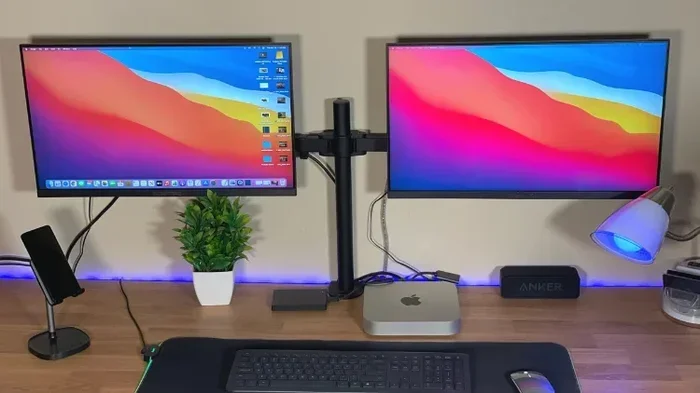
Thunderbolt 4 guarantees support for dual 4K displays or a single 8K display. Standard USB C ports may or may not support video output, depending on the device. This is one area where Thunderbolt 4 clearly outperforms basic USB C.
If you need to connect multiple monitors to your laptop, a Thunderbolt 4 dock is the way to go. It gives you reliable display support that you cannot always count on with standard USB C.
Charging and Power Delivery
Both Thunderbolt 4 and USB C support USB Power Delivery. This means both can charge your laptop at up to 100 watts. The charging speed is essentially the same whether you use a Thunderbolt 4 cable or a standard USB C cable.
Power delivery works through the USB Power Delivery protocol. It is independent of the data protocol. So even if your connection is running at USB 2.0 speeds, it can still deliver full 100W charging. That is the beauty of the USB C ecosystem.
How to Tell If Your Port Supports Thunderbolt 4
Not sure if your device has a Thunderbolt 4 port? You are not alone. Many people assume their USB C port supports Thunderbolt, but that is not always the case. Here is how to check.
Look for the Lightning Bolt Icon
The easiest way to identify a Thunderbolt port is the small lightning bolt symbol next to or above the port. If you see that icon, your port supports Thunderbolt. If you do not see it, the port is likely a standard USB C port.
Check Your Device Specifications
You can also check your device’s manual or the manufacturer’s website. Look for terms like Thunderbolt 4, Thunderbolt 3, or USB4. If the specs mention Thunderbolt, you are good to go.
Use System Information Tools
On Windows, you can check Device Manager for Thunderbolt controllers. On Mac, you can use System Information to see the Thunderbolt details. These built-in tools give you definitive answers about what your ports support.
Common Mistakes People Make
Even though Thunderbolt 4 and USB C work together beautifully, people still make mistakes. Here are the most common ones to avoid.
Assuming All USB C Cables Are Thunderbolt Cables
Not all USB C cables support Thunderbolt speeds. A basic USB C cable might only handle 480 Mbps or 10 Gbps. If you need Thunderbolt 4 speeds, make sure your cable is certified Thunderbolt 4. Look for the Thunderbolt logo on the cable itself.
Expecting Thunderbolt Speeds From Any USB C Port
Plugging a Thunderbolt 4 device into a standard USB C port does not give you Thunderbolt speeds. The connection runs at whatever speed the USB C port supports. Always check your port capabilities before expecting top performance.
Buying Expensive Thunderbolt Gear You Do Not Need
If you only need basic charging and file transfers, a standard USB C setup is perfectly fine. You do not need to spend extra on Thunderbolt 4 equipment unless you specifically need the extra speed and features.
Ignoring Cable Length Limitations
Thunderbolt 4 cables have active and passive versions. Passive cables work up to about 2 meters at full speed. Beyond that, you may need an active cable or a Thunderbolt repeater. This is not an issue with basic USB C cables, which can be longer without signal loss.
Expert Insights
Industry experts consistently emphasize that Thunderbolt 4 and USB C are designed to work together. The USB Implementers Forum (USB-IF) and Intel worked together to ensure seamless compatibility. This was a deliberate design choice to make the USB C ecosystem more universal.
Tech reviewers often note that the best approach is to invest in Thunderbolt 4 cables and devices if you plan to build a long-term setup. Thunderbolt 4 cables work with everything, both now and in the future. They are backward compatible with older USB standards and forward compatible with USB4.
Professional creatives and IT managers recommend Thunderbolt 4 for anyone who regularly connects multiple high-resolution displays, fast storage, or docking stations. The reliability and guaranteed performance make it worth the investment for power users.
Quick Tips for Getting the Most Out of Thunderbolt 4
- Always check for the lightning bolt icon on your ports and cables to confirm Thunderbolt support.
- Use certified Thunderbolt 4 cables when you need maximum speeds and reliability.
- Label your cables so you know which ones support Thunderbolt and which are standard USB C.
- Update your device firmware regularly to ensure the best Thunderbolt compatibility.
- Buy Thunderbolt 4 docks and hubs from reputable brands to avoid compatibility issues.
- Remember that Thunderbolt 4 cables work as standard USB C cables too, so you never waste money on dead-end gear.
Frequently Asked Questions
Can I Use Thunderbolt 4 As USB C For Charging My Laptop
Yes, absolutely. Thunderbolt 4 supports USB Power Delivery up to 100 watts. You can charge your laptop using a Thunderbolt 4 cable and port just like you would with a standard USB C charger. The charging speed is the same. Thunderbolt 4 handles power delivery independently from data transfer, so your laptop charges normally regardless of the protocol in use.
Do I Need Special Cables To Use Thunderbolt 4 With USB C Devices
No, you do not need special cables for basic functionality. Any USB C cable will work when connecting Thunderbolt 4 devices to USB C ports. However, if you want to take advantage of Thunderbolt 4 speeds, you should use a Thunderbolt 4 certified cable. Standard USB C cables may limit your speeds to USB 3.2 or lower depending on the cable quality.
Is Thunderbolt 4 Faster Than USB C
Yes, Thunderbolt 4 is significantly faster than standard USB C. Thunderbolt 4 offers up to 40 Gbps data transfer speeds. Standard USB C connections typically run at 5 Gbps (USB 3.2 Gen 1) or 10 Gbps (USB 3.2 Gen 2). Some newer USB3 Gen 2×2 implementations reach 20 Gbps. Thunderbolt 4 doubles the fastest standard USB C speed.
Can I Connect a Thunderbolt 4 Monitor to a USB C Port
It depends on what the USB C port supports. If the port supports DisplayPort over USB C or Thunderbolt, your monitor will work. If the port is a basic USB C port that only supports data and charging, it will not output video. Always check your device specifications to confirm video output support before connecting a monitor.
What Happens If I Plug a Thunderbolt 4 Device Into A USB 2.0 Port
The device will work, but at USB 2.0 speeds. USB 2.0 has a maximum speed of 480 Mbps, which is extremely slow compared to Thunderbolt 4. You can still transfer files and use the device, but you will notice significant delays with large files. This is why it is important to know what your ports actually support.
Are Thunderbolt 4 And USB4 The Same Thing
They are closely related but not identical. Both use the USB C connector and share the same underlying technology. Thunderbolt 4 has stricter certification requirements than USB4. Every Thunderbolt 4 device is guaranteed to support specific features like dual 4K displays and 40 Gbps speeds. USB4 devices may vary in their feature support depending on the manufacturer.
Final Thoughts
So, can I use Thunderbolt 4 as USB C? The answer is a clear and definitive yes. Thunderbolt 4 uses the same USB Type C connector, and it is fully backward compatible with all USB C devices. You can mix and match Thunderbolt 4 cables, ports, and accessories with standard USB C gear without any issues.
The real magic happens when both ends of the connection support Thunderbolt 4. That is when you unlock the full 40 Gbps speeds, dual display support, and the best power delivery the USB C ecosystem has to offer. But even when you mix Thunderbolt 4 with standard USB C, everything still works. You just get the speeds that the slower device supports.
The takeaway is simple: Thunderbolt 4 is the best of both worlds. It gives you the versatility of USB C and the performance of a premium connectivity standard. Whether you are charging your laptop, transferring files, or connecting multiple monitors, Thunderbolt 4 has you covered. Invest in Thunderbolt 4 gear when you can, but never worry that it will not work with your existing USB C devices. It always will.
Now that you know exactly what happens when you use Thunderbolt 4 as USB C, you can make smarter buying decisions. You can set up your workspace with confidence. And you can stop wondering whether your cables and ports are compatible. The future of connectivity is here, and it fits in your pocket.