Can Hdmi Be Used For Multiple Monitors At The Same Time
Yes, HDMI can be used for multiple monitors at the same time, but it depends on your hardware and setup. You can use an HDMI splitter, an HDMI switch, or a docking station to extend or mirror your screen across two or more displays. This guide covers everything you need to know about setting up dual monitors with HDMI the right way.
Key Takeaways
- HDMI supports multiple monitors through splitters, switches, and adapters depending on your needs.
- An HDMI splitter mirrors the same content on all screens, while a switch lets you toggle between sources.
- Extended desktop mode requires a graphics card with multiple video outputs or a USB-C to HDMI adapter.
- HDMI 2.0 and higher offer better bandwidth for high-resolution multi-monitor setups.
- Common mistakes include using cheap splitters, ignoring bandwidth limits, and mismatching resolutions.
- A docking station is often the simplest and most reliable solution for laptop users.
📑 Table of Contents
- How HDMI Works With Multiple Monitors
- Using An HDMI Splitter For Dual Monitors
- HDMI Switches: The Better Alternative For Multiple Screens
- Can You Use HDMI On A Laptop For Two Monitors
- Common Problems And How To Fix Them
- Expert Tips For A Smooth Multi-Monitor Setup
- Comparing HDMI Splitters vs Switches vs Docking Stations
- Final Thoughts On Using HDMI For Multiple Monitors
How HDMI Works With Multiple Monitors
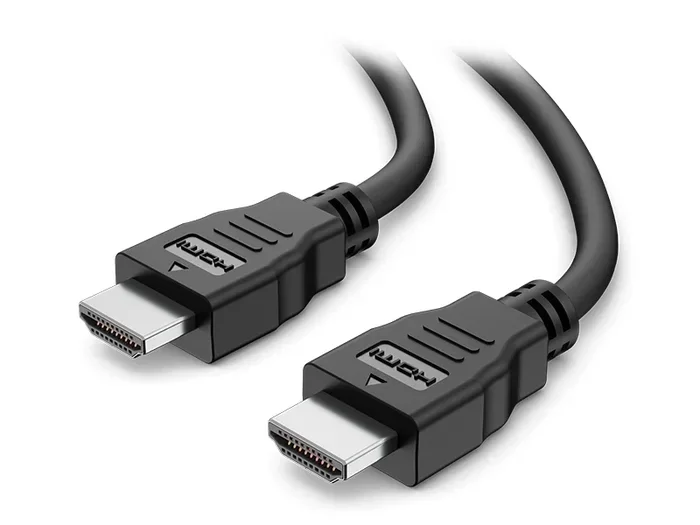
HDMI is one of the most popular connections for computers, TVs, and monitors. It carries both video and audio through a single cable. But can HDMI handle multiple screens at once? The short answer is yes, but the method matters a lot.
When you plug one HDMI cable into your PC, it sends a single signal. To reach two monitors, you need extra hardware or multiple ports. Understanding how this works helps you avoid frustration. It also saves you money on gear you do not need.
Your graphics card plays the biggest role here. Most modern GPUs come with two or more HDMI ports. Some have a mix of HDMI, DisplayPort, and USB-C. Each port can drive its own display. So if your card has two HDMI outputs, you can connect two monitors directly. No extra gadgets needed.
Understanding HDMI Ports and Bandwidth
Not all HDMI ports are the same. HDMI 1.4, HDMI 2.0, and HDMI 2.1 each offer different levels of bandwidth. Bandwidth determines how much data the cable can carry at once. Higher bandwidth means higher resolution and refresh rates.
For a basic dual monitor setup, HDMI 2.0 is usually enough. It supports up to 4K at 60Hz on a single display. But when you split that signal or run two 4K screens, things get tighter. You need to check your hardware specs carefully. A quick look at your GPU or motherboard manual tells you what your HDMI ports can handle.
Here is a simple way to think about it. One HDMI 2.0 port can push about 18 gigabits per second. That is plenty for one 4K monitor. But two 4K monitors need double that. This is where things like HDMI splitters and switches come into play.
Using An HDMI Splitter For Dual Monitors
An HDMI splitter takes one signal and copies it to two or more screens. This is the easiest way to use HDMI for multiple monitors. You plug your PC into the splitter, then run two HDMI cables to your monitors. Both screens show the same image.
This is called screen mirroring. It works great for presentations, gaming on a big TV, or sharing content with a group. But it does not give you an extended desktop. Both monitors show the exact same thing. If you want different content on each screen, a splitter alone will not work.
When A Splitter Makes Sense
HDMI splitters shine in specific situations. Here are a few times they are the right choice.
- Presentations at work or school. You mirror your laptop screen onto a projector or big TV while your laptop screen stays the same.
- Gaming on a TV and monitor simultaneously. Some gamers want to play on one screen and watch chat on another with the same content.
- Digital signage setups. Stores and offices use splitters to show the same ad or announcement on multiple screens.
- Budget-friendly setups. Splitters are cheap. You can find a basic 1-to-2 HDMI splitter for under twenty dollars.
Keep in mind that cheap splitters can cause problems. Some lower-quality splitters drop the signal or reduce the resolution. Look for a splitter that supports the resolution and refresh rate you need. A splitter labeled “4K 60Hz” is a safe bet for most users.
HDMI Switches: The Better Alternative For Multiple Screens
An HDMI switch works differently from a splitter. Instead of copying one signal to many screens, it lets you choose which source goes to one display. You connect two or more devices to the switch, then press a button or use a remote to pick the source.
So why would you use an HDMI switch for multiple monitors? It is not about running two screens from one output. It is about connecting multiple devices to a single monitor. For example, you might have a desktop PC, a laptop, and a game console. A switch lets you toggle between them on one monitor without unplugging cables.
How To Choose The Right HDMI Switch
Not all HDMI switches are created equal. Here are the key features to look for.
- Number of inputs. Most switches offer 2, 3, or 5 inputs. Pick one that fits your devices.
- Resolution support. Make sure the switch supports 4K if you need it. Some older switches only go up to 1080p.
- HDCP compliance. HDCP is a copy protection standard. If you watch Netflix or play protected Blu-rays, you need a switch that supports HDCP 2.2 or higher.
- Remote control. A remote makes switching between devices much easier than pressing a button on the box itself.
- Pass-through power. Some switches pass the HDMI cable power through. This means your devices stay charged while connected.
An HDMI switch is not the same as an HDMI splitter. Make sure you buy the right one for your goal. If you want the same image on two screens, get a splitter. If you want to switch between devices on one screen, get a switch. Mixing them up is a common mistake.
Can You Use HDMI On A Laptop For Two Monitors
Many laptop users wonder if they can connect two external monitors using HDMI. The answer depends on your laptop’s graphics hardware. Most laptops have only one HDMI output. So you cannot plug two monitors directly into the laptop using HDMI alone.
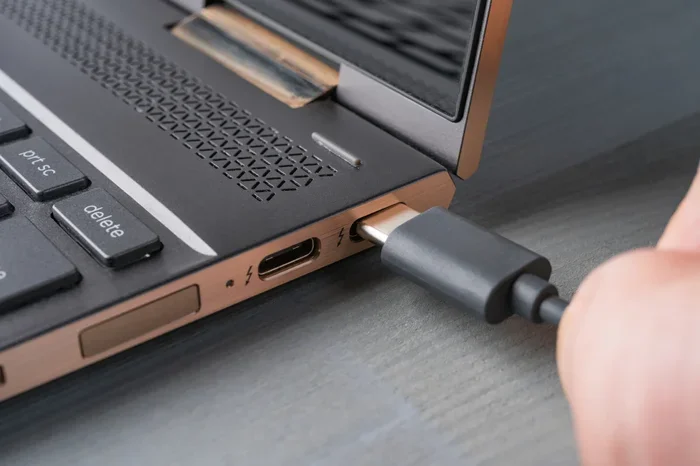
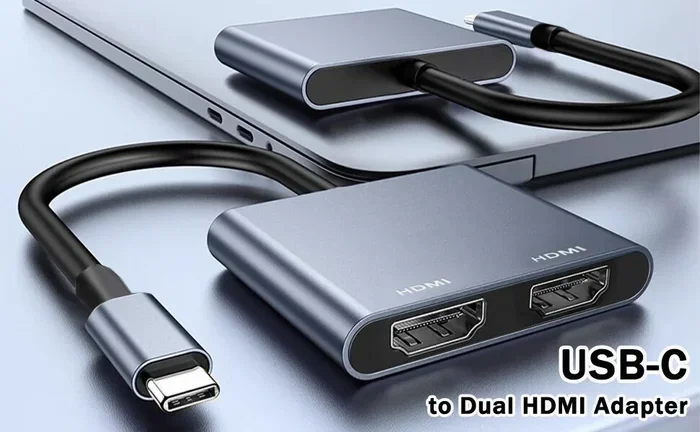
But there are workarounds. You can use a USB-C to HDMI adapter if your laptop has a USB-C or Thunderbolt port. This gives you a second HDMI output. Some laptops also have a DisplayPort or mini-DisplayPort. You can use an adapter to turn that into HDMI as well.
Checking Your Laptop’s Capabilities
Before buying any adapter or dock, check what your laptop can handle. Here is a quick checklist.
- Count your video outputs. Look at the sides of your laptop. How many HDMI, USB-C, or DisplayPort connections do you see?
- Check your graphics card. Go to your device manager or system settings and find your GPU model. Search its specs online to see how many displays it supports.
- Check your operating system settings. Windows and macOS both support extended desktop mode. Go to display settings and see how many displays the system detects.
- Look for a docking station option. Many laptop docks connect through a single USB-C cable and provide multiple video outputs. This is often the simplest path.
Using a docking station is one of the best ways to connect two monitors to a laptop. A good dock gives you HDMI outputs, USB ports, and power delivery all in one device. You plug in one cable and your dual monitor setup is ready. It is clean, simple, and reliable.
Common Problems And How To Fix Them
Setting up multiple monitors with HDMI is not always smooth. You might run into a few issues along the way. The good news is most of these problems have simple fixes.
Resolution And Refresh Rate Issues
One of the most common problems is mismatched resolutions. When two monitors have different native resolutions, the desktop can look stretched or blurry on one screen. To fix this, go to your display settings and set each monitor to its native resolution. This makes text and images look sharp on both screens.
Refresh rate issues are also common. If one monitor runs at 60Hz and the other at 144Hz, you might notice a difference in smoothness. In Windows, go to Display Settings, click on each monitor, and set the refresh rate manually. Make sure your HDMI cable supports the refresh rate you want. Older HDMI cables may not handle 144Hz at higher resolutions.
No Signal Or Flickering Screens
A “no signal” error on one monitor can be annoying. This usually happens when the cable is loose or the port is not detecting the display. Try unplugging the HDMI cable and plugging it back in firmly. If that does not work, try a different cable. Faulty cables are a surprisingly common cause of display problems.
Flickering screens often point to a bandwidth issue. If you are running two 4K monitors through a single HDMI splitter, the signal might not have enough bandwidth. Lower the resolution or refresh rate on one or both monitors. This reduces the data load and often fixes the flickering.
Audio Not Working On One Monitor
HDMI carries audio and video together. But sometimes audio only comes from one monitor. This happens when Windows defaults to the wrong audio output device. To fix this, right-click the speaker icon in your taskbar, select “Open Sound Settings,” and choose the correct playback device. You can also set different audio outputs for different apps if needed.
Expert Tips For A Smooth Multi-Monitor Setup
Getting two or more monitors working over HDMI is one thing. Making the setup feel seamless is another. Here are some expert tips that make a big difference.
First, use high-quality HDMI cables. Cheap cables might work for basic tasks, but they can cause signal drops at higher resolutions. Look for cables rated for HDMI 2.0 or higher if you want 4K support. A good cable costs around ten to fifteen dollars and lasts for years.
Second, keep cable lengths reasonable. HDMI signals can degrade over long distances. If you need to run a cable more than fifteen feet, consider an active HDMI cable or a signal booster. These devices strengthen the signal and prevent image quality loss.
Third, arrange your monitors in your display settings to match their physical placement. In Windows, go to Display Settings and drag the monitor icons to match how they sit on your desk. This makes moving your mouse between screens feel natural. If the icons are mismatched, your cursor will jump in unexpected directions.
Fourth, use a consistent refresh rate when possible. Running both monitors at the same refresh rate reduces eye strain and makes the experience feel more uniform. If one monitor supports 144Hz and the other only 60Hz, set both to 60Hz for a smoother overall experience.
Finally, keep your graphics drivers updated. GPU manufacturers release driver updates that improve multi-display support and fix bugs. A quick update can solve many multi-monitor headaches. Check your GPU manufacturer’s website or use their software to stay current.
Comparing HDMI Splitters vs Switches vs Docking Stations
Choosing the right hardware can feel confusing. Here is a quick comparison to help you decide.
| Feature | HDMI Splitter | HDMI Switch | Docking Station |
|---|---|---|---|
| Primary Use | Mirror one source to multiple screens | Switch between multiple sources on one screen | Expand laptop connectivity for multi-monitor setups |
| Number of Outputs | Two or more | One | Two or more |
| Extended Desktop | No | No | Yes |
| Price Range | $10 – $50 | $15 – $60 | $50 – $200 |
| Best For | Presentations, mirroring | Multi-device single monitor | Laptop dual monitor setups |
Each tool serves a different purpose. An HDMI splitter copies the same signal to multiple screens. An HDMI switch lets you choose between devices on one screen. A docking station is the most versatile option for laptop users who want an extended desktop across two or more monitors. Think about what you actually need before you buy.
Final Thoughts On Using HDMI For Multiple Monitors
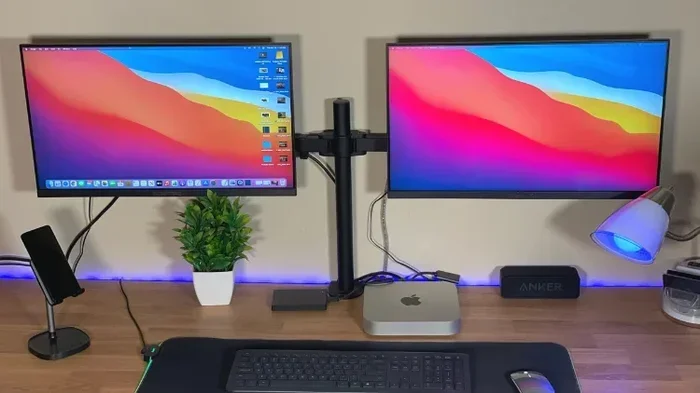
So, can HDMI be used for multiple monitors at the same time? Absolutely. Whether you use a splitter, a switch, or a docking station, HDMI gives you flexible options to connect more than one screen. The key is understanding what you want to achieve. Do you want to mirror content or extend your desktop? Your answer determines the right hardware.
Most modern computers and graphics cards support multiple displays out of the box. You just need the right cables, adapters, or hubs to make it happen. Start by checking your GPU and laptop ports. Then pick the solution that fits your workflow and budget. A good setup transforms how you work and play. You get more screen space, better multitasking, and a more comfortable computing experience.
Take your time setting things up. Get the right gear, arrange your monitors properly, and update your drivers. A little effort upfront saves you hours of frustration later. With the right approach, your dual monitor HDMI setup will feel seamless and natural from day one.
Frequently Asked Questions
Can I run two monitors from one HDMI port on my PC?
Yes, but you need extra hardware. An HDMI splitter mirrors the same image to both screens. For an extended desktop, you need a graphics card with two HDMI outputs or a USB-C to HDMI adapter. A splitter alone will not give you separate desktops on each screen.
Do HDMI splitters reduce image quality?
Most HDMI splitters do not reduce quality if you buy a good one. Cheap or outdated splitters may lower the resolution or cause signal drops. Look for a splitter that supports your desired resolution and refresh rate, such as 4K at 60Hz, to maintain full image quality.
What is the difference between HDMI 2.0 and HDMI 2.1 for multi-monitor setups?
HDMI 2.1 offers much higher bandwidth than HDMI 2.0. This means it can handle higher resolutions and refresh rates more easily. For most dual monitor setups, HDMI 2.0 is enough. But if you want to run two 4K monitors at high refresh rates, HDMI 2.1 gives you more headroom.
Can I use an HDMI switch to extend my desktop across two monitors?
No, an HDMI switch only lets you toggle between different devices on a single screen. It does not extend your desktop. To extend your display across two monitors, you need multiple video outputs from your graphics card or a docking station with dual HDMI outputs.
Is a docking station better than an HDMI splitter for laptop users?
In most cases, yes. A docking station connects to your laptop through USB-C or Thunderbolt and provides multiple video outputs. This lets you extend your desktop across two or more monitors. An HDMI splitter only mirrors the same image to multiple screens, which is less useful for productivity tasks.
How many monitors can HDMI support at the same time?
HDMI itself supports one display per port. But with splitters, switches, and docking stations, you can connect two, three, or even more monitors. The limit depends on your graphics card, the number of video outputs available, and the hardware you use to expand your setup.