Can All USB C Cables Be Used For HDMI Display Ports
No, not all USB C cables can be used for HDMI. The answer depends on the cable standard, the device capabilities, and whether you need an adapter or a direct cable. This guide breaks down everything you need to know about USB C to HDMI compatibility so you can connect your devices with confidence.
You plug a USB C cable into your laptop and reach for an HDMI cable to connect to your TV or monitor. But nothing happens. The screen stays dark. You wonder, can all USB C be used for HDMI? The short answer is no. The longer answer is much more interesting, and it can save you a lot of frustration and wasted money.
USB C has become the universal connector for almost everything. Phones, laptops, tablets, and even some gaming consoles now use it. But the USB C connector is just a shape. It does not guarantee video output. Many people assume any USB C cable will work with an HDMI display. That assumption leads to confusion, failed connections, and unnecessary returns.
In this guide, we will walk through exactly how USB C and HDMI relate to each other. You will learn which cables work, which do not, and what you need to look for when buying. By the end, you will never buy the wrong cable again.
Key Takeaways
- USB C ≠ HDMI: USB C is a connector type, not a video standard. Not every USB C cable carries a video signal.
- USB C Alt Mode matters: Only cables and devices that support HDMI Alt Mode can output video directly to an HDMI display.
- Adapters and converters are often needed: Most setups require a USB C to HDMI adapter or active converter to get video output.
- Thunderbolt 3 and 4 cables work best: These cables offer the most reliable HDMI video support across devices.
- Check your device specs first: Always verify what your laptop, phone, or tablet supports before buying any cable or adapter.
- Cable quality varies widely: Cheap or outdated USB C cables may not support the bandwidth needed for high-resolution HDMI output.
- USB 4 cables offer future-proofing: If you are buying new, USB 4 cables provide the best HDMI compatibility going forward.
📑 Table of Contents
- What Is USB C, and Why Does It Not Automatically Support HDMI?
- How USB C Connects to HDMI Displays
- Which Devices Support USB C to HDMI?
- Common Mistakes People Make with USB C and HDMI
- How to Choose the Right USB C to HDMI Solution
- USB C to HDMI: A Quick Comparison
- The Future of USB C and HDMI
- Final Thoughts
What Is USB C, and Why Does It Not Automatically Support HDMI?
USB C is a connector design. It is a small, reversible plug that fits into a port on your device. The USB Implementers Forum created it to replace older, bulkier connectors. Today, USB C is the standard for data transfer, charging, and in some cases, video output.
Here is the key point most people miss. The USB C connector does not carry a built-in HDMI signal. It is like a highway with multiple lanes. Some lanes carry data. Some carry power. Some carry video. Whether video is one of those lanes depends on the cable, the device, and the technology inside.
USB C Alt Mode Explained
USB C Alt Mode is the technology that allows video signals to travel through a USB C port. When a device supports HDMI Alt Mode, it can send a video signal directly to an HDMI display without extra hardware. Not all devices support this feature, though.
For example, most modern MacBooks and Windows laptops support USB C Alt Mode. But many budget laptops and older models do not. Your phone might support it, or it might not. The only way to know for sure is to check your device specifications.
USB C Cable Versions Matter
Not all USB C cables are created equal. There are several versions, and they handle data, power, and video differently. Here is a quick breakdown of the most common types:
- USB 2.0 USB C cables: These are the most basic cables. They charge devices and transfer data slowly. They do not carry video signals at all.
- USB 3.0 and USB 3.1 USB C cables: These offer faster data transfer. Some support video output, but it depends on the device.
- USB 3.2 USB C cables: These provide better bandwidth and can support HDMI Alt Mode in compatible devices.
- Thunderbolt 3 and Thunderbolt 4 cables: These are the gold standard. They support video output, data transfer, and charging through a single cable.
- USB 4 cables: The newest standard. USB 4 cables offer the best HDMI compatibility and future-proof performance.
So when you ask, can all USB C be used for HDMI, the answer depends entirely on which type of USB C cable you have and what your device supports.
How USB C Connects to HDMI Displays
There are three main ways to connect a USB C device to an HDMI display. Each method has its own requirements and limitations. Let us go through them one by one.
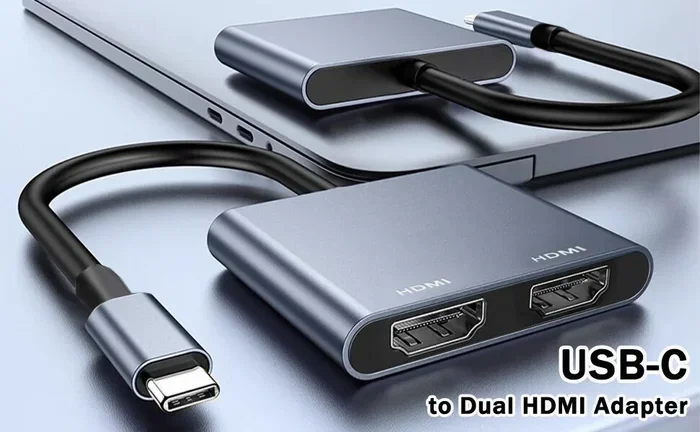
Method 1: USB C to HDMI Adapter
An adapter is the most common solution. You plug a USB C cable into your device and connect an HDMI cable to the adapter. The adapter converts the USB C signal into an HDMI signal that your monitor or TV can understand.
Most USB C to HDMI adapters are active adapters. This means they have a chip inside that handles the conversion. Active adapters work with almost any USB C device, even if the device does not support HDMI Alt Mode. They are affordable and widely available.
Quick Tip: Look for adapters that support 4K resolution at 60Hz if you want a sharp picture. Cheaper adapters may only support 1080p or 4K at 30Hz, which can feel laggy.
Method 2: USB C to HDMI Cable
A direct USB C to HDMI cable has the adapter built into the cable itself. One end plugs into your device, and the other end is an HDMI plug. These cables are convenient because you do not need a separate adapter.
However, USB C to HDMI cables only work if your device supports HDMI Alt Mode. If your laptop or phone does not support Alt Mode, the cable will not output video. Always check compatibility before buying.
Method 3: USB C Docking Station or Hub
A docking station or hub connects to your USB C port and provides multiple ports, including HDMI. Docks are perfect for desk setups where you need to connect a monitor, keyboard, mouse, and other peripherals all at once.
Most docking stations use active conversion, so they work with a wider range of devices. Premium docks from brands like CalDigit, Anker, and Belkin offer excellent HDMI support and reliable performance.
Which Devices Support USB C to HDMI?
Not every device with a USB C port can output HDMI video. Here is a breakdown of common devices and their HDMI capabilities.
Laptops
Most modern laptops from Apple, Dell, HP, Lenovo, and Microsoft support USB C video output. MacBook Pro and MacBook Air models with USB C ports can connect directly to HDMI displays. Many Windows laptops do too, but you should always check the specs.
If your laptop has Thunderbolt 3 or Thunderbolt 4 ports, you have the best compatibility. These ports support HDMI Alt Mode natively and work with almost every adapter and cable on the market.
Smartphones and Tablets
Some Android phones with USB C support HDMI output. Samsung Galaxy phones, Google Pixel phones, and OnePlus devices often include USB C Alt Mode support. Apple iPhones do not use USB C yet, so they are not part of this discussion.
Tablets like the iPad Pro and Samsung Galaxy Tab series can connect to HDMI displays using the right adapter or cable. Again, check your specific model to confirm support.
Gaming Consoles and Other Devices
Nintendo Switch uses a USB C connector for its dock, but the Switch itself does not output HDMI through USB C directly. The dock handles the conversion internally. Steam Deck and other handheld gaming devices vary in their USB C HDMI support, so always check the manufacturer’s specs.
Common Mistakes People Make with USB C and HDMI
Even with the right cable or adapter, things can go wrong. Here are the most common mistakes and how to avoid them.
Buying a USB 2.0 Cable and Expecting Video
This is the number one mistake. A standard USB 2.0 USB C cable cannot carry a video signal. If you use one to try to connect to an HDMI display, nothing will happen. Always use a cable or adapter that explicitly supports video output.
Ignoring Resolution and Refresh Rate Limits
Not every USB C to HDMI setup supports 4K at 60Hz. Some adapters and cables max out at 1080p or 4K at 30Hz. If you need a smooth, high-resolution display, check the specifications of your adapter or cable before purchasing.
Using a Damaged or Low-Quality Cable
A worn-out or cheap USB C cable can cause flickering, no signal, or poor image quality. Always buy cables from reputable brands. Look for certifications like USB-IF certification or Thunderbolt certification.
Assuming All USB C Ports Are the Same
Some USB C ports on a laptop only support charging and data transfer. They do not support video output. Check your laptop manual or the manufacturer’s website to confirm which USB C ports support HDMI Alt Mode.
How to Choose the Right USB C to HDMI Solution
With so many options on the market, choosing the right one can feel overwhelming. Here is a simple guide to help you decide.
Check Your Device First
Go to your device manufacturer’s website and look up the specifications. Find out if your USB C port supports HDMI Alt Mode, Thunderbolt, or DisplayPort Alt Mode. This tells you what kind of adapter or cable you need.
Decide Between Adapter and Direct Cable
If you want simplicity, go with a USB C to HDMI cable. If you want flexibility, use an adapter with a separate HDMI cable. Adapters also let you connect multiple devices at once.
Look for Key Features
- 4K at 60Hz support: For sharp, smooth video on modern monitors and TVs.
- Active vs. passive: Active adapters work with more devices but cost a bit more.
- Thunderbolt compatibility: If you have Thunderbolt ports, Thunderbolt-certified adapters offer the best performance.
- Build quality: Metal housings and braided cables last longer than plastic and rubber ones.
- Brand reputation: Stick with trusted brands like Anker, Belkin, Cable Matters, and CalDigit.
USB C to HDMI: A Quick Comparison
Here is a side-by-side comparison of the most common USB C to HDMI solutions to help you choose the right one.
- USB C to HDMI Adapter: Works with most devices. Affordable. Requires a separate HDMI cable. Active conversion means wide compatibility.
- USB C to HDMI Cable: Simple and direct. Only works with devices that support HDMI Alt Mode. No extra adapter needed.
- USB C Docking Station: Best for desk setups. Multiple ports. Higher cost. Great for productivity and dual-monitor setups.
- Thunderbolt Dock: Premium option. Best performance. Works with Thunderbolt 3 and 4 devices. More expensive but very reliable.
Quick Tip: If you are not sure which option to choose, a USB C to HDMI adapter is the safest bet. It works with the widest range of devices and costs between $10 and $30 for a good one.
The Future of USB C and HDMI
USB C is here to stay. As more devices adopt the USB C standard, the need for HDMI adapters and cables will only grow. The introduction of USB 4 and Thunderbolt 5 promises even better video support through USB C ports.
USB 4 cables are backward compatible with USB 3.2 and Thunderbolt 3 devices. This means a USB 4 cable can work with your current setup and still be ready for future devices. If you are buying a new USB C cable or adapter today, choosing USB 4 or Thunderbolt 4 options is the smartest move.
HDMI itself is also evolving. HDMI 2.1 supports higher resolutions and refresh rates, and newer USB C to HDMI adapters are starting to support HDMI 2.1 features. If you have a 4K 120Hz or 8K display, look for adapters that explicitly mention HDMI 2.1 support.
Bottom line, the relationship between USB C and HDMI will continue to improve. But for now, understanding your specific setup is the key to a reliable connection.
Final Thoughts
So, can all USB C be used for HDMI? No, not all of them. But with the right knowledge, you can easily find the solution that works for your setup. Check your device specifications, choose the right type of cable or adapter, and avoid the common mistakes we covered.
Whether you are connecting a laptop to a home theater TV, setting up a dual-monitor desk, or casting a phone screen to a larger display, the right USB C to HDMI solution makes all the difference. Take a few minutes to verify your device compatibility, invest in a quality adapter or cable, and enjoy a seamless connection every time.
The world of USB C and HDMI does not have to be confusing. With this guide, you have the knowledge to make smart buying decisions and avoid the frustration of a failed connection. Share this article with a friend who has been struggling with the same question, and happy connecting.
Frequently Asked Questions
Can I use any USB C cable to connect to an HDMI TV?
No, not every USB C cable supports HDMI output. You need a cable or adapter that explicitly supports video output. Check if your device supports HDMI Alt Mode before buying a direct USB C to HDMI cable.
What is the difference between a USB C to HDMI adapter and a USB C to HDMI cable?
An adapter is a separate device that you connect between your USB C device and an HDMI cable. A USB C to HDMI cable has the adapter built into the cable itself. Adapters offer more flexibility, while cables are more convenient for simple setups.
Do Thunderbolt 3 cables work with HDMI displays?
Yes, Thunderbolt 3 cables work with HDMI displays when used with a compatible adapter or dock. Thunderbolt 3 and Thunderbolt 4 cables offer the best HDMI video support and can handle 4K and even 8K resolutions with the right adapter.
Why does my USB C to HDMI adapter not work?
This usually happens when the device does not support HDMI Alt Mode, the cable is a USB 2.0 cable without video support, or the adapter is incompatible with your device. Check your device specifications and make sure you are using an active adapter if needed.
Can I charge my laptop and output HDMI video at the same time through USB C?
Yes, most USB C to HDMI adapters and docks support USB C power delivery alongside HDMI output. This means you can charge your laptop and connect to an HDMI display using a single USB C port.
Is USB 4 the future of USB C HDMI connections?
Yes, USB 4 brings better bandwidth, improved video support, and backward compatibility with older USB C devices. If you are buying new cables or adapters, USB 4 or Thunderbolt 4 options offer the best long-term value and performance.
=== CONCLUSION ===
Not every USB C cable works for HDMI, but finding the right one is simple once you know what to look for. The key is understanding your device capabilities, choosing the right type of cable or adapter, and avoiding the common pitfalls that trip up most buyers. With the information in this guide, you are now equipped to make confident, informed decisions about your USB C to HDMI connections.
Take action today. Check your device specs, pick the right USB C to HDMI solution, and enjoy a seamless connection to your HDMI display. Share this guide with anyone who has ever wondered, can all USB C be used for HDMI, and help them avoid the confusion and wasted money that comes with guessing.