Can I Boot Windows From An Iso File On Usb Directly
Yes, you can boot Windows from an ISO file on a USB drive directly. This process lets you install or repair Windows without burning a DVD. You just need a USB flash drive, an ISO file, and a free tool like Rufus. Creating a bootable USB is faster, reusable, and works on modern computers with UEFI or BIOS firmware.
This is a comprehensive guide about Can I Boot Windows From An Iso File On Usb.
Key Takeaways
- Direct USB booting is possible: You can install Windows straight from an ISO file placed on a USB drive using free tools.
- Rufus is the top choice: It is a lightweight, free tool that creates bootable USB drives in minutes.
- USB drive size matters: Use at least an 8GB USB flash drive to hold modern Windows ISO files.
- UEFI and BIOS both work: Modern tools support both firmware types, but you must choose the right partition scheme.
- Common mistakes can be avoided: Formatting errors and wrong boot settings are the most frequent problems.
- You can reuse the USB drive: After installation, you can reformat it and use it for normal storage.
[FEATURED_IMAGE_PLACEHOLDER]
Can you really boot Windows from an ISO file on a USB drive directly? The short answer is yes. Whether you are setting up a new PC, reinstalling Windows, or fixing a broken system, using a USB drive is the fastest and most convenient method. No DVDs, no extra software costs, and no waiting for discs to spin up.
This guide walks you through the entire process step by step. You will learn what tools you need, how to prepare your USB flash drive, and how to boot from it like a pro. By the end, you will feel confident creating your own Windows installation USB drive in under fifteen minutes.
Let us get into it. This is going to be one of the most useful guides you will read this year.
What Does It Mean to Boot Windows From an ISO File on USB?
Before we dive into the steps, let us understand what we are actually doing. An ISO file is an exact copy of a disc. It contains every file and folder that would be on a Windows installation DVD. When you boot from a USB drive, your computer starts up using the files on that drive instead of your hard drive.
So when we say you can boot Windows from an ISO file on USB directly, we mean you take that ISO file, put it onto a USB flash drive in a special way, and then tell your computer to start from that USB drive. The computer reads the Windows setup files and launches the installation process.
Think of it like this. Your USB drive becomes a temporary Windows DVD. It is portable, fast, and you can use it over and over again.
Why Use a USB Drive Instead of a DVD?
There are several reasons why USB booting beats DVD booting in almost every situation.
- Speed: USB drives read and write data much faster than optical discs.
- Convenience: Most modern laptops do not even have a DVD drive anymore.
- Reusability: You can erase and reuse the same USB drive for different ISO files.
- Portability: A small USB flash drive fits in your pocket easily.
- No extra hardware: You do not need to buy or connect an external DVD drive.
What You Need Before You Start
You do not need much to create a bootable USB drive. Here is a simple list of everything you need.
A USB Flash Drive
You need a USB flash drive with at least 8GB of storage. Most modern ISO files for Windows 10 or Windows 11 are between 5GB and 6GB. Using a larger drive gives you a safety buffer. Make sure your USB drive is empty or backed up because the process will erase everything on it.
The Windows ISO File
You need the actual Windows ISO file from Microsoft. You can download it for free from the official Microsoft website. Choose the version of Windows you want to install, such as Windows 10 or Windows 11.
A Tool to Create the Bootable USB
You cannot just copy and paste an ISO file onto a USB drive and expect it to boot. You need a dedicated tool that sets up the drive properly. The two best free options are Rufus and the Windows USB/DVD Download Tool.
A Computer That Is Already Working
You need a working computer to create the bootable USB drive. This computer does not need to run the same version of Windows you are installing. You can create a Windows USB on a Mac, a Linux machine, or any PC.
How to Create a Bootable USB Drive From an ISO File
This is the core of the entire process. Creating a bootable USB drive is straightforward once you know the steps. We will cover two methods so you can pick the one that works best for you.
Method 1: Using Rufus (Recommended)
Rufus is a free, lightweight, and incredibly reliable tool for creating bootable USB drives. It is the go-to choice for most tech professionals and everyday users alike.
Here are the steps to follow.
- Download Rufus from the official website. It is a small file, usually under 2MB.
- Insert your USB flash drive into the computer.
- Open Rufus. It runs directly from the executable file, no installation needed.
- Under the Device dropdown, select your USB drive.
- Click the SELECT button and navigate to your Windows ISO file.
- Choose the partition scheme. For modern computers, select GPT. For older systems, choose MBR.
- Click START and wait for the process to finish.
That is it. Rufus handles everything in the background, including formatting the drive and copying the necessary files. The whole process usually takes less than ten minutes.
Method 2: Using the Windows USB/DVD Download Tool
Microsoft offers a free tool called the Windows USB/DVD Download Tool. It works well but is a bit slower than Rufus. Here is how to use it.
- Download the tool from the Microsoft website.
- Install and open the tool.
- Click Browse and select your Windows ISO file.
- Choose USB device as your target.
- Select your USB flash drive from the list.
- Click Begin Copying and wait for the process to complete.
Quick Tips for Creating a Bootable USB
- Always download ISO files from official sources. Third-party sites may contain modified or corrupted files.
- Check your USB drive for errors before starting the process.
- Disable antivirus temporarily if it interferes with Rufus or the tool.
- Use a high-quality USB 3.0 drive for faster write speeds.
- Back up any important data on the USB drive before proceeding.
Common Mistakes When Creating Bootable USB Drives
Many people run into problems during this step. Here are the most common mistakes and how to avoid them.
- Using a drive smaller than 8GB: Modern Windows ISO files will not fit on a 4GB drive.
- Choosing the wrong partition scheme: This causes boot failures on UEFI or legacy BIOS systems.
- Not selecting the correct USB drive: You could accidentally wipe the wrong drive.
- Skipping the ISO download verification: A corrupted ISO file leads to installation errors.
- Using a write-protected USB drive: Some drives have physical write-protection switches that block the process.
How to Boot From the USB Drive on Your Computer
Now that you have your bootable USB drive ready, the next step is to actually start your computer from it. This part is called changing the boot order or accessing the boot menu.
Accessing the Boot Menu
Every computer has a built-in boot menu that lets you choose which device to start from. The key you press varies by manufacturer. Here are the most common ones.
- HP: Press F9 during startup.
- Dell: Press F12 during startup.
- Lenovo: Press F12 or Fn+F12.
- ASUS: Press Esc or F8.
- Acer: Press F12 or Esc.
- MSI: Press F11.
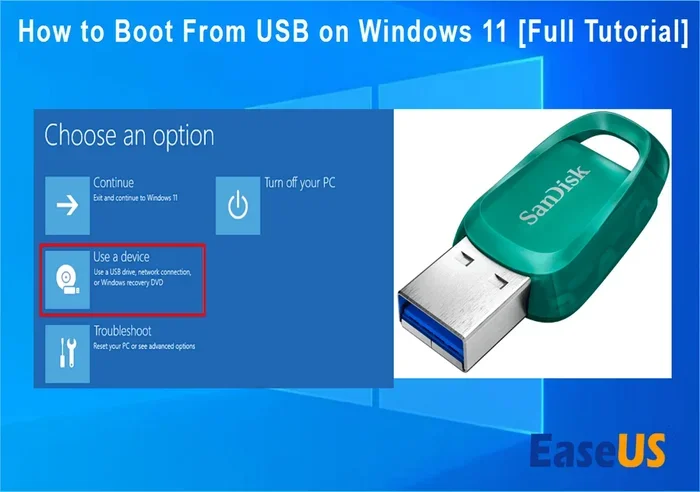
Insert your USB drive before you turn on the computer. As soon as the brand logo appears, start pressing the boot menu key repeatedly. A menu will appear showing all available boot devices. Select your USB drive and press Enter.
Changing Boot Order in BIOS/UEFI
If the boot menu does not work, you can change the boot order directly in your BIOS or UEFI settings. Here is how.
- Restart your computer.
- Press the BIOS key repeatedly. Common keys include F2, Del, F10, or Esc.
- Navigate to the Boot section using the arrow keys.
- Move USB to the top of the boot priority list.
- Save changes and exit (usually F10).
- Your computer will restart and boot from the USB drive.
UEFI vs Legacy BIOS: What You Need to Know
Modern computers use UEFI firmware, while older systems use legacy BIOS. The good news is that most tools for creating bootable USB drives handle both automatically. When you use Rufus, you can select the partition scheme to match your system.
- GPT + UEFI: Use this combination for computers made after 2012.
- MBR + Legacy BIOS: Use this for older computers or systems that do not support UEFI.
Choosing the wrong combination is the number one reason why a USB drive fails to boot. Always check your computer specifications before creating the drive.
What Happens When You Successfully Boot From USB
Once your computer boots from the USB drive, you will see the Windows Setup screen. It looks just like it would if you were installing from a DVD. You will see options to install Windows, repair your computer, or access advanced troubleshooting tools.
Follow the on-screen prompts to select your language, accept the license terms, and choose where to install Windows. The installation process copies files, installs features, and restarts your computer several times. All of this happens automatically.
Troubleshooting Common Boot Issues
Sometimes things do not go as planned. Your computer might not recognize the USB drive, or it might boot into the wrong device. Here are the most common issues and how to fix them.
USB Drive Not Showing in Boot Menu
If your USB drive does not appear in the boot menu, try these fixes.
- Try a different USB port, preferably a USB 2.0 port.
- Recreate the bootable USB drive using Rufus.
- Check if the USB drive is detected in BIOS settings.
- Disable Secure Boot in your UEFI settings.
- Try a different USB flash drive entirely.
Computer Boots into Windows Instead of USB
This happens when the boot order prioritizes your hard drive over the USB drive. Enter BIOS settings and move USB to the top of the boot order. Also make sure you press the boot menu key at the right time during startup.
Error Messages During Boot
Common error messages include “No bootable device found” or “Missing operating system.” These errors usually mean the USB drive was not created correctly. Try recreating it with a different tool or a fresh ISO file.
Secure Boot Interference
Secure Boot is a security feature in UEFI that prevents unauthorized operating systems from loading. Sometimes it blocks a legitimately created Windows USB. To fix this, enter your BIOS settings, find the Secure Boot option, and set it to Disabled. Remember to re-enable it after installation if you want to keep your system secure.
Benefits of Booting Windows From a USB Drive
Once you experience how easy and fast it is to install Windows from a USB drive, you will never go back to DVDs. Here are the key benefits.
Speed and Efficiency
USB drives transfer data at speeds that optical discs simply cannot match. A full Windows installation that might take 45 minutes from a DVD can be done in 15 to 20 minutes from a USB drive.
Portability
You can carry your Windows installation media in your pocket. Need to reinstall Windows on multiple computers? One USB drive can handle all of them. Just keep a backup of the ISO file on the drive or on a cloud storage service.
No Special Hardware Required
You do not need a DVD drive, a blank disc, or any special equipment. A standard USB flash drive is all you need. Most computers today have multiple USB ports, so this method works almost everywhere.
Multiple ISO Files on One Drive
Advanced users can store multiple ISO files on a single USB drive. Tools like Ventoy allow you to load different operating systems from one drive. This is incredibly useful for IT professionals who work with various Windows versions or even Linux distributions.
Can You Boot Windows From an ISO File on USB Directly Without Extra Tools?
Some people wonder if they can skip the tools and just copy the ISO file directly to the USB drive. The answer is no, not for booting purposes. Simply copying files does not make the USB drive bootable. The drive needs to be properly formatted with a boot sector and the correct file structure.
However, if you just want to access the files inside the ISO without installing Windows, you can mount the ISO file in Windows by right-clicking it and selecting Mount. This creates a virtual DVD drive that you can browse. But for actual installation or repair, you must use a tool like Rufus to make the USB drive bootable.
Some newer versions of Windows 10 and 11 have a built-in feature that can create bootable USB media directly from the ISO file. You can use the Media Creation Tool from Microsoft, which downloads the ISO and prepares the USB drive for you automatically. This is the easiest method for beginners who want a hassle-free experience.
How to Reuse Your USB Drive After Installation
Once you have installed Windows from your USB drive, you might want to use that same drive for everyday storage. The process is simple.
- Plug the USB drive into your computer.
- Open File Explorer and right-click the USB drive.
- Select Format.
- Choose FAT32 or NTFS as the file system.
- Click Start and confirm.
- Your USB drive is now clean and ready for regular use.
After formatting, you can store documents, photos, videos, or any other files on it. The drive is as good as new.
Final Thoughts on Booting Windows From an ISO File on USB
Booting Windows from an ISO file on a USB drive directly is one of the most practical skills you can learn for computer maintenance. Whether you are a student, a professional, or a casual user, knowing how to create and use a bootable USB drive saves time, money, and frustration.
The process is simpler than most people think. With a free tool like Rufus, an 8GB USB flash drive, and a Windows ISO file, you can have a fully functional installation medium in minutes. No technical expertise is required. If you can click a few buttons, you can do this.
Remember to always verify your ISO file, choose the right partition scheme, and access the boot menu at the correct time during startup. Avoid the common mistakes outlined in this guide, and you will have a smooth experience every time.
Start practicing today. Create your first bootable USB drive and see how easy it really is. Once you master this skill, you will never struggle with a slow DVD or a missing optical drive again.
Frequently Asked Questions
Can I boot Windows 11 from an ISO file on a USB drive directly?
Yes, you can boot Windows 11 from an ISO file on a USB drive directly. Use Rufus or the Windows Media Creation Tool to create the bootable drive. Make sure your USB drive is at least 8GB and that your computer meets the Windows 11 system requirements.
Do I need an internet connection to create a bootable USB drive?
No, you do not need an internet connection to create the bootable USB drive itself. You only need the ISO file, which you can download beforehand. However, you will need an internet connection during the Windows installation process to download updates and drivers.
Can I use the same USB drive for multiple ISO files?
Yes, you can reuse the same USB drive for different ISO files. Simply format the drive and create a new bootable USB each time. Tools like Ventoy make this even easier by allowing you to store multiple ISO files on one drive and select which one to boot.
What is the difference between GPT and MBR partition schemes?
GPT (GUID Partition Table) is the newer standard used with UEFI firmware on modern computers. MBR (Master Boot Record) is the older standard used with legacy BIOS on older computers. Choosing the correct scheme ensures your USB drive boots properly on your specific system.
Will creating a bootable USB erase all data on the drive?
Yes, creating a bootable USB will completely erase all data on the drive. The formatting process wipes everything. Always back up any important files before starting the process.
Can I boot from a USB drive on a Mac computer?
Yes, you can boot from a USB drive on a Mac. Use a tool like BalenaEtcher or Rufus to create a Windows bootable USB. When you start the Mac, hold the Option key to access the boot menu and select the USB drive.
Conclusion
Booting Windows from an ISO file on USB directly is a straightforward process that anyone can learn. You have everything you need to know now, from choosing the right USB flash drive to troubleshooting common boot problems. The key is to use a reliable tool like Rufus, select the correct partition scheme for your system, and follow the steps carefully.
This skill is incredibly valuable. Whether you are installing Windows on a new PC, reinstalling a fresh copy, or helping a friend fix their computer, a bootable USB drive is an essential tool. Keep one prepared at all times, and you will always be ready for any Windows installation or recovery situation.
Frequently Asked Questions
What is Can I Boot Windows From An Iso File On Usb?
Can I Boot Windows From An Iso File On Usb is an important topic with many practical applications.