Can I Print A Label From A Qr Code At Home Right Now
Yes, you absolutely can print a label from a QR code at home with the right tools and a little guidance. Whether you need QR code labels for products, shipments, or personal use, a home printer makes the whole process simple and affordable. This guide walks you through every step, from choosing a QR code generator to picking the best label paper for your printer. You will learn what equipment works best, common mistakes to avoid, and pro tips that save time and money. By the end, you will feel confident creating and printing custom QR labels from your own desk.
Have you ever wondered if you could create and print a QR code label right from your home computer? The answer is a resounding yes. Printing QR code labels at home is easier than most people think, and it does not require expensive equipment or advanced tech skills.
Whether you want to label products for a small business, organize your pantry, or create shipping labels with QR codes, your home setup can handle the job. In this guide, we will walk you through everything you need to know. We will cover the tools you need, the steps to follow, and the mistakes that trip people up. By the time you finish reading, you will have a clear roadmap to printing QR labels at home like a pro.
The beauty of doing this at home is the control you get. You choose the design, the size, the content, and the material. No waiting for orders to arrive. No paying extra for custom label services. You just create, print, and stick. Let us dive in.
Key Takeaways
- Home printing is totally doable: You can print high-quality QR code labels using a standard inkjet or laser printer at home.
- The right tools matter: A good QR code generator, quality label paper, and a compatible printer make all the difference.
- Size and design count: Getting the QR code size and contrast right ensures every label scans perfectly.
- Avoid common pitfalls: Mistakes like low-resolution printing or wrong label templates cause scanning failures.
- Thermal printers are a game-changer: If you print labels often, a thermal printer saves time and delivers professional results.
- Free tools exist: Many QR code generators and label templates cost nothing and work great for home use.
📑 Table of Contents
- What Is a QR Code Label?
- Can You Print a Label From a QR Code at Home?
- What You Need to Get Started
- Step-by-Step Guide to Printing QR Labels at Home
- Choosing the Right Printer for QR Code Labels
- Common Mistakes to Avoid When Printing QR Labels
- Expert Tips for Perfect QR Code Labels at Home
- Key Takeaways
- Conclusion
What Is a QR Code Label?
A QR code label is simply a sticker or printed tag that contains a QR code. The QR code holds information that a smartphone can scan. This information might be a website link, a product ID, contact details, or a tracking number. The label itself is just the printed piece that carries the code.
People use QR code labels for many reasons. Small business owners put them on products so customers can visit a website or read reviews. Online sellers stick them on packages for easy tracking. Event organizers use them for ticketing. Even homeowners use them for organization and inventory. The applications are nearly endless.
What makes a QR code label different from a regular label is the encoded data inside the square pattern. The QR code itself is a two-dimensional barcode that can hold much more information than a traditional barcode. When you print it on a label, you create a portable link between the physical item and digital content.
Types of QR Code Labels
Not all QR code labels are the same. Here are the most common types you might create at home:
- Product labels: These carry product information, pricing, or a link to an online store.
- Shipping labels: These include tracking links or delivery instructions encoded in the QR code.
- Address labels: These hold contact information or a link to a digital profile.
- Inventory labels: These help businesses track stock using scanned QR codes.
- Personal labels: These might link to a Wi-Fi network, a vCard, or a personal website.
Can You Print a Label From a QR Code at Home?
The short answer is yes. You can absolutely print a label from a QR code at home right now. You do not need a commercial printing setup. A standard home printer, some label paper, and a free QR code generator are all you need to get started.
Many people assume they need a specialized printer or a professional service. That is simply not true. Modern home printers produce crisp, scannable QR codes with ease. The key is knowing the right settings, using the right materials, and following a few simple guidelines.
Think about it. You already have a printer at home. You already have access to the internet. The only extra things you might need are label paper and a QR code generator. Both are inexpensive and widely available. This makes home printing one of the most affordable ways to create custom QR labels for any purpose.
Some people worry about quality. They think home-printed labels will look cheap or scan poorly. With the right approach, your home-printed QR labels can look just as good as professionally printed ones. The difference comes down to technique, not equipment.
What Makes a QR Code Scannable on a Label?
For a QR code label to work, the printed code must meet a few basic requirements. First, the contrast must be strong. Black QR codes on white or light backgrounds work best. Second, the size must be large enough for a phone camera to read. A QR code that is too small will fail to scan. Third, the resolution must be high enough that the squares remain sharp and distinct.
Also, the QR code needs quiet space around it. This is the blank border that surrounds the code. Without it, scanners may struggle to read the information. Most QR code generators include this border automatically, but it is worth checking before you print.
What You Need to Get Started
Before you start printing, gather a few essentials. Having everything ready saves time and prevents frustration. Here is what you need to print a label from a QR code at home:
A QR Code Generator
A QR code generator is the tool that creates the code. You type in the information you want to encode, and the tool produces a QR code image. Many generators are free and work right in your web browser. Popular options include QR Code Generator, Beaconstac, and GoQR.
When choosing a QR code generator, look for these features:
- Free usage with no watermarks
- Customization options like colors and logos
- Download options for high-resolution images (PNG or SVG)
- Support for different data types like URLs, text, and vCards
- Dynamic QR code options for editable content
Free tools work perfectly for most home projects. You only need a paid service if you plan to generate thousands of codes or need advanced analytics.
Label Paper
Label paper is the material you feed into your printer. It comes in sheets or rolls and has adhesive backing so you can stick the labels onto surfaces. The type of label paper you choose depends on what you are printing and where the labels will go.
Common label paper options include:
- Standard matte paper: Great for indoor use and short-term applications.
- Glossy paper: Produces vibrant colors and resists moisture better.
- Vinyl or waterproof labels: Ideal for products that may face humidity or handling.
- Thermal label stock: Works with thermal printers and produces clean, sharp text and codes.
- Kraft paper labels: Give a rustic, natural look popular for handmade products.
Make sure your label paper is compatible with your printer type. Inkjet paper should not be used in a laser printer and vice versa. Check the packaging for compatibility details.
A Printer
Most home printers handle QR code label printing just fine. Inkjet printers produce great color labels and are widely available. Laser printers excel at sharp text and codes, and they resist smudging better. If you print labels frequently, consider investing in a dedicated label printer or thermal printer for the best results.
Step-by-Step Guide to Printing QR Labels at Home
Now that you have your tools, let us walk through the actual process. Follow these steps to print a label from a QR code at home with confidence.
Step 1: Create Your QR Code
Open your chosen QR code generator in a web browser. Enter the data you want to encode. This could be a website URL, a plain text message, a phone number, or a Wi-Fi login. Choose the settings you want, such as color scheme and logo overlay. Then download the QR code image in PNG or SVG format. SVG is best for printing because it stays sharp at any size.
Step 2: Choose a Label Template
Open a word processor or design tool like Microsoft Word, Google Docs, or Canva. Search for a label template that matches your label paper size. Avery is a popular brand, and their templates are free and widely supported. Insert the QR code image into the template and position it where you want it on the label.
Step 3: Add Any Text or Design Elements
Most QR code labels look better with some text alongside the code. Add a product name, a short description, or a call to action. Keep the text clear and legible. Place it near the QR code but do not cover any part of the code. Remember to leave the quiet zone around the code untouched.
Step 4: Adjust Print Settings
Before printing all your labels, do a test print on regular paper first. Hold the printed test sheet up to the light and compare it to your label paper. Make sure the labels align correctly. Adjust margins or positioning in your software if needed. When everything looks right, feed in your label paper and print.
Step 5: Let the Ink Dry and Test the Scan
Let the printed labels dry for a few minutes, especially if you used an inkjet printer. Then grab your smartphone and try scanning the QR code. If it scans successfully, you are done. If not, check the size, contrast, and resolution of your printed code and adjust your settings for the next batch.
Quick Tips for Smooth Printing
- Always do a test print before running a full sheet.
- Use high-quality QR code images (at least 300 DPI).
- Match your label template exactly to your label paper brand and size.
- Clean your printer rollers before printing on adhesive labels to prevent jams.
- Store unused label paper flat to prevent curling.
Choosing the Right Printer for QR Code Labels
The printer you use plays a big role in the quality of your QR code labels. Not all printers are created equal when it comes to printing small, detailed codes. Here is a closer look at your options.
Inkjet Printers
Inkjet printers are the most common home printers, and they work well for QR code labels. They produce sharp images and handle color printing beautifully. If you already own an inkjet printer, you can start printing QR code labels right away. Just make sure you use label paper designed for inkjet use.
The main downside is that ink can smudge if it gets wet. For labels that need to withstand handling or moisture, consider coating them with a clear laminate or using waterproof label paper.
Laser Printers
Laser printers produce crisp, smudge-proof text and codes. They are excellent for QR code labels that need to look professional and last a long time. Toner does not smear when wet, which makes laser-printed QR labels more durable than inkjet ones.
Laser printers are slightly more expensive upfront, but the cost per page is lower. They are a great choice if you print labels regularly or need them to hold up in different conditions.
Thermal Printers
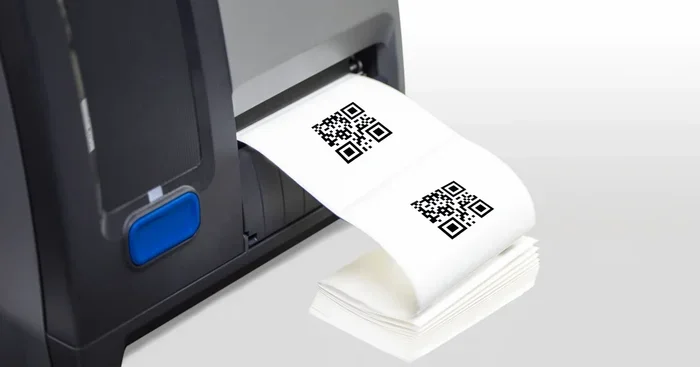
A thermal printer uses heat to create images on special thermal label stock. These printers are popular in retail and shipping because they produce clean, fast labels without ink or toner. If you plan to print QR code labels frequently, a thermal printer is worth the investment.
Popular home-friendly thermal printers include models from Dymo, Rollo, and Brother. They connect via USB or Wi-Fi and work with dedicated label maker software. The labels they produce are sharp, durable, and professional-looking.
Comparison Table: Printer Types for QR Code Labels
| Feature | Inkjet | Laser | Thermal |
|---|---|---|---|
| Upfront Cost | Low | Medium | Medium to High |
| Print Quality | Excellent for color | Sharp text and codes | Clean and precise |
| Smudge Resistance | Low | High | High |
| Ongoing Cost | Moderate (ink) | Low (toner lasts long) | Low (no ink or toner) |
| Speed | Moderate | Fast | Very Fast |
| Best For | Occasional color labels | Durable, professional labels | High-volume label printing |
Common Mistakes to Avoid When Printing QR Labels
Even with the right tools, mistakes can happen. Here are the most common errors people make when they print a label from a QR code at home and how to avoid them.
Using Low-Resolution Images
One of the biggest mistakes is printing a QR code at low resolution. A blurry or pixelated QR code will not scan correctly. Always download your QR code image at the highest resolution possible, ideally 300 DPI or higher. Vector formats like SVG are even better because they scale without losing quality.
Making the QR Code Too Small
Size matters when it comes to QR code labels. A QR code that is too small becomes impossible to scan, especially from a distance. As a general rule, keep your printed QR code at least one inch by one inch for reliable scanning. Larger is better if your label size allows it.
Ignoring the Quiet Zone
The quiet zone is the blank space around the QR code. It tells the scanner where the code starts and ends. If text, images, or other design elements invade this space, the scanner may fail to read the code. Always keep at least four times the size of one small square as blank space around your QR code.
Using the Wrong Label Template
Using a label template that does not match your actual label paper will cause misalignment. Your labels may print in the wrong spots, wasting paper and ink. Always double-check that your template matches the brand and dimensions of your adhesive labels.
Skipping the Test Print
Never print an entire sheet of QR code labels without first testing on regular paper. A test print reveals alignment issues, size problems, and scanning errors before you waste expensive label paper. It takes two minutes and saves a lot of frustration.
Expert Tips for Perfect QR Code Labels at Home
Here are some insider tips that take your home-printed QR labels from good to great.
Use High-Contrast Colors
Black QR codes on white backgrounds have the highest scan success rate. If you want to add color, keep the foreground dark and the background light. Dark blue, dark green, or dark purple can work, but avoid light colors or busy patterns behind the code.
Add a Call to Action
People are more likely to scan your QR code labels if you tell them what to do. Add text like “Scan to Visit Our Website” or “Scan for More Info” below or next to the code. This small addition boosts engagement significantly.
Round the Corners
Rounded corners on your QR code labels give them a polished, professional look. Many label makers and design tools offer rounded corner options. This small detail makes a big visual difference.
Batch Print for Efficiency
If you need multiple labels, batch printing saves time. Set up your label template with all the codes at once and print the entire sheet in one go. This reduces printer setup time and ensures consistency across all labels.
Store Labels Properly
Store unused adhesive labels in a cool, dry place. Heat and humidity can cause the adhesive to weaken or the paper to curl. Proper storage keeps your label paper ready to use whenever you need it.
Key Takeaways
- Home printing works great: You can print a label from a QR code at home using a standard printer and affordable supplies.
- Quality depends on your approach: Use high-resolution images, proper label templates, and the right label paper for the best results.
- Test before you commit: Always do a test print and scan test before printing a full batch of QR code labels.
- Size matters: Keep your printed QR code at least one inch square for reliable scanning.
- Choose the right printer: Inkjet, laser, and thermal printers each have strengths for different printing needs.
- Avoid common errors: Watch out for low resolution, missing quiet zones, and mismatched templates.
- Small details make a big difference: High contrast, rounded corners, and clear calls to action elevate your QR code labels.
Conclusion
The answer to “can I print a label from a QR code at home” is a definite yes. You have everything you need to create professional-quality QR code labels right now, from your own home. With a QR code generator, some label paper, and a compatible printer, you can produce labels for products, shipments, organization, or personal use in just minutes.
The process is straightforward, affordable, and highly customizable. You control every aspect of the design, the content, and the quality. Whether you use an inkjet printer, a laser printer, or a thermal printer, the results can be impressive when you follow the right steps.
Remember to avoid the common pitfalls we covered. Use high-resolution images, respect the quiet zone, and always test before printing a full batch. These small habits make a huge difference in the final outcome. Now that you have all the knowledge and practical tips, there is no reason to wait. Start creating your custom QR code labels today and enjoy the convenience of printing exactly what you need, exactly when you need it.
Frequently Asked Questions
Do I need a special printer to print a QR code label at home?
No, you do not need a special printer. A standard inkjet or laser printer works perfectly for QR code labels at home. If you print labels frequently, a thermal printer can be a great upgrade, but it is not required for occasional use.
Can I use free QR code generators for printing labels?
Yes, many free QR code generators produce high-quality images suitable for printing. Look for tools that allow you to download in PNG or SVG format at high resolution. Free tools are perfect for home projects and small business needs.
What is the best label paper for home QR code printing?
The best label paper depends on your printer type and intended use. For inkjet printers, use inkjet-compatible adhesive labels. For laser printers, use laser-safe label paper. For durability, consider waterproof or glossy label stock.
Why is my printed QR code not scanning correctly?
This usually happens when the QR code is too small, printed at low resolution, or has designs covering the quiet zone. Try printing at a larger size, increasing the resolution to 300 DPI, and ensuring there is clear space around the code.
Can I print QR code labels on regular paper?
You can, but the labels will not have adhesive backing. If you need stickable labels, use dedicated label paper with adhesive. For temporary or test prints, regular paper works fine to check alignment and design before printing on label stock.
How long does it take to print QR code labels at home?
A single sheet of QR code labels typically takes just a few minutes to design and print. Once you have a label template set up, creating new batches becomes even faster. The entire process from generating the QR code to finishing the print job can take less than ten minutes.