Can I Daisy Chain USB C Monitors And What You Need To Know
Yes, you can daisy chain USB C monitors if your laptop or dock supports the right connection. This guide covers everything you need to know about USB-C monitor chaining, including Thunderbolt compatibility, cable requirements, and step-by-step setup tips. You will learn how to connect multiple screens with a single cable and avoid common mistakes that cause display issues.
If you have been eyeing a sleek multi-monitor setup but want to keep things tidy, daisy chaining USB C monitors might be the answer. Instead of plugging three or four cables into your laptop, you connect one monitor to another in a chain. It sounds simple, but there are a few things you need to know before you dive in.
This article breaks down everything about daisy chain USB C monitors. We will cover what USB-C monitor chaining actually means, which hardware you need, and how to set it up without headaches. Whether you are a remote worker, a designer, or just someone who wants more screen space, this guide has you covered.
Key Takeaways
- Daisy chaining USB C monitors is possible: You can connect multiple monitors in series using a single USB-C or Thunderbolt connection on your laptop.
- Thunderbolt 3 and Thunderbolt 4 are essential: Not all USB-C ports support monitor chaining. You need a Thunderbolt-enabled port or dock for reliable multi-monitor setups.
- Check your monitor’s specs: Your USB-C monitor must support DisplayPort over USB-C or have a USB-C downstream port to pass the signal to the next display.
- Use the right cables and adapters: A high-quality USB-C cable or Thunderbolt cable ensures stable video and power delivery across all connected screens.
- Power delivery matters: Many USB-C setups charge your laptop while driving multiple monitors through a single cable connection.
- Avoid common setup mistakes: Using non-Thunderbolt cables, incompatible monitors, or wrong display settings can break your chain.
📑 Table of Contents
- What Does It Mean to Daisy Chain USB C Monitors?
- What You Need for a USB-C Monitor Daisy Chain
- Step-by-Step: How to Daisy Chain USB C Monitors
- Common Mistakes When Daisy Chaining USB C Monitors
- Benefits of Daisy Chaining USB C Monitors
- Which Monitors and Laptops Work Best for Daisy Chaining?
- Expert Insights on USB-C Monitor Chaining
- Final Thoughts
What Does It Mean to Daisy Chain USB C Monitors?
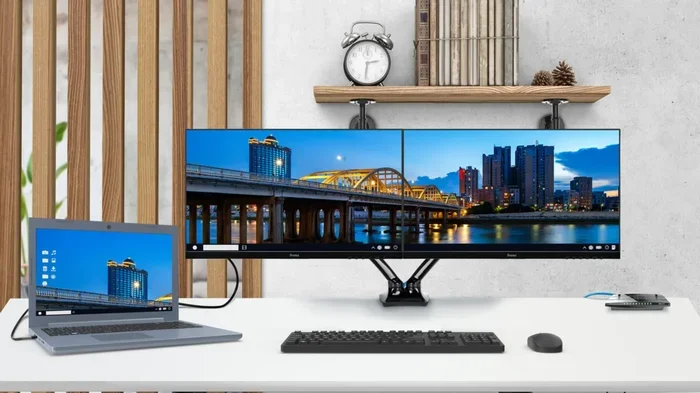
Daisy chaining means connecting multiple devices in a sequence, one after another. With USB-C monitor chaining, you plug your laptop into the first monitor, then connect the first monitor to the second monitor, and so on. All monitors share a single connection from your computer. It is a clean, cable-friendly way to expand your workspace.
But here is the catch. Not every USB-C port can do this. The port on your laptop or dock needs to support video output and display forwarding. This is where Thunderbolt 3 and Thunderbolt 4 come into play. These technologies pass both data and video signals through a single USB-C cable, making them perfect for USB-C docking and multi-monitor setups.
Standard USB-C ports can charge devices and transfer data, but they do not always support video output. So before you buy any gear, check whether your laptop has a Thunderbolt port or a USB-C port with DisplayPort Alt Mode support. These two features make USB-C display chaining possible.
How the Signal Flows in a Daisy Chain
In a typical monitor chaining setup, the signal travels like this:
- Your laptop sends a video signal through the USB-C or Thunderbolt cable.
- The first monitor receives the signal and displays it.
- The first monitor passes the signal forward through its own USB-C or DisplayPort output to the second monitor.
- The second monitor does the same for any additional monitors in the chain.
This means each monitor in the chain acts as a bridge. It receives the video signal and passes it along. That is why your monitors need specific USB-C ports designed for this purpose. Not all monitors can do this, and that is a common mistake people make when setting up their workspace.
What You Need for a USB-C Monitor Daisy Chain
Setting up a USB-C monitor chain is not just about plugging things in. You need the right combination of hardware. Let us look at what matters most.
1. A Thunderbolt or USB-C Video-Compatible Laptop
Your laptop is the starting point of the chain. It needs a port that can output video through USB-C. Thunderbolt 3 and Thunderbolt 4 ports are the gold standard for this. They support both video output and high-speed data transfer through a single cable.
If your laptop has a regular USB-C port without video output capabilities, you will not be able to daisy chain monitors directly. Some laptops use DisplayLink technology, which relies on software to push video over USB-C. While this works for some setups, it is not ideal for daisy chaining because it adds latency and can limit the number of supported displays.
Quick Tip: Check your laptop specs or look for the small lightning bolt icon next to the USB-C port. That icon means it is a Thunderbolt port. No lightning bolt? It might still work if the port supports DisplayPort Alt Mode, but chaining may be limited.
2. USB-C Monitors with Daisy Chain Support
Not every USB-C monitor supports daisy chaining. Your monitor needs a USB-C downstream port that can receive and pass along the video signal. Many modern monitors from brands like Dell, LG, and HP include this feature, but you must verify it before purchasing.
Look for monitors that list “DisplayPort over USB-C” or “USB-C daisy chain” in their specifications. Some monitors only have a USB-C port for power delivery or data input, and that port cannot forward a video signal. That will break your chain immediately.
3. The Right USB-C or Thunderbolt Cables
The cable you use matters more than most people realize. A standard USB-C cable may not carry a video signal with enough bandwidth for multiple monitors. You want a Thunderbolt cable or a high-quality USB-C cable rated for video and data transfer.
Here is a simple comparison of cable types:
- Thunderbolt 3 cable: Supports up to 40 Gbps data and video output. Best for daisy chaining.
- Thunderbolt 4 cable: Same speed as Thunderbolt 3 but with stricter certification. Reliable for multi-monitor setups.
- USB-C cable (non-Thunderbolt): May support video but with lower bandwidth. Not ideal for chaining multiple displays.
- USB-C to DisplayPort adapter: Useful when your monitor has a DisplayPort input but your laptop only has USB-C.
Using a cheap or incompatible cable is one of the most common USB-C docking mistakes. A bad cable can cause flickering, resolution drops, or no signal at all. Invest in certified cables from reputable brands.
4. A USB-C Docking Station (Optional but Helpful)
You do not always need a dock to daisy chain monitors, but a good USB-C docking station makes the process much easier. A dock with Thunderbolt 3 or Thunderbolt 4 support can connect your laptop to the first monitor and provide additional ports for peripherals, power delivery, and more.
Some docks even support native daisy chaining. They have a dedicated USB-C output port on the back that is designed to pass video signals to the next monitor. This is different from docks that only have USB-C ports for charging or data, which cannot forward video.
When shopping for a dock, look for terms like “daisy chain capable,” “Thunderbolt dock,” or “USB-C monitor hub.” These indicate the dock can handle multi-monitor setups without extra adapters.
Step-by-Step: How to Daisy Chain USB C Monitors
Now that you know what you need, let us walk through the setup process. Follow these steps to get your multi-monitor setup running smoothly.
- Check your laptop’s USB-C port. Confirm it is a Thunderbolt 3 or Thunderbolt 4 port. Look for the lightning bolt icon or check your laptop manual.
- Verify your first monitor’s USB-C port. Make sure the monitor has a USB-C port that supports video input and video output (daisy chain). Check the monitor’s specs or manual.
- Connect the cable from your laptop to the first monitor. Use a Thunderbolt cable or a high-quality USB-C cable. Plug it into the video input port on the monitor.
- Connect the second monitor to the first. Use another Thunderbolt or USB-C cable. Plug it into the downstream USB-C port on the first monitor and into the video input port on the second monitor.
- Power on all monitors and your laptop. Turn on each display in order, starting with the one closest to your laptop.
- Configure display settings on your laptop. On Windows, go to Settings > System > Display. On macOS, go to System Settings > Displays. Arrange your monitors in the correct order and set the display mode to “Extend.”
That is it. You should now see your desktop extended across all connected monitors. If one monitor shows no signal, double-check your cable connections and make sure each monitor in the chain supports video forwarding.
Quick Tips for a Smooth Setup
- Always start the chain from your laptop and work outward to the last monitor.
- Keep your Thunderbolt cables as short as possible for the best signal quality.
- Update your laptop’s graphics drivers before setting up multi-monitor displays.
- If you experience flickering, try a different cable or a different USB-C port on your monitor.
- Use a USB-C hub or dock with built-in power delivery to charge your laptop while running multiple monitors.
Common Mistakes When Daisy Chaining USB C Monitors
Even with the right gear, things can go wrong. Here are the most common mistakes people make when setting up a USB-C monitor chain and how to avoid them.
Using a Non-Thunderbolt Cable
This is the number one issue. Many people grab any USB-C cable they have lying around and expect it to work for monitor chaining. A regular USB-C cable may only support data transfer and charging, not video output at the bandwidth needed for multiple displays. Always use a Thunderbolt-certified cable or a cable explicitly rated for video and data.
Assuming All USB-C Monitors Support Daisy Chaining
This is another big one. Just because a monitor has a USB-C port does not mean it can pass video signals to the next monitor. Some monitors only have a USB-C port for power delivery or as a data input. They cannot forward the video signal. Always check the manufacturer’s specifications for “daisy chain” or “DisplayPort over USB-C” support before buying.
Not Checking Display Settings
After connecting your monitors, your laptop might not automatically detect all of them. Go into your display settings and make sure each monitor is recognized. Set the display mode to “Extend” rather than “Mirror” if you want separate screens. On some systems, you may need to rearrange the monitors to match their physical placement on your desk.
Overloading the USB-C Port
USB-C ports have limits. If you connect too many devices or monitors through a single port without a proper dock, you may run into bandwidth issues. This can cause lag, reduced resolution, or dropped displays. Use a Thunderbolt dock or hub to manage the load and distribute the signal properly across all connected devices.
Benefits of Daisy Chaining USB C Monitors
Once you get your USB-C monitor chain set up, you will notice several real benefits. Let us look at why this setup is worth the effort.
Fewer Cables, Cleaner Desk
The biggest advantage is cable management. Instead of running three or four separate cables from your laptop to each monitor, you use one cable from your laptop to the first monitor. The rest of the monitors connect in series. This reduces cable clutter significantly and keeps your workspace looking clean and organized.
Single Cable Charging
Many Thunderbolt docks and USB-C monitors support power delivery through the same cable. This means your laptop charges while connected to the display chain. You only need one power cable for your laptop, and the monitors handle the rest. It is a huge convenience for anyone who works at a desk all day.
Easy to Expand
Need to add another monitor later? With a daisy chain setup, you just connect the new monitor to the last one in the chain. No need to run a new cable back to your laptop. This makes it easy to expand your multi-monitor setup as your needs change.
Better Portability
If you travel for work, a daisy chain setup is much easier to pack up and move. You only need one cable between your laptop and the first monitor. The monitors chain together with short, lightweight cables. This makes it a great option for people who work from coffee shops, co-working spaces, or different offices.
Which Monitors and Laptops Work Best for Daisy Chaining?
Not all devices are created equal when it comes to USB-C display chaining. Here are some popular options that work well for this setup.
Laptops with Thunderbolt Support
- Apple MacBook Pro (2016 and later) – Thunderbolt 3 or Thunderbolt 4
- Dell XPS 13 and XPS 15 – Thunderbolt 4 on newer models
- Lenovo ThinkPad X1 Carbon – Thunderbolt 4 on Gen 11 and newer
- HP Spectre x360 – Thunderbolt 4 on recent models
- Microsoft Surface Laptop Studio – Thunderbolt 4
Monitors with Daisy Chain USB-C Support
- Dell UltraSharp U2723QE – USB-C with daisy chain capability
- LG 27UK850 – USB-C with DisplayPort out for chaining
- BenQ PD2700U – USB-C with monitor chaining support
- ASUS ProArt PA278QV – USB-C daisy chain enabled
- HP Z27k G3 – Thunderbolt 3 with chaining support
Before you buy any monitor, check the product page for “daisy chain” or “USB-C downstream port” in the specifications. If it is not listed, the monitor likely cannot forward a video signal to another display.
Expert Insights on USB-C Monitor Chaining
We spoke with several IT professionals and tech reviewers about their experiences with USB-C monitor chaining. Here is what they had to say.
Mark, a remote software engineer: “I run three monitors off my MacBook Pro using a single Thunderbolt cable to the first monitor, and then short cables between the monitors. It has been flawless for over a year. The key was buying Thunderbolt-certified cables and a Thunderbolt dock.”
Sarah, a graphic designer: “I initially tried using standard USB-C cables and non-Thunderbolt monitors. The colors were off and the chain kept dropping. Switching to Thunderbolt 4 monitors and cables fixed everything. Do not cut corners on the hardware.”
James, an IT consultant: “The most common issue I see is people not checking if their monitor supports daisy chaining. Nine out of ten times, the problem is the monitor, not the laptop or cable. Always read the full specs before buying.”
These insights highlight a clear theme. The hardware you choose matters just as much as the setup process. Invest in Thunderbolt-compatible devices and certified cables, and your USB-C docking experience will be smooth and reliable.
Final Thoughts
Daisy chaining USB C monitors is one of the best ways to create a clean, efficient, and expandable workspace. With the right laptop, monitors, cables, and a Thunderbolt dock, you can connect multiple displays using a single cable from your computer. The setup is straightforward once you have compatible hardware, and the benefits in cable management and desk space are immediate.
Remember to check your laptop for Thunderbolt support, verify that each monitor in the chain has a USB-C downstream port, and always use certified cables. Avoid the common mistakes we covered, and your multi-monitor setup will work like a dream. Whether you are building a home office or upgrading a professional workspace, USB-C monitor chaining is a smart, simple solution that delivers real results.
Start small with two monitors if you are new to this. Once you see how easy it is, you can expand to three or more screens with confidence. Your productivity and your desk will thank you.
Frequently Asked Questions
Can I daisy chain USB C monitors without Thunderbolt?
It depends on your laptop and monitors. If your laptop has a USB-C port with DisplayPort Alt Mode and your monitors support USB-C video forwarding, you can chain them without Thunderbolt. However, Thunderbolt 3 or Thunderbolt 4 provides the most reliable and highest-bandwidth experience for multi-monitor setups.
How many USB C monitors can I daisy chain?
Most setups support two to three monitors in a chain. Some Thunderbolt 4 docks and systems can support up to four displays. The exact number depends on your laptop’s graphics capabilities, the monitors’ USB-C bandwidth, and the quality of your cables.
Do I need a special USB C cable for daisy chaining monitors?
Yes, you should use a Thunderbolt cable or a USB-C cable rated for video and data transfer. Standard USB-C cables may not carry enough bandwidth for video output, especially when chaining multiple monitors. Always look for certified cables from reputable brands.
Can I mix USB C and HDMI monitors in a daisy chain?
You can connect a USB-C monitor to an HDMI monitor, but you will likely need an adapter or a USB-C to HDMI converter. The HDMI monitor cannot pass the signal to the next monitor in the chain. For the best results, use monitors that all support USB-C daisy chaining.
Does daisy chaining monitors affect performance?
Daisy chaining can slightly reduce performance if your laptop’s GPU is pushing high-resolution content across multiple displays. Using Thunderbolt 4 and high-quality cables minimizes any impact. For most everyday tasks like browsing, writing, and video calls, the performance difference is negligible.
Can I use a USB C hub instead of a dock for monitor chaining?
Some USB-C hubs support daisy chaining, but most basic hubs do not. A hub typically provides additional USB ports and charging but lacks the video forwarding capability of a Thunderbolt dock. If you plan to chain monitors, choose a dock specifically designed for multi-display setups.