Can I Use My iPhone As Remote For Projector Today
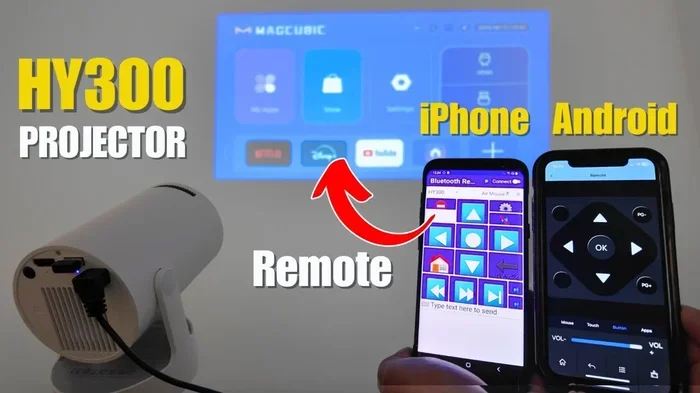
Yes, you can absolutely use your iPhone as a remote for your projector. Whether you have a smart projector, a traditional projector, or a portable projector, your iPhone can control it with the right apps, adapters, or wireless connections. This guide covers every method, from AirPlay and Wi-Fi to HDMI adapters and third-party apps, so you can present with confidence.
Key Takeaways
- Multiple Methods Available: You can use AirPlay, Wi-Fi apps, Bluetooth, or physical adapters to turn your iPhone into a projector remote.
- Free and Paid Apps Work: Apps like Keynote Remote, AnyMote, and Unified Remote offer reliable projector control from your iPhone.
- Compatibility Matters: Not all projectors connect the same way. Check your projector model before choosing a method.
- Setup Is Simple: Most methods take less than five minutes to configure, even for beginners.
- Wireless and Wired Options Exist: You can go fully wireless with AirPlay or use an HDMI adapter for a wired connection.
- Battery and Range Tips Help: Keep your iPhone charged and stay within range for uninterrupted presentations.
📑 Table of Contents
- Can I Use My iPhone As Remote For Projector? Yes, Here Is How
- Why Use Your iPhone As a Projector Remote?
- Methods to Control Your Projector with an iPhone
- Step-by-Step Setup Guide
- Best Apps for iPhone Projector Remote Control
- Common Mistakes to Avoid
- Expert Tips for a Seamless Experience
- Can I Use My iPhone As Remote For Projector With Any Projector?
- Wired vs. Wireless: Which Is Better?
- How to Troubleshoot Connection Problems
- Final Thoughts
Can I Use My iPhone As Remote For Projector? Yes, Here Is How
Have you ever stood in front of a room, holding a tiny projector remote, struggling to change slides? It happens all the time. The good news is that your iPhone can replace that clunky little device. You can use your iPhone as a projector remote in several simple ways.
Whether you are giving a business presentation, hosting a movie night, or teaching a class, controlling your projector from your phone feels like a game changer. No more fumbling with buttons across the room. No more asking someone else to click the next slide for you.
This guide walks you through every method available today. We will cover apps, adapters, wireless connections, and pro tips. By the end, you will know exactly how to use your iPhone as a remote for projector setups of all kinds.
Let us dive in and make your presentations smoother and more professional.
Why Use Your iPhone As a Projector Remote?
You might wonder why you should bother replacing your existing projector remote. The answer comes down to convenience, flexibility, and features. Your iPhone already lives in your pocket. Why carry an extra device when your phone can do the job?
Here are some real reasons people switch to iPhone projector control:
- You always have your phone with you. No need to dig for a separate remote.
- Touchscreens are easier to navigate. Swiping through slides feels natural on an iPhone.
- You get more features. Many apps let you annotate, laser-point, and even chat with presenters.
- Wireless control means more freedom. Move around the room without being tethered to a cord.
- It looks professional. Pulling out your iPhone to advance slides looks sleek and modern.
Another big advantage is compatibility. Most modern projectors connect to phones easily. Even older projectors can work with the right adapter. So almost anyone can make this switch.
Methods to Control Your Projector with an iPhone
There is no one-size-fits-all answer. Different projectors support different connection types. The method you choose depends on your projector model and what you need. Let us look at each option in detail.
Method 1: AirPlay for Wireless Connection
AirPlay is Apple’s built-in wireless streaming technology. If you have an Apple TV or a smart projector that supports AirPlay, this is the easiest route. You can mirror your iPhone screen directly to the projector without any extra hardware.
Here is how to set it up:
- Connect both your iPhone and the projector to the same Wi-Fi network.
- Open the Control Center on your iPhone by swiping down from the top right corner.
- Tap the Screen Mirroring button.
- Select your projector or Apple TV from the list.
- Your iPhone screen now appears on the projector.
Once mirrored, you can control slides and apps directly from your iPhone. You can also use the Keynote remote feature for PowerPoint and Keynote presentations. This method works beautifully for wireless projector connection setups.
Quick Tip: AirPlay works best in rooms with strong Wi-Fi. If the signal is weak, you might see a slight delay. For movie nights, this usually does not matter. For live presentations, test it first.
Method 2: Third-Party Projector Remote Apps
The App Store has dozens of apps designed to turn your iPhone into a projector remote. These apps work with most projectors, especially ones connected to a computer or smart system. Some are free, and some cost a few dollars.
Here are the best options to consider:
- Keynote Remote (Free): Works perfectly for Apple Keynote and PowerPoint presentations. You can advance slides, start animations, and see speaker notes.
- AnyMote ($4.99): A universal remote app that supports projectors, smart TVs, and streaming devices. It uses infrared or Wi-Fi.
- Unified Remote ($5.99): Lets you control presentations, media, and more. It works with many projector brands.
- Remote for Projector (Free): A simple app for basic projector control over Wi-Fi.
When choosing an app, check if it supports your projector brand. Some apps work best with specific models. Always read reviews before downloading.
Quick Tip: Download and test your chosen app before the day of your presentation. Do not wait until you are standing in front of an audience to figure it out.
Method 3: HDMI Adapters for Wired Control
Not everything needs to be wireless. Sometimes a simple cable gives you the most reliable connection. You can use a Lightning-to-HDMI adapter or a USB-C-to-HDMI adapter to connect your iPhone directly to the projector.
This method works like this:
- Plug the adapter into your iPhone.
- Connect an HDMI cable from the adapter to the projector.
- Switch the projector to the correct HDMI input.
- Your iPhone screen displays on the projector.
With a wired connection, you get zero lag and a stable image. You can control what displays on the projector by using your iPhone directly. This is great for projector setup situations where Wi-Fi is unreliable.
One thing to keep in mind: you will need the adapter and an HDMI cable. These are affordable and easy to find. A VGA adapter also works if your projector only has VGA inputs, though HDMI is the better choice for quality.
Method 4: Bluetooth Projector Pairing
Some modern projectors support Bluetooth connectivity. If your projector has Bluetooth, you can pair it directly with your iPhone. This gives you wireless control without needing Wi-Fi.
Here is the general process:
- Turn on Bluetooth on your iPhone.
- Put your projector in pairing mode.
- Go to Settings on your iPhone and tap Bluetooth.
- Select your projector from the list of available devices.
- Once paired, use your iPhone to send commands to the projector.
Bluetooth pairing is handy for portable projector users. It works in places where Wi-Fi might not be available, like outdoor events or classrooms without strong internet.
Quick Tip: Bluetooth range is usually about 30 feet. Stay within that distance for a reliable connection. Walls and obstacles can reduce the range.
Method 5: Smart Projector Apps
Many smart projector brands have their own dedicated apps. Brands like Epson, BenQ, Optoma, and LG all offer free apps you can download. These apps let you control the projector from your iPhone using Wi-Fi.
You can do things like:
- Adjust brightness and contrast.
- Change input sources.
- Navigate menus on the projector.
- Control keystone correction and focus.
- Manage playlists for media playback.
These apps are specifically designed for projector compatibility with their own hardware. If you own a smart projector, check the manufacturer’s app first. It is often the best and easiest option.
Step-by-Step Setup Guide
Now that you know the methods, let us walk through a quick setup for the most common scenario. This guide assumes you want to use your iPhone wirelessly with a projector that connects to Wi-Fi.
Step 1: Check Your Projector Compatibility
Before anything else, check what connection types your projector supports. Look at the back of the projector or read the manual. You are looking for Wi-Fi, Bluetooth, HDMI, or VGA ports.
If your projector has Wi-Fi built in, you are in great shape. If not, you can still use methods like HDMI adapters or connect your iPhone to a computer that is linked to the projector.
Step 2: Connect to the Same Network
For wireless methods, both your iPhone and the projector need to be on the same Wi-Fi network. This is the most common stumbling block. Make sure you are connected to the right network on both devices.
Common Mistake: Many people connect their phone to mobile data instead of Wi-Fi. This will not work for projector mirroring. Always double-check your Wi-Fi connection.
Step 3: Download the Right App
Open the App Store on your iPhone and search for a projector remote app. If you use Keynote or PowerPoint, the Keynote Remote app is a great starting point. For universal control, try AnyMote or Unified Remote.
Install the app and follow the on-screen instructions. Most apps will detect your projector automatically if you are on the same network.
Step 4: Test Before the Big Day
Never set up for the first time right before a presentation. Do a test run at home or in the office. Make sure the connection works, the controls respond, and the screen mirrors correctly.
This one simple step saves you from embarrassing technical difficulties in front of an audience.
Best Apps for iPhone Projector Remote Control
Not all apps are created equal. Some are better for presentations, while others shine for media control. Here is a closer look at the top choices.
| App Name | Price | Best For | Connection Type |
|---|---|---|---|
| Keynote Remote | Free | Presentation control | Wi-Fi |
| AnyMote | $4.99 | Universal remote | IR / Wi-Fi |
| Unified Remote | $5.99 | Media and presentations | Wi-Fi |
| Epson iProjection | Free | Epson projectors | Wi-Fi |
| BenQ Projector Remote | Free | BenQ projectors | Wi-Fi |
| Remote for Projector | Free | Basic control | Wi-Fi |
As you can see, there is an option for every budget and need. Free apps handle most basic tasks well. Paid apps offer more advanced features like custom buttons and macro commands.
If you are not sure which one to pick, start with the free options. You can always upgrade later if you need more features.
Common Mistakes to Avoid
Using your iPhone as a projector remote is simple, but a few mistakes can cause frustration. Here are the most common ones and how to avoid them.
1. Forgetting to Check Wi-Fi Connectivity
The number one reason wireless control fails is a weak or different Wi-Fi network. Always confirm that both devices are on the same network before starting.
2. Using an Incompatible Adapter
Not all HDMI adapters work with every projector. Make sure your adapter matches your iPhone model. A Lightning adapter will not work with a USB-C iPhone, and vice versa.
3. Ignoring Software Updates
Old software causes compatibility problems. Keep your iPhone updated to the latest iOS version. Also update your projector remote app regularly.
4. Not Testing Before the Event
This cannot be stressed enough. A test run prevents disasters. Set up everything the night before and verify that it works.
5. Overlooking Battery Drain
Screen mirroring and wireless connections drain your iPhone battery faster than normal use. Keep a portable charger handy, especially for long events.
Expert Tips for a Seamless Experience
Here are some insider tips from experienced presenters and AV professionals. These small adjustments make a big difference.
- Turn on Do Not Disturb mode. This prevents calls and notifications from interrupting your presentation.
- Use a laser pointer feature. Many remote apps include a virtual laser pointer. It helps you highlight key points on the projector screen.
- Keep your iPhone in landscape mode. This gives you the most screen real estate for controls and slide previews.
- Use a stand or case with a lanyard. This keeps your phone steady and easy to handle while presenting.
- Close unnecessary apps. Running too many apps in the background can slow down your phone and affect performance.
Expert Insight: Professional presenters often use a combination of methods. They mirror their screen wirelessly for slides but keep a physical backup remote just in case. Having a plan B never hurts.
Can I Use My iPhone As Remote For Projector With Any Projector?
The short answer is almost yes. Most modern projectors have some form of wireless or wired connectivity that works with iPhones. However, the exact method depends on what your projector supports.
Here is a quick breakdown:
- Smart Wi-Fi Projectors: Use the manufacturer’s app or AirPlay. These are the easiest to set up.
- Traditional Projectors with HDMI: Use an HDMI adapter to connect your iPhone directly.
- Bluetooth-Enabled Projectors: Pair your iPhone via Bluetooth for wireless control.
- Older Projectors with VGA Only: Use a VGA adapter, though the image quality will not be as sharp as HDMI.
If you are unsure about your projector model, check the manufacturer’s website or manual. Most brands list iPhone compatibility clearly.
Wired vs. Wireless: Which Is Better?
This is a common question, and the answer depends on your situation. Both methods have strengths and weaknesses.
Wireless control offers freedom of movement. You can walk around the room, engage with your audience, and present naturally. However, wireless connections can be affected by Wi-Fi strength and interference.
Wired control offers reliability. You never have to worry about signal drops or lag. The trade-off is that you are physically connected to the projector, which limits your movement.
For most people, wireless is the better choice. It is more convenient and feels more modern. But if you are presenting in a location with unreliable Wi-Fi, a wired connection might be the safer bet.
How to Troubleshoot Connection Problems
Even with the best setup, you might run into issues occasionally. Here is how to fix the most common problems.
iPhone Not Detecting the Projector
Make sure both devices are on the same Wi-Fi network. Restart both devices if needed. Check that the projector’s wireless feature is turned on.
Screen Mirroring Lagging or Delayed
Weak Wi-Fi is usually the cause. Move closer to the router or switch to a less crowded network. Reducing the number of devices on the same network can also help.
App Not Responding
Force close the app and reopen it. Make sure the app is updated to the latest version. If the problem persists, try uninstalling and reinstalling the app.
No Sound Through the Projector
Check that the projector volume is turned up. Also verify that your iPhone is not muted. In some cases, you need to select the projector as the audio output device in your iPhone settings.
Final Thoughts
Can I use my iPhone as a remote for projector? Absolutely. You have more options today than ever before. Whether you prefer wireless streaming with AirPlay, a dedicated app from the App Store, a simple HDMI adapter, or Bluetooth pairing, there is a method that fits your needs.
The key is to know your projector’s capabilities and choose the right method accordingly. Test everything before your actual presentation. Keep your iPhone charged and your apps updated. And remember, the goal is to make your presentations smoother and more professional.
Your iPhone is already one of the most powerful tools you carry. Using it as a projector remote is a natural extension of that power. Try it out, and you will wonder how you ever presented without it.
So go ahead. Set up your iPhone projector control today. You will be glad you did the next time you stand in front of a screen and need to advance a slide with a simple tap.
Frequently Asked Questions
Do I need a special app to use my iPhone as a projector remote?
Not always. If your projector supports AirPlay, you can use the built-in screen mirroring feature without any extra apps. However, for most projectors, a dedicated remote app like Keynote Remote or AnyMote gives you the best experience. These apps are easy to find and download from the App Store.
Can I control any projector with my iPhone?
Most modern projectors can be controlled with an iPhone, but the method depends on the projector’s features. Smart projectors with Wi-Fi work best. Older projectors may need an HDMI or VGA adapter. Check your projector’s manual to confirm what connection options are available.
Is it hard to set up iPhone projector remote control?
Not at all. Most setups take less than five minutes. You just need to connect both devices to the same Wi-Fi network, download an app if needed, and follow the simple on-screen steps. Even if you are not tech-savvy, you can do it easily.
Does using my iPhone as a projector remote drain the battery quickly?
Screen mirroring and wireless connections do use more battery than normal use. For short presentations, this is usually not a problem. For longer events, keep your iPhone plugged in or carry a portable charger. You can also turn on Low Power Mode to extend battery life.
Can I use my iPhone as a remote for a portable projector outdoors?
Yes, you can. Portable projectors with Bluetooth or Wi-Fi work great with iPhones outdoors. Just make sure both devices are paired or connected before you start. Since outdoor Wi-Fi might be limited, Bluetooth or a wired HDMI connection is the most reliable option in these situations.
What is the best free app for iPhone projector remote control?
Keynote Remote is the best free option for presentation control. It works with both Keynote and PowerPoint files and lets you advance slides, start animations, and view speaker notes. For a universal remote that works with many devices, AnyMote has a free version with basic features.