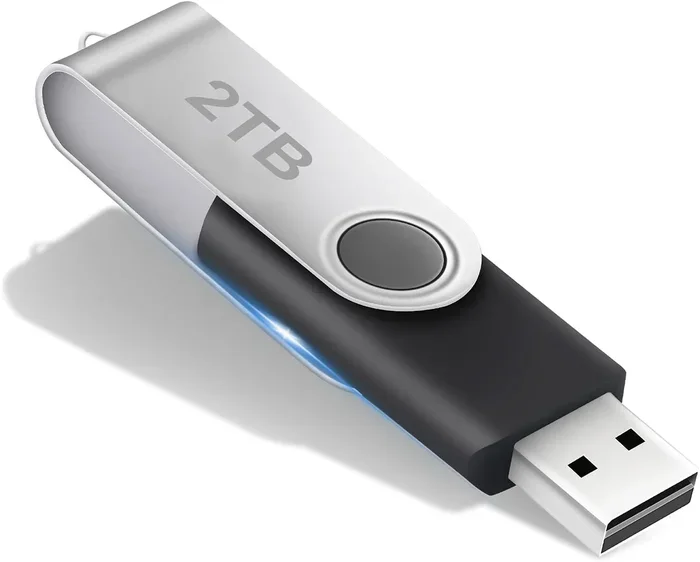
Can I Copy My Operating System To A Usb Flash Drive
Yes, you can copy your operating system to a USB flash drive. This process lets you run your OS from a portable drive on any compatible computer. You will need the right disk cloning software, a bootable USB drive with enough storage, and a few simple steps. Whether you want a system backup, a portable workspace, or a way to recover your OS fast, this guide covers everything you need to know.
Have you ever wondered if you can carry your entire computer system in your pocket? That is exactly what happens when you copy your operating system to a USB flash drive. It sounds like something from a sci-fi movie, but it is very real and very practical. You can take your desktop environment, your apps, and your settings with you wherever you go.
The idea of a portable operating system has been around for a while. But many people still do not know how to do it themselves. They think it requires advanced tech skills or expensive tools. That is not the case at all. With the right guidance, anyone can clone their OS to a USB drive and enjoy the freedom of a mobile computing setup.
In this guide, I will walk you through every step. You will learn how to create a bootable USB, what tools to use, and how to avoid common pitfalls. By the end, you will feel confident enough to do it on your own. Let us get started.
Key Takeaways
- You can clone your OS to a USB drive: Use reliable disk cloning tools to copy your entire system.
- Bootable USB lets you run your OS anywhere: Plug in the drive and boot from it on supported computers.
- Capacity matters: Choose a USB drive large enough to hold your system files and data.
- Backup your data first: Always create a system image before making changes.
- BIOS settings are key: You must change boot order to start from the USB drive.
- Not all systems support USB booting: Older computers may need BIOS updates or have limitations.
📑 Table of Contents
Can I Copy My Operating System To A USB Flash Drive?
The short answer is yes. You can copy your entire operating system to a USB flash drive. This process is called OS cloning or system imaging. It creates an exact copy of your current system, including the operating system, installed programs, and personal files.
Once cloned, the USB drive becomes a bootable system drive. You can plug it into almost any computer and start up your copied operating system. It works just like your regular hard drive, but it is portable and convenient.
However, there are a few things to keep in mind. Not every computer will boot from a USB drive smoothly. Some older systems may not support USB booting at all. And the speed of the USB drive matters a lot. A slow flash drive will make your cloned system feel sluggish. But with a good USB 3.0 or USB-C drive, the experience can be surprisingly fast.
Why Would You Want to Copy Your OS to USB?
There are many reasons people choose to migrate their operating system to a USB drive. Here are some of the most common ones:
- Portable computing: Carry your full desktop setup with you and use any computer as your own.
- System backup: Have a complete copy of your OS ready in case your main drive fails.
- Quick recovery: Restore your system fast after a crash or malware attack.
- Testing new hardware: Boot your familiar OS on a new machine without reinstalling everything.
- IT and troubleshooting: Tech professionals use portable OS drives to fix computers on-site.
- Privacy and security: Use a clean system on public or shared computers without leaving traces.
Each of these reasons makes a strong case for OS transfer to USB. The process is straightforward once you know what you are doing.
What You Need Before You Start
Before you begin the cloning process, make sure you have everything ready. Preparation saves time and prevents problems later. Here is your checklist:
Choosing the Right USB Flash Drive
The USB drive you select plays a big role in how well this works. You need enough storage space to hold your entire system. Most modern Windows installations take up 30 to 60 GB. macOS systems can be even larger. So aim for a drive with at least 128 GB of storage. Go bigger if you have lots of installed programs or large files.
Speed is just as important. Look for a USB 3.0 or USB 3.1 flash drive for the best performance. USB 2.0 drives are too slow for a cloned operating system. You will spend a lot of time waiting for the system to boot and respond. A fast drive makes a huge difference in the user experience.
Brand name drives from reputable manufacturers tend to be more reliable. Cheap, no-name drives sometimes fail after a short time. You are putting your entire operating system on this drive, so invest in quality.
Disk Cloning Software
You cannot just drag and drop system files to a USB drive. Your operating system has hidden files, registry entries, and boot records that must be copied exactly. That is where disk cloning software comes in. These tools create a bit-for-bit copy of your system drive.
Some popular options include:
- Macrium Reflect: A trusted tool with a free version that handles system imaging well.
- AOMEI Backupper: User-friendly and great for beginners who want to clone their OS easily.
- Clonezilla: A free, open-source option that works well for advanced users.
- EaseUS Todo Backup: Offers a clean interface and reliable cloning features.
- Acronis True Image: A premium option with excellent features and support.
Pick the tool that fits your needs and budget. All of these can help you create a bootable USB clone of your operating system.
Backup Your Important Data
Even though cloning is generally safe, things can go wrong. A power outage during the process or a faulty USB drive can cause problems. Always back up your important files before you start. Use an external hard drive or cloud storage for this backup. It takes a few minutes and can save you a lot of headaches.
How to Clone Your Operating System to USB
Now for the main event. Here is a step-by-step walkthrough of how to copy your OS to a USB flash drive. I will use a Windows example since it is the most common setup, but the principles apply to other operating systems too.
Step 1: Connect Your USB Drive
Plug your USB flash drive into your computer. Make sure it is recognized by your system. You can check this by opening File Explorer and looking for the drive under “This PC.” Do not use the same drive you want to clone if it contains important data. The cloning process will erase everything on the target drive.
Step 2: Download and Install Cloning Software
Download your chosen cloning tool from the official website. Install it following the on-screen instructions. Most tools offer a free trial that lets you create a system image. You do not always need to pay for the full version to get the job done.
Step 3: Create the System Image
Open the cloning software and look for the “Clone” or “Backup” option. Select your main system drive as the source. Then choose your USB flash drive as the destination. The software will copy every sector of your system drive to the USB drive.
This process can take anywhere from 20 minutes to several hours. It depends on the size of your system and the speed of your USB drive. Go grab a coffee and let the software do its work.
Step 4: Set the USB Drive as Bootable
Once the cloning is complete, you need to make the USB drive bootable. This tells your computer to look at the USB drive when it starts up. Most cloning tools handle this automatically, but sometimes you need to do a little extra work.
You can use a tool like EasyBCD or the built-in Windows Command Prompt to set the boot files on the USB drive. This step is crucial. Without it, your computer will not know to start from the USB drive.
Step 5: Test Your Cloned USB Drive
Restart your computer and enter the BIOS or UEFI settings. This is usually done by pressing a key like F2, F12, Del, or Esc during startup. The exact key depends on your computer manufacturer.
In the BIOS settings, change the boot order so the USB drive comes first. Save the settings and exit. Your computer should now boot from the USB drive and load your cloned operating system.
If everything works, congratulations. You have successfully copied your operating system to a USB flash drive. If it does not work, do not panic. Go back and check each step. Make sure the USB drive is properly connected and the boot order is correct.
Running Your Operating System From a USB Drive
Once you have cloned your OS to a USB drive, you can use it just like a regular system drive. But there are some differences you should know about.
Performance Considerations
A USB flash drive will never be as fast as a solid-state drive or a traditional hard drive. The read and write speeds are lower, which means your system might feel a bit slower. For everyday tasks like browsing, email, and office work, this is usually fine.
But for demanding tasks like video editing or gaming, a USB drive will struggle. The bottleneck is the USB connection itself. Even USB 3.0 has lower bandwidth than an internal SSD. Keep your expectations realistic, and you will be happy with the results.
Compatibility Across Computers
One of the biggest advantages of a portable operating system on USB is the ability to use it on different computers. But compatibility can be tricky. Different computers have different hardware drivers. Your cloned OS might not recognize all the hardware on a new machine right away.
For the best results, try to use the USB drive on computers with similar hardware. If you are cloning a Windows system, Windows has built-in tools to help with driver detection and installation. You might need to install some drivers manually when using a new computer.
Security and Privacy
Using your OS from a USB drive on a public computer raises security concerns. Always scan the USB drive for malware before using it on an unfamiliar computer. And when you are done, safely eject the drive and scan it again.
Consider encrypting your USB drive for extra protection. Tools like BitLocker for Windows or FileVault for macOS can keep your data safe if the drive is lost or stolen.
Common Mistakes to Avoid
Many people run into problems when copying their OS to a USB drive. Here are some of the most common mistakes and how to avoid them:
Using a USB Drive That Is Too Small
This is the number one mistake people make. They try to clone a 100 GB system onto a 64 GB USB drive. It simply will not work. Always check your system drive size and choose a USB drive with more than enough space. A good rule of thumb is to use a drive that is at least 1.5 times the size of your system drive.
Skipping the Backup Step
Some people dive straight into cloning without backing up their data first. If something goes wrong during the process, you could lose everything. Always create a backup before you start. It takes a little extra time, but it is worth the peace of mind.
Using a Slow USB 2.0 Drive
A USB 2.0 flash drive will make your cloned system painfully slow. The boot times are long, and everyday tasks take forever. Invest in a USB 3.0 or USB 3.1 drive for a much better experience. The small extra cost is well worth it.
Forgetting to Change the Boot Order
After cloning, many people plug in the USB drive and restart the computer, expecting it to boot from the drive. But the computer tries to boot from the internal hard drive first. You must go into BIOS and change the boot order so the USB drive is at the top of the list.
Not Updating Drivers After Cloning
When you use your cloned USB drive on a different computer, the hardware drivers might not match. This can cause performance issues or even prevent the system from booting. Always check for driver updates after moving your OS to a new machine.
Tips for the Best Experience
Want to get the most out of your portable USB operating system? Here are some expert tips:
- Use a USB 3.1 Gen 2 drive: The faster the connection, the better the performance.
- Keep your USB drive plugged in securely: A loose connection can cause data corruption.
- Defragment your system drive before cloning: This helps the clone process run more smoothly.
- Update your OS before cloning: Make sure you are running the latest version of your operating system.
- Remove unnecessary programs: Fewer programs mean a smaller system image and faster performance.
- Test your cloned drive regularly: Make sure it still boots and works properly every few months.
These simple tips will help you get the most out of your OS on a USB flash drive. They might seem small, but they make a big difference in the long run.
Can You Do This With Mac and Linux?
The process is not just for Windows. You can also clone macOS to a USB drive using tools like Carbon Copy Cloner or SuperDuper. These tools create a bootable clone of your Mac system that you can carry with you.
For Linux users, the process is even simpler. Many Linux distributions can be installed directly to a USB drive and run as a live operating system. Tools like Etcher or DD make it easy to create a bootable Linux USB. You can even run Linux entirely from a USB drive without installing it on a hard drive.
The concept of a portable OS works across all major platforms. The tools and steps differ slightly, but the core idea remains the same. You are creating a complete, bootable copy of your operating system that lives on a USB flash drive.
Final Thoughts
Copying your operating system to a USB flash drive is easier than most people think. It gives you a portable, backup-ready, and flexible computing solution. Whether you are a student, a professional, or a tech enthusiast, having your OS on a USB drive opens up new possibilities.
Make sure you have the right tools, enough storage, and a little patience. Follow the steps in this guide, and you will have your cloned operating system running from a USB drive in no time. Start with a test run on your own computer before taking it on the road. Once you see it working, you will wonder how you ever managed without it.
The beauty of this approach is its simplicity. You do not need to be a tech expert. You just need the right guidance and a willingness to try. So go ahead, give it a shot. Your portable operating system is just a USB drive away.
Frequently Asked Questions
Can I copy my operating system to any USB flash drive?
You can copy your OS to most USB flash drives, but the drive must have enough storage space and be fast enough to handle system operations. A USB 3.0 drive with at least 128 GB of storage is recommended for the best results. Cheap or very slow drives may not work well.
Is it safe to run my operating system from a USB drive?
Yes, it is generally safe as long as you use a reliable USB drive and handle it carefully. Always safely eject the drive when removing it, and keep it away from magnets, heat, and moisture. Regularly back up any important data stored on the USB drive to avoid data loss.
Can I use a cloned USB OS on a different computer?
You can, but there may be some compatibility issues. Different computers have different hardware, so you might need to install new drivers or adjust settings. Windows handles most hardware changes well, but Mac and Linux setups may require more manual configuration.
How long does it take to clone an operating system to a USB drive?
The time depends on the size of your system and the speed of your USB drive. A typical clone can take anywhere from 30 minutes to a few hours. USB 3.0 and faster drives will complete the process much quicker than older USB 2.0 drives.
Do I need to activate Windows again after cloning it to a USB drive?
In most cases, your Windows activation will carry over to the cloned USB drive. However, if you use the cloned drive on very different hardware, Microsoft might require reactivation. Keeping your product key safe and accessible is always a good idea.
Can I use the USB drive normally for storing files while also running my OS from it?
Yes, you can use the USB drive for both running your operating system and storing files. However, keep in mind that the more data you store on the drive, the less space you have for your system files. It is best to keep the drive dedicated to your OS clone for optimal performance.
=== CONCLUSION ===
Can I copy my operating system to a USB flash drive? The answer is a clear and confident yes. You now have all the information you need to clone your OS, create a bootable USB drive, and run your system from anywhere. The process might seem intimidating at first, but with the right tools and a bit of patience, it is very doable.
Remember to choose a fast, spacious USB drive. Use reliable cloning software. Always back up your data first. And follow each step carefully. Once your portable operating system is up and running, you will wonder how you ever lived without it.
Start today. Pick a USB drive, download a cloning tool, and take the first step toward a more flexible and portable computing experience. Your operating system on a USB flash drive is waiting for you.