Do Wi Fi Routers Have A Limit On Device Connections
Do Wi Fi routers have a limit? Yes, every wireless router has a maximum number of devices it can support, typically ranging from 10 to 250. Knowing your router’s capacity helps prevent network slowdowns and keeps your smart home running smoothly.
Have you ever wondered if your home network can handle all your gadgets? The truth is, do Wi Fi routers have a limit on how many devices can connect. Every router has a maximum capacity, but it varies by model and technology. Understanding this limit helps you avoid slow internet and frustrating disconnects. Let us explore how many devices your router can truly support.
In today’s world, almost every home has multiple connected gadgets. From smart TVs to phones, we rely heavily on wireless connections. When too many devices try to join the network, things can get messy. You might notice your video calls freezing or your streaming buffering. This happens because your router has a breaking point. Knowing this breaking point is the first step to fixing it.
Many people buy a router and just plug it in. They do not think about how many devices will be using it every day. A modern family might have laptops, tablets, and game consoles all online at once. Even smart home gadgets like cameras and bulbs count toward the total. This guide will help you understand exactly what your router can handle. You will learn how to keep your network fast and stable.
Key Takeaways
- Point 1: Every router has a hard limit on connected devices, which affects your network speed.
- Point 2: The average home router supports between 10 and 50 devices comfortably.
- Point 3: More connected devices do not always mean faster internet; the router’s CPU and RAM matter.
- Point 4: You can increase your connection limit by upgrading your router or using mesh systems.
- Point 5: Disconnecting idle devices frees up bandwidth and improves overall network performance.
📑 Table of Contents
What Is The Wi-Fi Router Device Limit?
The Wi-Fi router device limit refers to the maximum number of gadgets that can connect to your router at the same time. This limit is set by the router’s hardware and software. Different routers have different capacities. Some basic models only allow a few devices. Others can handle dozens or even hundreds of connections. However, more connections do not always mean better performance.
Think of your router like a highway. A small road gets congested quickly with too many cars. A wide highway handles heavy traffic much better. Your router works the same way. It has a central processing unit and memory. When too many devices ask for data at once, the router gets overwhelmed. This leads to slower speeds for everyone. So, finding your router’s limit is very important.
Understanding Wireless Router Capacity
Wireless router capacity depends on the type of router you own. Standard home routers usually handle between 10 and 50 devices. High-end routers can support up to 250 or more. But remember, the number is not the only thing that matters. The quality of the router’s internal parts plays a big role. A cheap router with a high number claim might still slow down at 20 devices. A good router handles 50 devices much better.
The maximum connected devices number is often a theoretical value. Manufacturers test this in perfect lab conditions. In your real home, walls and distance reduce the actual limit. Electronic interference from microwaves also causes issues. So, always plan for fewer devices than the box claims. This gives you a buffer for busy days.
What Affects The Maximum Connected Devices?
Several factors decide how many devices your router can support. The first factor is the router’s CPU. A strong processor can manage more connections. The second factor is the amount of RAM. More memory helps the router juggle multiple requests. Finally, the router’s firmware matters. Updated software can improve how the router handles traffic. Old software might struggle with newer gadgets.
The type of network adapter in your devices also plays a role. Older laptops and phones have weak adapters. They take longer to connect and stay connected. This drains the router’s resources. Newer devices with modern adapters work much faster. They free up the router to help other devices.
How Many Devices Can A Router Actually Handle?
It is hard to give one exact number for every router. The real answer depends on the router class and your internet plan. Let us look at some common examples. A basic router from your internet provider might only support 10 to 15 devices. A mid-range router can handle 20 to 30 devices. A premium or gaming router can often support 50 or more devices.
But here is the catch. Just because your router allows 50 devices does not mean you will have good speeds. If 50 devices are all streaming videos, your internet will crawl. The real limit is not just the connection count. It is the network congestion that happens when too many devices share the bandwidth. You must balance the number of devices with your total internet speed.
| Router Type | Max Devices | Realistic Comfortable Limit |
|---|---|---|
| Basic ISP Router | 10 – 15 | 5 – 8 devices |
| Mid-Range Router | 20 – 30 | 10 – 15 devices |
| High-End Router | 50 – 250 | 20 – 40 devices |
The Difference Between Connected and Active Devices
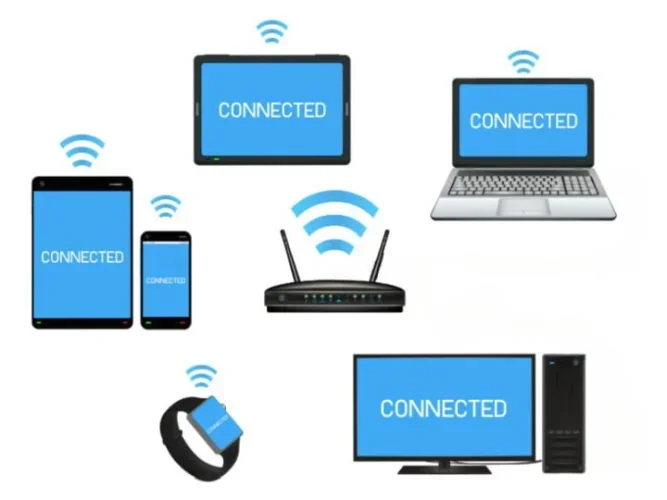
You need to know the difference between connected and active devices. A connected device is one that is saved to your network. It might be your phone sitting on your nightstand. An active device is one actually using the internet right now. Your router can handle many connected devices that are idle. It struggles when many devices are active at the same time. Focus on reducing active devices when you have speed problems.
Your connected gadgets include everything from smart speakers to gaming consoles. Even devices in sleep mode send tiny data pings. These pings keep the device listed as connected. Over time, this list grows. You might have 30 connected devices but only 5 are truly active. Still, the router must manage all 30. This takes a toll on the router’s router performance.
Why Does Your Router Slow Down With Too Many Devices?
When you connect too many gadgets, your router has to work harder. Every device sends and receives data. This takes up the router’s processing power. It also uses up the available bandwidth sharing capacity. If your internet plan is slow to begin with, adding more devices makes it worse.
Network Congestion Explained
Network congestion happens when too many devices try to use the router at once. Imagine a single lane road where five cars try to pass at the same time. They all have to wait their turn. In Wi-Fi terms, the router has to talk to each device one by one. This takes time. The more devices you add, the longer the wait. This causes delays, or latency, in your connection.
High latency makes online games lag. It also makes video calls choppy. You might notice your internet speed drop right when the family is all online. This is the router hitting its limit. It simply cannot process all the requests fast enough.
How Bandwidth Sharing Works
Your total internet speed is shared among all connected devices. If you have a 100 Mbps plan and five devices are streaming, each device gets about 20 Mbps. Add ten more devices, and the speed per device drops to about 6 Mbps. This is why your video call gets fuzzy when someone else starts downloading a big file. The bandwidth sharing model means no single device gets all the speed.
The Role Of Signal Strength
Sometimes the problem is not the router’s brain, but its signal. As you add more devices, they spread out across your home. Some devices might be far from the router. They have to work harder to keep the connection. This weak signal strength leads to retransmissions. The router has to send the data again. This wastes bandwidth and slows down the whole network.
Keep your router in a central spot. Avoid walls and metal objects. A strong signal helps all devices stay connected. It reduces the work the router has to do. This is an easy way to improve your network congestion issues.
How To Check Your Current Device Count
Before you can fix a connection problem, you need to know how many devices are on your network. Checking the device count is easy. Most modern routers have a mobile app or a web dashboard. You can log in and see a list of connected gadgets.
Look for any devices you do not recognize. Sometimes strangers use your Wi-Fi without you knowing. This slows down your network and can be a security risk. If you see unknown devices, change your Wi-Fi password right away. Keeping an eye on your device list helps you manage your connected gadgets better.
Using Your Router App To Monitor Devices
Most new routers come with a companion app. You just open the app and look at the device list. It shows the name of each device. It also shows how much data each device is using. This is very helpful for finding the culprits when your internet gets slow. You can easily see if your smart home devices are taking up too much space.
Many apps will alert you when a new device joins. This is a great security feature. You can block unknown devices with one tap. Regular monitoring keeps your network safe and fast.
Checking Via The Web Dashboard
If you do not use an app, you can check the router through a web browser. Type your router’s IP address into the address bar. Log in with your admin username and password. Find the section called “Attached Devices” or “DHCP Client List.” You will see a full list of who is connected. This method works for almost any router brand.
Write down the IP addresses of devices you recognize. If you see strange addresses, they might be intruders. A quick firmware update can also fix bugs that show ghost devices. Always keep your router’s admin password strong and unique.
Ways To Increase Your Router’s Connection Limit
If you have hit the wall with your current router, do not worry. There are several ways to increase your connection limit. You do not always have to buy a whole new internet plan. Small changes can make a big difference. Let us look at some practical steps you can take today.
Upgrading To A Dual Band Router
A dual band router uses two frequency bands. Most older routers only use one band, usually 2.4GHz. The 2.4GHz band is crowded and slow. A dual band router adds a 5GHz band. This splits your devices between two highways. It reduces network congestion and allows more devices to connect without slowing down. If you have many gadgets, a dual band router is a must.
Setting Up A Mesh Network System
A mesh network uses multiple units to spread your Wi-Fi signal. Instead of one router doing all the work, the units share the load. Each unit acts as an access point. This means more devices can connect without overloading a single point. Mesh systems are great for large homes. They also improve the signal strength in every room.
Mesh systems are easy to set up. You just place the units in different rooms. They talk to each other wirelessly or with cables. This creates one big, seamless network. Your devices can move from room to room without losing connection.
Using Ethernet Backhaul
If you have a mesh system or multiple routers, use cables to connect them. This is called Ethernet backhaul. It moves data between the units using wires instead of air. Wired connections are much faster and more stable. They take the pressure off the wireless network. This frees up space for more wireless devices to connect.
Ethernet backhaul is the best way to boost speed. It removes wireless bottlenecks. If you can run a cable, you should. Your throughput will improve dramatically. Streaming and gaming become much smoother on a wired backhaul.
Adjusting QoS Settings
Quality of Service, or QoS, is a setting on most routers. It lets you prioritize certain devices. For example, you can tell your router to give your work laptop top priority. It will slow down the smart TV a little bit. This ensures important devices get the bandwidth they need. QoS is a great way to manage a crowded network. You can find QoS settings in your router’s advanced menu.
You can also set QoS by application. Prioritize video calls over file downloads. This stops your calls from freezing when someone starts a big download. Small adjustments in QoS can make a huge difference in your daily use.
Quick Tips To Boost Your Router’s Limit
Want to get the most out of your router right now? Try these quick tips. They take just a few minutes and can make a big difference.
- Restart your router weekly. This clears the memory and fixes small bugs.
- Move your router to a central spot. This improves the signal for all devices.
- Turn off Wi-Fi on devices you are not using. This saves router memory.
- Update your router’s firmware. This keeps the software running smoothly.
- Use a strong Wi-Fi password. This stops neighbors from stealing your bandwidth.
Common Mistakes That Reduce Your Router Capacity
Many people accidentally hurt their router’s performance without knowing it. Avoiding these common mistakes can help your router last longer and work faster. Small changes in how you use your network can lead to big improvements.
Forgetting To Update Firmware
Router manufacturers release updates to fix bugs and improve performance. If you never update your router, it might struggle with newer devices. Old firmware can also have security holes. Make it a habit to check for updates once a month. Most modern routers update automatically, but it is good to check. This simple step keeps your router performance at its best.
Leaving Idle Devices Connected
Just because a device is not in use does not mean it leaves the network. Your phone, tablet, and smart speakers stay connected all the time. They still use a small amount of router memory. Over time, this builds up. Disconnect devices you are not using. This frees up slots for active gadgets. It also reduces network congestion in the background.
Placing The Router In A Bad Spot
Where you put your router matters a lot. If you hide it in a closet or behind a TV, the signal gets blocked. Devices far away will struggle to connect. They will use more power trying to reach the router. Place your router in a central, open location. This improves signal strength for every device in your home.
Overlooking Router Overheating
Routers generate heat when they work hard. If your router is too hot, it will slow down or even shut off. Keep your router in a ventilated spot. Do not pile books or boxes around it. A cool router runs better and lasts longer. Heat is a silent killer of network performance.
Using Old Devices That Slow Down The Network
Old gadgets can drag down your whole network. Devices using old Wi-Fi standards like 802.11b or g use a lot of airtime. They force the router to use older, slower protocols. This slows down modern devices too. If you have old smart home sensors, consider replacing them. Newer devices talk much faster and more efficiently. This helps your Wi-Fi router device limit feel much larger.
How Background Updates Drain Your Network
Many devices update themselves in the background. Your phone, laptop, and smart TV all do this. They download updates while you sleep or work. This uses up your bandwidth without you knowing. When many devices update at once, the internet slows down for everyone. You might wake up to find your internet is very slow. This is because the updates used up all the capacity overnight.
You can fix this by scheduling updates. Many devices let you choose when to update. Set them for the early morning when no one is using the internet. This prevents the internet speed drop during the day. It also keeps your connected gadgets running smoothly.
Conclusion
So, do Wi Fi routers have a limit? The answer is yes. Every router has a maximum number of devices it can handle. But the real limit depends on your router’s hardware and your internet speed. Basic routers struggle with 15 devices, while premium routers can handle 50 or more. The key is to manage your network smartly.
Keep an eye on your connected gadgets. Update your router’s software regularly. Use features like QoS and dual bands to spread the load. If your home is full of smart devices, consider a mesh system. These steps will help you avoid network congestion and keep your speeds up. A little knowledge goes a long way in keeping your home network running smoothly.
Remember, your router is the heart of your home network. When it struggles, everything else slows down. Take the time to understand its limits and manage your devices. A little effort goes a long way. You will enjoy faster speeds and fewer disconnects. Follow the tips in this guide to get the best performance from your do Wi Fi routers have a limit setup.
Frequently Asked Questions
Can I connect more devices than my router’s limit?
Technically, yes. Your router might allow more devices to connect than its recommended limit. However, the network will become very slow. The router will struggle to manage all the requests. It is best to stay under the comfortable limit for good speeds.
Does a better router fix slow internet?
A better router can definitely help if your current one is too weak. It handles more devices without slowing down. But if your internet plan is slow, a new router will not fix that. You need enough speed to begin with. Then a good router keeps it fast for many devices.
How many devices is too many for a home network?
For most families, more than 20 active devices is too many for a basic router. If you have 20 or more devices streaming or gaming, you need a strong router. A mid-range or high-end model will handle the load much better. Consider a mesh system for very large homes.
Will disconnecting devices improve my Wi-Fi speed?
Yes, disconnecting idle devices frees up router memory and bandwidth. It reduces the work your router has to do. Even if a device is not actively streaming, it still uses a small amount of resources. Disconnecting unused gadgets helps your active devices run faster.
Do mesh systems have a higher device limit?
Yes, mesh systems generally support more devices than single routers. They spread the load across multiple units. Each unit acts as an access point. This sharing makes the network more efficient. However, the total limit still depends on the mesh system’s hardware.
How often should I reboot my router?
Rebooting your router once a week is a great habit. It clears the memory and refreshes the connection. This helps prevent slow downs caused by too many connected devices. You can set your router to reboot automatically at a set time. This makes maintenance effortless.