Can Someone Connect To Your Wi Fi Without You Knowing
Yes, someone can connect to your Wi-Fi without you knowing if your network is not properly secured. Weak passwords, outdated encryption, and open networks make it easy for unauthorized users to access your wireless connection. The good news is that a few simple steps can dramatically improve your Wi-Fi security and keep intruders out for good.
Key Takeaways
- Unauthorized access is real: Any Wi-Fi network with weak security can be accessed by someone without your knowledge.
- Warning signs exist: Slow speeds, unknown devices, and unusual router activity are clear red flags.
- Strong passwords matter: A robust Wi-Fi password is your first line of defense against network intruders.
- Encryption is essential: Using WPA3 or WPA2 encryption keeps your data safe from eavesdroppers.
- Regular monitoring helps: Checking your router and connected devices frequently catches problems early.
- Guest networks add protection: Setting up a separate Wi-Fi guest network keeps your main network isolated.
- Firmware updates close gaps: Keeping your router firmware current patches known Wi-Fi vulnerability issues.
📑 Table of Contents
- How Can Someone Connect To Your Wi-Fi Without You Knowing
- Warning Signs That Someone Is Using Your Wi-Fi
- How to Check for Unknown Devices on Your Network
- Ways to Protect Your Wi-Fi From Unauthorized Access
- What to Do If Someone Is Already Connected to Your Network
- Long-Term Wi-Fi Security Best Practices
- Common Mistakes That Leave Your Wi-Fi Vulnerable
- Expert Insights on Wi-Fi Security
- Key Takeaways
- Conclusion
How Can Someone Connect To Your Wi-Fi Without You Knowing
Most people assume their home network is private. But the truth is, if your router is not set up correctly, anyone within range can potentially join your wireless network. Understanding how this happens is the first step toward stopping it.
When you set up a router, it creates a wireless signal that broadcasts into your home and sometimes beyond your walls. If that signal is not locked down with proper security measures, nearby devices can detect it and attempt to connect. The process is often completely invisible to the network owner.
There are several common ways this occurs. A default Wi-Fi password that came with your router is easy to find online. An open network with no password at all is an open invitation. And outdated encryption protocols like WEP can be cracked in minutes by anyone with basic tools.
Let us look at the most common methods people use to gain unauthorized access to a wireless network.
Brute Force Attacks
A brute force attack is when someone uses software to guess your Wi-Fi password. If your password is short or uses common words, these tools can crack it surprisingly fast. This is why long, complex passwords are so important for network protection.
Exploiting Default Router Settings
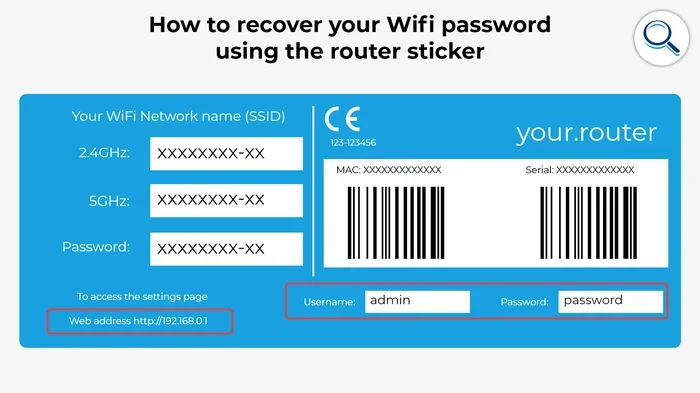
Many routers ship with default admin usernames and passwords like “admin” and “password.” If you never changed these, anyone who knows the model of your router can log into your router admin panel and change settings. They could then access your network or even create a backdoor for future access.
WPS Vulnerabilities
Wi-Fi Protected Setup, or WPS, was designed to make connecting devices easier. But it has known flaws. Attackers can use a PIN-based method to bypass your Wi-Fi password entirely. Disabling WPS on your router is one of the simplest things you can do to improve Wi-Fi security.
Evil Twin Attacks
In an evil twin attack, a hacker sets up a fake Wi-Fi network that mimics your real one. Your devices might automatically connect to the fake network without you noticing. This is more common in apartment buildings and crowded areas where many networks overlap.
Warning Signs That Someone Is Using Your Wi-Fi
Detecting unauthorized access early can save you from bigger problems down the road. Here are the most common signs that someone else is using your wireless network.
Slow internet speeds are often the first clue. If your connection suddenly becomes sluggish and you have not changed your usage habits, another device may be consuming your bandwidth. This is sometimes called internet bandwidth theft, and it can be frustrating to deal with.
Unknown devices appearing on your network is another major red flag. Most modern routers let you view a list of connected devices. If you see something you do not recognize, someone has likely gained unauthorized access.
Your router lights blink strangely when you are not actively using the internet. Data is still being transmitted, which means another device is using your connection.
Unfamiliar browsing history or unexpected pop-ups on your devices can also indicate that someone else is on your network. They may be using your IP address for activities you did not approve.
Your Wi-Fi signal seems weaker than usual. If someone is far from your router but still connected, they may be pulling signal strength away from your own devices.
How to Check for Unknown Devices on Your Network
Checking for unauthorized devices is easier than most people think. You do not need to be a tech expert to do it. Here is a simple step-by-step process you can follow right now.
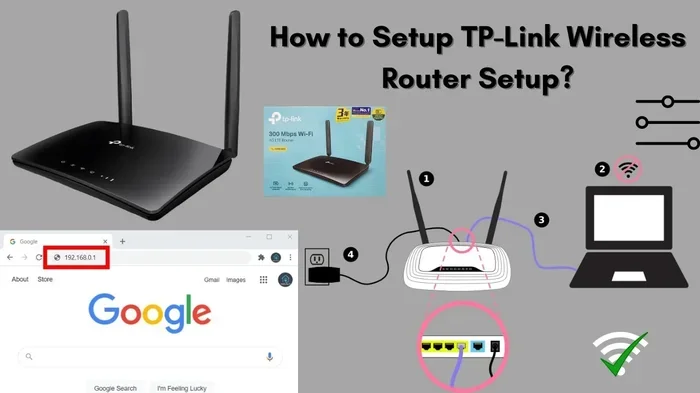
First, open your web browser and type your router’s IP address into the address bar. Common addresses are 192.168.1.1 or 192.168.0.1. Log in using your router admin credentials. If you have not changed these, check the sticker on the back of your router.
Once logged in, look for a section called “Connected Devices,” “Device List,” or “DHCP Client List.” This shows every device currently using your network. Compare the list to the devices you own.
You can also use your router manufacturer’s mobile app. Most major brands like Netgear, TP-Link, and ASUS offer apps that make this process even simpler. The app will usually show device names, IP addresses, and MAC addresses.
A MAC address is a unique identifier for each device. If you see a MAC address that does not match any of your phones, laptops, or smart home gadgets, investigate further. You can use a free network scanning tool like Fing or Advanced IP Scanner to get a detailed view of your wireless network.
What to Do When You Find an Unknown Device
If you spot a device you do not recognize, do not panic. Here is what you should do immediately. First, change your Wi-Fi password. This will kick off any unauthorized users. Second, check your router settings and make sure WPS is disabled. Third, update your Wi-Fi encryption to WPA3 or at least WPA2.
You should also review your router admin panel and make sure no one has changed your settings. If they have, reset your router to factory defaults and set it up again with strong security measures.
Ways to Protect Your Wi-Fi From Unauthorized Access
Prevention is always better than cure. Taking proactive steps to secure your wireless network can save you from headaches later. Here are the most effective methods to protect your home network.
Use a Strong Wi-Fi Password
Your Wi-Fi password is the front door to your network. Make it long, complex, and unique. A good password should be at least 12 to 16 characters long and include a mix of uppercase letters, lowercase letters, numbers, and symbols. Avoid using easily guessable information like your name, address, or birthday.
Consider using a passphrase instead of a single word. For example, “BlueDog$RunsFast2024!” is much harder to crack than “password123.” A strong Wi-Fi password is one of the simplest yet most powerful network protection tools you have.
Enable WPA3 Encryption
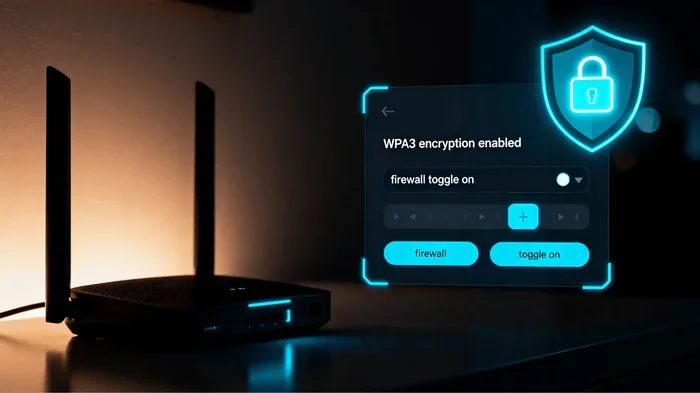
Wi-Fi encryption scrambles the data traveling between your router and your devices. WPA3 is the latest and most secure encryption standard available. If your router supports it, enable it immediately. If not, WPA2 is still a solid choice, but you should plan to upgrade your router soon.
Avoid using WEP or WPA encryption. These older protocols have known Wi-Fi vulnerability issues and can be cracked with freely available tools. If your router only offers WEP, it is time for a new router.
Change Your Router Admin Credentials
Your router has two sets of passwords: one for connecting to the Wi-Fi network, and one for accessing the router admin panel. Many people forget to change the admin password, which leaves a big gap in their Wi-Fi security.
Log into your router settings and change the default admin username and password to something only you know. This prevents anyone from accessing your router settings and making unauthorized changes to your network configuration.
Set Up a Wi-Fi Guest Network
A guest network is a separate Wi-Fi network that you can set up for visitors, smart home devices, or anyone who needs temporary access. It keeps these devices isolated from your main network, where your personal files and sensitive data are stored.
Most modern routers make it easy to set up a guest network. You can give it a different name and password, set bandwidth limits, and even restrict which devices can access it. This is one of the best network protection strategies for households with multiple users.
Disable WPS
Wi-Fi Protected Setup was meant to simplify connections, but it introduced serious security flaws. Disabling WPS removes one of the most common attack vectors. You can usually find this option in your router settings under “Wireless” or “Wi-Fi Settings.”
Keep Your Router Firmware Updated
Router manufacturers release firmware updates to patch security holes and improve performance. If your router is set to update automatically, make sure that feature is turned on. If not, check for updates regularly through your router admin panel.
A firmware update can fix critical Wi-Fi vulnerability issues that hackers could exploit. This is one of the most overlooked yet important steps in maintaining network monitoring and protection.
Hide Your SSID
Your SSID is the name of your wireless network that appears when someone searches for available networks. Hiding your SSID makes your network invisible to casual snoopers. It does not make your network impossible to find, but it removes it from the list of easy targets.
You can hide your SSID in your router settings under “Wireless” or “Wi-Fi Settings.” Note that this is not a substitute for strong encryption and passwords, but it adds an extra layer of Wi-Fi security.
Use MAC Address Filtering
MAC address filtering lets you create a whitelist of devices that are allowed to connect to your network. Any device not on the list will be blocked, even if someone has your Wi-Fi password.
This method is not foolproof, as skilled attackers can spoof MAC addresses. However, it adds another barrier that makes unauthorized access more difficult. It works best when combined with other security measures like strong encryption and complex passwords.
What to Do If Someone Is Already Connected to Your Network
Discovering that someone is already using your Wi-Fi without permission can feel violating. But taking quick action can limit the damage and prevent it from happening again.
Start by changing your Wi-Fi password immediately. Use the steps we covered earlier to create a strong, unique password. Then log into your router and check for any changes someone may have made to your settings. Look for new port forwards, changed DNS settings, or unfamiliar admin accounts.
Next, run a full antivirus and anti-malware scan on all your devices. Someone on your network could have attempted to access shared files or intercept your data. A thorough scan helps ensure your devices are clean.
If you are still concerned, consider contacting your internet service provider. They can help you check for issues and may offer additional security tools. You should also consider whether your current router is still receiving updates. If it is an older model, upgrading to a newer router with WPA3 support is a smart investment in your network protection.
Long-Term Wi-Fi Security Best Practices
Securing your wireless network is not a one-time task. It requires ongoing attention and regular maintenance. Here are some habits that will keep your network safe over the long term.
Review your connected devices monthly. Make it a habit to check your router’s device list at least once a month. This helps you catch unauthorized access early before it becomes a bigger problem.
Change your Wi-Fi password every few months. Regular password changes reduce the risk of someone maintaining long-term access to your network. This is especially important if you have had guests over or used a shared password.
Keep your router in a central location. Placing your router in the center of your home reduces the strength of the Wi-Fi signal outside your walls. This makes it harder for neighbors or passersby to detect and attempt to connect to your network.
Disable remote management. Remote management allows you to access your router settings from outside your home. While convenient, it also creates an additional entry point for attackers. Unless you specifically need it, turn it off.
Use a firewall. Most routers have a built-in firewall. Make sure it is enabled. A firewall adds another layer of defense against network intruders and helps monitor incoming and outgoing traffic.
Educate everyone in your household. Wi-Fi security is a team effort. Make sure everyone in your home understands the importance of not sharing passwords carelessly and recognizes the signs of unauthorized access.
Common Mistakes That Leave Your Wi-Fi Vulnerable
Even well-meaning users can make mistakes that weaken their Wi-Fi security. Here are the most common ones to avoid.
- Using the default router password. This is the number one mistake. Default admin credentials are publicly available for nearly every router model.
- Choosing a weak Wi-Fi password. Simple passwords like “12345678” or “iloveyou” can be cracked in seconds.
- Leaving WPS enabled. WPS vulnerabilities are well-documented and widely exploited.
- Not updating router firmware. Outdated firmware contains known security flaws that attackers can easily exploit.
- Using outdated encryption like WEP. WEP encryption is effectively useless against modern attacks.
- Ignoring unknown devices on the network. If you see something unfamiliar, investigate it immediately.
- Placing the router near windows or exterior walls. This broadcasts your signal outside your home, making it an easy target.
Expert Insights on Wi-Fi Security
Cybersecurity professionals emphasize that home network security is often the weakest link in digital safety. A compromised wireless network can give attackers access to personal files, banking information, and smart home devices.
According to network security experts, the most effective approach is a layered defense strategy. No single measure is enough on its own. Combining strong passwords, modern encryption, regular firmware updates, and active network monitoring creates a robust defense that is much harder to breach.
Experts also recommend treating your Wi-Fi network the same way you would treat the front door to your home. You would not leave it unlocked and open. The same principle applies to your wireless network. Every security measure you add is another lock on that door.
One expert tip that many people overlook is to periodically check your router logs. Most routers keep a log of connection attempts, both successful and failed. A spike in failed login attempts could mean someone is trying to brute force their way in. Catching this early gives you time to respond before any unauthorized access occurs.
Key Takeaways
- Can someone connect to your Wi-Fi without you knowing? Yes, if your network is not properly secured.
- Warning signs include slow speeds, unknown devices, and unusual router activity.
- Strong passwords and modern encryption are your best defenses.
- Regularly monitoring your network catches problems early.
- Guest networks, firmware updates, and disabling WPS all add layers of protection.
- Taking immediate action when you detect unauthorized access limits potential damage.
Conclusion
The answer to the question “Can someone connect to your Wi-Fi without you knowing” is a clear yes. But the good news is that you have the power to prevent it. By understanding how unauthorized access happens, recognizing the warning signs, and taking proactive security measures, you can keep your wireless network safe and your personal data protected.
Start with the basics. Change your default router credentials. Set a strong Wi-Fi password using WPA3 encryption. Disable WPS and keep your firmware updated. These simple steps make a massive difference in your overall Wi-Fi security.
Make it a habit to check your connected devices regularly and stay informed about new security threats. Network protection is not a set-it-and-forget-it task. It is an ongoing process that keeps your home and your data safe. Take action today, and enjoy peace of mind knowing your wireless network is secure.
Frequently Asked Questions
How do I know if someone is using my Wi-Fi without permission?
The most common signs are slower internet speeds, unknown devices showing up in your router’s connected device list, and blinking router lights when you are not using the internet. You can also use network scanning apps like Fing to get a detailed list of all devices on your wireless network and spot anything unfamiliar.
What is the best Wi-Fi encryption to use?
WPA3 is the current gold standard for Wi-Fi security. It offers the strongest encryption and best protection against modern attacks. If your router does not support WPA3, use WPA2 as a fallback. Avoid WEP and WPA, as both are outdated and easily compromised.
Can my neighbor connect to my Wi-Fi without me knowing?
Yes, if your Wi-Fi signal reaches your neighbor’s home and your network is not properly secured. This is one of the most common scenarios for unauthorized access. Using a strong password, hiding your SSID, and reducing signal strength can help prevent neighbors from accessing your network.
Is it illegal for someone to use my Wi-Fi without permission?
In most countries, unauthorized access to a computer network is illegal. Even if the person is just using your internet, accessing your network without permission can violate local and federal laws. This is another reason why securing your wireless network is so important.
Should I change my Wi-Fi password regularly?
Yes, changing your Wi-Fi password every few months is a smart security practice. It limits the window of opportunity for anyone who may have gained access without your knowledge. It is especially important if you have shared your password with guests or if you notice any suspicious activity on your network.
What should I do if I find an unauthorized device on my network?
Change your Wi-Fi password immediately to kick off the unauthorized user. Then review your router settings to make sure no one has altered your configuration. Run antivirus scans on all your devices, and consider enabling MAC address filtering and disabling WPS to prevent future unauthorized access.