Can I Use Any Wifi Router With Optimum At My House
Yes, you can use any WiFi router with Optimum, but not every router works perfectly. Your Optimum plan and modem play a big role in how well a third-party router performs. This guide walks you through Optimum router compatibility, setup steps, and the best picks for your home network.
If you have Optimum internet at home, you have probably wondered about your router options. The big question is simple: can you use any WiFi router with Optimum? The short answer is yes. But the full story has some important details you need to know.
Many people assume they must rent a router from their internet service provider. That is not true. You can bring your own wireless router and connect it to your Optimum modem. This gives you more control over your network performance and can save you money every month. In this article, we will walk you through everything you need to know about router compatibility with Optimum.
Whether you are a tech beginner or someone who already tweaks router settings for fun, this guide has something for you. We will cover how Optimum works, what to look for in a router, and step-by-step setup tips. By the end, you will feel confident choosing the right third-party router for your home.
Key Takeaways
- Any WiFi router works with Optimum: You are not locked into renting Optimum equipment.
- Check DOCSIS compatibility: Your modem must match your Optimum internet plan speed.
- Bridge mode is key: It prevents double NAT issues when using a third-party router.
- Look for Wi-Fi 6 routers: They deliver faster speeds and better network performance.
- Avoid common setup mistakes: Wrong settings and poor placement hurt your connection.
- Renting vs. buying saves money long-term: Owning your router cuts monthly costs.
📑 Table of Contents
- What Is Optimum and How Does It Work?
- Can You Use Any WiFi Router With Optimum?
- How to Check Router Compatibility With Optimum
- Setting Up a Third-Party Router With Optimum
- Best WiFi Routers for Optimum Internet
- Common Mistakes to Avoid When Choosing a Router for Optimum
- Expert Tips to Maximize Your Optimum WiFi Setup
- Key Takeaways
- Frequently Asked Questions
- Conclusion
What Is Optimum and How Does It Work?
Before you pick a router, it helps to understand how Optimum delivers internet to your home. Optimum is a cable internet service provider that uses a technology called DOCSIS. This stands for Data Over Cable Service Interface Specification. It is just a fancy way of saying that internet data travels through coaxial cables to your home.
How the Optimum Modem Works
Your Optimum connection starts with a device called a modem. The modem connects to the cable line outside your home. It then translates the signal into data your devices can use. Some people use an Optimum modem router combo, which is a single device that handles both jobs.
However, using a separate modem and router gives you better flexibility. You can upgrade your wireless router without touching the modem. This is the setup most power users prefer. It also lets you get the best router speed for your money.
What Speed Tiers Does Optimum Offer?
Optimum offers several internet speed tiers. These range from basic plans to ultra-fast fiber options. Your plan determines how much speed your modem needs to handle. Here is a quick look at common Optimum speed tiers:
- Basic Plans: 100 to 300 Mbps
- Standard Plans: 400 to 900 Mbps
- Gigabit Plans: 1 Gbps or higher
Your router speed should match or exceed your plan speed. If you pay for 900 Mbps but your router only handles 300 Mbps, you will not get the full benefit. Always check the specs before you buy.
Can You Use Any WiFi Router With Optimum?
This is the big question, and the answer is mostly yes. You can use any WiFi router with Optimum as long as it works with your modem. Optimum does not block specific router brands. You are free to choose from brands like ASUS, Netgear, TP-Link, Linksys, and many others.
What Makes a Router Compatible With Optimum?
Not all routers are created equal. For a router to work well with Optimum, it needs a few key features. First, it must support the right connection type. Most Optimum modems use Ethernet or USB connections to link to a router. Your router needs to support one of these.
Second, look for DOCSIS 3.0 or DOCSIS 3.1 support on the modem side. The router itself does not need DOCSIS, but the modem does. The router just needs to handle the data the modem sends it. Think of the modem as the front door and the router as the hallway that spreads the internet to every room.
Renting vs. Buying Your Own Router
Many people rent their equipment from Optimum. This means you pay a monthly fee for the modem and router. Over time, this adds up fast. Renting a gateway device from Optimum can cost you $15 to $25 per month. That is $180 to $300 every year.
Buying your own third-party router costs more upfront but saves you money in the long run. A good router costs between $80 and $200. After about six months, you start saving. Plus, you get better network performance and more features.
One thing to keep in mind is the Optimum equipment lease agreement. If you are still under contract, check for early termination fees. Once you own your own router, you can return the leased equipment and stop paying that monthly fee.
How to Check Router Compatibility With Optimum
Not every router on the shelf will work perfectly with your Optimum setup. Before you spend your money, you should check a few things. This saves you from buying a router that does not deliver the router speed you need.
Step 1: Check Your Optimum Modem Model
Start by finding out which modem you have. Look at the label on the back or bottom of the device. It will show the model number. Write it down or take a photo. Then visit the Optimum website or call customer support to confirm what your modem supports.
Some older modems only support slower speeds. If you have a gigabit plan, you need a modem that can handle those speeds. This is where DOCSIS 3.1 comes in. It is the newer standard that supports faster internet.
Step 2: Check the Router’s Specs
Next, look at the router you want to buy. Check its maximum speed rating. You want a router that matches or exceeds your internet plan. For example, if you have a 400 Mbps plan, get a router rated for at least 500 Mbps or higher.
Also check if the router supports Wi-Fi 5 (802.11ac) or Wi-Fi 6 (802.11ax). Wi-Fi 6 routers offer better network performance, especially in homes with many devices. They handle traffic more efficiently and reduce lag.
Step 3: Confirm the Connection Type
Most routers connect to modems using an Ethernet cable. This is the standard and works with almost all setups. Make sure your router has at least one WAN port for Ethernet. Some routers also offer USB connections, but Ethernet is what you need for Optimum.
If your modem uses a different connection type, you may need an adapter. This is rare, but it is worth checking before you buy. A quick call to Optimum support can clear this up.
Setting Up a Third-Party Router With Optimum
Once you have a compatible router, the setup process is straightforward. You do not need to be a tech expert. Just follow these steps carefully, and you will be online in no time.
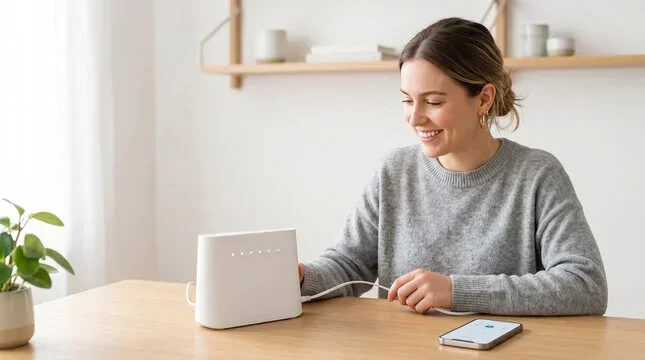
Step 1: Connect the Modem to the Router
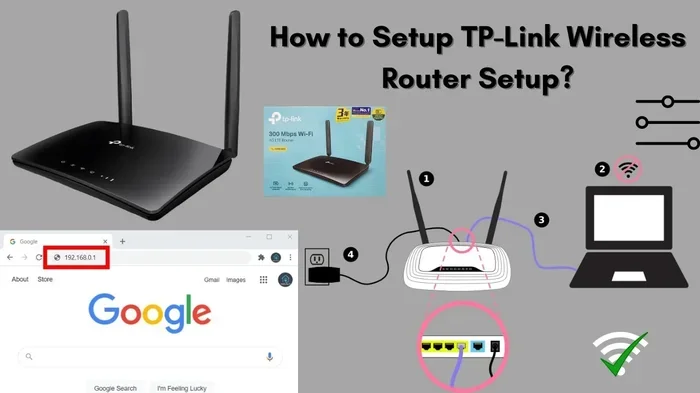
Start by plugging an Ethernet cable from your Optimum modem into the WAN port on your new router. The WAN port is usually colored differently from the other ports. It is often blue or yellow. This cable carries the internet signal from the modem to the router.
Power on both devices. Wait for the modem to fully start up. You will see the lights stabilize. Then wait for the router to boot up. This usually takes one to two minutes.
Step 2: Access the Router Settings
Open a web browser on your computer or phone. Type in the router’s default IP address. This is usually 192.168.0.1 or 192.168.1.1. Check the router manual for the exact address. Log in with the default username and password. These are often printed on a sticker on the router itself.
Once inside, you can change the router settings. Set a new admin password right away. This keeps your network safe. You should also set up your WiFi name and password here.
Step 3: Enable Bridge Mode on the Optimum Modem
This is a step many people skip, but it is very important. If your Optimum modem has a built-in router, you need to turn it off or put it in bridge mode. Bridge mode lets the modem pass the internet signal straight to your new router without any extra processing.
Without bridge mode, you may run into something called double NAT. This can cause problems with gaming, streaming, and port forwarding. It slows down your internet speed test results and can be very frustrating. To enable bridge mode, log into your modem’s admin page and look for the bridge mode setting.
Step 4: Test Your Connection
After setup, run an internet speed test on your phone or computer. Go to a speed test website and check the results. Compare them to your Optimum plan speed. If the numbers are close, you are all set. If not, try moving the router to a different location or restarting both devices.
Best WiFi Routers for Optimum Internet
Not sure which router to buy? You are not alone. The market is full of options, and it can be overwhelming. Here are some top picks that work great with Optimum.
Best Overall: ASUS RT-AX86U
The ASUS RT-AX86U is a fantastic wireless router for most homes. It supports Wi-Fi 6, which means faster speeds and better handling of multiple devices. It has strong range and excellent router speed. The setup process is user-friendly, even for beginners. This router is a great choice for families and remote workers.
Best Budget: TP-Link Archer A7
If you want to save money, the TP-Link Archer A7 is a solid pick. It supports Wi-Fi 5 and delivers speeds up to 450 Mbps on each band. It is affordable and reliable. For people on a basic Optimum internet plan, this router handles everything with ease. It is one of the most popular budget routers on the market.
Best for Large Homes: Netgear Nighthawk AX12
Big homes need strong coverage. The Netgear Nighthawk AX12 is built for this. It uses Wi-Fi 6 technology and has a powerful antenna design. It can cover large areas with strong signal. If you have a multi-story home or thick walls, this router delivers the network performance you need.
Best for Gamers: ASUS ROG Rapture GT-AX11000
Gamers need low latency and fast speeds. The ASUS ROG Rapture GT-AX11000 is built for gaming. It supports Wi-Fi 6 and has a dedicated gaming band. It also offers advanced router settings for customizing your connection. If you play online games or stream competitive content, this router is worth the investment.
Common Mistakes to Avoid When Choosing a Router for Optimum
Even with the best intentions, people make mistakes when picking a router. Here are some common pitfalls to watch out for.
Buying a Router That Is Too Slow
The biggest mistake is buying a router that cannot keep up with your internet plan. If you pay for a 900 Mbps plan, do not buy a router that maxes out at 300 Mbps. You will waste money and never get the speed you are paying for. Always match your router to your plan speed.
Skipping Bridge Mode
As mentioned earlier, skipping bridge mode causes double NAT. This is one of the most common setup errors. It leads to slow speeds, connection drops, and issues with online gaming. Take the extra five minutes to enable bridge mode in your modem settings.
Placing the Router in a Bad Spot
Where you put your router matters a lot. Putting it in a closet or behind a TV weakens the signal. Walls, metal objects, and microwaves all interfere with WiFi. Place your router in a central, open area for the best network performance.
Ignoring Firmware Updates
Your router needs regular updates to stay secure and fast. These updates are called firmware updates. They fix bugs and improve router configuration options. Check for updates in your router settings once a month. It only takes a few minutes.
Expert Tips to Maximize Your Optimum WiFi Setup
You have your router set up. Now let us make sure you are getting the most out of it. These tips come from networking professionals and real-world testing.
Use an Ethernet Connection for Key Devices
WiFi is convenient, but a wired Ethernet connection is always faster and more stable. Connect your desktop PC, gaming console, or smart TV directly to the router with an Ethernet cable. This frees up WiFi bandwidth for your other devices.
Update Your Router Firmware Regularly
Firmware updates are not just about security. They also improve router speed and fix bugs. Check your router settings for updates at least once a month. Many modern routers also offer automatic updates, so turn that feature on if available.
Run a Speed Test Every Few Weeks
Do not just set up your router and forget about it. Run an internet speed test every few weeks. This helps you spot problems early. If your speeds drop, it could be a router issue, a modem issue, or a problem with your Optimum plan.
Consider a Mesh System for Large Homes
If your home is large or has multiple floors, a single router may not be enough. A mesh WiFi system uses multiple nodes to spread coverage evenly. Brands like Google Nest WiFi, Eero, and ASUS ZenWiFi make great mesh systems. They work perfectly with Optimum and eliminate dead zones.
Key Takeaways
- You can use any WiFi router with Optimum: There is no requirement to rent equipment from Optimum.
- Check DOCSIS compatibility: Your modem must support the speed tier of your Optimum plan.
- Always enable bridge mode: This prevents double NAT and keeps your connection smooth.
- Match router speed to your plan: A router rated for less than your plan speed wastes your money.
- Wi-Fi 6 routers are the best choice: They offer faster speeds, better range, and handle more devices.
- Owning your router saves money: You stop paying the monthly equipment lease fee after the upfront cost is covered.
- Placement matters: Keep your router in a central, open location for the best signal coverage.
Frequently Asked Questions
Do I need a special router to work with Optimum?
No, you do not need a special router. Any standard wireless router that supports Ethernet connection will work with Optimum. You just need to make sure the router is compatible with your modem and can handle your internet speed tier. Check the router specs before you buy to be safe.
Will using my own router save me money with Optimum?
Yes, using your own router can save you a significant amount of money. Optimum charges a monthly fee for renting their gateway device. Over a year, this can add up to $180 or more. Buying a one-time router pays for itself within a few months and keeps saving you money after that.
Can I use my Optimum modem with a third-party router?
Absolutely. You can connect any third-party router to your Optimum modem using an Ethernet cable. Just make sure your modem is set to bridge mode so it does not conflict with your new router. This setup gives you the best performance and full control over your network settings.
What happens if I return my rented Optimum equipment?
If you switch to your own router, you can return the rented Optimum equipment. Call Optimum customer support to arrange the return. Once they receive the equipment, your monthly equipment fee will stop. Make sure you keep your own router connected and running during the return process.
Does Optimum support third-party routers?
Yes, Optimum supports third-party routers. They do not block or restrict specific router brands. Their support team can help you troubleshoot connection issues even if you are using your own equipment. Just have your router model and modem model ready when you call.
How do I know if my Optimum plan speed matches my router?
Compare your plan speed to your router’s maximum speed rating. For example, if your Optimum plan offers 600 Mbps, your router should be rated for at least 600 Mbps or higher. Run an internet speed test after setup to confirm you are getting the speeds you pay for. If the test shows lower speeds, check your router placement and settings.
Conclusion
So, can I use any WiFi router with Optimum at my house? The answer is a clear yes. You are not stuck with rented equipment. You have the freedom to choose any router that fits your needs and budget. As long as your modem and router work together, you will enjoy a strong, fast connection.
Taking control of your Optimum router compatibility is easier than most people think. You just need to check a few specs, set up bridge mode, and pick a router that matches your internet speed. The savings alone make it worth the effort. Plus, you get better network performance and more features than a rented device can offer.
Whether you choose a budget-friendly TP-Link or a premium ASUS gaming router, the process is the same. Connect the modem, configure the settings, and enjoy your optimized home network. With the right setup, your Optimum internet plan will perform at its best. So go ahead, make the switch, and take your home WiFi to the next level.