Can I Get Wifi Password With Ip Address On My Router
Yes, you can retrieve or reset your wifi password using your router’s IP address. By accessing the router admin panel, you can view or change your wireless network password in just a few simple steps. This guide walks you through every method safely and clearly.
Have you ever been in a situation where you need to connect a new device to your wireless network but forgot the password? Maybe a friend is visiting and wants to jump on your network. Or perhaps you set up a smart TV and need the key to get it online. Whatever the reason, the question on your mind might be simple: Can I get wifi password with ip address on my router?
The short answer is yes. Your router’s IP address is like the front door to your network settings. Through that door, you can access the admin panel and find or change your wifi password. In this guide, we will walk you through every method step by step. You do not need to be a tech expert to follow along.
We will cover how to find your router IP address, how to log in, where to look for your password, and what to do if you have lost it completely. By the end of this article, you will feel confident handling your own network security. Let us get started.
Key Takeaways
- Access your router admin panel: Your IP address is the gateway to all router settings and wifi password options.
- Default login credentials work on most routers: Check the label on your device for the standard username and password.
- Resetting your router restores factory settings: This method works when you forget your password entirely.
- Network settings on your device show saved passwords: Windows, Mac, and mobile devices all store your wifi password locally.
- Security matters: Always change default credentials and use a strong WPA2 password for your wireless network.
- Command prompt can reveal your wifi password: Use built-in tools to find your network security key without touching the router.
- Contact your ISP if needed: Internet service providers can help you recover or reset your router settings.
📑 Table of Contents
- What Is a Router IP Address and Why Does It Matter?
- Can I Get Wifi Password With Ip Address by Logging Into the Router?
- What If You Cannot Log In to the Router Admin Panel?
- How to View Saved Wifi Passwords on Your Devices
- Using Command Prompt to Find Your Wifi Password
- Why Your Network Security Key Matters
- Common Mistakes People Make with Router Passwords
- Quick Tips for Managing Your Router Settings
- Frequently Asked Questions
- Final Thoughts
What Is a Router IP Address and Why Does It Matter?
Every router has a unique IP address. Think of it like a street address for your device. When you type that address into a web browser, you reach the router admin panel. This is where all the magic happens.
Your default gateway is the same thing as your router IP address. It is the path your devices use to talk to the internet. Without it, nothing connects. Here are some common IP addresses you might see:
- 192.168.1.1 — the most common router address
- 192.168.0.1 — used by many Netgear and D-Link models
- 10.0.0.1 — common on some Comcast and Xfinity routers
- 192.168.2.1 — used by certain Belkin and SMC routers
Knowing your router IP address is the first step to managing your network configuration. It lets you change your wifi name, set up parental controls, and yes, view or reset your wifi password. This is why understanding how to use it is so valuable for any home network.
How to Find Your Router IP Address
Finding your router IP address is quick and easy. You do not need any special software. Just follow these simple steps based on your device.
On Windows:
- Click the Start menu and type cmd.
- Open the Command Prompt app.
- Type ipconfig and press Enter.
- Look for Default Gateway. That number is your router IP.
On Mac:
- Open System Settings.
- Click on your wifi connection.
- Look for Router. That is your IP address.
On a Phone or Tablet:
- Go to Settings and tap on Wifi.
- Tap the network you are connected to.
- Look for Gateway or Router. That is your IP.
Once you have this number, you are ready to move to the next step. Keep it handy because you will type it into your browser.
Can I Get Wifi Password With Ip Address by Logging Into the Router?
This is the most direct method. When you log into your router admin panel, you can view the current wifi password or change it. Here is exactly how to do it.
Step-by-Step Login Process
- Open any web browser on a connected device.
- Type your router IP address into the address bar.
- Press Enter. A login page will appear.
- Enter the default username and password.
Most routers use simple default credentials. Here are the most common ones:
- Username: admin | Password: admin
- Username: admin | Password: password
- Username: admin | Password: (leave blank)
- Username: root | Password: admin
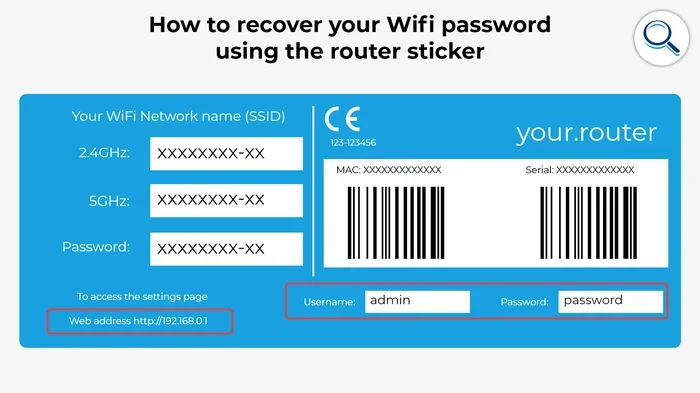
You can also check the sticker on the back or bottom of your router. Many manufacturers print the default login info right there. If you changed the password before and forgot it, do not worry. We will cover how to handle that later.
Where to Find the Wifi Password in the Admin Panel
Once you are logged in, look for a section called Wireless Settings or Wireless Security. Different router brands organize their panels differently, but the path is usually similar:
- TP-Link: Wireless > Wireless Security
- Netgear: Wireless > Wireless Settings
- ASUS: Wireless > General
- Linksys: Wireless > Wireless Security
In that section, you will see the network security key. This is your wifi password. It may be hidden behind dots for security. Look for a checkbox or eye icon that lets you reveal it.
If you want to change it, simply type in a new password. Make sure it is strong. Use a mix of letters, numbers, and symbols. A good password keeps strangers off your network and protects your personal data.
What If You Cannot Log In to the Router Admin Panel?
Sometimes the default login does not work. Maybe someone changed the password, or maybe you just never set one up and the defaults do not apply. Here are some practical solutions.
Try the Router Reset Button
Every router has a small reset button, usually on the back or bottom. It is often recessed so you need a paperclip or pin to press it.
Here is what to do:
- Unplug your router from power.
- Find the reset button.
- Press and hold it for about 10 to 15 seconds.
- Plug the router back in.
- Wait for it to fully restart.
- Try the default login credentials again.
Warning: Resetting your router erases all custom settings. Your wifi name and password will go back to the factory defaults. You will also lose any port forwarding rules or parental controls you set up. Make sure you are okay with this before you proceed.
Check the Router Label or Manual
If resetting feels too extreme, try looking at the router label first. Many routers have a sticker that lists:
- The default IP address
- The default username
- The default password
- The default wifi name and password
Keep your router manual too. It often has a section on default credentials and factory reset procedures. If you threw the manual away, you can almost always find a PDF version on the manufacturer’s website.
Contact Your Internet Service Provider
If none of the above works, call your ISP. They can walk you through the process or remotely access your router settings in some cases. They may also be able to provide you with the current wifi password or help you set a new one. This is a great option if you rent your router from the provider.
How to View Saved Wifi Passwords on Your Devices
Another way to find your wifi password is through the device you are already connected to. This does not require the router IP address, but it is a handy alternative. Here is how to do it on different devices.
On Windows 10 and 11
- Right-click on the wifi icon in your taskbar.
- Select Open Network and Internet Settings.
- Click on Network and Sharing Center.
- Click on your wifi network name.
- Click Wireless Properties.
- Go to the Security tab.
- Check the box that says Show characters.
Your network security key will appear right there. It is that simple.
On Mac
- Open the Keychain Access app.
- Search for your wifi network name.
- Double-click on it.
- Check the box for Show Password.
- Enter your Mac password to confirm.
On Android
- Go to Settings and tap on Network and Internet.
- Tap on Wifi.
- Tap on the connected network.
- Tap Share.
- You may need to authenticate with your fingerprint or PIN.
- A QR code will appear. The password is also shown in text form below it.
On iPhone and iPad
Apple makes this a bit harder for privacy reasons. If you have iCloud Keychain enabled and your Mac is nearby, the password will sync across your Apple devices. You can find it in the Keychain Access app on your Mac under the wifi network name.
Using Command Prompt to Find Your Wifi Password
If you are comfortable with the command line, this method is fast and effective. You do not even need to open the router admin panel.
Here is what to do on Windows:
- Open Command Prompt as Administrator.
- Type the following command and press Enter:
netsh wlan show profile name="YourNetworkName" key=clear
Replace YourNetworkName with the actual name of your wifi network. Look for the line that says Key Content. That is your wifi password in plain text.
This trick works great when you need the password quickly. It also comes in handy when you are setting up a new device and do not want to dig through router settings.
Why Your Network Security Key Matters
Your wireless network password is not just a string of characters. It is the first line of defense for your home network. A weak or default password puts everything at risk.
Here is why you should care:
- Protects your personal data: Hackers on an open or weak network can intercept sensitive information.
- Prevents bandwidth theft: Neighbors or strangers can slow down your internet if your network is unprotected.
- Keeps smart devices safe: Smart home gadgets like cameras and locks should never be on an open network.
- Stops unauthorized access: Someone could use your network for illegal activities without your knowledge.
The best practice is to use a WPA2 or WPA3 encryption type. These are the most secure options available for home networks. Avoid WEP at all costs. It is outdated and easy to crack.
Tips for Creating a Strong Wifi Password
- Use at least 12 to 16 characters.
- Mix uppercase and lowercase letters.
- Include numbers and special characters.
- Avoid common words like password123 or your street name.
- Do not reuse passwords from other accounts.
- Change your password every few months.
Following these tips keeps your router settings secure and your family safe online. It takes just a few minutes but saves you from a lot of headaches down the road.
Common Mistakes People Make with Router Passwords
Many people run into avoidable problems when managing their wifi password. Here are the most common mistakes and how to fix them.
Never Changing Default Credentials
Leaving the default admin username and password on your router is a huge security risk. Anyone who knows the router model can look up those credentials online. Change them immediately after setup.
Writing Passwords on Sticky Notes
We get it. Passwords are hard to remember. But sticking them to your router or computer is not safe. Use a password manager instead. It stores all your passwords securely and auto-fills them when needed.
Forgetting to Save After Changes
When you update your router settings, always click Save or Apply before you navigate away. Otherwise, your changes will not take effect. This is a small step that saves a lot of frustration.
Using the Wrong IP Address
Not all routers use 192.168.1.1. If you type that address and get an error page, check your actual default gateway. Use the methods we covered earlier to find the correct one.
Quick Tips for Managing Your Router Settings
Here are some bonus tips that will make your life easier when managing your wireless router:
- Bookmark your router admin page: Save it in your browser for quick access next time.
- Update your router firmware: Manufacturers release updates that fix security holes and improve performance.
- Set up a guest network: This lets visitors use your internet without giving them access to your main network.
- Restart your router regularly: A simple reboot can fix slow speeds and connection issues.
- Keep a record of your settings: Write down your wifi name, password, and router IP in a safe place.
These small habits go a long way. They keep your network running smoothly and your data secure.
Frequently Asked Questions
Can I find my wifi password using just the IP address?
Yes, you can. By entering your router IP address into a browser, you can access the admin panel where your wifi password is stored. You will need the admin login credentials to get in, but once inside, the password is usually displayed under wireless or security settings.
What is the default IP address for most routers?
The most common default IP address is 192.168.1.1 or 192.168.0.1. However, this varies by manufacturer and model. You can find the correct IP address on the router label, in the manual, or by running the ipconfig command on your computer.
Will resetting my router delete my wifi password?
Yes, resetting your router restores it to factory settings. This means your custom wifi password, network name, and all other settings will be erased. You will need to set them up again using the default credentials printed on your router.
Can I see my saved wifi password on my phone?
Absolutely. On Android, you can find it in Settings under the wifi network details. On iPhone, the password is accessible through iCloud Keychain on a Mac or through the Settings app on devices running iOS 16 and later.
Is it safe to access my router admin panel?
Yes, as long as you are on your own network and using a secure connection. Always change the default admin password after logging in for the first time. This prevents unauthorized users from accessing your router settings and modifying your network.
What should I do if I forgot my router admin password?
You will need to factory reset your router by pressing and holding the reset button for 10 to 15 seconds. This restores the default admin credentials. Check the router label or manual for the default username and password after resetting.
Final Thoughts
So, can you get wifi password with ip address on your router? Without a doubt, yes. Your router IP address opens the door to your entire network configuration. From there, you can view, retrieve, or change your wifi password in just a few minutes.
Whether you log into the admin panel, check your saved device settings, or use the command prompt, you have multiple paths to the same result. The key is knowing which method works best for your situation.
Take a few minutes today to review your network security. Make sure your password is strong, your encryption is set to WPA2 or WPA3, and your admin credentials are unique. These small steps protect your home and your family in an increasingly connected world.
You do not need to call a technician or pay for a service call. With the knowledge in this guide, you can handle it yourself. Share this article with friends or family who might be struggling with their wifi password too. Knowledge is power, and a secure network starts with you.