Can I Use My Android Phone As A Projector For Movies
Can I Use My Android Phone As A Projector is an essential topic that provides valuable insights.
Key Takeaways
- Understanding Can I Use My Android Phone As A Projector: Provides essential knowledge
📑 Table of Contents
- How Your Android Phone Can Work As a Projector
- Best Apps to Use Your Android Phone as a Projector
- Wired vs Wireless: Which Method Is Best for Movies?
- Tips for Getting the Best Movie Experience on a Big Screen
- Common Problems and How to Fix Them
- Is Using Your Phone as a Projector Worth It?
- Quick Tips for Phone Projector Setup
- Expert Insights on Mobile Projection
- Key Takeaways
How Your Android Phone Can Work As a Projector
Your Android phone is a tiny computer packed in your pocket. It can output video to external displays using several different methods. Understanding these methods is the first step to turning your phone into a projector. Each method has its own strengths, and the best one depends on your setup and what you are trying to achieve.
The basic idea is simple. Your phone generates a video signal. That signal travels through a cable or a wireless connection to a larger display. The larger display then shows your content on a much bigger screen. This is the foundation of mobile projection technology that makes it possible to watch movies, present slideshows, or share photos with a group.
Wired Projection Methods
Wired methods give you the most reliable connection. There is no lag, no buffering, and no signal drops. If you want a stable phone display output, a wired setup is hard to beat.
The most common wired method uses an HDMI adapter. You plug one end into your phone and the other end into a TV or projector. Your phone screen then mirrors directly to the larger display. Some phones use USB-C to HDMI cables, while older models might need a Micro-USB adapter.
Another wired option is using a MHL adapter (Mobile High-Definition Link). This was popular before USB-C became standard. MHL adapters let you connect your phone to an HDMI cable without needing extra power. However, not all phones support MHL anymore, so check your device before buying one.
Wireless Projection Methods
Wireless methods offer more freedom and flexibility. You do not need to deal with cables running across the room. This makes wireless screen sharing a popular choice for movie nights and casual viewing.
The most common wireless method is Chromecast. If you have a Chromecast device plugged into your TV, you can cast content directly from your Android phone. Google Cast is built into many apps, so you just tap the cast icon and your movie appears on the big screen.
Another wireless option is Miracast. This is a screen mirroring standard built into many Android phones and smart TVs. You do not need any extra hardware if your TV supports Miracast. You simply connect your phone to your TV wirelessly and mirror everything on your screen.
Bluetooth projection is also possible with some devices. You can pair your phone with a Bluetooth projector or a smart TV that supports Bluetooth connectivity. This works well for audio as well, letting you stream sound to wireless speakers while casting video to a display.
Best Apps to Use Your Android Phone as a Projector
Apps play a huge role in making your phone work like a projector. Some apps help you mirror your screen. Others enhance the video quality or add features like zoom and focus. Here are the best options available right now.
Screen Mirroring Apps
Google Home is the go-to app for most Android users. It lets you cast your entire screen or just specific content to a Chromecast or smart TV. The app is free, easy to use, and comes pre-installed on most Android phones.
Samsung Smart View works great for Samsung device users. It offers smooth screen mirroring and lets you control playback from your phone. If you have a Samsung phone, this app is already on your device.
AirScreen is a versatile app that supports multiple casting protocols. It works with AirPlay, Google Cast, and Miracast. This makes it a great choice if you are not tied to one ecosystem and want flexibility in your screen mirroring setup.
Video Enhancement Apps
Once you are projecting your phone screen, you might notice the image could be sharper or brighter. Video enhancement apps can help with this. They adjust brightness, contrast, and color to make your projected image look better on a larger screen.
MX Player is a popular video player that supports hardware acceleration. It plays almost any video format smoothly and lets you adjust playback settings. When you cast MX Player to a TV or projector, the video quality is noticeably better than using the default phone player.
VLC for Android is another excellent choice. It is a free, open-source media player that handles a wide range of formats. VLC also has built-in casting support, so you can stream your videos wirelessly to any device on your network.
Projector Simulation Apps
Some apps simulate a projector experience right on your phone screen. They add a virtual projector frame and adjust the image to look like it is being projected on a wall. These apps are fun for casual use, but they do not actually increase the size of your display. They are more of a novelty than a practical tool.
For real projection, stick with screen mirroring apps and media players that support casting. These give you the best results and the most control over your viewing experience.
Wired vs Wireless: Which Method Is Best for Movies?
Choosing between wired and wireless projection depends on your needs. Both methods work well, but they have different advantages. Let us compare them so you can decide what fits your situation best.
| Feature | Wired (HDMI) | Wireless (Chromecast/Miracast) |
|---|---|---|
| Connection Stability | Very stable, no interruptions | Good, but can experience lag |
| Setup Time | Quick, plug and play | Requires Wi-Fi network setup |
| Video Quality | Full HD or 4K possible | Usually up to 1080p |
| Mobility | Limited by cable length | High, no cables needed |
| Latency | Near zero | Small delay possible |
| Cost | Adapter costs ($5-$20) | May need Chromecast or smart TV |
For the best movie experience, wired HDMI gives you the highest quality and zero lag. If you value convenience and portability, wireless casting is the way to go. Many people use a combination of both depending on the situation.
When to Choose Wired
Choose a wired setup when you need the best possible video quality. This is ideal for watching high-resolution movies or when you are projecting in a bright room where image quality matters more. Wired connections also work without a Wi-Fi network, making them perfect for outdoor trips or locations with poor internet.
When to Choose Wireless
Wireless projection shines when you want flexibility. You can move around the room, pause from your couch, and set up quickly without fumbling with cables. Wireless casting is perfect for casual movie nights when convenience matters more than absolute perfection in image quality.
Tips for Getting the Best Movie Experience on a Big Screen
Projecting your phone screen is only half the battle. To really enjoy your movies on a big screen, you need to optimize your setup. These tips will help you get the most out of your home theater phone setup.
Control the Room Lighting
Light is the enemy of any projection setup. Dim the room as much as possible before starting your movie. Close curtains, turn off overhead lights, and use a lamp with a warm bulb if you need some light to navigate safely. The darker the room, the sharper and more vibrant your projected image will look.
Use the Right Screen Surface
You do not need a fancy projector screen to get great results. A white wall works well in most cases. If you want to improve the image even more, hang a white bedsheet or a portable projection screen. Avoid projecting onto colored walls or textured surfaces, as they can distort the image and wash out colors.
Adjust Your Phone Settings
Before you start projecting, adjust your phone settings for the best output. Turn on developer options on your Android phone if you want to control the display resolution and refresh rate. Lower the screen brightness slightly to reduce eye strain on the big screen. Also, turn off notifications and do not disturb mode so nothing interrupts your movie.
Use External Audio
Your phone’s built-in speaker is tiny and will not fill a room. Connect external speakers or a soundbar for a much better audio experience. You can use Bluetooth speakers, a soundbar connected via HDMI, or even a simple pair of wired headphones if you are watching alone. Good audio makes a huge difference in how immersive your movie experience feels.
Keep Your Phone Charged
Screen mirroring and video output drain your phone battery fast. Keep your phone plugged in while projecting. Use a fast charger and a long cable so you can place the phone wherever it is convenient. Some HDMI adapters also charge your phone while transmitting video, which is a huge convenience.
Common Problems and How to Fix Them
Even with the best setup, you might run into issues when using your Android phone as a projector. Here are the most common problems and simple fixes for each one.
No Signal or Black Screen
If your TV or projector shows a black screen, the first thing to check is the cable connection. Unplug the HDMI adapter and plug it back in firmly. Try a different cable or adapter if the problem persists. For wireless connections, make sure both your phone and the receiving device are on the same Wi-Fi network.
Lag or Delay in Video
Wireless projection can sometimes have a slight delay. This is normal and usually not noticeable for movies. If the lag is distracting, try switching to a wired HDMI connection. You can also lower the video resolution in your casting settings to reduce the load on your Wi-Fi network.
Poor Image Quality
If your projected image looks blurry or washed out, check a few things first. Make sure your phone screen brightness is turned up. Adjust the focus if you are using a portable projector. For wall projections, make sure the surface is clean and white. You can also try adjusting the aspect ratio settings in your casting app to match your screen.
Audio Sync Issues
If the audio and video are out of sync, this is often caused by wireless transmission delay. Switching to a wired connection usually fixes this instantly. If you must use wireless, try lowering the audio quality in your app settings or closing other apps that might be using bandwidth.
Is Using Your Phone as a Projector Worth It?
The answer depends on what you are looking for. If you want a quick, easy way to watch movies on a bigger screen without spending hundreds of dollars on equipment, then absolutely yes. Your Android phone paired with a simple HDMI adapter or a Chromecast device can deliver a surprisingly good viewing experience.
For movie lovers who want the absolute best picture quality, a dedicated projector is still the better choice. Dedicated projectors offer brighter images, better contrast, and higher resolution than phone-based projection. But for casual viewing, travel, or occasional movie nights, using your phone as a projector is a fantastic and affordable solution.
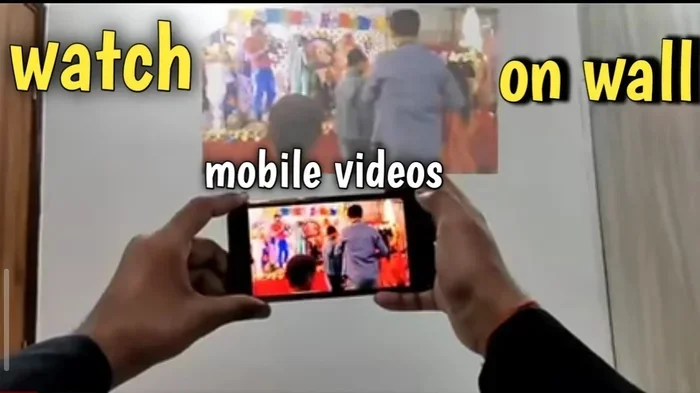
Many people have found creative ways to use their phones as projectors. You can host outdoor movie nights in your backyard, give presentations at work, or simply enjoy a quiet evening watching your favorite film on a wall in your bedroom. The versatility of mobile projection makes it a valuable skill to have.
Quick Tips for Phone Projector Setup
- Use a high-quality HDMI adapter for the best wired connection.
- Always connect to the same Wi-Fi network when using wireless casting.
- Turn off battery saver mode before projecting, as it can limit performance.
- Clean your phone’s charging port to ensure a stable wired connection.
- Use a phone stand or mount to keep your phone steady during projection.
- Close background apps to free up memory and improve streaming quality.
- Test your setup before the movie starts so you can fix any issues early.
Expert Insights on Mobile Projection
According to tech experts, the quality of phone-based projection has improved dramatically in recent years. Modern Android phones can output 4K video through USB-C ports, and wireless casting technology has reduced lag significantly. The key is using the right combination of hardware and software to match your viewing needs.
Industry professionals also emphasize that the viewing environment matters just as much as the equipment. A dark room, a clean white surface, and good audio setup can make a budget phone projection setup feel premium. Do not underestimate the power of a well-optimized environment.
For those who project frequently, investing in a portable projector that accepts HDMI input from your phone is a smart move. These compact devices are designed for portability and deliver much better image quality than wall projections. They bridge the gap between phone mirroring and a true home theater experience.
Key Takeaways
- Yes, you can use your Android phone as a projector for movies using wired HDMI adapters or wireless casting methods like Chromecast and Miracast.
- Wired connections offer better quality and zero lag, making them ideal for serious movie watching.
- Wireless casting provides flexibility and convenience, perfect for casual viewing and quick setups.
- Apps like Google Home, MX Player, and VLC enhance your projection experience with better streaming and playback control.
- Room lighting and screen surface play a huge role in how good your projected image looks.
- External audio and a charged phone are essential for a complete and uninterrupted movie experience.
- Common issues like lag, black screens, and audio sync problems have simple fixes that anyone can apply.
Frequently Asked Questions
Can any Android phone be used as a projector?
Most Android phones can output video to a display using an HDMI adapter or wireless casting. However, older phones or budget models may have limited resolution support. Check your phone’s specifications to confirm it supports video output through USB-C or Micro-USB before purchasing an adapter.
Do I need a special projector to use my Android phone?
No, you do not need a special projector. You can use any TV or monitor with an HDMI input. You can also use a smart TV with Chromecast built-in for wireless casting. A white wall works as a screen in a pinch, making this a very flexible setup.
Is it safe to project movies from my Android phone for a long time?
Yes, it is generally safe. However, prolonged screen mirroring can cause your phone to overheat. Keep your phone in a well-ventilated area and plug it in to charge while projecting. If your phone gets too hot, take a short break to let it cool down.
What is the best app for casting movies from Android to a TV?
Google Home is the most widely used and reliable app for casting. It supports most smart TVs and streaming devices. For video playback, MX Player and VLC are excellent choices that offer smooth performance and great video quality when casting to a TV.
Can I use my phone as a projector without Wi-Fi?
Yes, you can use a wired HDMI connection without Wi-Fi. Simply plug your phone into a TV or monitor using an HDMI adapter. This method works completely offline and is ideal for situations where Wi-Fi is not available, such as outdoor trips or presentations in locations without internet access.
How can I improve the picture quality when projecting from my phone?
To improve picture quality, project onto a white, smooth surface in a dark room. Use a high-quality HDMI adapter for wired connections. Adjust your phone’s display settings to the highest resolution. Using external speakers also enhances the overall experience by providing better audio to match the larger visual display.
=== CONCLUSION ===
Can I use my Android phone as a projector for movies? Absolutely. You have now learned every method, app, and tip needed to turn your phone into a powerful mobile projection device. From wired HDMI setups to wireless Chromecast casting, the options are plentiful and accessible. You do not need expensive equipment to enjoy your favorite movies on a big screen.
The key is to start simple. Grab an HDMI adapter if you want the best quality, or use Google Home for easy wireless casting. Set up in a dark room, connect your audio, and hit play. Within minutes, you will be watching your favorite films on a screen much bigger than your phone.
Experiment with different methods and find what works best for you. Share your setup with friends and family. The beauty of using your Android phone as a projector is that it is portable, affordable, and incredibly convenient. So go ahead, grab some popcorn, and enjoy your next movie night like never before.