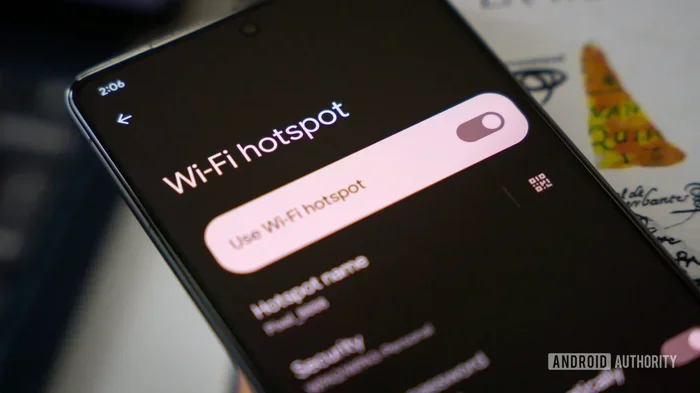
Can You Use Your Phone As Hotspot While Connected To Wi Fi
Yes, you can use your phone as a hotspot while connected to Wi-Fi. This dual connectivity setup lets your phone share internet with other devices even when it is already linked to a wireless network. You get the best of both worlds — staying online via Wi-Fi while broadcasting a mobile hotspot for laptops, tablets, and other gadgets.
Yes, you can absolutely use your phone as a hotspot while connected to Wi-Fi. This might sound confusing at first. After all, why would you need to share internet if your phone is already online? But the answer is simple and practical. Many people need to connect laptops, tablets, or gaming consoles to the internet when Wi-Fi is weak or unavailable. Using your phone as a mobile hotspot while it is also connected to Wi-Fi solves this problem. You get the best of both worlds. Your phone stays connected to the home network, and it shares that connection or its cellular data with other devices nearby.
This guide walks you through everything you need to know. We will cover how it works, how to set it up, the benefits, and the drawbacks. You will also find practical tips to get the best performance. Whether you use an Android hotspot or an iPhone hotspot, this article has you covered. Let us dive in and explore the world of dual connectivity and network sharing.
Key Takeaways
- Yes, it works: You can use your phone as a hotspot while connected to Wi-Fi on both Android and iPhone.
- Dual connectivity is the key: Your phone can be connected to Wi-Fi and share its cellular data at the same time.
- Check your data plan: Using your phone as a hotspot on Wi-Fi can increase your data usage quickly.
- Battery drain is real: Running hotspot and Wi-Fi at the same time will drain your battery faster than normal use.
- Settings matter: Proper configuration of hotspot settings ensures the best performance and avoids common issues.
- Know the drawbacks: Speed limits, data caps, overheating, and security risks are potential concerns to watch for.
📑 Table of Contents
- What Is a Mobile Hotspot and How Does It Work?
- Can You Use Your Phone as Hotspot While Connected to Wi-Fi?
- How to Enable and Configure Your Phone Hotspot on Wi-Fi
- Benefits of Using Your Phone as Hotspot on Wi-Fi
- Potential Drawbacks and Things to Watch Out For
- Tips for Getting the Best Hotspot Performance
- Conclusion
What Is a Mobile Hotspot and How Does It Work?
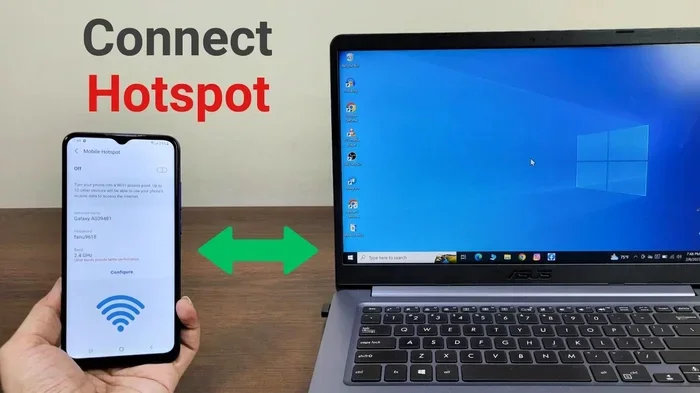
A mobile hotspot turns your phone into a wireless router. It takes your cellular data connection and broadcasts it as a Wi-Fi signal. Other devices can then connect to this signal and access the internet. This process is also known as tethering or Wi-Fi sharing. Your phone essentially becomes a portable hotspot that any nearby device can use.
When you enable hotspot mode, your phone creates a small local network. It uses its cellular data to fetch internet and then shares it over Wi-Fi. Think of it like a bridge. One end connects to the cellular network, and the other end broadcasts a Wi-Fi signal. Devices that connect to this signal get online through your phone’s data plan.
How Tethering Differs from Regular Wi-Fi
Tethering and regular Wi-Fi are not the same thing. Regular Wi-Fi connects your phone to a router or access point. Tethering does the opposite. It makes your phone the source of the connection. When you use internet sharing via hotspot, your phone is both a consumer and a provider of internet. This dual role is what makes it possible to use phone as hotspot while connected to Wi-Fi.
There are three main types of tethering:
- Wi-Fi hotspot: The most common form. Your phone broadcasts a Wi-Fi network.
- USB tethering: You connect your phone to a computer with a cable.
- Bluetooth tethering: You pair your phone with another device using Bluetooth.
Each method has its own use case. But Wi-Fi hotspot is by far the most popular. It is fast, wireless, and easy to set up. Most people who want to use phone as hotspot while connected to Wi-Fi are using the Wi-Fi hotspot method.
Can You Use Your Phone as Hotspot While Connected to Wi-Fi?
The short answer is yes. You can use your phone as a hotspot while connected to Wi-Fi on both Android and iPhone. Your phone can maintain two connections at the same time. It stays connected to the Wi-Fi network, and it also broadcasts its own hotspot signal. This is called dual connectivity or simultaneous Wi-Fi and hotspot mode.
But here is the important part. What your phone shares depends on your settings. By default, most phones share their cellular data when you turn on the hotspot. So even though your phone is connected to Wi-Fi, the devices connecting to your hotspot get internet through your cellular data plan. Some phones and operating systems allow you to change this behavior, but it is not always straightforward.
How Dual Connectivity Works on Android
Android phones handle dual connectivity very well. Most modern Android devices support running Wi-Fi and hotspot at the same time. When you connect your phone to Wi-Fi and then turn on the hotspot, your phone uses its cellular data for the hotspot. The Wi-Fi connection stays active in the background.
Some Android phones also offer a feature called Wi-Fi and hotspot simultaneously. This lets you share the Wi-Fi connection itself through the hotspot, rather than using cellular data. However, this feature depends on your phone model and carrier. Not all Android devices support it. You can check by going to your hotspot settings and looking for options related to network sharing mode.
How Dual Connectivity Works on iPhone
iPhone also supports using the iPhone hotspot while connected to Wi-Fi. Apple calls this feature Personal Hotspot. When you turn it on, your iPhone shares its cellular data with connected devices. The Wi-Fi connection your iPhone has does not interfere with the hotspot.
However, iPhones do not allow you to share the Wi-Fi connection through the hotspot. Your iPhone will always use cellular data for the hotspot, even if it is connected to Wi-Fi. This is a limitation of iOS. If you want to share your Wi-Fi connection, you may need a different approach. Some users use a portable Wi-Fi device or a dedicated router for that purpose.
| Feature | Android | iPhone |
|---|---|---|
| Hotspot While on Wi-Fi | Yes (most models) | Yes |
| Shares Cellular Data via Hotspot | Yes (default) | Yes (default) |
| Shares Wi-Fi Connection via Hotspot | Yes (on some models) | No |
| Simultaneous Wi-Fi and Hotspot | Yes (most models) | Yes |
| Custom Hotspot Settings | Extensive | Limited |
| Data Throttling Risk | Depends on carrier | Depends on carrier |
As you can see from the table above, both platforms support using your phone as a hotspot while connected to Wi-Fi. But there are differences in what each platform can share and how much control you have over the settings.
How to Enable and Configure Your Phone Hotspot on Wi-Fi
Setting up your phone to work as a hotspot while connected to Wi-Fi is straightforward. The steps are slightly different for Android and iPhone, but the process is similar. Here is how to do it on both platforms.
Setting Up Hotspot on Android
- Open the Settings app on your Android phone.
- Tap on Network & Internet or Connections (the name varies by brand).
- Select Hotspot & Tethering or Mobile Hotspot.
- Toggle the Mobile Hotspot switch to turn it on.
- Tap on Set up hotspot to configure the network name and password.
- Make sure your phone is connected to Wi-Fi in the background.
- Your hotspot is now active. Other devices can connect to it.
Quick Tip: If you want to save battery, go to your hotspot settings and reduce the bandwidth or limit the number of connected devices. This helps your phone run both Wi-Fi and hotspot without overworking the processor.
Setting Up Hotspot on iPhone
- Open the Settings app on your iPhone.
- Tap on Personal Hotspot.
- Toggle Allow Others to Join to turn it on.
- Set a strong password for your hotspot.
- Make sure your iPhone is connected to Wi-Fi.
- Other devices can now find and connect to your iPhone hotspot.
Quick Tip: On iPhone, you can also enable hotspot through the Control Center. Swipe down from the top right corner of your screen and tap the hotspot toggle. This is the fastest way to start sharing your connection.
Important Hotspot Settings to Check
Before you start using your phone as a hotspot while connected to Wi-Fi, check a few key settings. These settings can make a big difference in performance and data usage.
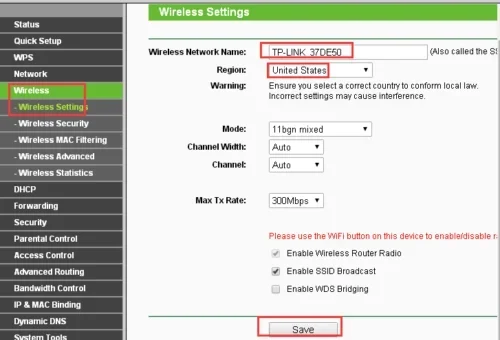
- Hotspot name (SSID): Choose a recognizable name so devices can find it easily.
- Password: Always use a strong password to prevent unauthorized access.
- Security type: Use WPA3 or WPA2 for the best protection.
- Band selection: Choose 5GHz for faster speeds or 2.4GHz for longer range.
- Max connected devices: Limit this to 3-5 devices to maintain speed.
- Data usage monitor: Turn this on so you can track how much data your hotspot uses.
Taking a few minutes to configure these settings properly will save you headaches later. It ensures your wireless hotspot runs smoothly and securely.
Benefits of Using Your Phone as Hotspot on Wi-Fi
Using your phone as a hotspot while connected to Wi-Fi offers several real-world benefits. Let us look at why this setup is so useful for many people.
1. Internet Access When Wi-Fi Is Weak
Have you ever been in a place where the Wi-Fi signal is too weak to work properly? Maybe you are in a large house with dead zones. Or perhaps you are at a hotel with spotty coverage. In these situations, having your phone as a portable hotspot is a lifesaver. Your phone can stay connected to the weak Wi-Fi for basic tasks, while the hotspot gives your laptop or tablet a stronger, more stable connection through cellular data.
2. Backup Internet Connection
A mobile hotspot serves as an excellent backup when your home Wi-Fi goes down. If your router stops working or your internet provider has an outage, you can quickly switch to using your phone as a hotspot while connected to Wi-Fi. Even if the Wi-Fi is down, your phone still has cellular data. You stay online without interruption.
3. Connecting Multiple Devices
Sometimes you need to connect more devices than your router can handle. Or maybe you are working in a meeting room with no Wi-Fi access. Your phone can act as a wireless hotspot for laptops, tablets, and other devices. This is especially helpful for remote workers and travelers who need reliable internet on the go.
4. No Extra Equipment Needed
You do not need to buy a separate portable Wi-Fi device or a dedicated router. Your phone already has everything you need. This makes it a cost-effective solution for occasional internet sharing. A dedicated portable hotspot device can cost anywhere from $50 to $200. Using your phone avoids that expense entirely.
5. Flexible Network Sharing
With network sharing capabilities built into modern smartphones, you have a lot of flexibility. You can share your connection via Wi-Fi hotspot, USB tethering, or Bluetooth. This versatility means you can adapt to any situation. Whether you need high-speed Wi-Fi for a laptop or a low-energy Bluetooth connection for a smartwatch, your phone has you covered.
Expert Insight: According to networking professionals, using your phone as a hotspot while connected to Wi-Fi is one of the most underutilized features of modern smartphones. Many users do not realize that their phone can handle two connections at once. Once you understand how dual connectivity works, it becomes a powerful tool for staying connected in any environment.
Potential Drawbacks and Things to Watch Out For
While using your phone as a hotspot while connected to Wi-Fi is incredibly useful, there are some drawbacks you should know about. Being aware of these issues helps you avoid frustration and unexpected costs.
1. Battery Drain
This is the biggest concern. Running both Wi-Fi and hotspot at the same time uses a lot of power. Your phone has to maintain two wireless connections simultaneously. This can drain your battery significantly faster than normal use. If you plan to use your phone as a hotspot for extended periods, keep a charger nearby. Better yet, plug your phone in while it is sharing its connection.
Quick Tip: To reduce battery drain, lower the hotspot password complexity if security allows, reduce the number of connected devices, and turn off hotspot when you are not actively using it.
2. Increased Data Usage
When your phone acts as a hotspot, every device connected to it uses your cellular data. If you are streaming videos, downloading files, or browsing heavy websites through your hotspot, your data usage can spike quickly. This is especially true when you have multiple connected devices using the hotspot at the same time.
Some carriers also apply data throttling after you hit a certain data threshold. This means your hotspot speeds may slow down significantly after you use a specific amount of data. Check your data plan before relying on your phone as a portable hotspot for heavy usage.
3. Speed and Performance Limitations
Sharing a connection through your phone is not as fast as a dedicated router. Your phone’s hotspot hardware is not as powerful as a standalone router. This means you may experience slower speeds, especially when multiple devices are connected. The bandwidth sharing gets divided among all connected devices, which can reduce performance for each one.
Also, when your phone is connected to Wi-Fi and broadcasting a hotspot at the same time, it has to manage both connections. This dual tasking can cause slight delays or latency. For basic browsing and email, this is usually fine. For video calls or online gaming, you might notice the difference.
4. Overheating
Running hotspot and Wi-Fi simultaneously generates heat. Your phone works harder to manage two wireless connections. In some cases, this can cause your phone to overheat. If your phone feels unusually warm, turn off the hotspot and let it cool down. Persistent overheating can affect your phone’s battery life and overall performance over time.
5. Security Risks
Every time you broadcast a Wi-Fi signal, you create a potential entry point for unauthorized users. If your hotspot password is weak or easily guessable, strangers could connect to your network. They could use your cellular data without your permission. Always use a strong, unique password for your hotspot settings. Change the default password that comes with your phone.
Tips for Getting the Best Hotspot Performance
Want to get the most out of your phone when using it as a hotspot while connected to Wi-Fi? Here are some practical tips that make a real difference.
1. Use a 5GHz Band for Faster Speeds
If your phone supports it, choose the 5GHz band for your hotspot. It offers faster speeds and less interference than the 2.4GHz band. The trade-off is a shorter range. If you need your hotspot to reach devices far away, use the 2.4GHz band instead. For most indoor use, 5GHz is the better choice for your wireless hotspot.
2. Limit the Number of Connected Devices
The more devices connected to your wireless hotspot, the slower it gets for everyone. Try to limit connections to 3 or 4 devices at a time. If you have a lot of devices, consider using a dedicated portable Wi-Fi device instead of your phone.
3. Keep Your Phone Charged
As mentioned earlier, running hotspot drains battery fast. Plug your phone into a power source while it is sharing its connection. This keeps your phone running smoothly and prevents it from shutting down the hotspot due to low battery.
4. Update Your Phone Software
Phone manufacturers regularly release updates that improve hotspot settings and overall performance. Keep your phone updated to the latest software version. These updates often include bug fixes for network sharing issues and improvements to dual connectivity.
5. Monitor Your Data Usage
Keep an eye on how much data your hotspot is using. Most phones have a built-in data usage tracker. You can also check with your carrier through their app or website. Staying aware of your data usage helps you avoid surprises on your bill and prevents data throttling from your carrier.
6. Place Your Phone in a Central Location
Just like a regular router, the placement of your phone matters. Place it in a central location where the signal can reach all your devices. Avoid putting it in a corner, behind a wall, or inside a drawer. Good placement improves signal strength and connection stability for all connected devices.
Common Mistakes to Avoid:
- Leaving your hotspot on when you are not using it. This wastes battery and data.
- Using a weak or default password. This leaves your network vulnerable to strangers.
- Connecting too many devices at once. This slows down the hotspot for everyone.
- Ignoring data usage. This can lead to unexpected overage charges on your bill.
- Not updating your phone software. This means you miss performance improvements.
Conclusion
So, can you use your phone as a hotspot while connected to Wi-Fi? The answer is a clear yes. Both Android and iPhone support this feature. Your phone can maintain a Wi-Fi connection and broadcast a hotspot signal at the same time. This dual connectivity setup is incredibly useful for staying online when Wi-Fi is weak, for backup internet, and for connecting multiple devices on the go.
However, there are trade-offs. Battery drain, increased data usage, and speed limitations are real concerns. By following the tips in this guide, you can minimize these issues and get the best performance from your mobile hotspot. Configure your hotspot settings properly, monitor your data usage, and keep your phone charged.
Using your phone as a hotspot while connected to Wi-Fi is a powerful tool. It gives you flexibility and keeps you connected in almost any situation. Try it out, experiment with the settings, and find what works best for your needs. With the right setup, your phone becomes a versatile portable hotspot that keeps you and your devices online wherever you go.
Frequently Asked Questions
Can I Use My Phone as a Hotspot While Connected to Wi-Fi Without Using Data?
Yes, on some Android phones you can share your Wi-Fi connection through the hotspot instead of using cellular data. However, this depends on your phone model and operating system. iPhones do not support sharing Wi-Fi through the hotspot. They always use cellular data for hotspot connections.
Will Using My Phone as a Hotspot Drain the Battery Quickly?
Yes, running a hotspot while connected to Wi-Fi drains your battery faster than normal use. Your phone has to manage two wireless connections at the same time. To reduce battery drain, plug your phone into a charger while using the hotspot, and limit the number of connected devices.
Can I Connect Multiple Devices to My Phone Hotspot While It Is on Wi-Fi?
Yes, you can connect multiple devices to your phone hotspot while it is also connected to Wi-Fi. Most phones allow up to 5 to 10 connected devices. However, connecting too many devices will slow down the hotspot speed for everyone. Keep the number of connected devices to 3 or 4 for the best performance.
Does Using a Hotspot While on Wi-Fi Cost Extra Money?
Using your phone as a hotspot uses your cellular data plan. If you have a limited data plan, this can lead to extra charges or data throttling from your carrier. Monitor your data usage carefully when using your phone as a hotspot while connected to Wi-Fi. Consider upgrading to a larger data plan if you use hotspot features frequently.
Is It Safe to Use My Phone as a Hotspot in Public Places?
Using your phone as a hotspot while connected to Wi-Fi in public places is generally safe as long as you use a strong password. Always change the default hotspot password and use WPA2 or WPA3 encryption. Avoid sharing sensitive information when connected to a public network, and keep your phone’s software updated for the latest security patches.
Can I Use My Phone Hotspot and Wi-Fi at the Same Time on an Older Phone?
Older phones may not support running Wi-Fi and hotspot simultaneously. This feature, known as dual connectivity or simultaneous Wi-Fi and hotspot, requires a relatively modern smartphone. Check your phone’s specifications or settings to see if it supports this feature. If it does not, you can still use your phone as a hotspot, but it will disconnect from Wi-Fi when the hotspot is active.