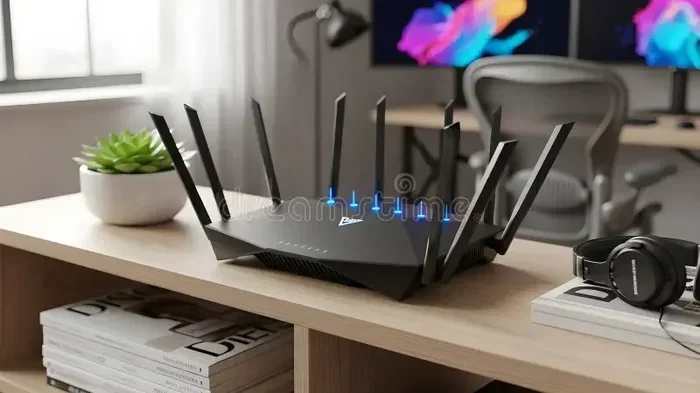
Do I Need A Router With Google Wifi For My Home Setup
Google Wifi is a mesh Wi-Fi system that can replace your traditional router in most home setups. You typically do not need a separate router when using Google Wifi, as each point acts as both a router and a Wi-Fi extender. However, your internet setup may require a modem or a bridge depending on your ISP. Understanding your home network needs helps you decide if adding a router is necessary or if Google Wifi handles everything on its own.
This is a comprehensive guide about Do I Need A Router With Google Wifi.
Key Takeaways
- Google Wifi replaces your router: Each point in the mesh system works as a router, so you usually do not need a separate one.
- A modem is still essential: Google Wifi connects to your modem to access the internet, but it handles all routing duties.
- Mesh systems eliminate dead zones: Multiple points spread Wi-Fi coverage throughout your home without needing extra hardware.
- ISP-provided gateways may need bridge mode: If your internet provider gives you a combo modem-router unit, you may need to enable bridge mode.
- Setup is simple and app-driven: The Google Home app walks you through the entire process in minutes.
- Google Wifi offers built-in features: Parental controls, guest networks, and device prioritization come standard.
- You save money by skipping a router: Using Google Wifi alone means fewer devices to buy, power, and manage.
[FEATURED_IMAGE_PLACEHOLDER]
What Is Google Wifi And How Does It Work
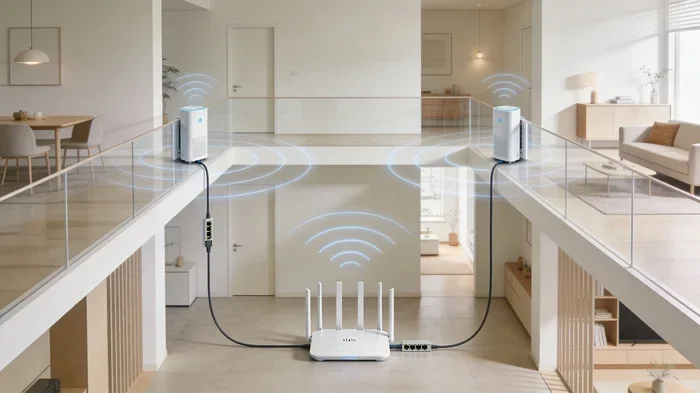
Google Wifi is a mesh Wi-Fi system designed to provide strong, reliable internet coverage across your entire home. Instead of relying on one single device to push a signal everywhere, Google Wifi uses multiple points that talk to each other. Each point creates a web of coverage that fills in weak spots and dead zones.
The system was created by Google to solve a common problem. Many homes have areas where the Wi-Fi signal drops or becomes very slow. Traditional routers struggle to push a strong signal through thick walls, long hallways, or multiple floors. Google Wifi tackles this by spreading the work across several devices.
Each Google Wifi point connects wirelessly to the others. They form a single network with one name and one password. Your phone, laptop, and smart home devices move smoothly between points as you walk around the house. This is called seamless roaming, and it is one of the biggest advantages of a mesh system.
Google Wifi also works with the Google Home app. You use this app to manage your network, set up guest access, and check your internet speed. The whole process is designed to be simple, even if you are not tech-savvy.
How Mesh Technology Differs From Traditional Routers
A traditional wireless router sends a signal from one central location. The further you move from that router, the weaker the signal gets. Walls, furniture, and electronics can block or weaken the signal even more.
Mesh technology works differently. Instead of one source, you get multiple nodes. Each node acts as a mini router. They share the workload and talk to each other to find the fastest path for your data. This means every room in your home gets a strong signal.
Think of it like lighting a room. One flashlight in the corner leaves dark spots everywhere else. But placing several small lights around the room eliminates every shadow. That is exactly what a mesh system does for your Wi-Fi.
Do You Really Need A Separate Router With Google Wifi
The short answer is no. In most cases, you do not need a separate router when you use Google Wifi. The mesh system itself handles all the routing functions. It assigns IP addresses, manages traffic between devices, and directs data to and from your modem.
Google Wifi replaces your traditional router entirely. You plug it in, connect it to your modem, and you are done. The system takes care of everything else. There is no need to buy, set up, or manage a second router.
However, there are some exceptions. Your specific internet setup might require additional hardware. Let us look at the different scenarios so you can figure out what applies to your home.
Scenario 1: You Have A Separate Modem And Router
If you currently have a standalone modem and a separate wireless router, you can remove the router. Connect Google Wifi directly to your modem instead. The Google Wifi points will take over all routing duties.
Keep your old router stored away. You will not need it anymore. This simplifies your setup and reduces the number of devices on your desk or in your closet.
Scenario 2: You Have An ISP Combo Modem-Router
Many internet service providers give you a single device that works as both a modem and a router. This is called a gateway. In this case, you have two options.
You can either put your ISP gateway into bridge mode or keep it running alongside Google Wifi. Bridge mode disables the routing functions of the gateway. This lets Google Wifi take over as the main router.
Alternatively, you can use Google Wifi in addition to your gateway. This creates a dual-router setup. While it works, it adds unnecessary complexity. Most experts recommend bridge mode for the cleanest experience.
Scenario 3: You Use Fiber Internet With An ONT
If you have fiber internet, your home likely has an Optical Network Terminal, or ONT. This small box converts the fiber signal into an Ethernet signal. You simply connect Google Wifi to the ONT with an Ethernet cable.
In this setup, Google Wifi acts as your sole router. The ONT handles the light-to-Ethernet conversion, and Google Wifi handles everything else. No additional router is needed.
How Google Wifi Replaces Your Router
Understanding how Google Wifi takes over your router’s job helps you see why you can ditch the extra hardware. A router does several key things in a home network. Google Wifi handles every single one of them.
First, a router assigns IP addresses to your devices. When your phone, laptop, or smart TV connects to Wi-Fi, it needs a unique address. Google Wifi does this automatically through its built-in DHCP server.
Second, a router directs traffic between your devices and the internet. It acts as a traffic cop, making sure data goes where it needs to go. Google Wifi manages this routing function seamlessly across all its points.
Third, a router provides a firewall for basic network security. Google Wifi includes built-in security features that protect your home network from unwanted outside traffic. You get this protection without needing a separate router.
Fourth, a router creates your local network. This is what allows your devices to talk to each other, such as printing from a laptop to a wireless printer. Google Wifi maintains this local network just like any router would.
Built-In Features That Replace Router Functions
Google Wifi comes packed with features that traditionally required a router or additional software:
- Parental controls: You can set screen time limits, block websites, and pause internet access for specific devices. All of this is managed through the Google Home app.
- Guest networks: You can create a separate Wi-Fi network for visitors. This keeps your main network secure while giving guests easy access.
- Device prioritization: Google Wifi lets you prioritize bandwidth for specific devices. This is useful when you are streaming a movie or playing an online game.
- Network-wide updates: The system updates itself automatically. You do not need to log into a router admin page to push firmware updates.
- Google Home integration: You can control your network with voice commands through Google Assistant. Ask it to pause the kids’ internet or check your Wi-Fi speed.
These features show that Google Wifi is not just a Wi-Fi extender. It is a full replacement for your router. It does everything a standard router does and more.
When You Might Still Need A Router
While Google Wifi replaces most routers, there are situations where you might still want a router in the mix. These cases are less common but worth understanding before you make a decision.
You Need Advanced Port Forwarding
Some users run servers or need to open specific ports for gaming or remote access. Google Wifi does support basic port forwarding, but it is limited compared to what a dedicated router offers. If you need very specific network configurations, a router gives you more control.
You Have A Very Large Or Complex Network
If you run a home office with dozens of wired devices, a router with more Ethernet ports might be helpful. Google Wifi points have limited wired ports. You can connect a switch to expand your wired options if needed.
You Want To Keep Your Old Router For Backup
Some people prefer to keep their old router as a backup. If Google Wifi ever has an issue, the old router can temporarily take over. This is not required, but it gives you peace of mind.
Your ISP Requires Specific Router Settings
In rare cases, your internet provider might require specific router settings that Google Wifi cannot support. Check with your ISP before switching to make sure there are no compatibility issues.
Quick Tip
Before you set up Google Wifi, write down your current network settings. Note your ISP name, modem model, and any port forwarding rules you have. This makes the switch smoother and helps you avoid surprises.
Google Wifi Setup: What You Need To Know
Setting up Google Wifi is straightforward and does not require a separate router. Here is what you need to get started and how the process works.
What You Will Need
- A modem: Your modem connects to your internet service provider. Google Wifi connects to the modem with an Ethernet cable.
- Google Wifi points: You can buy a single point or a multi-pack depending on your home size.
- The Google Home app: Available for free on iOS and Android devices.
- A smartphone or tablet: You use this device to run the setup app.
- A power outlet: Each Google Wifi point needs to be plugged into a wall outlet.
Step-By-Step Setup Process
- Plug your modem into a power source and wait for it to fully start up.
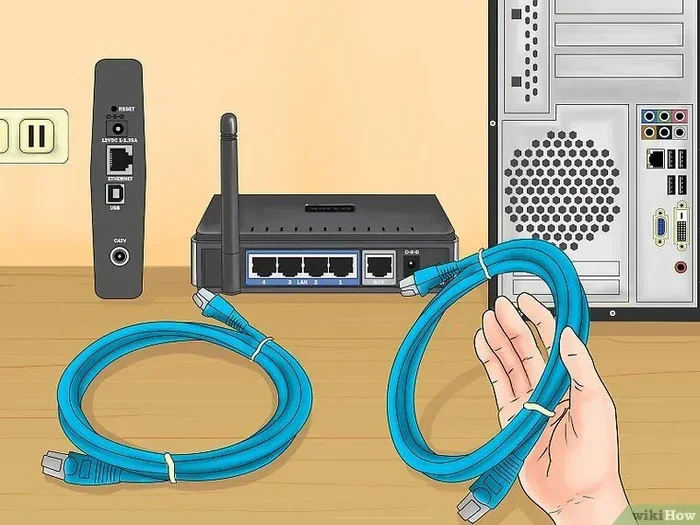
- Connect one Google Wifi point to your modem using an Ethernet cable.
- Open the Google Home app on your phone or tablet.
- Follow the on-screen prompts to set up your network name and password.
- Place additional Google Wifi points in other rooms where you need coverage.
- The app will guide you through positioning each point for the best signal.
The entire setup takes about 15 to 20 minutes. You do not need any technical networking knowledge. The app makes everything simple and intuitive.
Tips For Placing Your Google Wifi Points
Where you place your Google Wifi points matters a lot for performance. Here are some tips to get the best coverage:
- Place the main point near your modem in a central location.
- Keep points within reasonable distance of each other. They do not need to be right next to each other, but they should be close enough to maintain a strong wireless connection.
- Avoid placing points behind large metal objects or inside closed cabinets.
- Elevate points on shelves or tables rather than placing them on the floor.
- Keep points away from microwaves, baby monitors, and other devices that can cause interference.
Expert Insight
Networking experts recommend placing your first Google Wifi point in the room where you use the internet the most. This ensures the strongest signal in your most-used space. Additional points then extend coverage to the rest of the home.
Pros And Cons Of Using Google Wifi Alone
Using Google Wifi without a separate router has many benefits, but it also comes with a few trade-offs. Let us look at both sides so you can make an informed decision.
Comparison Table: Google Wifi Alone vs. Google Wifi Plus A Router
| Feature | Google Wifi Alone | Google Wifi Plus Router |
|---|---|---|
| Setup Complexity | Very simple | More complex |
| Monthly Cost | Lower | Higher |
| Advanced Settings | Limited | Full access |
| Device Count | Sufficient for most homes | More devices supported |
| Wired Ports | Limited per point | More ports available |
| Best For | Most households | Power users and large networks |
The Pros
- Simplicity: One system to manage instead of two. You use a single app for everything.
- Cost savings: You do not need to buy a separate router. This saves money upfront and on electricity.
- Cleaner setup: Fewer devices means less clutter and fewer cables to manage.
- Automatic updates: Google Wifi updates itself. You never have to think about firmware or security patches.
- Seamless roaming: Your devices move between points without dropping the connection.
- Built-in parental controls: These come standard and are easy to use through the app.
The Cons
- Limited customization: Google Wifi does not offer the deep settings that power users want. You cannot tweak every network parameter.
- Fewer Ethernet ports: Each point has only one or two wired ports. Large wired setups may need a separate switch.
- Vendor lock-in: You are tied to Google’s ecosystem. If you ever want to switch, you need to reconfigure everything.
- No advanced QoS controls: Quality of Service settings are basic compared to what a dedicated router offers.
Common Mistakes To Avoid
- Placing points too far apart: This weakens the mesh connection and creates gaps in coverage.
- Forgetting to enable bridge mode on your ISP gateway: This causes double routing and can create connection problems.
- Ignoring firmware updates: Even though updates are automatic, check the app occasionally to make sure your system is current.
- Using Google Wifi with a very old modem: Older modems may not support the speeds that Google Wifi can deliver. Check compatibility before buying.
- Overlooking electrical interference: Power strips and surge protectors can weaken the Wi-Fi signal. Plug points directly into wall outlets when possible.
Conclusion
For most home setups, you do not need a router with Google Wifi. The mesh system handles all the core functions that a traditional router provides. It assigns IP addresses, manages traffic, provides security, and creates a strong, reliable Wi-Fi network throughout your home.
Google Wifi is designed to be a complete solution that replaces your router entirely. You simply connect it to your modem, set it up through the Google Home app, and you are good to go. The built-in features like parental controls, guest networks, and device prioritization make it a powerful and user-friendly choice.
There are a few edge cases where adding a router might make sense. Power users with advanced networking needs or very large wired setups might benefit from keeping a separate router. But for the vast majority of households, Google Wifi alone is all you need.
Take a look at your current internet setup. If you have a modem and a separate router, consider replacing the router with Google Wifi. The result is a cleaner, simpler, and more reliable home network that covers every corner of your house. Give it a try and see how much easier managing your Wi-Fi can be.
FAQs
Can I use Google Wifi without a modem?
No, you still need a modem to connect to your internet service provider. Google Wifi connects to your modem and handles all the routing functions. The modem is what brings the internet into your home, and Google Wifi distributes it wirelessly.
Will I lose any features if I remove my old router?
Most users will not notice any loss of features. Google Wifi includes parental controls, guest networks, and device prioritization. However, if you rely on very advanced router settings like custom DNS or deep firewall controls, you might find Google Wifi more limited.
How many Google Wifi points do I need for my home?
This depends on the size of your home. A single point works well for small apartments up to about 1,000 square feet. A three-pack covers most homes up to 4,500 square feet. Larger homes may need additional points placed strategically throughout the house.
Can I use Google Wifi with any internet provider?
Yes, Google Wifi works with any internet provider. It connects to your modem regardless of whether you use cable, fiber, or DSL internet. Just make sure your modem is compatible with the speeds you are paying for.
Do I need bridge mode if my ISP gave me a gateway?
Yes, if your ISP provided a combo modem-router unit, you should enable bridge mode. This prevents double routing, which can cause connection issues and slow speeds. Check your ISP’s support website or call them to learn how to enable bridge mode on your gateway.
Is Google Wifi better than a traditional router for gaming?
For most casual and moderate gamers, Google Wifi works great. It provides low-latency connections and handles multiple devices well. However, competitive gamers who need very specific settings like custom QoS rules or wired-only connections might prefer a dedicated gaming router.
Frequently Asked Questions
What is Do I Need A Router With Google Wifi?
Do I Need A Router With Google Wifi is an important topic with many practical applications.